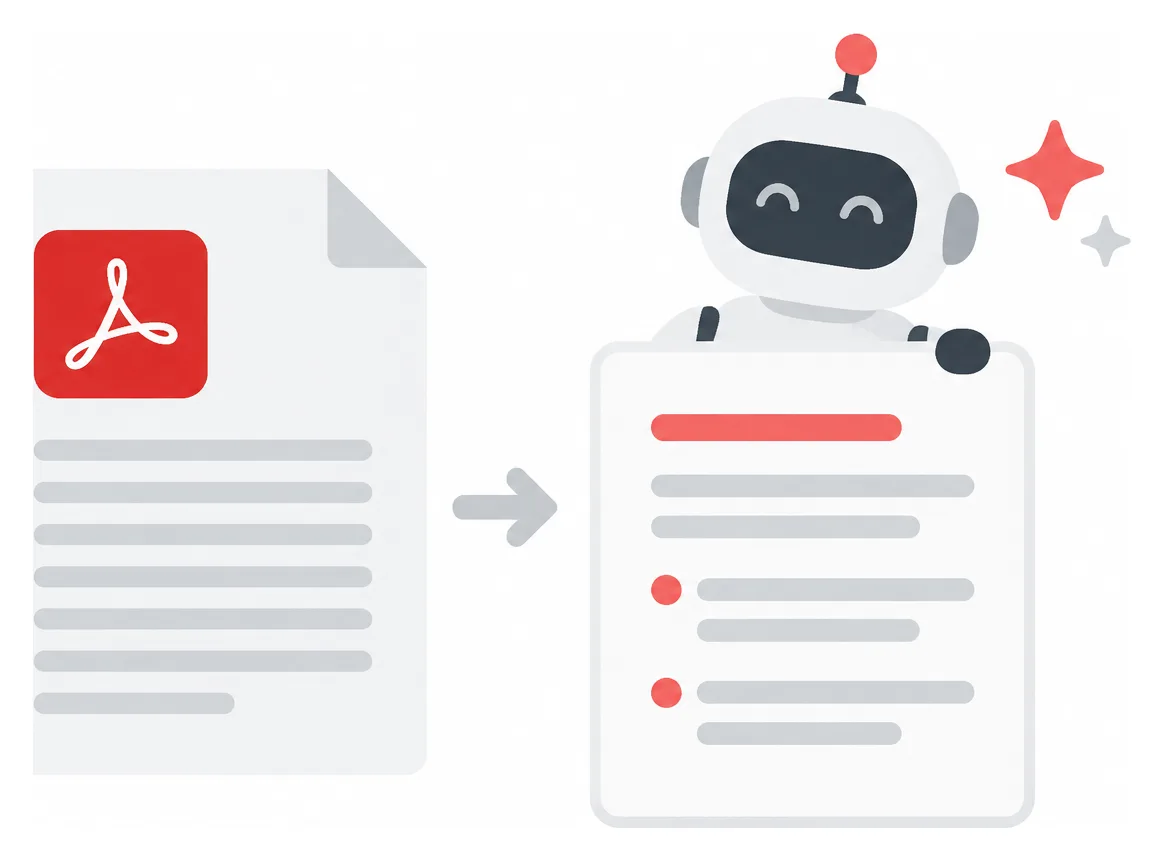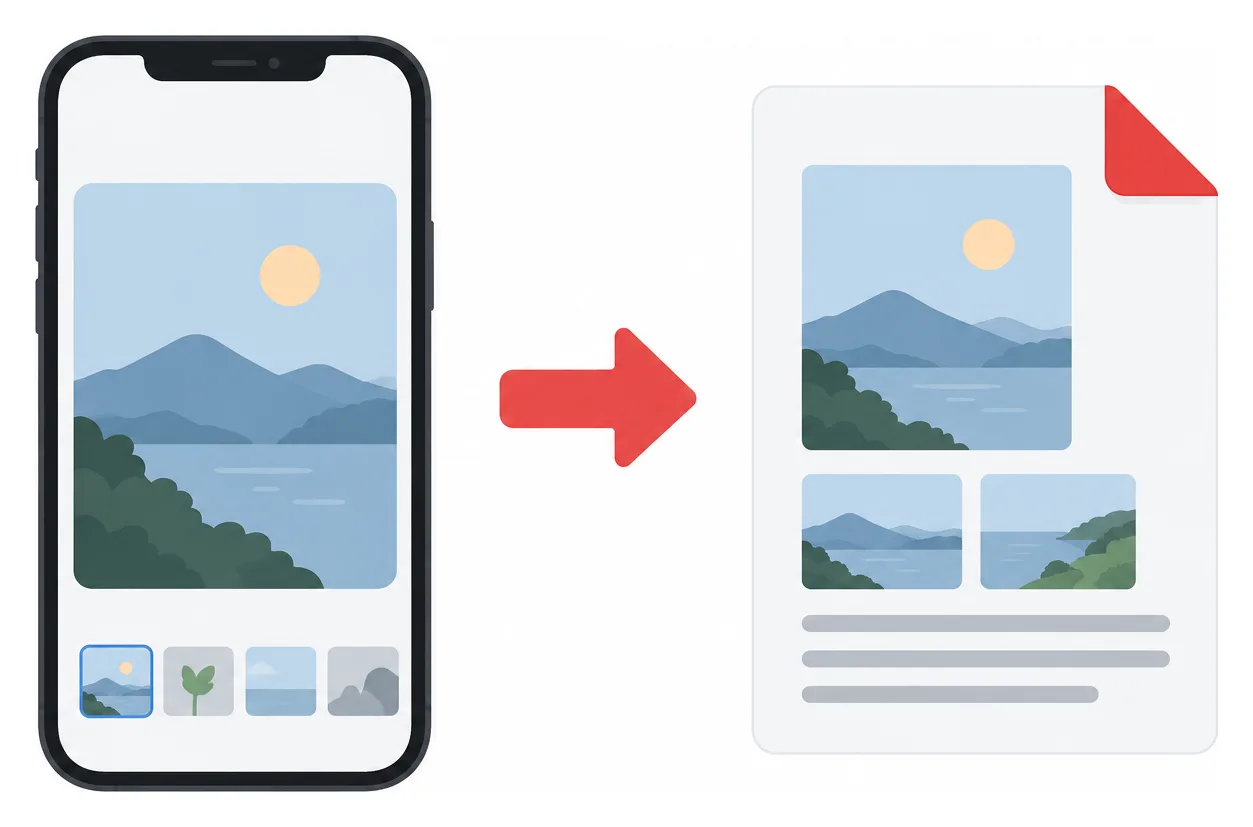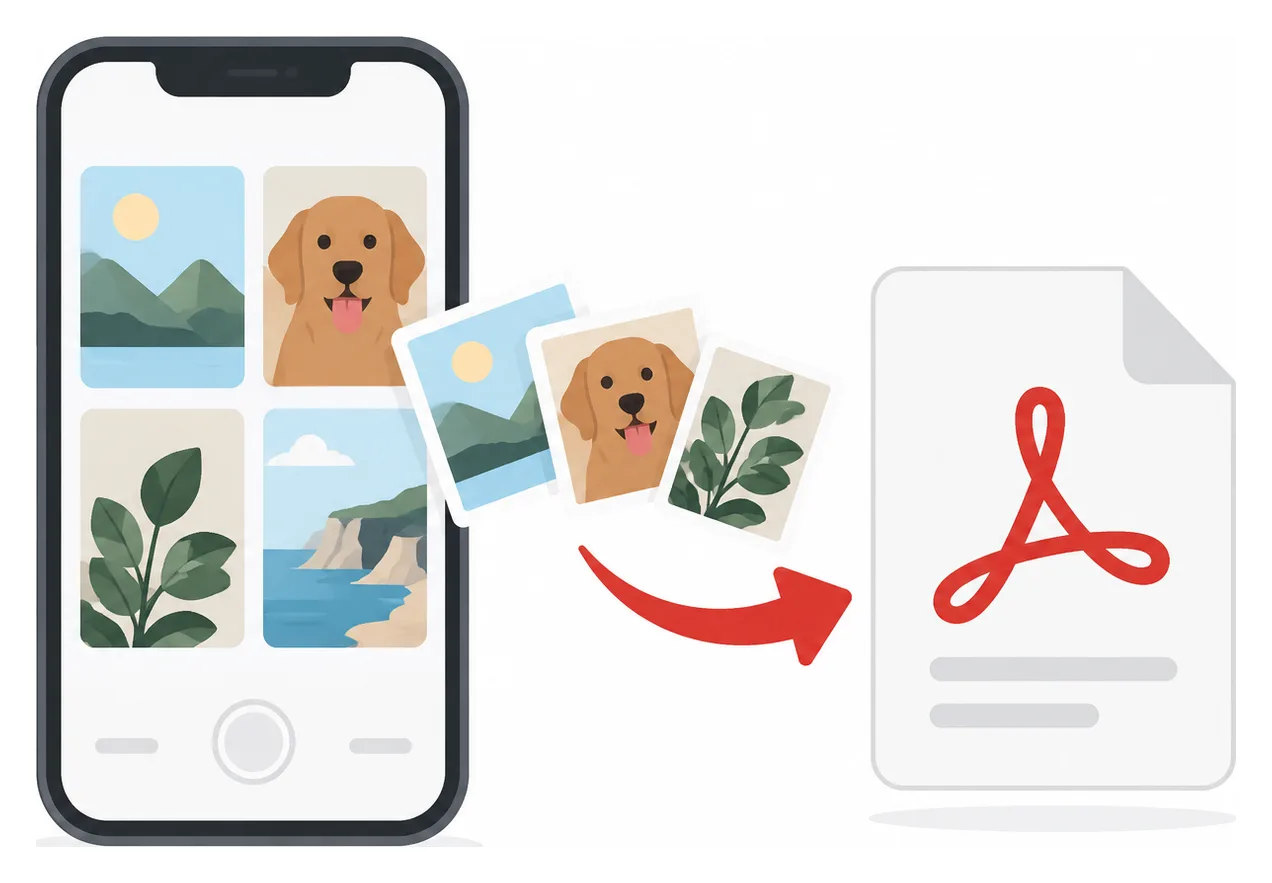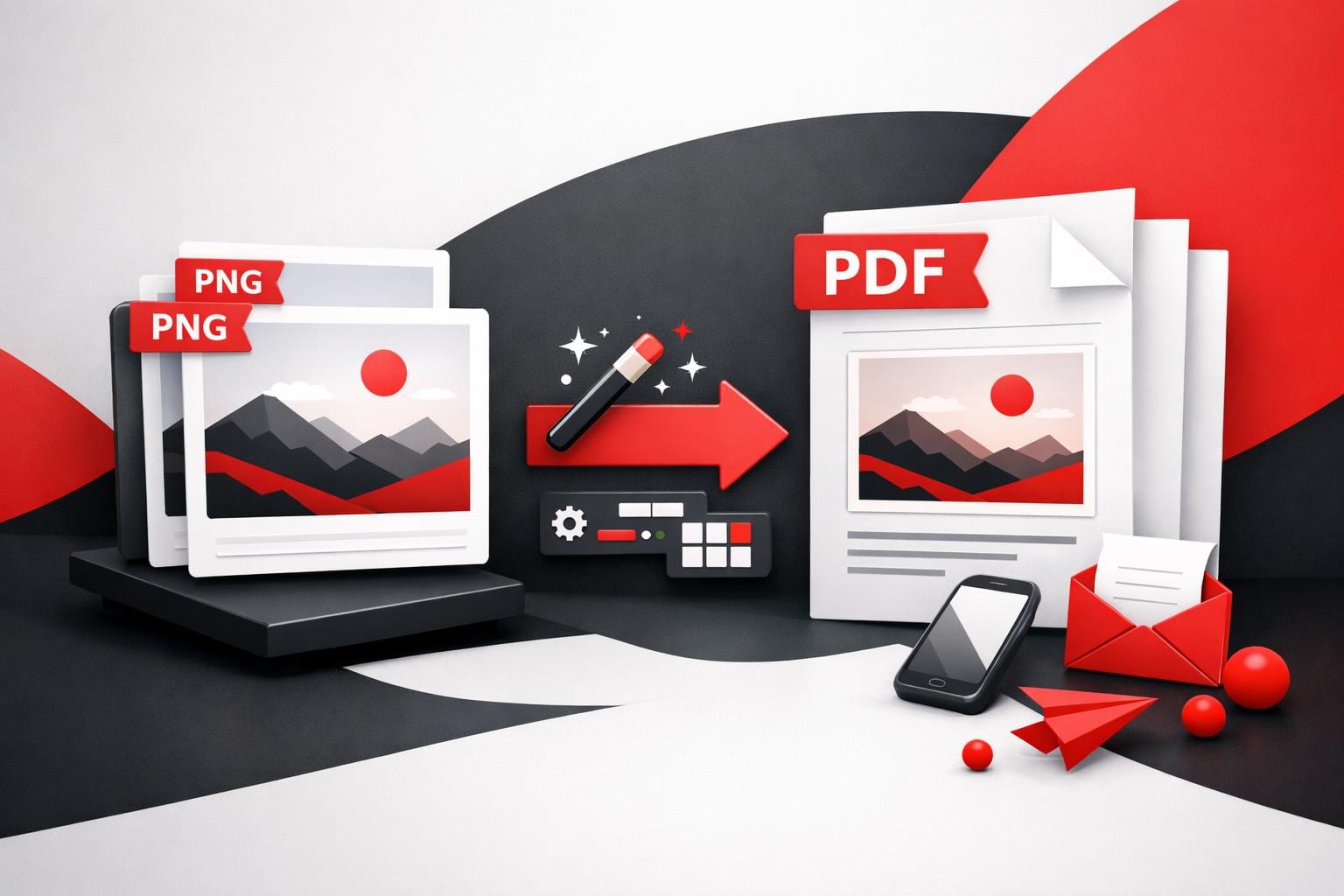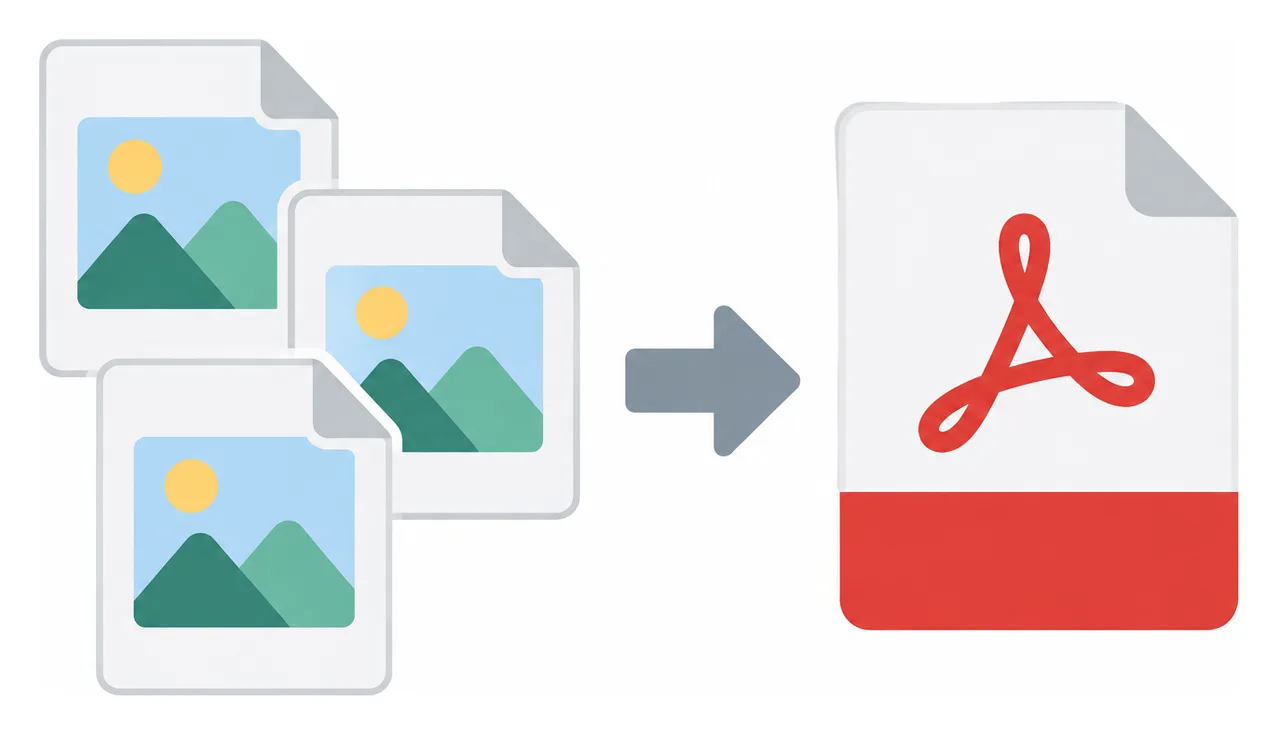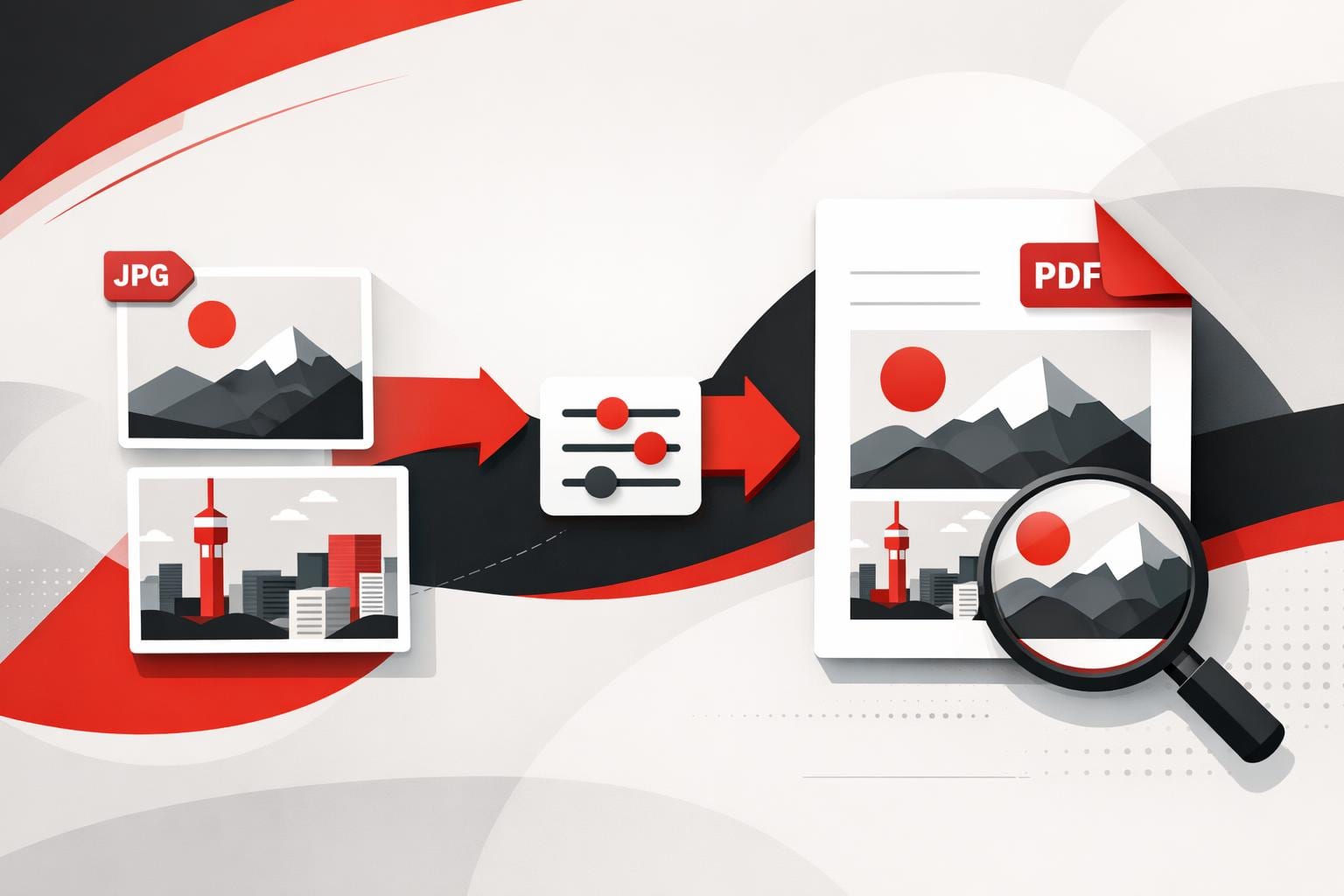
To convert a PNG to a PDF online, upload the image to an image to PDF converter, choose page size and layout settings, then export the PDF. The main payoff is simpler sharing and printing, plus the option to apply PDF security controls when the file contains sensitive content.
Why a PDF can be the smarter wrapper
PNG, short for Portable Network Graphics, is a raster image format designed for crisp visuals, lossless compression, and transparency, which is why it shows up everywhere in UI mockups and web graphics. The catch is that PNG is still “just an image”, so recipients often treat it like a photo instead of a document, which can mean awkward printing, inconsistent page sizing, and messy email threads with multiple attachments.
A PDF behaves more like a universal container. It typically opens the same way across devices, it is easier to store as a single multi page file, and it fits standard document workflows like page based review, printing, and archiving, including PDF/A for long term preservation.
Compatibility, one file that behaves like a document.
Control, predictable pages, margins, and orientation for printing.
Compliance, clearer paths to password protection and retention policies.
How to convert PNG to PDF online
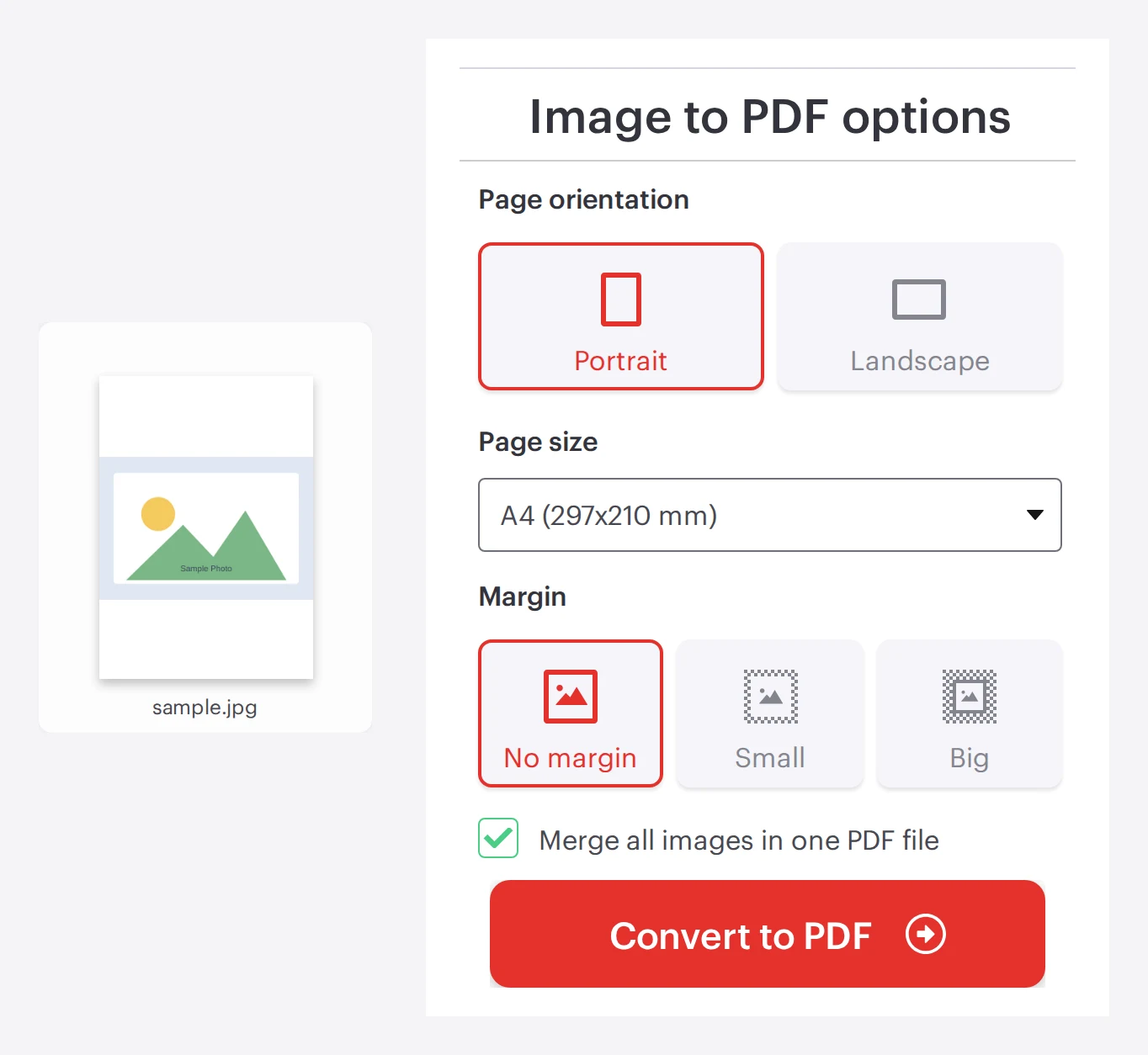
iLovePDF routes PNG conversions through its Image to PDF workflow, which is presented on the JPG to PDF tool page. Start with the tool, add the PNG, confirm layout settings, then generate the PDF.
Step 1 Upload the PNG, or drag and drop it into the tool.
Step 2 Pick Portrait or Landscape, based on how the image should sit on the page.
Step 3 Choose page size, typically Fit, A4, or US Letter.
Step 4 Set margins, then convert and download the resulting PDF.
Decision rule: if the PDF is meant for viewing and exact pixel framing matters, select Fit. If the PDF is meant for printing or signing, select A4 or US Letter and use a small margin to reduce the risk of edge cropping by printers.
Practical example: a designer needs stakeholder sign off on 12 transparent PNG UI screens. Export each screen as a PNG, upload all 12 images, enable merging into one PDF, set page size to Fit, then send a single PDF that reviewers can annotate and print without dealing with separate image files.
How many images can be converted at once
Batch conversion is supported, and the effective limits depend on the account tier. The pricing page lists Image to PDF limits for free and paid plans, and iLovePDF’s PNG specific guide describes the same conversion flow and the typical free versus Premium batch sizing. For details, see iLovePDF Pricing and the guide How to convert PNG images to PDF online.
Plan
Images per batch
Total upload size per batch
Free
Up to 20
Up to 40 MB
Premium
Up to 80
Up to 4 GB
The same Image to PDF converter is positioned to handle more than PNG. Supported inputs commonly include PNG, JPEG, TIFF, SVG, BMP, IMG, RAW, HEIC, and WebP, which matters when a workflow mixes screenshots, camera photos, and exported design assets.
Security and retention, what to check before uploading
Any online converter is a data transfer decision. According to iLovePDF, uploads are protected with end to end encryption, and files processed by the platform are automatically deleted within two hours, with additional detail in its security documentation. Reference: iLovePDF Security and Data Protection.
For sensitive documents, a PDF can also be locked after conversion. iLovePDF provides a dedicated password encryption tool at Protect PDF, and a step by step explanation in How to add a password to a PDF.
If an organization needs formal assurance, iLovePDF also publishes an ISO/IEC 27001 certificate PDF. Reference: ISO/IEC 27001 certificate.
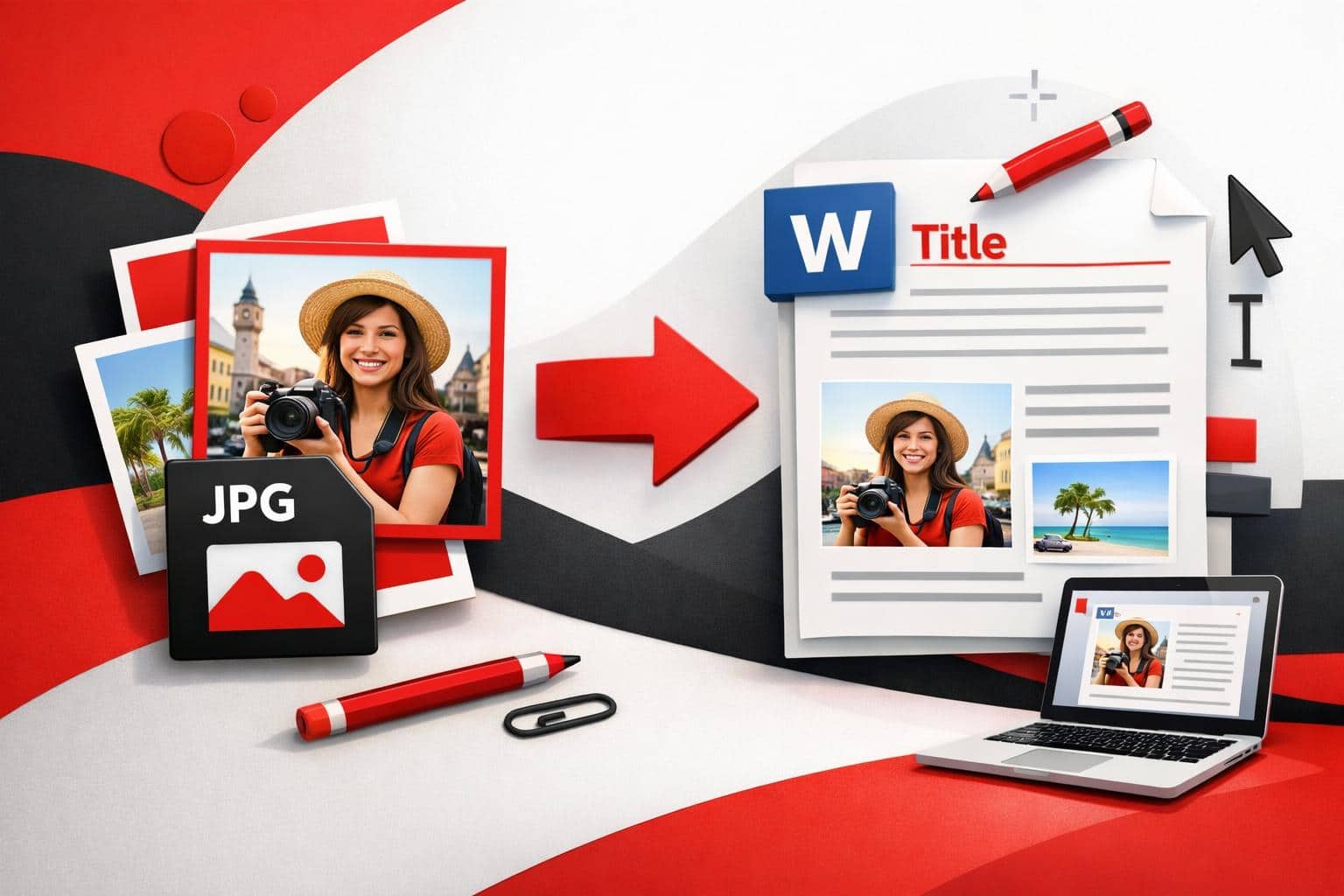
To convert a JPG into a clean, shareable PDF, the fastest path is an online converter that turns each image into a PDF page and optionally merges multiple photos into one file. PDF is usually the right output when the file must print predictably, look identical on any device, or travel as a multi-page document.
Why PDFs Become the Default for Sharing
PDF has become the unofficial “paperless paper” because it is designed to preserve layout. Fonts, spacing, and page breaks stay consistent across operating systems and apps, which is exactly what teams want when exchanging contracts, invoices, reports, and forms.
A JPG is a picture. A PDF is a document container, it can hold many pages and mix text, images, and vector elements. That difference is why “send it as a PDF” is common in business workflows.
JPG and PDF Are Built for Different Jobs
Neither format is “better” in general. Each is optimized for a different delivery goal, and that goal determines what users experience when the file is opened, printed, or uploaded.
What matters
JPG
PDF
Primary purpose
Fast photo sharing and web display
Reliable document viewing, printing, and archiving
Layout consistency
Depends on where the image is placed
Designed to keep pages stable across devices
Multi-page packaging
Not native, each image is a separate file
Native, one file can contain many pages
Print readiness
Often requires manual sizing and margins
Page size and margins are first-class settings
Searchable text
No, it is pixels
Yes if the PDF contains text, or after OCR
Typical file size behavior
Usually small for a single photo
Efficient for multi-page sharing, can grow with high-resolution images
A Simple Rule That Prevents Format Mistakes
Decision rule: if the recipient expects pages, printing, or a single attachment containing multiple images, choose PDF. If the goal is a single image for a website, chat, or quick preview, keep it as JPG.
A practical way to choose is the SPF test, a three-factor mini-model for file decisions.
Speed: pick JPG when load time and lightweight sharing dominate.
Print: pick PDF when page size, margins, and predictable output matter.
Filing: pick PDF when many images must travel as one organized document.
A Tidy Conversion Workflow That Scales
Many converters do the same core job: import images, map each image to a page, and export a PDF. The details that matter are page size, orientation, margins, and whether multiple images are merged into a single file.
Pick a page size that matches the destination, such as Fit, A4, or US Letter.
Choose margins, typically No margin, Small, or Big.
If a single combined file is needed, enable merging so the output is one multi-page PDF.
Convert, then download the result.
Concrete example that saves time
A finance team needs one attachment for an expense report. Eight phone photos of receipts can be uploaded together, set to US Letter with small margins, merged into one PDF, then emailed as a single file instead of eight separate JPGs.
When the goal is selectable text
Converting a photo into a PDF does not automatically create real text, it mostly changes the container. For searchable text, run OCR after conversion using an OCR tool such as iLovePDF OCR PDF, which attempts to recognize characters and embed a text layer.
Large batches and repetitive work
When volume becomes the problem, the differentiator is processing limits and batch handling. According to the company’s pricing page, Premium is listed at $9 billed monthly or $60 billed annually, equivalent to $5 per month, as of March 28, 2026, and it is positioned for unlimited processing and broader access across web, desktop, and mobile.
Online conversion is convenient, but it is still an upload. Before sending anything confidential, check the service’s retention window, encryption claims, account controls, and whether local processing is available.
Retention: the company states that files are deleted within two hours after processing, and signed documents can be retained for up to five years for legal reasons.
Encryption and access controls: the company describes HTTPS protection and end-to-end encryption, plus account features such as two-factor authentication.
Decision rule for sensitive files: if the document contains regulated or high-risk data, prefer local processing over a browser upload when possible. The company markets local processing via its Desktop app for workflows that prioritize keeping files on the device.
To turn a PDF into JPG images quickly, use the iLovePDF PDF to JPG tool and choose the output that matches the goal, full page images or extracted embedded pictures. The key decision is simple, convert pages when layout matters, extract images when individual assets matter.
Two output modes and when each wins
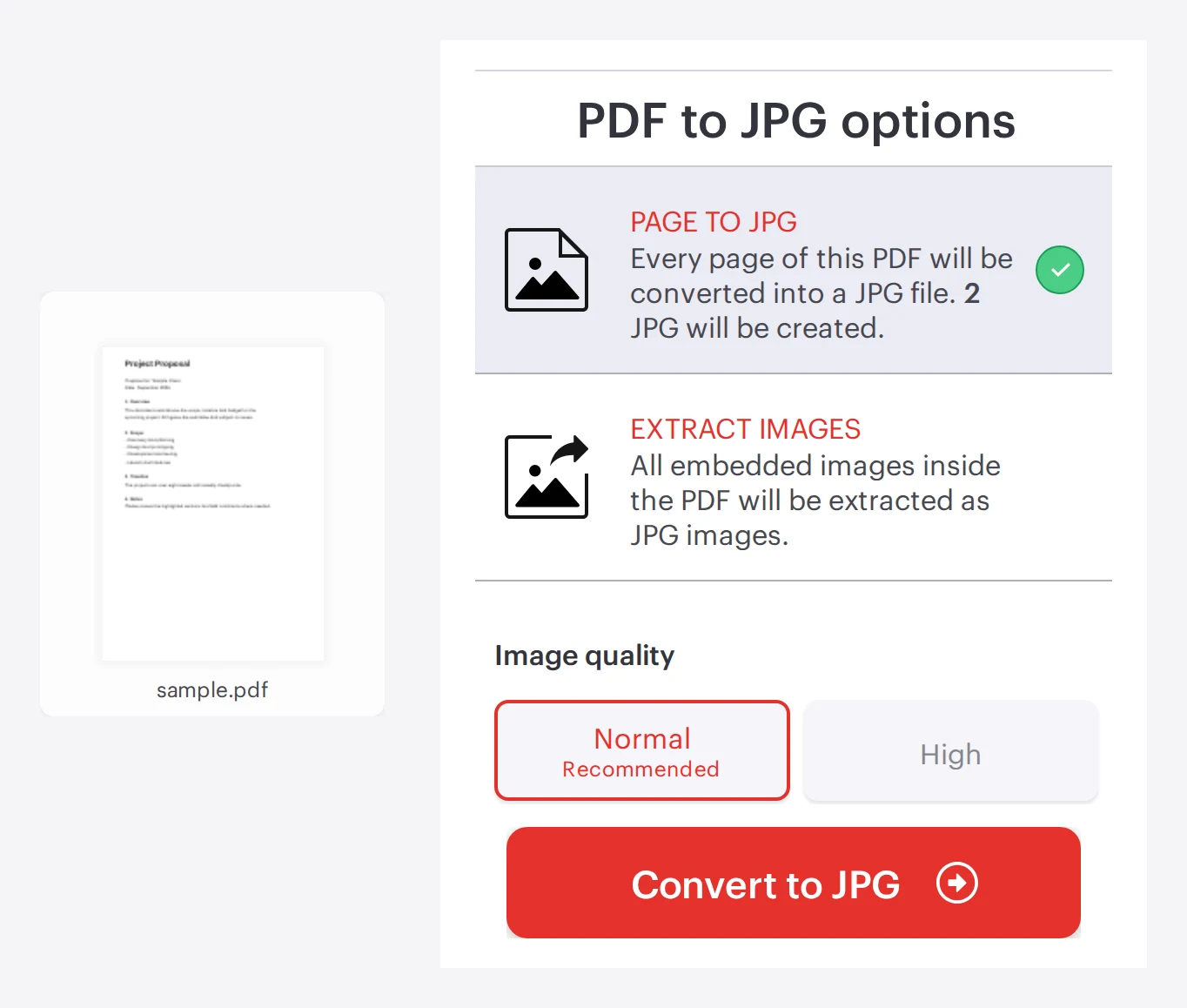
The tool offers two distinct results, and choosing the wrong one creates extra work later. One mode renders each PDF page as an image, the other pulls out the images that were already embedded inside the PDF.
Page to JPG, best for a pixel accurate snapshot of the page layout, including fonts, spacing, and annotations.
Extract images, best for retrieving reusable assets such as product photos, charts, and logos without turning every page into a screenshot.
Decision rule: if the JPG must look exactly like the PDF page when shared or posted, choose Page to JPG. If the goal is to reuse individual visuals in a slide deck, CMS, or image editor, choose Extract images.
Image quality can typically be adjusted, for example a normal setting for speed and a high setting when fine text or detailed diagrams must remain readable.
Practical example: a marketing team receives a 40 page PDF catalog and only needs the product photos for an ecommerce upload. Extract images is usually the cleanest path, Page to JPG would generate 40 page images that still need cropping.
A fast online workflow that stays simple
For most one off jobs, the web flow is the shortest route. Open the PDF to JPG page, add a file, choose the output mode, convert, then download the results.
Upload a PDF from a computer, or import from cloud storage when available.
Select Page to JPG or Extract images, then pick an image quality level if offered.
Convert, then download the generated JPG files.
This approach is designed for speed, but it still involves uploading the document to a remote service, which can be a deal breaker for restricted files.
Web vs desktop vs mobile in one view
Platform choice is less about features and more about operating constraints, such as offline work, bulk processing, or company rules for sensitive documents. A quick way to decide is the three part lens below.
Speed, how fast the job completes for the file sizes involved.
Control, how much the workflow depends on browser limits and network conditions.
Compliance, whether the document can be uploaded to a third party service at all.
Option
Where it runs
Best fit
Typical tradeoff
Web tool
Browser
Quick conversions and sharing
Depends on upload speed and policy limits
Desktop app
Local computer
Offline work, heavier batches, tighter local handling
Requires installation and device management
Mobile app
Phone or tablet
On the go conversion and quick extraction
Small screen workflows and mobile storage constraints
For offline or more controlled handling, the company promotes iLovePDF Desktop for Windows and macOS. For on the move work, iLovePDF Mobile covers similar conversion choices from a phone.
Security basics that matter before uploading
For any online converter, the risk question is not whether conversion works, it is what happens to the file during processing and afterward. According to iLovePDF security and data protection documentation, files are protected with encryption during transfer and processing, and processed files are automatically deleted within two hours.
That is useful for routine documents, but highly sensitive files still require a policy check. When a document cannot leave a device due to contractual or regulatory rules, a desktop workflow is typically the safer operational choice.
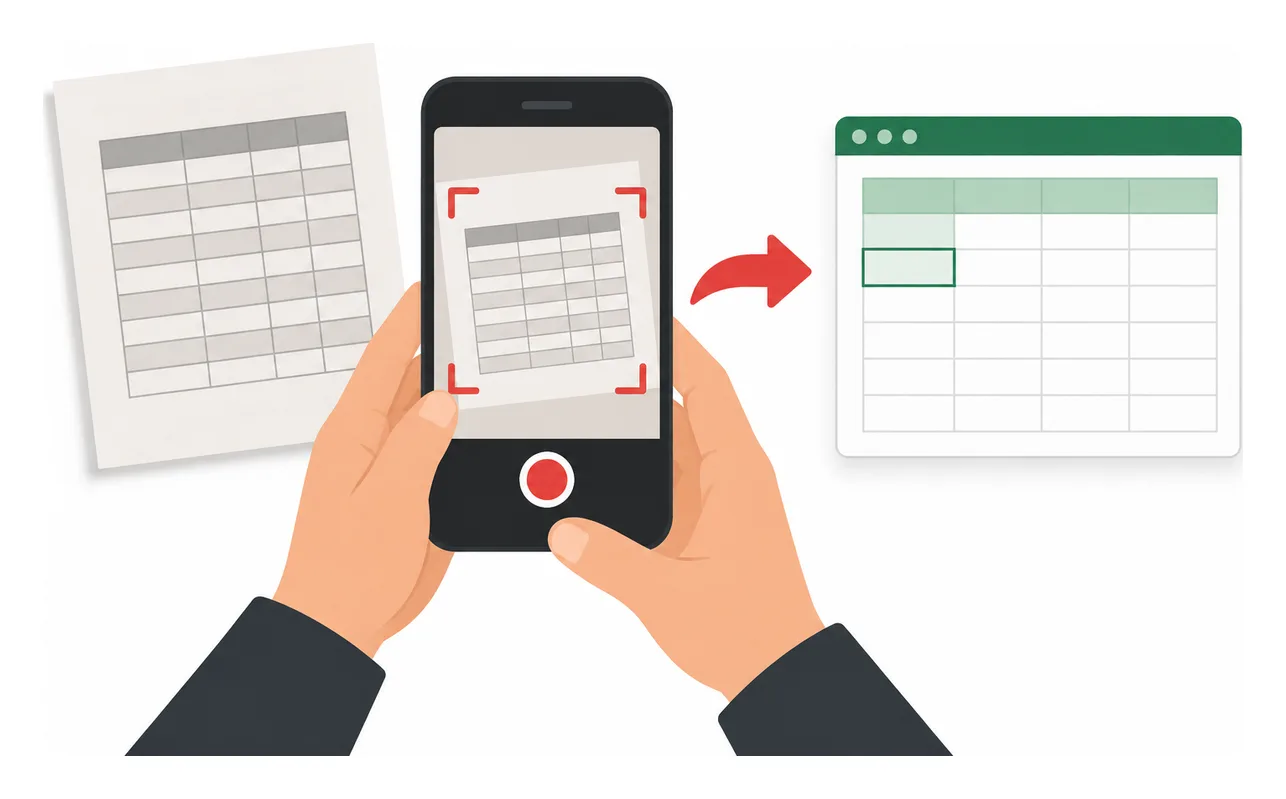
To convert PDF tables into usable Excel data, pick a tool that preserves table structure, then enable OCR only when the PDF is a scan. With the right workflow, the output becomes editable rows and columns instead of a grid that collapses into random cells.
Why PDF to Excel conversions often get ugly
Excel expects explicit structure, defined cells, consistent delimiters, and predictable headers. Many PDFs contain none of that, they store text as positioned fragments on a canvas, not as a real table. A converter can easily misread spacing as columns, merge adjacent fields, or drop headers when they are visually aligned but not logically grouped.
Scanned PDFs are a harder case because they are effectively images. Without text recognition, the best any converter can do is paste a picture into a spreadsheet, which looks right but behaves wrong. Sorting, filtering, and formulas fail because there is no real data layer.
Three signals predict whether a conversion will stay clean:
Quality: sharp scans, high contrast, straight pages.
One off documents when accuracy matters more than speed
Time cost scales fast with page count
What OCR is, and why it changes everything
OCR, short for Optical Character Recognition, turns pixels into characters. It detects letters and numbers inside scanned pages, then rebuilds them as editable text. For table extraction, OCR has a second job, it must infer where rows and columns begin and end, which is why scan quality matters as much as the software.
Decision rule: if text can be highlighted in the PDF viewer, OCR is usually unnecessary, and often slower. If nothing can be selected, OCR is the difference between a spreadsheet full of data and a spreadsheet that only contains an image.
How to convert PDF tables to Excel with iLovePDF
iLovePDF offers an online PDF to Excel converter at PDF to Excel. The page exposes two modes, standard conversion for selectable text, and an OCR option for scanned pages, which is marked as Premium. It also includes layout choices, such as producing one worksheet or splitting content across multiple sheets.
A practical example: a finance team receives 30 scanned supplier invoices each month, each invoice has a totals table that must land in Excel for reconciliation. Running OCR during conversion produces editable amounts that can be summed and validated, instead of a pasted screenshot that cannot be checked with formulas.
If the document includes scanned pages, choose the OCR option.
Pick a layout option, one sheet is better for single tables, multiple sheets helps when the PDF contains repeated page level tables.
Convert, then download the Excel file and spot check headers, numeric columns, and row boundaries.
For readers who want to understand the conversion engine behind the tool, the converter is described as powered by Solid Documents on the same page, and the vendor’s platform is documented at Solid Framework.
How to get cleaner tables with less rework
Start by improving the input. A slightly better scan can save more time than any post conversion cleanup, especially when OCR is involved. If the source is a photo, re scan it flat, increase contrast, and remove shadows near table borders.
Use sharp inputs: OCR accuracy drops fast when characters blur or the page is tilted.
Keep structure: tables with consistent grid alignment convert more reliably than irregular layouts with nested blocks.
Avoid screenshots: they often downsample text and remove the subtle spacing cues converters use to infer columns.
Verify numbers: after conversion, confirm currency symbols, decimal separators, and negative values, then run a quick sum check against the PDF totals.
When OCR is the right move, and when it is not
OCR is a targeted fix, not a default setting. It shines when the PDF is a scan, or when the text layer is missing or incomplete. It is less helpful when the PDF is already digital, because OCR can introduce recognition errors that never existed in the original.
Use OCR for printed documents that were scanned, and for receipts captured by camera.
Skip OCR when the PDF contains selectable text, especially for financial statements and reports exported from accounting systems.
If only some pages are scans, consider splitting the PDF first, then apply OCR only to the scanned subset, and merge results in Excel.
Security and retention, what the company states
File handling matters because table extraction often involves invoices, budgets, or customer records. The company’s legal and privacy hub states that uploads are encrypted in transit using HTTPS, and that processed files are deleted from servers within two hours, and it also references ISO/IEC 27001 certification. Those statements are summarized on Legal & Privacy and expanded under Security and data protection.
A simple safety filter for sensitive spreadsheets is to treat online conversion like sharing a document with a vendor. If the table contains regulated personal data, consider redacting identifiers before upload, or use an on device workflow that keeps documents local. For policy details, the company links to its privacy policy from Privacy Policy.
To convert a PDF into an editable PowerPoint deck, upload the file to a PDF to PPTX converter, download the PPTX, then refine it in PowerPoint. This approach pays off when the PDF already resembles slides, because it turns static pages into reusable layouts instead of forcing a rebuild from scratch.
Convert a PDF to PowerPoint in minutes
The basic workflow is straightforward, the converter creates a .pptx file, then PowerPoint becomes the editing surface. The iLovePDF web tool is here: PDF to PowerPoint.
Upload the PDF: Select a file from the computer, or use drag and drop, cloud options may also appear depending on setup.
Run the conversion: Start the process, the output format is PPTX.
Example: A 14 page project update arrives as a PDF on Monday morning, converting it to PPTX can produce a slide per page, then the deck can be tightened by deleting filler pages, rewriting titles, and replacing dense paragraphs with two charts and three bullets per slide.
Edit the converted slides like a normal deck
After conversion, the file opens as a standard PPTX, which means most teams can keep using familiar PowerPoint workflows, themes, master slides, and speaker notes. If the PDF contained real text, that text often becomes editable boxes rather than a flat screenshot.
When the source PDF is a scan, the converter may rely on OCR, which is text recognition that attempts to rebuild words from pixels. OCR can be good enough for editing, but it is more error prone than converting selectable text.
Know upfront if the layout will survive
PDF is a fixed layout format, PowerPoint is a slide canvas, so every converter is doing reconstruction. Results vary, especially on complex documents, so it can be smart to try a second converter when precision matters.
A practical way to predict quality is the S3 rule, which classifies PDFs by three signals:
Selectable text: If text can be highlighted in a PDF viewer, it is more likely to become editable slide text.
Simple structure: Clean columns and clear headings convert better than multi layer designs, tables packed with tiny text, or heavy footnotes.
Stable styling: Standard fonts and straightforward shapes are safer than rare fonts, fancy effects, and intricate vector artwork.
Decision rule: If two of the three S3 signals are weak, plan for a hybrid workflow, convert to get a starting layout, then manually rebuild the most important slides instead of fighting dozens of small formatting glitches.
Choose web, mobile, or desktop based on where the work happens
iLovePDF offers three common routes depending on whether the priority is speed, mobility, or keeping files local. The web route is usually the fastest, the desktop route is the privacy first option, and mobile is for quick turnarounds.
Option
Best fit
Internet needed
Typical flow
Web converter
Fast one off conversions, email to slides
Yes
Upload PDF, convert, download PPTX
Mobile app
On the go edits, quick share to teammates
Usually
Import PDF, convert, open PPTX in PowerPoint
Desktop app
Offline processing, stricter data handling
No for conversion tasks
Convert locally, then edit in PowerPoint
Mobile and desktop entry points: iLovePDF Mobile and iLovePDF Desktop. For lightweight edits without a full desktop install, PowerPoint can also run in a browser, Microsoft describes the starting point here: PowerPoint for the web guide.
Understand retention and encryption before uploading
Any online converter creates a temporary copy of the document during processing, so security posture matters more than marketing claims. According to iLovePDF, files are protected with encryption during handling and are automatically deleted within two hours, and the company highlights GDPR alignment and ISO/IEC 27001:2017 certification. Details are documented on iLovePDF Security & Data Protection.
For sensitive documents such as contracts, customer lists, medical records, or pre earnings material, the safest operational choice is usually local processing, so an offline desktop tool is often the better default even if it takes an extra minute to set up.
This iLovePDF screen combines a basic “page not found” error with a cookie consent prompt. In plain terms, the link being opened does not resolve to a real page, and the site is asking permission to use personal data from the device for advertising, measurement, and product research, with controls available in its cookie settings.
When a link fails, what it means
A “page not found” message is a routing problem, the browser asked for a URL that the server cannot serve. The most common causes are a typo in the address, an outdated bookmark, or a link that was copied with missing characters.
The same screen can also surface connectivity warnings. If the page hints at an internet connection issue, the URL might be correct but the session is failing due to a captive Wi Fi portal, a blocked script, a strict privacy extension, or a transient network error.
Decision rule for fast troubleshooting
If the address bar contains a long path or tracking parameters, first retry with the clean homepage link. If the homepage loads but the specific page does not, assume the URL is wrong or retired, then navigate from the tool index instead of guessing the path.
Start point, use iLovePDF home to confirm the site is reachable.
Fallback, open the user guide to reach tools through documented flows.
Escalation, report persistent breakage through the contact form.
Where to find the PDF features listed in the menu
The navigation on the error screen is effectively a compact map of the product. It points to a browser based toolbox for common PDF jobs, plus separate desktop and mobile apps, and related services for images, e signing, and APIs.
A quick market model to understand the stack
The easiest way to categorize what is shown in that header and footer is a three lane model: Web utilities for fast one off tasks, client apps for repeat workflows and offline friendly use, and a developer platform for automation.
Web utilities, merge, split, compress, convert to and from Office and images, rotate pages, add watermarks, add page numbers, crop, repair, and OCR.
PDF security tools, unlock, protect, sign, redact, and compare.
Suppose a shared link to a specific tool page fails, but the goal is simply to reduce upload size for email. Open the homepage, select Compress PDF from the tool list, upload the file, then download the smaller version. This avoids relying on a brittle deep link.
What the consent banner is asking for in plain English
The consent message on the page draws a sharp line between file content and tracking data. It states that personal data, not the uploaded documents or account details, may be processed for ad personalization, performance measurement, audience research, and service development, and it highlights storage and access on the device through cookies and identifiers.
The banner also signals scale and sharing: it references sharing with 141 TCF vendors and 63 advertising partners. It further notes that some parties may rely on legitimate interest, with the option to object via preference controls.
Banner purpose
What it typically involves
Practical implication
Personalised advertising and content
Using identifiers and browsing signals to tailor ads or on site promotions
More targeting, more data sharing across ad partners
Advertising and content measurement
Counting views, clicks, conversions, and attribution across sessions
Better analytics, more persistent tracking across visits
Audience research and services development
Aggregated behavior analysis to improve features and UX
Product improvement, but still a data collection channel
Store and or access information on a device
Cookies, unique identifiers, and device level signals
Enables remembering settings, and can enable cross site tracking
Two buttons usually frame the choice: a broad “accept all” path, and a “manage options” path that is slower but more precise. For readers who care about minimizing tracking, the second path is the meaningful one.
How to manage consent and reduce tracking
The screen points to cookie controls inside the help area. The most direct route is the cookies page, which sits under the legal and privacy hub at Legal and Privacy and Cookies.
Practical steps that do not require guesswork
Adjust consent, use the manage options flow, then disable ad personalization first, before fine tuning measurement and research.
Revisit later, consent can be changed or withdrawn from the cookie page, not only at the moment the banner appears.
Check policies, review Privacy and Terms for the formal definitions behind the banner language.
Use a different execution mode for sensitive work, for documents that should avoid browser tracking surfaces, consider the desktop route at iLovePDF Desktop and review the security positioning at Security.
For most users, the simplest privacy optimization is to reject ad personalization while keeping only what is needed for the site to function. The service remains usable, and tracking intensity typically drops without turning the session into a troubleshooting project.
Finally, the footer indicates the brand and date context, including a 2026 copyright line and links to business and education paths. Those details matter because they hint at why consent banners are prominent, the product is monetized through a mix of subscriptions, business plans, and advertising supported free usage.
Cropping a PDF is the fastest way to remove oversized margins, scanner borders, and uneven framing so a document reads and prints cleanly. With the company’s Crop PDF tool, the job typically takes a minute, drag a box, choose whether to apply it to one page or all pages, then download the updated file.
Why cropping fixes messy PDFs
Most “messy PDF” complaints come down to framing, not content. Exports from slides, forms, and mixed-source merges often arrive with inconsistent whitespace, and scans frequently include shadows or dark edge artifacts.
Sharper reading, less empty area means the eye lands on text and charts faster.
Cleaner printing, better balance on the page can reduce awkward positioning and wasted paper.
More professional sharing, clients and colleagues judge polish quickly, even for internal docs.
Mini model: the “3F test” helps decide the crop, Focus on the content, Fit for printing, Friction for sharing. If cropping improves at least two of the three, it is usually worth doing.
This guide reflects the tool behavior described on iLovePDF pages as of March 13, 2026.
What cropping really changes in a PDF
Cropping adjusts the visible page area, it is essentially a new window onto the same page. When the file is opened, viewers show only what fits inside that window.
That is why cropping is great for removing margins, but risky as a privacy shortcut. Hidden content can still exist in the file structure, so anything confidential near an edge should be handled with a true redaction workflow, not a tighter frame. For purpose-built removal, the company also offers a separate Redact PDF tool.
Decision rule: if the goal is layout, crop, if the goal is confidentiality, redact, and verify the output before sharing.
A quick browser workflow that actually works
The simplest flow is the web-based Crop PDF tool. It runs in the browser and is designed for quick one-off fixes as well as long documents, because the crop can be applied to a single page or across the entire file.
Upload the PDF from a device or cloud source.
Draw the crop by dragging a selection box over the area to keep.
Set the scope, choose Current page when only one page is off, or All pages for consistent trimming.
Process and review, check the result carefully, then download.
Practical example: a 40-page scanned lease often has dark scanner borders on only a few pages. Crop one representative page first, then use “All pages” only if the framing is consistent after checking several pages. If alignment varies, repeat with “Current page” for the outliers to avoid cutting initials or signatures.
How to avoid the classic overcrop mistake
The most common failure is cropping too aggressively. Text near the edge can look fine on screen, then get clipped by printing or by a different PDF viewer’s scaling settings.
Keep a safety buffer, leave a thin margin around paragraphs, charts, stamps, and signatures.
Spot-check multiple pages, scans and merged documents can drift a few pixels from page to page.
Review with intent, if any personal data sits near the edge, confirm it is handled properly before distribution.
The Crop PDF interface itself warns users to review the final result before sending private information, a reminder worth treating as policy rather than suggestion.
When a different tool beats cropping
Cropping is a framing tool, not a general editor. It will not rewrite text, remove content from the document’s internals, reorder pages, or guarantee privacy compliance.
Goal
Best approach
Why it fits
Helpful tool link
Make pages look cleaner
Crop
Removes distracting whitespace and scanner edges from view
For readers who need a strict compliance-oriented redaction walkthrough beyond a specific tool, the U.S. courts publish practical guidance on doing redactions correctly, for example Redacting with Acrobat X.
After cropping, common follow-on steps include combining cleaned documents with Merge PDF, making scans searchable via OCR PDF, or checking changes with Compare PDF.
Security and pricing questions, answered
Is it safe to crop a PDF online? Safety depends on the platform and on disciplined review. According to the company’s Security and data protection information, uploads use HTTPS and processed files are automatically deleted within two hours, and the FAQ describes a similar two-hour retention window for downloads.
Can cropping be free? The cropper is publicly accessible and designed for browser-based use, although some platforms reserve advanced limits or batch capacity for paid tiers. When cost matters, the quickest check is whether the tool completes the job without requiring an account on the first run.
Will cropping reduce file size? Sometimes, but it is not reliable. If the document is heavy because of large embedded images, follow with compression using Compress PDF.
Can multiple pages be cropped at once? Yes, the cropper provides “Current page” and “All pages” modes, which is useful for long PDFs where consistency matters.
Will formatting change? The visible frame will, but the content is not rewritten like it would be in a document editor. That makes cropping safe for layout cleanup, but insufficient for text edits or guaranteed deletion.
iLovePDF’s Regional File Processing adds a practical control knob, choosing the country or region where PDF jobs run, instead of leaving routing decisions to the vendor. The goal is simpler compliance conversations, faster turnaround for distributed teams, and clearer answers during security reviews. According to iLovePDF, files are automatically deleted within two hours after processing.
The new geography of PDF processing
Online PDF tools used to feel locationless, a file went in, a file came out. In 2026, that illusion breaks quickly once legal teams, customers, or regulators ask where documents are handled.
According to iLovePDF’s product announcement, Regional File Processing is designed to let account holders select the processing jurisdiction directly, which turns a vague vendor answer into a setting that can be documented.
A three factor lens for modern document tools
Location matters because it touches three pressures at the same time.
Law, the rules that govern cross border data handling.
Latency, the delay added by distance and network hops.
Trust, the ability to answer buyer questions without hand waving.
What stakeholders ask
If the vendor routes globally by default
With a chosen processing region
Which jurisdiction covers processing?
The answer may depend on routing and sub processor choices at runtime.
A specific region can be selected and referenced in internal controls.
Will performance hold under batch workloads?
Long distances can slow uploads, downloads, and repeated API style requests.
Processing closer to the team typically reduces delays and improves responsiveness.
Are files retained after the job completes?
Retention policies vary widely and are often buried in help pages.
iLovePDF states files are deleted automatically within two hours, with additional controls described in its security documentation.
Compliance answers that auditors accept
Data residency is the requirement to keep data inside a defined jurisdiction, usually because contracts, regulations, or internal policy demand it. Regional processing is not a legal shortcut, but it helps align operational reality with policy language.
Why this is showing up in vendor questionnaires
The same set of questions keeps reappearing across industries, where is the document processed, which legal framework applies, and what prevents unnecessary cross border exposure. iLovePDF frames the feature as a way to support obligations tied to frameworks such as GDPR in Europe, PDPL in parts of the Middle East, and APPI in Japan.
Documentation that matters in procurement
Two pages tend to carry the most weight in reviews. The first is security controls, the second is the data processing agreement.
For teams that need proof of a formal security management system, iLovePDF also publishes an ISO/IEC 27001 certificate.
Where speed gains actually come from
Compliance is often the headline, but distance is the quiet tax. Every upload, conversion step, and download is sensitive to round trip time, and high volume workflows amplify small delays.
A concrete example from a legal workflow
iLovePDF describes a legal operations team in Mumbai processing around 300 contracts per week, with typical files in the 12 MB to 20 MB range. When jobs are routed through a far away region, the experience becomes less responsive, especially during batch operations.
Even modest latency improvements, such as 40 ms to 100 ms per request, can add up across hundreds of documents and multiple steps per document.
Workloads that feel the difference most
Merging and splitting large sets of PDFs.
Compression runs on heavy reports and image rich files.
Archival conversions, especially when converting to PDF/A.
OCR on scanned documents, which is compute intensive and sensitive to throughput limits.
For OCR heavy environments, an explainer like iLovePDF’s OCR overview helps set expectations, OCR adds a text layer by analyzing page images, which naturally costs more time than basic reorganizing or merging.
What buyers want to hear in procurement
Regional selection is ultimately a transparency feature. It replaces a hand waved “it depends” with a selectable setting and a short, repeatable story security teams can validate.
What iLovePDF says happens to files
According to iLovePDF, documents are not stored permanently, and files processed on the platform are deleted automatically within two hours. The security page also mentions an option to manually delete files from the download screen. Details are described in the company’s security documentation.
One nuance matters for e signature workflows. The same security documentation states that signed documents can be retained for up to five years to meet legal requirements, which is a different lifecycle from standard conversion jobs.
Redaction still matters before anything crosses a border
Regional processing reduces cross border exposure, but it does not reduce the sensitivity of what is inside the document. When sharing outside the organization, the safest move is often removing sensitive fields first with true redaction, not visual covering. A walkthrough is available in iLovePDF’s redaction guide.
Which teams benefit most
Regional processing is most valuable where document handling is frequent, regulated, or externally scrutinized.
Legal and compliance, contracts, NDAs, HR files, and regulated records often come with residency requirements.
Finance, invoices, audits, and statements attract tighter controls and formal vendor reviews.
Multinational teams, distributed offices benefit when each site runs jobs in a nearby region under an approved jurisdiction.
Security focused professionals, even occasional processing becomes easier to justify when location and retention are clear.
How to choose the right region fast
Regional File Processing is set in account profile settings, and iLovePDF notes that workspace owners can influence how teams process files.
A clear decision rule
If policy or contract language requires a specific jurisdiction, choose that jurisdiction first, then validate it against the organization’s legal guidance.
If there is flexibility, choose the closest region to the highest volume users, then measure time saved on a representative weekly batch.
Workflow coverage and one important exception
iLovePDF positions the setting as applicable across most tools, including merge, compression, Office conversions, split workflows, and e sign processes. The product announcement notes that Smart Split is processed in Europe, even when other tools follow the selected region.
For structured archiving, pairing regional control with PDF/A conversion can tighten governance by design. The conversion tool is available at PDF to PDF/A.
Quick answers for security questionnaires
Does selecting a region keep files stored there?
iLovePDF describes regional selection as a processing location choice, not a storage commitment. The company states that files are deleted automatically within two hours after processing, and that users can manually delete files from the download screen.
Can different teams run different regions?
iLovePDF indicates that regional preferences can apply at the workspace level, which supports different jurisdictions for different offices or business units.
Is security weaker in some regions?
iLovePDF states that regions follow ISO/IEC 27001 aligned practices, and publishes security details and an ISO certificate through its documentation.
Will the speed difference be noticeable?
The impact is largest when the current processing location is far from the team, or when work involves large files, OCR, or repeated batch conversions where small delays compound.
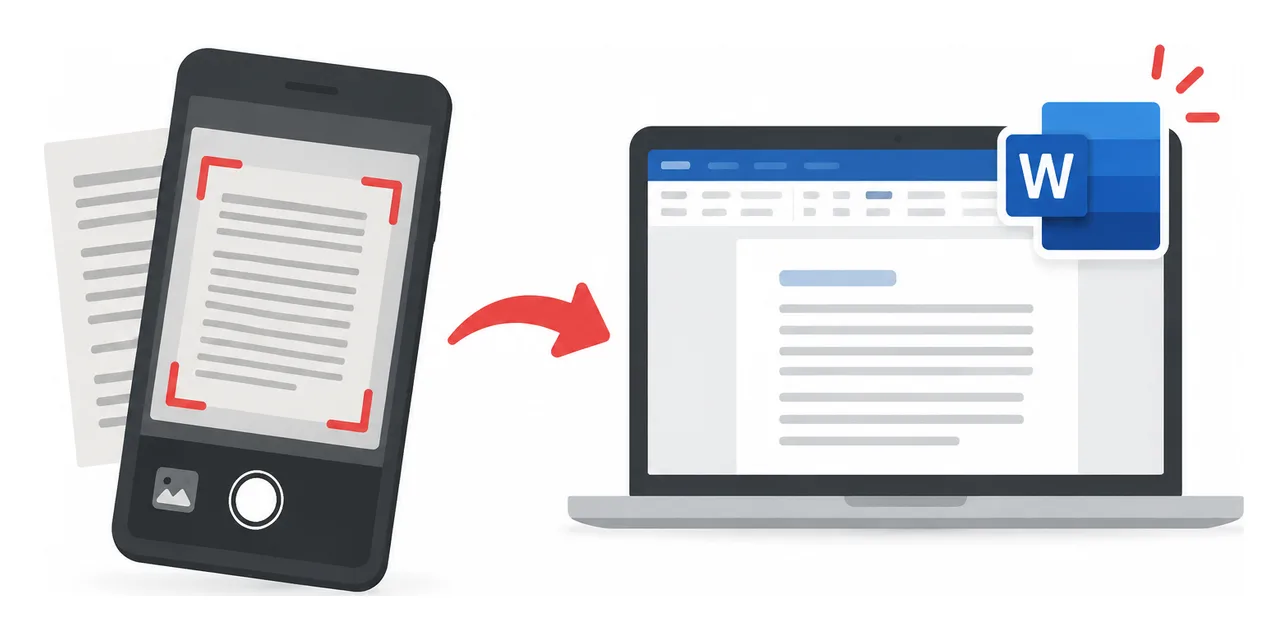
To turn a PDF into an editable Word file for free, use an online converter for quick changes, or a desktop app when the file should stay on the computer. If the PDF is a scan, OCR is needed to convert the picture of text into real, editable characters, and that step is often a paid add on.
Choosing a conversion route that fits
A PDF is designed to display consistently, a Word document is designed to be edited. Converting between the two is a reconstruction job, which means results depend on how the PDF was created and how complex the layout is.
Text-based PDF, text can be selected with a cursor, standard conversion usually works well.
Scanned PDF, text behaves like an image, OCR is required to make it editable.
Layout-heavy PDF, lots of columns, tables, or positioned elements, expect cleanup in Word after conversion.
Decision rule, if the text in the PDF cannot be highlighted and copied, plan on OCR. If the file contains sensitive information and uploading is not acceptable, prefer an offline workflow.
Approach
Best at
Typical tradeoff
Web converter
Quick, single file conversions from a browser, including imports from cloud storage
Requires uploading the document
Desktop converter
Keeping processing on the local machine, useful on restricted networks
Needs installation and local setup
OCR mode
Making scanned pages editable by detecting characters from images
Accuracy depends on scan quality and may require a Premium plan
For comparison, Microsoft Word itself can also open many PDFs and attempt a conversion, which is convenient when Word is already available, but complex formatting can shift. See Microsoft’s guidance on opening PDFs in Word.
The fastest online conversion workflow
The browser option is built for speed, open the converter, upload a file, convert, download. iLovePDF offers a dedicated page for this workflow at PDF to Word.
Select a PDF from the device, or import from Google Drive or Dropbox.
If the file is not scanned, keep OCR off and proceed with the standard conversion.
Run the conversion, then download the .DOCX file or save it back to cloud storage.
For text-first documents such as contracts, reports, and policies, conversion typically preserves most of the structure, making small edits faster than retyping.
Offline conversion when uploads are a problem
Offline conversion is the practical choice when a document cannot leave the machine, or when the network is unreliable. iLovePDF provides this route through iLovePDF Desktop for Windows and macOS.
Open the PDF from the app, or drag and drop it into the reader.
Choose the PDF to Word conversion tool, then start the conversion.
Open the output folder to access the converted Word document.
According to iLovePDF, the desktop app is designed to offer the same toolbox as the web version, while processing files locally for privacy focused workflows.
How to handle scanned PDFs with OCR
OCR, short for Optical Character Recognition, detects letters inside an image and recreates them as selectable text. That is the difference between a Word file that can be edited normally and one that behaves like a pasted screenshot.
When OCR is necessary
The PDF came from a scanner, fax, or a photo based workflow.
Words cannot be selected, copied, or searched in a PDF viewer.
The goal is real editing, not just copying small snippets.
How OCR typically works in practice
In the web tool, scanned content triggers an OCR choice, OCR is labeled as a Premium option on the converter page.
On desktop, scanned pages can be detected and routed through OCR depending on the product and plan.
Practical example, a scanned lease agreement needs an updated tenant name and a corrected date. Run OCR, convert to Word, make the two edits in seconds, then export back to PDF for sharing.
OCR quality follows input quality. Sharp scans, clean contrast, and minimal handwriting improve results, while blurry photos and heavy markup increase the time spent fixing the output.
What to expect on security and file deletion
For any online conversion, the key question is what happens to the file after upload. According to iLovePDF’s Security and data protection documentation, files are protected with encryption, and processed files are automatically deleted within two hours, with an option for manual deletion from the download screen.
Security posture still depends on context. For regulated data, internal policies usually matter more than tool features, so an offline workflow, or an approved enterprise converter, is often the safer decision even when the online option is technically secure.
To convert a PDF into an editable Word document, upload it to a converter, choose standard conversion for selectable text or OCR for scanned pages, then download the DOCX and edit it in Word. iLovePDF provides this workflow in the browser, plus desktop and mobile apps when a web tab is not the best place to process documents.
Why PDFs resist edits in the first place
PDF is designed to display consistently, not to behave like a living document. A typical PDF page is closer to a finished layout than a Word file, text can be positioned as individual blocks, and lines can be split in ways that make perfect visual sense while being awkward to edit.
A PDF to Word converter rebuilds that layout into paragraphs, tables, and images that Word understands. The goal is practical editing, not pixel perfect reconstruction, so complex pages with columns, footnotes, and mixed fonts require a better conversion engine and cleaner input.
How to tell when OCR is necessary
The fastest way to pick the right conversion mode is to test the PDF, not to guess. Open the file in any PDF viewer and try to highlight a sentence.
Decision rule If text highlights cleanly, use standard conversion, if the page behaves like a single image, use OCR.
OCR, short for Optical Character Recognition, turns text inside images into machine readable characters, so the result can be searched and edited. A plain language overview is available at Optical character recognition.
iLovePDF surfaces this choice directly inside its PDF to WORD tool, offering a non OCR option for selectable text and an OCR option marked as Premium for scanned pages, and the page notes that the converter is powered by Solid Documents.
Conversion route
Best fit
Scanned pages
Internet required
Typical plan
Web standard
Digital PDFs with selectable text
No
Yes
Often available on free tiers with limits
Web with OCR
Scans, photos, non selectable text
Yes
Yes
Usually a paid feature
Desktop app
Large files, restricted networks, privacy focused workflows
Depends on feature access
No for offline processing
Free reader, paid tools optional
Mobile app
Quick conversions, signing, and document chores on a phone
Depends on feature access
Often yes
App plus subscription options
A simple mental model helps keep choices consistent across tools. Use the SFP checklist, source type, formatting sensitivity, and privacy needs, then pick the route that optimizes the constraint that matters most.
A quick web conversion that keeps structure
For most people, browser conversion is the shortest path from locked PDF to editable DOCX. The iLovePDF flow is built around one action, upload, convert, download, with optional cloud imports.
Upload a file, drag and drop works, and the tool also supports importing from Google Drive and Dropbox.
Leave the mode set to non OCR conversion.
Run the conversion and download the resulting Word file.
OCR conversion for scanned PDFs
Upload the PDF as usual.
Switch the conversion mode to OCR if the tool flags scanned pages.
Convert, then open the DOCX in Word and proofread key fields like names, dates, and amounts.
The practical payoff is not just editability. A good converter also preserves enough of the original layout to avoid rebuilding headings, spacing, and inline images by hand.
How to get readable results from scans
OCR is only as good as the pixels it receives. If the scan is fuzzy, skewed, or covered with handwriting, the converter must guess, and guesses show up as misspellings, broken words, and strange spacing.
Keep scans sharp High contrast pages with straight lines produce cleaner text.
Reduce visual noise Stamps, scribbles, and heavy highlights can be mistaken for characters.
Set the right languages iLovePDF’s OCR PDF tool notes that selecting the document language improves detection accuracy.
Concrete example A property manager receives a scanned lease agreement that needs a corrected tenant name and an updated address. Running OCR conversion first turns the scan into editable text, then Word can be used to update the fields and send an updated DOCX to legal for review instead of retyping the entire contract.
When desktop and mobile beat the browser
Browser tools are convenient, but they are not always the best fit for heavy, repetitive, or connectivity constrained work. That is where installed apps matter.
The iLovePDF Desktop app is positioned for offline processing and local handling of files, which helps when internet access is unreliable or when documents are too large to comfortably manage in a single web session. It also centralizes bulk style work, like running the same operation across many files.
The iLovePDF Mobile app targets the opposite scenario, quick turnaround on a phone or tablet. It bundles common document tasks, including conversions and signing, for people who need to move paperwork forward away from a computer.
Limits, plans, and what happens to files
Most online converters separate light use from high volume use. iLovePDF’s pricing page describes a free Basic tier with limited processing, and paid plans that expand access across web, mobile, and desktop, plus higher capacity and Premium only features such as OCR where indicated by the tool.
File safety is the other half of the decision, especially for contracts, HR documents, and financial records. According to iLovePDF’s Security and Data Protection documentation, files are encrypted during processing, and processed files are automatically deleted within two hours, with additional controls such as manual deletion and optional account protections like two factor authentication.
For sensitive work, the safest habit is procedural. Convert only what needs editing, remove personal identifiers when possible, and prefer offline processing routes when policy requires keeping documents on a local machine.
Fast answers to common conversion questions
Why convert to Word at all Word is built for editing, PDFs are built for stable sharing, conversion bridges that gap for resumes, reports, and forms.
Will the layout match perfectly Simple PDFs convert cleanly, dense layouts may need light touch up in Word, especially around columns and tables.
Can scanned PDFs become editable Yes, but only with OCR, which turns the scan into text, then the result should be proofread.
How to convert multiple files faster Look for bulk or batch workflows in paid plans, and use the desktop app when many documents must be processed consistently.
Can the same tool work on a phone Yes, iLovePDF offers a mobile app for iOS and Android.
How to keep accuracy high Use the decision rule, choose OCR only for scans, and set the correct language when OCR is involved.