
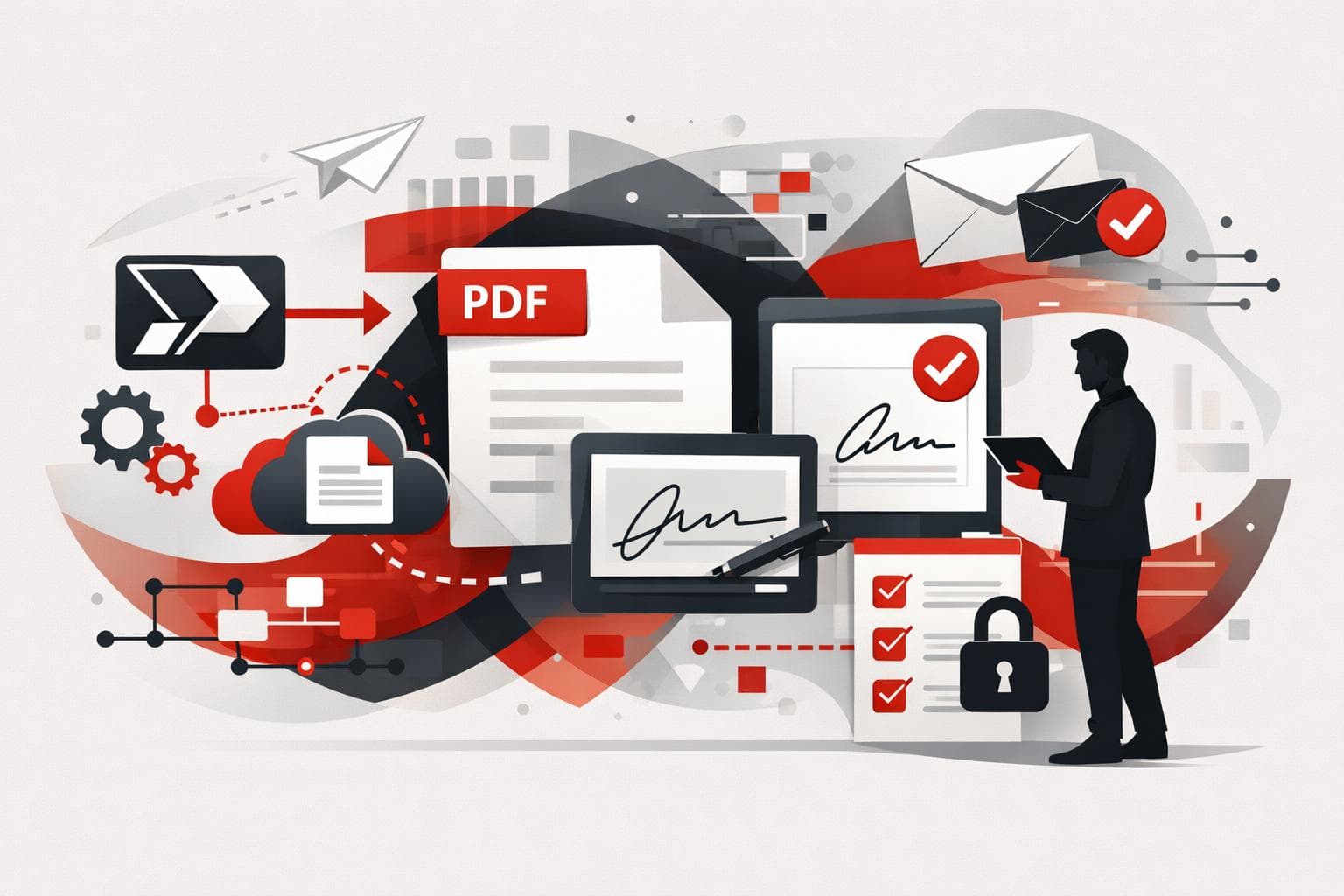
iLovePDF and iLoveSign now let teams automate PDF processing and electronic signatures directly inside Microsoft Power Automate. The practical shift is simple, a document can be compressed, converted, protected, archived, and sent for signature without anyone downloading it, editing it manually, and uploading it again.
Why this matters for workflow automation
Power Automate already handles approvals, alerts, form intake, and file routing for many Microsoft 365 teams. The weak point has often been the PDF stage, where someone still has to open a separate tool, resize a file, merge pages, add protection, or send a contract for signing.
The iLovePDF and iLoveSign connectors turn those PDF steps into normal Power Automate actions. A flow can receive a document from SharePoint, OneDrive, Outlook, Power Apps, or a public file URL, process it, and pass the finished file to the next system.
A useful way to classify the market impact is the three-layer model of document automation:
- Plumbing, moving files between apps such as Outlook, SharePoint, OneDrive, and Power Apps.
- Intelligence, making documents searchable, smaller, better formatted, or ready for archiving.
- Trust, adding password protection, audit-friendly formats, and electronic signatures.
The decision rule is clear, automate a PDF task when the same document step happens at least weekly, follows predictable rules, and does not require human judgment about the document content. Keep manual review when legal interpretation, sensitive exception handling, or negotiation is involved.
What the two connectors do
A Power Automate connector is the bridge that lets a workflow call another service. Microsoft describes connectors as reusable integrations that expose actions and triggers from outside systems, so teams can assemble a process without building the integration from scratch. Microsoft’s connector documentation explains the general model in more detail at Microsoft Learn.
The new setup splits the work across two connectors. iLovePDF handles file preparation and conversion, while iLoveSign handles the signature process. Both are listed by Microsoft as preview connectors, with iLovePDF appearing as iLovePDFv2 in the connector catalog.
| Connector | Main purpose | Typical actions | Best fit |
|---|---|---|---|
| iLovePDFv2 | PDF processing inside automated workflows | Compress, merge, split, rotate, protect, unlock, watermark, add page numbers, OCR, Office to PDF, image to PDF, PDF to JPG, PDF to PDF/A | Teams that prepare, clean, archive, or standardize documents before storage or sending |
| iLoveSign | Electronic signing inside automated workflows | Create a signing process, define signers, place signatures, set expiration, enable reminders, return task status | Teams that send contracts, approvals, HR forms, or customer documents for signature |
iLovePDF for document processing
The iLovePDF connector covers the repetitive editing steps that usually interrupt a workflow. It can reduce file size, combine files, split page ranges, repair page orientation, add watermarks, add page numbers, apply password protection, remove protection from files the user is allowed to open, and convert documents into formats such as PDF/A or JPG.
OCR is one of the most useful actions for business processes. OCR, or optical character recognition, turns scanned text into searchable text, which matters when invoices, delivery notes, signed forms, or archived PDFs need to be found later by name, number, date, or keyword.
The Microsoft reference page for iLovePDFv2 lists supported operations and connector requirements. For teams still handling file size manually, iLovePDF also explains compression options in its guide on reducing PDF file size.
iLoveSign for electronic signatures
The iLoveSign connector adds signing to the same automation chain. A flow can send a prepared PDF to one or more recipients, define where each signature should appear, assign participant roles, set an expiration window, and trigger reminders if a signer does not respond.
Signers do not need an iLoveSign account. They receive a link and complete the signature from that request, which keeps the process usable for clients, suppliers, job candidates, and external partners.
The Microsoft reference page for iLoveSign describes the Sign PDF action, including signer names, signer emails, signature positions, expiration days, reminder settings, pages, and signature size. For a broader explanation of signing options, iLovePDF’s Sign PDF tool shows the product flow for signing a document or inviting others to sign.
A practical workflow example
A customer onboarding flow shows the value better than a feature list. A customer fills out a form in Power Apps, Power Automate generates a PDF from the answers, and the file lands in a SharePoint folder.
The flow then calls iLovePDF to compress the PDF, convert it to PDF/A for long-term storage, and add password protection if the document contains sensitive account information. Once the document is ready, iLoveSign sends the same file to the customer with a signature field on the final page and a reminder after several days.
After signing, the finished document can be emailed to the customer and saved automatically to the correct SharePoint library. The result is not just fewer clicks, it is a cleaner audit trail, fewer version conflicts, and less dependence on one person remembering the next step.
Where teams can apply the same pattern
- Finance, run OCR on invoice PDFs, compress them, and file them in the right SharePoint library.
- HR, merge an offer letter with policy documents, add page numbers, and send the package for signature.
- Legal, convert completed agreements to PDF/A and add a confidential watermark to internal review copies.
- Sales, convert a Word proposal to PDF, protect it with a password, and route the contract for customer signature after approval.
- Operations, rotate scanned delivery notes, merge them into a daily report, and store the file in OneDrive.
How to set it up
Teams need an iLoveAPI developer account and an API key. iLoveAPI is the developer platform behind the PDF and signing tools, and its documentation is available at iLoveAPI.
- Create or open an iLoveAPI developer account.
- Create a project and copy the public key from the developer dashboard.
- Open Power Automate and create a new flow, or edit an existing one.
- Add an action and search for iLovePDF, iLovePDFv2, or iLoveSign.
- Create the connector connection by entering the API key when prompted.
- Choose the file source, configure the action settings, save the flow, and test it with a real sample file.
The best starting point is a narrow, low-risk process. For example, automate invoice compression before archiving, or automate contract signature routing after an internal approval. Once that first flow runs reliably, add OCR, PDF/A conversion, watermarking, or storage rules.
Limits, licensing, and document handling
Both connectors are premium connectors in Power Automate, Power Apps, and Copilot Studio. In Azure Logic Apps, Microsoft lists them as standard connectors. They are available across most commercial regions, with exclusions for US Government GCC, GCC High, China Cloud operated by 21Vianet, and US Department of Defense environments.
Each user creates a separate connection with an active key, so the connection is not shared automatically across a team. Microsoft lists a throttling limit of 100 calls per connection every 60 seconds, which is sufficient for many office workflows but still worth planning around for batch-heavy processes.
Large files above 25 MB can be processed, but they may take longer. The iLoveSign connector handles one document per signing process, so multi-document signature packages should either be merged first with iLovePDF or handled through separate signing actions.
According to iLovePDF’s security and data protection documentation, the platform uses encrypted transfer and storage controls, publishes retention practices, and states that processed files are automatically deleted within two hours, with separate retention rules for signed documents. Teams working with regulated or highly confidential material should still check internal policies before sending documents through any external service.
The bigger point is operational. PDF work should no longer sit outside the workflow as a manual afterthought. When document preparation and signing become first-class Power Automate steps, teams can build processes that are faster, easier to monitor, and less dependent on copy-and-paste office labor.