The fastest way to add a picture to an existing PDF is to use a PDF editor, upload the document, choose an image, place it on the page, then export the updated file. With iLovePDF Edit PDF, this can be done online without printing, scanning, or returning to the original Word, PowerPoint, or design file.
Why adding images to PDFs still matters
PDFs remain the default format for forms, contracts, school submissions, invoices, reports, and official evidence files. A photo, logo, signature image, receipt scan, product shot, or ID image often needs to be added after the PDF has already been created.
The old workaround was slow, print the document, attach or paste the image, scan the page again, then hope the quality stayed readable. A browser-based PDF editor removes that loop by letting the image sit directly on top of the existing page content.
A practical example, a tenant can open a completed maintenance request, add a photo of water damage on the correct page, resize it beside the written description, then send one clean PDF to the property manager.
How to insert an image into a PDF
The basic workflow is simple. Open the editor, upload the PDF, add the image, adjust its position, then process and download the final document.
- Open iLovePDF Edit PDF.
- Select a PDF from the device, or import it from Google Drive or Dropbox if those options are available in the upload panel.
- Choose the image tool from the editor toolbar.
- Upload the picture that should appear in the PDF.
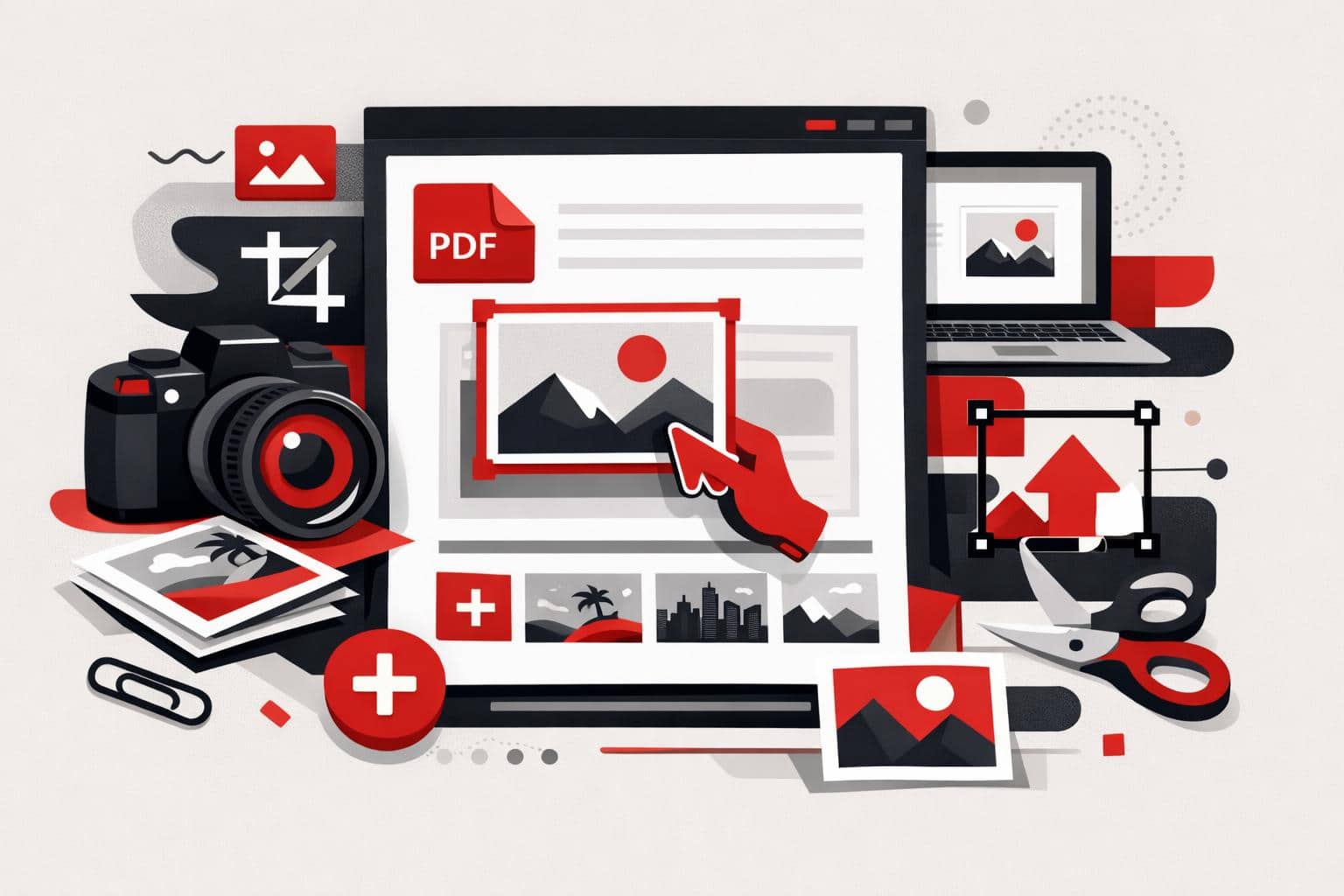
- Drag the image to the right place on the page.
- Resize it by pulling the corner handles until it fits the layout.
- Process the PDF and download the edited file, or save it back to cloud storage.
The decision rule is straightforward, use direct PDF editing when the PDF layout is already final and only needs a photo, logo, stamp, or visual proof. Go back to the source document only when the text structure, page order, or design grid needs major changes.
Supported image formats and preparation
The editor is designed for common web image formats, especially JPG, PNG, and GIF. JPG is usually best for photos, PNG works well for screenshots and logos with clean edges, and GIF can be useful for simple graphics.
If the image is in a less convenient format, convert or clean it up before adding it to the PDF. For image editing tasks such as cropping, color correction, contrast, or saturation, a separate tool such as the iLoveIMG Photo Editor is better suited because those changes affect the image itself, not just its placement in the PDF.
A simple market model helps separate the job into three layers, file, layout, and trust. File means using the right format, layout means placing the picture cleanly, and trust means keeping the document readable, professional, and secure.
Control size, layers, rotation, and transparency
Adding one image is easy, but multi-image PDFs can become crowded quickly. The editor’s layer panel helps manage the order of objects, so one photo can sit above another, or a visual element can move behind text and shapes.
Layering matters when several visuals share the same page. A company could place a product image first, move a semi-transparent approval stamp above it, then add a small logo in the corner without disrupting the whole document.
Rotation fixes pictures that were captured in the wrong orientation. Select the image, then use the rotation controls to turn it clockwise or counterclockwise until it matches the page.
Transparency controls how strongly an inserted image appears. Lower opacity can make a picture behave like a watermark, while full opacity is better for evidence photos, product images, and screenshots that must stay sharp.
Security, mobile use, and offline editing
Documents that contain IDs, financial details, contracts, or medical information should be handled with extra care. According to the iLovePDF security page, the service uses HTTPS encryption, describes end-to-end encryption for processed files, and says processed files are automatically deleted within two hours.
For sensitive workflows, offline editing can be the safer default because the file stays on the computer during processing. iLovePDF also offers iLovePDF Desktop, which is aimed at local document work and privacy-focused processing.
Mobile editing is useful when the image already lives on a phone. The iLovePDF Mobile apps support PDF editing, scanning, signing, file management, and document sharing from iOS and Android devices.
Quick answers
Can images be added to a PDF for free?
Yes, iLovePDF offers free access to many PDF tools, including editing features. Premium plans are intended for heavier use, advanced functions, and larger workflows.
Which image type should be used?
Use JPG for normal photos, PNG for logos or screenshots, and GIF for simple graphics. If the picture needs correction first, edit the image before importing it into the PDF.
Can an image be resized after insertion?
Yes. Select the image and drag the corners to scale it. Keep proportions consistent if the image contains faces, logos, signatures, or product details.
Can the image be placed behind another object?
Yes. Use the layer controls to move the image forward or backward in the page stack. This is useful for stamps, watermarks, logos, and overlapping visuals.
Is mobile editing practical?
Yes, especially for receipts, field photos, school paperwork, and quick signatures. Desktop editing is still better for complex pages, large files, or sensitive business documents.