
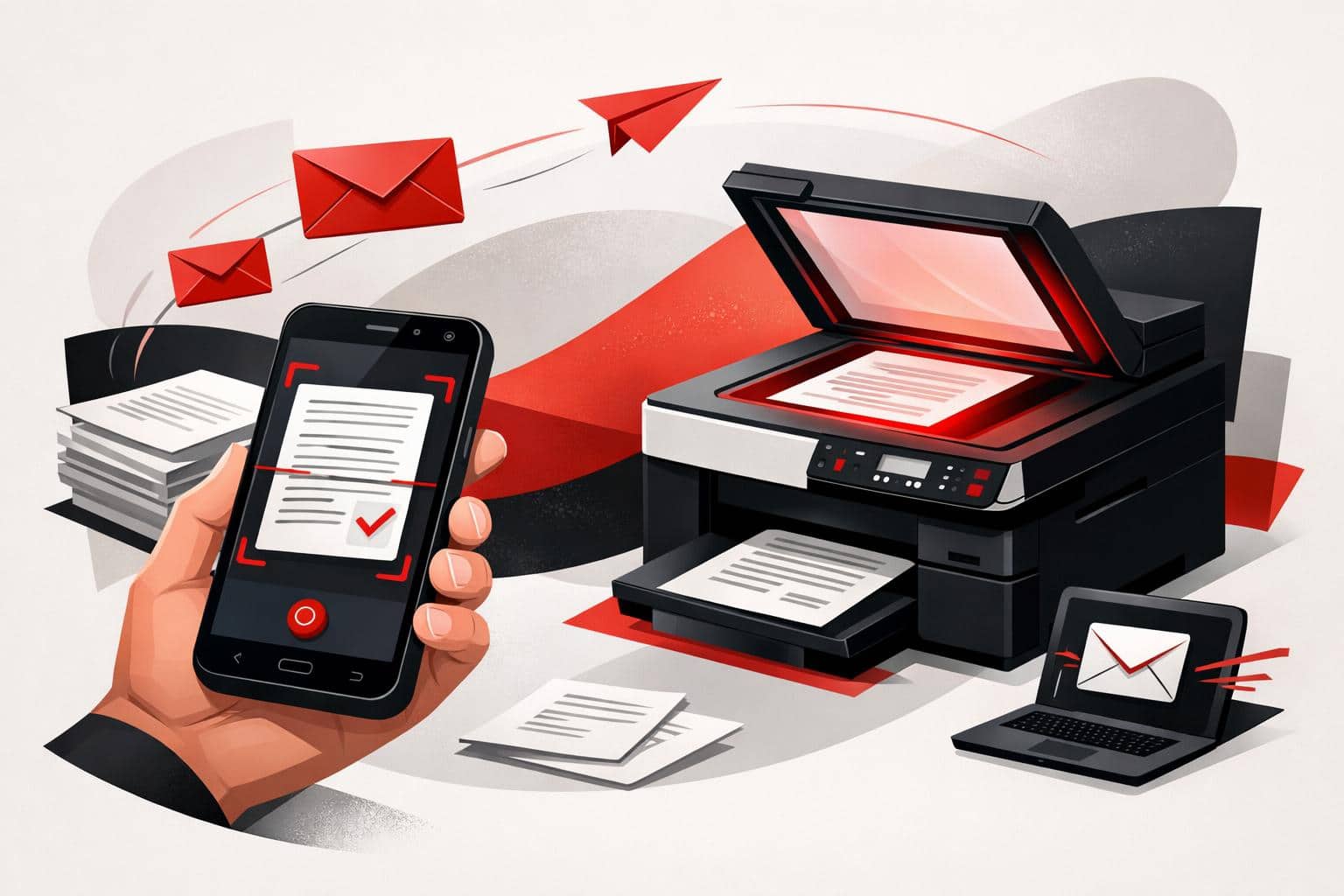
To email a paper document, scan it as a PDF with the iLovePDF Mobile App, then share it through your email app. A printer with Scan to Email can also send scans once its network and email settings are configured.
Scan and email from your phone
The iLovePDF Mobile App includes a free scanning tool for iPhone, iPad, and Android. The basic process is the same across these devices.
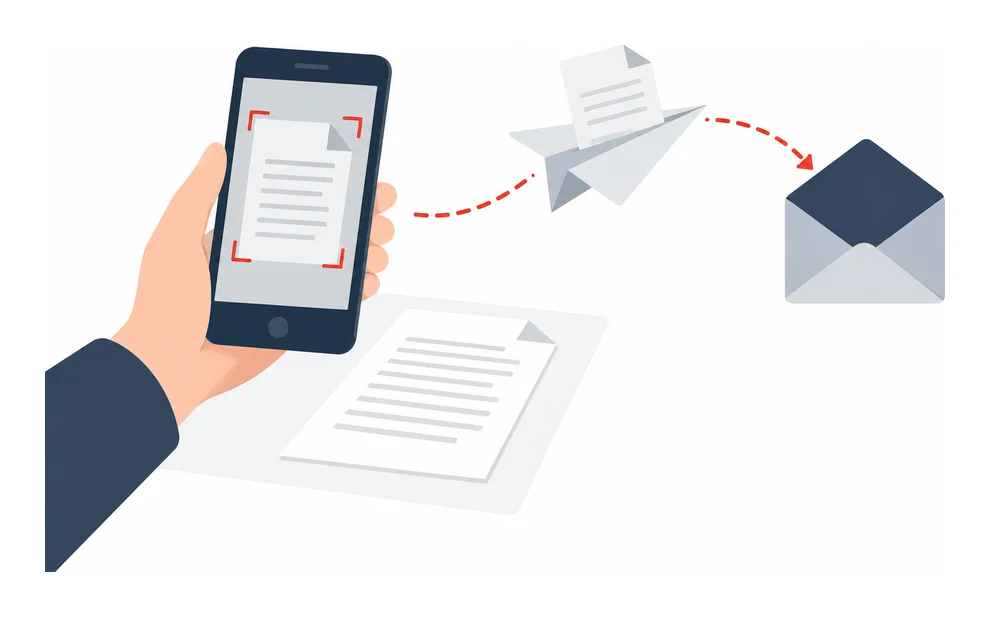
- Install the app from the App Store or Google Play, open it, and select Scan.
- Position your camera over the document and capture the page.
- Review the preview and adjust the crop if necessary. Use Add page to capture additional pages before saving them together as one PDF.
- Save the PDF, tap the share icon, and choose an email app such as Mail, Gmail, or Outlook.
- Enter the recipient, subject, and message, then send the email.
For a readable scan, use even lighting, place the paper on a flat surface that contrasts with it, and hold the phone parallel to the page. Give the saved file a descriptive name so the recipient can identify it.
If the pages are already saved as separate PDFs, combine them with Merge PDF before attaching the document.
Reduce a scan that is too large
Email attachment limits are often around 20 to 25 MB, though some workplace systems allow less. If the scan exceeds the limit, open it in the mobile app, select Compress PDF, choose a compression level, and save the smaller file before sharing it again.
Alternatively, use Compress PDF in your browser. Check that the compressed scan is still readable before sending.
Find more info and video tutorials on our pages Scan PDF, Merge PDF and Compress PDF.
Send a scan from a printer
A multifunction printer with a document feeder can be useful for a large batch of pages. As the iLovePDF scanning guide explains, direct email sending requires a network connection and configured outgoing email settings. Ask the printer administrator or IT team for help if setup is incomplete.
- Load the pages on the scanner glass or in the document feeder, following the printer’s orientation markings.
- Select Scan to Email on the control panel. Depending on the model, this may appear under Scan, Email, or Send.
- Enter the recipient’s email address or select it from the address book.
- Choose PDF as the file format and adjust the resolution if needed.
- Press Start or Send.
If the printer cannot email scans, save the PDF to a USB drive or network folder, then attach it to an email from your computer.