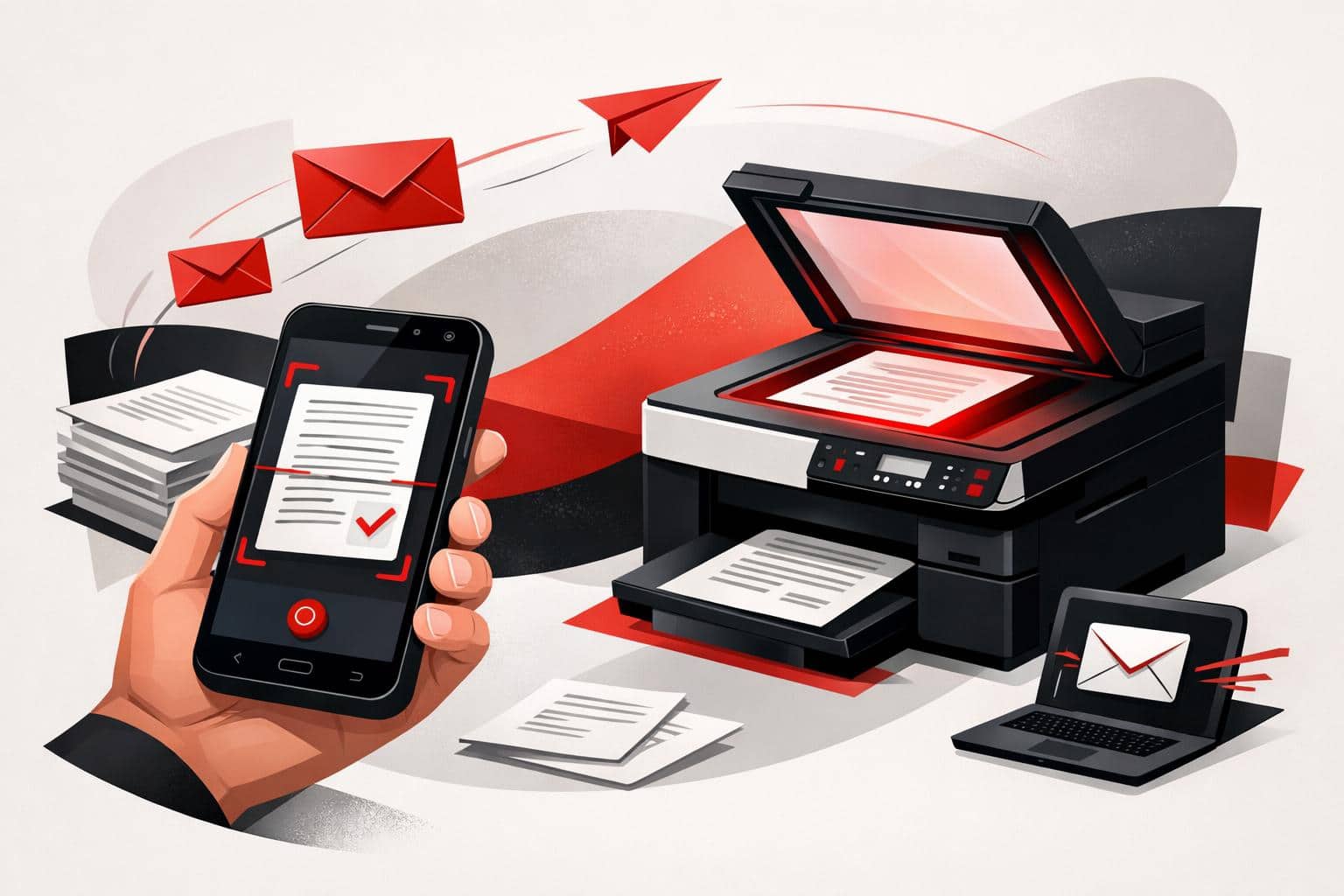
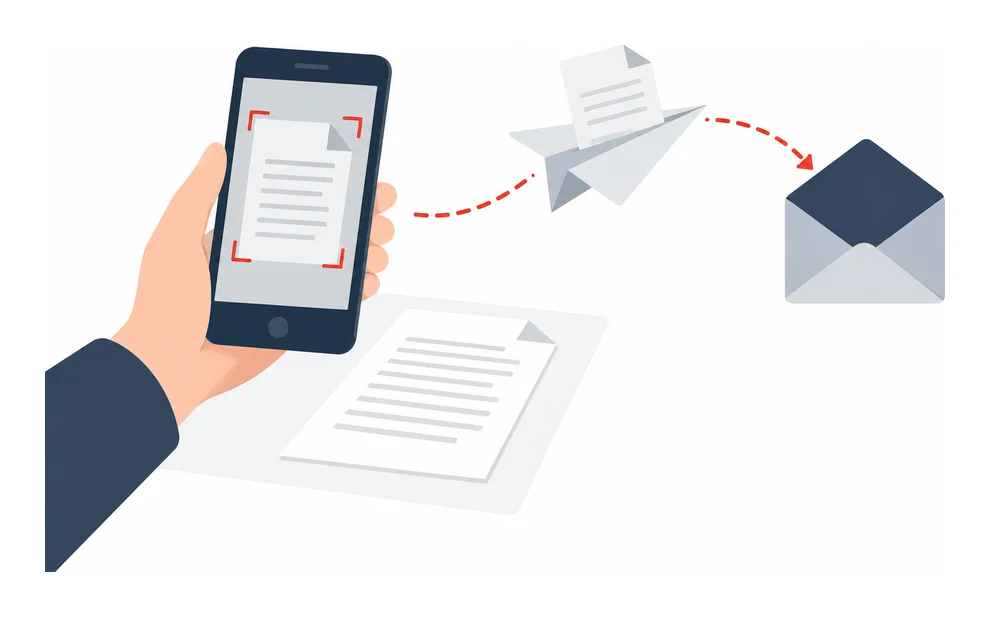
To email a paper document, scan it as a PDF with the iLovePDF Mobile App, then share it through your email app. A printer with Scan to Email can also send scans once its network and email settings are configured.
Scan and email from your phone
The iLovePDF Mobile App includes a free scanning tool for iPhone, iPad, and Android. The basic process is the same across these devices.
Install the app from the App Store or Google Play, open it, and select Scan.
Position your camera over the document and capture the page.
Review the preview and adjust the crop if necessary. Use Add page to capture additional pages before saving them together as one PDF.
Save the PDF, tap the share icon, and choose an email app such as Mail, Gmail, or Outlook.
Enter the recipient, subject, and message, then send the email.
For a readable scan, use even lighting, place the paper on a flat surface that contrasts with it, and hold the phone parallel to the page. Give the saved file a descriptive name so the recipient can identify it.
If the pages are already saved as separate PDFs, combine them with Merge PDF before attaching the document.
Reduce a scan that is too large
Email attachment limits are often around 20 to 25 MB, though some workplace systems allow less. If the scan exceeds the limit, open it in the mobile app, select Compress PDF, choose a compression level, and save the smaller file before sharing it again.
Alternatively, use Compress PDF in your browser. Check that the compressed scan is still readable before sending.
A multifunction printer with a document feeder can be useful for a large batch of pages. As the iLovePDF scanning guide explains, direct email sending requires a network connection and configured outgoing email settings. Ask the printer administrator or IT team for help if setup is incomplete.
Load the pages on the scanner glass or in the document feeder, following the printer’s orientation markings.
Select Scan to Email on the control panel. Depending on the model, this may appear under Scan, Email, or Send.
Enter the recipient’s email address or select it from the address book.
Choose PDF as the file format and adjust the resolution if needed.
Press Start or Send.
If the printer cannot email scans, save the PDF to a USB drive or network folder, then attach it to an email from your computer.
A PDF merger combines separate documents into one ordered file, which makes sharing cleaner and lowers the risk of missing attachments. iLovePDF supports this workflow in the browser, on desktop, on mobile, and through business integrations, so the right option depends on file volume, privacy needs, and where the work happens.
Why PDF merging still matters
PDF merging solves a simple but persistent document problem, scattered files create friction. A single PDF is easier to review, forward, archive, upload to portals, and attach to formal submissions.
The old workaround was physical and wasteful, print every document, reorder the pages by hand, then scan everything back into one file. A modern online tool such as iLovePDF Merge PDF removes that loop and lets users arrange files digitally before producing the final document.
The useful way to classify PDF merging is the control model: convenience for quick browser tasks, control for desktop work, and scale for teams that process large batches. This model helps users pick the tool rather than treating every PDF job the same way.
Best use cases for merged PDFs
Merging is most valuable when the recipient should see one complete package instead of a folder of separate attachments. That applies to business handoffs, school submissions, legal packets, sales proposals, HR onboarding files, and portfolio applications.
A practical example is a job application portfolio. The applicant may have a resume, certificates, writing samples, spreadsheet results, and image files. Converting or combining those pieces into one polished PDF gives the employer a single document to open, review, and store.
The same logic works for group assignments. If five students each submit their section as a PDF, the final editor can arrange the files in the agreed order and submit one coherent document instead of five disconnected uploads.
How to merge PDFs with iLovePDF
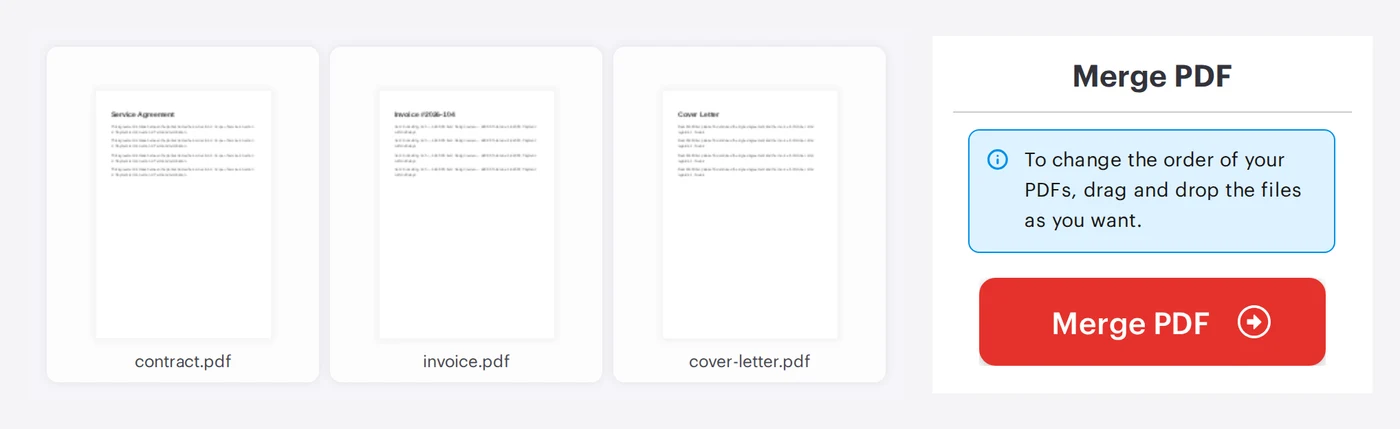
The browser workflow is designed for speed. Open the merge tool, upload PDFs from the device or connected cloud storage, arrange the documents in the right sequence, then run the merge and download the result.
Upload, choose PDFs from the computer, Google Drive, or Dropbox where available.
Order, drag files into the preferred sequence before processing.
Merge, create one combined PDF and download it.
Store, save the final file locally or send it back to cloud storage if that fits the workflow.
The clear decision rule is simple: use the web tool for occasional merging, use the desktop app for frequent or heavier document work, and consider Premium when upload limits or batch volume slow the process.
Find more info, a video tutorial and a version that works without any upload on our Merge PDF page.
Choose web, desktop, or mobile
The web version is the fastest route when the files are ready and the job is straightforward. It avoids software installation and works well for one-off tasks such as combining a contract, invoice, and cover letter into a single PDF.
The iLovePDF Desktop app fits users who merge files often, process heavier documents, or prefer local workflows. The desktop product also supports offline work, which matters when the connection is unreliable or the files should stay on the device during processing.
The iLovePDF Mobile app is useful when the document work starts on a phone or tablet. It turns quick tasks such as merging, scanning, signing, compressing, and sharing into mobile actions instead of waiting for a laptop.
For organizations, an API matters because it lets software trigger PDF tasks automatically. A REST API is a structured interface that allows one application to request a service from another, for example generating a merged PDF after a customer completes an online form.
Security, limits, and Premium use
PDF tools often handle contracts, identification documents, invoices, and academic records, so security cannot be treated as a cosmetic feature. iLovePDF states on its security page that it uses encryption protocols including HTTPS, protects data in transit and at rest, and does not retain user documents as a storage service.
The company also says on its legal and privacy page that uploaded and processed files are encrypted and deleted from its servers within 2 hours. The same page references ISO/IEC 27001 certification, which is an international standard for information security management.
Free merging is enough for many individual users, but limits matter once document processing becomes routine. The iLovePDF pricing page separates basic access from Premium and Business plans, with Premium aimed at broader tool access, higher usage, and work across web, mobile, and desktop.
Quick answers
Can PDFs be reordered before merging? Yes. iLovePDF documentation says users can arrange selected files before creating the merged document through the help documentation.
Can merging work on a phone? Yes. The mobile app supports PDF workflows from smartphones and tablets, which is useful for commuting, field work, or last-minute document edits.
When should a file be split instead of merged? Split a PDF when the recipient needs only part of a document, such as one chapter, one signed page, or a single invoice from a large packet. Merge when the recipient needs the full set in one file.
What is the safest workflow for sensitive documents? Use the desktop app when local processing is preferred, keep only necessary pages in the final PDF, and delete old drafts after the merged file has been checked.
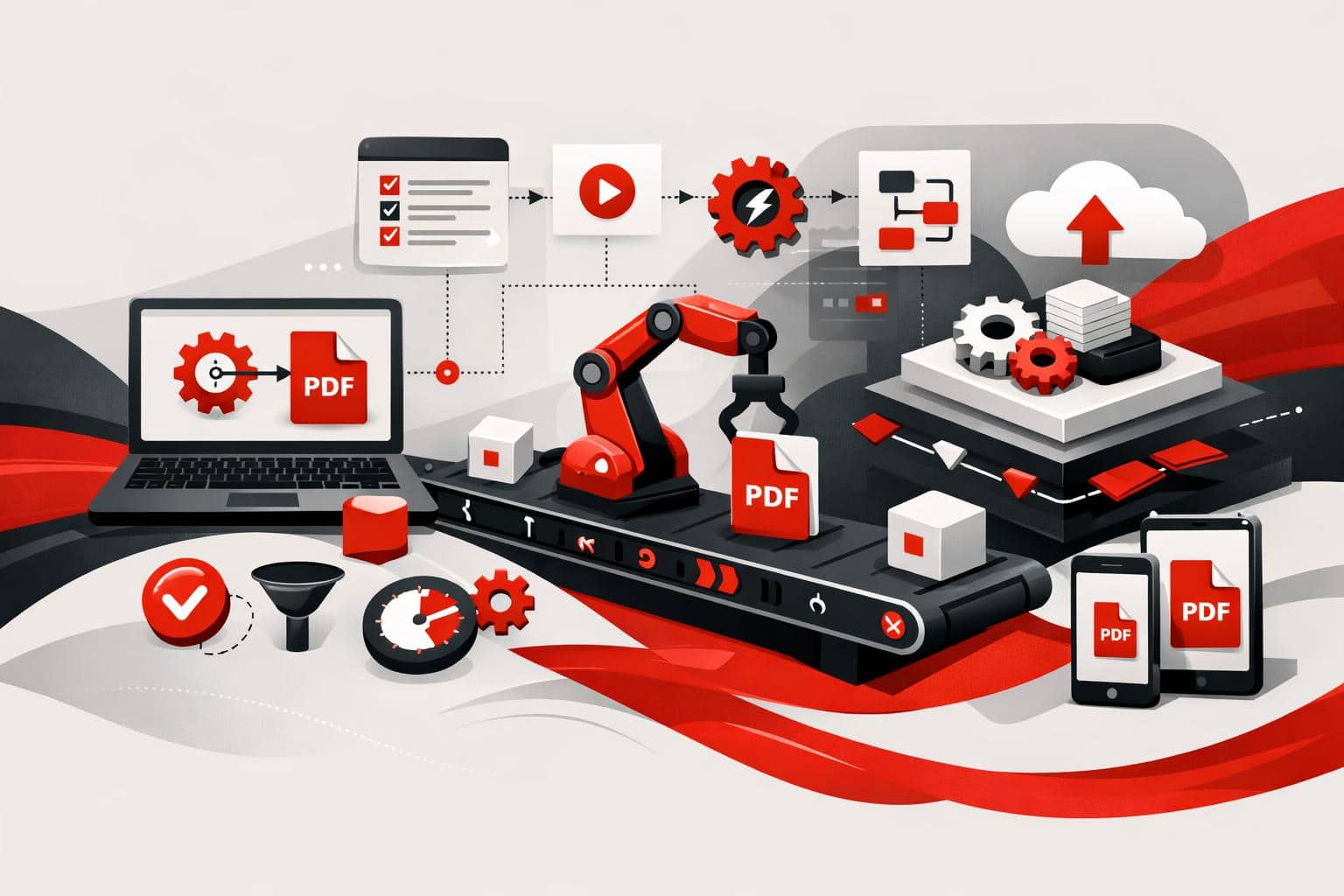
iLovePDF and iLoveSign now let teams automate PDF processing and electronic signatures directly inside Microsoft Power Automate. The practical shift is simple, a document can be compressed, converted, protected, archived, and sent for signature without anyone downloading it, editing it manually, and uploading it again.
Why this matters for workflow automation
Power Automate already handles approvals, alerts, form intake, and file routing for many Microsoft 365 teams. The weak point has often been the PDF stage, where someone still has to open a separate tool, resize a file, merge pages, add protection, or send a contract for signing.
The iLovePDF and iLoveSign connectors turn those PDF steps into normal Power Automate actions. A flow can receive a document from SharePoint, OneDrive, Outlook, Power Apps, or a public file URL, process it, and pass the finished file to the next system.
A useful way to classify the market impact is the three-layer model of document automation:
Plumbing, moving files between apps such as Outlook, SharePoint, OneDrive, and Power Apps.
Intelligence, making documents searchable, smaller, better formatted, or ready for archiving.
Trust, adding password protection, audit-friendly formats, and electronic signatures.
The decision rule is clear, automate a PDF task when the same document step happens at least weekly, follows predictable rules, and does not require human judgment about the document content. Keep manual review when legal interpretation, sensitive exception handling, or negotiation is involved.
What the two connectors do
A Power Automate connector is the bridge that lets a workflow call another service. Microsoft describes connectors as reusable integrations that expose actions and triggers from outside systems, so teams can assemble a process without building the integration from scratch. Microsoft’s connector documentation explains the general model in more detail at Microsoft Learn.
The new setup splits the work across two connectors. iLovePDF handles file preparation and conversion, while iLoveSign handles the signature process. Both are listed by Microsoft as preview connectors, with iLovePDF appearing as iLovePDFv2 in the connector catalog.
Connector
Main purpose
Typical actions
Best fit
iLovePDFv2
PDF processing inside automated workflows
Compress, merge, split, rotate, protect, unlock, watermark, add page numbers, OCR, Office to PDF, image to PDF, PDF to JPG, PDF to PDF/A
Teams that prepare, clean, archive, or standardize documents before storage or sending
iLoveSign
Electronic signing inside automated workflows
Create a signing process, define signers, place signatures, set expiration, enable reminders, return task status
Teams that send contracts, approvals, HR forms, or customer documents for signature
iLovePDF for document processing
The iLovePDF connector covers the repetitive editing steps that usually interrupt a workflow. It can reduce file size, combine files, split page ranges, repair page orientation, add watermarks, add page numbers, apply password protection, remove protection from files the user is allowed to open, and convert documents into formats such as PDF/A or JPG.
OCR is one of the most useful actions for business processes. OCR, or optical character recognition, turns scanned text into searchable text, which matters when invoices, delivery notes, signed forms, or archived PDFs need to be found later by name, number, date, or keyword.
The Microsoft reference page for iLovePDFv2 lists supported operations and connector requirements. For teams still handling file size manually, iLovePDF also explains compression options in its guide on reducing PDF file size.
iLoveSign for electronic signatures
The iLoveSign connector adds signing to the same automation chain. A flow can send a prepared PDF to one or more recipients, define where each signature should appear, assign participant roles, set an expiration window, and trigger reminders if a signer does not respond.
Signers do not need an iLoveSign account. They receive a link and complete the signature from that request, which keeps the process usable for clients, suppliers, job candidates, and external partners.
The Microsoft reference page for iLoveSign describes the Sign PDF action, including signer names, signer emails, signature positions, expiration days, reminder settings, pages, and signature size. For a broader explanation of signing options, iLovePDF’s Sign PDF tool shows the product flow for signing a document or inviting others to sign.
A practical workflow example
A customer onboarding flow shows the value better than a feature list. A customer fills out a form in Power Apps, Power Automate generates a PDF from the answers, and the file lands in a SharePoint folder.
The flow then calls iLovePDF to compress the PDF, convert it to PDF/A for long-term storage, and add password protection if the document contains sensitive account information. Once the document is ready, iLoveSign sends the same file to the customer with a signature field on the final page and a reminder after several days.
After signing, the finished document can be emailed to the customer and saved automatically to the correct SharePoint library. The result is not just fewer clicks, it is a cleaner audit trail, fewer version conflicts, and less dependence on one person remembering the next step.
Where teams can apply the same pattern
Finance, run OCR on invoice PDFs, compress them, and file them in the right SharePoint library.
HR, merge an offer letter with policy documents, add page numbers, and send the package for signature.
Legal, convert completed agreements to PDF/A and add a confidential watermark to internal review copies.
Sales, convert a Word proposal to PDF, protect it with a password, and route the contract for customer signature after approval.
Operations, rotate scanned delivery notes, merge them into a daily report, and store the file in OneDrive.
How to set it up
Teams need an iLoveAPI developer account and an API key. iLoveAPI is the developer platform behind the PDF and signing tools, and its documentation is available at iLoveAPI.
Create or open an iLoveAPI developer account.
Create a project and copy the public key from the developer dashboard.
Open Power Automate and create a new flow, or edit an existing one.
Add an action and search for iLovePDF, iLovePDFv2, or iLoveSign.
Create the connector connection by entering the API key when prompted.
Choose the file source, configure the action settings, save the flow, and test it with a real sample file.
The best starting point is a narrow, low-risk process. For example, automate invoice compression before archiving, or automate contract signature routing after an internal approval. Once that first flow runs reliably, add OCR, PDF/A conversion, watermarking, or storage rules.
Find more info, a video tutorial and a version that works without any upload on our Sign PDF page.
Limits, licensing, and document handling
Both connectors are premium connectors in Power Automate, Power Apps, and Copilot Studio. In Azure Logic Apps, Microsoft lists them as standard connectors. They are available across most commercial regions, with exclusions for US Government GCC, GCC High, China Cloud operated by 21Vianet, and US Department of Defense environments.
Each user creates a separate connection with an active key, so the connection is not shared automatically across a team. Microsoft lists a throttling limit of 100 calls per connection every 60 seconds, which is sufficient for many office workflows but still worth planning around for batch-heavy processes.
Large files above 25 MB can be processed, but they may take longer. The iLoveSign connector handles one document per signing process, so multi-document signature packages should either be merged first with iLovePDF or handled through separate signing actions.
According to iLovePDF’s security and data protection documentation, the platform uses encrypted transfer and storage controls, publishes retention practices, and states that processed files are automatically deleted within two hours, with separate retention rules for signed documents. Teams working with regulated or highly confidential material should still check internal policies before sending documents through any external service.
The bigger point is operational. PDF work should no longer sit outside the workflow as a manual afterthought. When document preparation and signing become first-class Power Automate steps, teams can build processes that are faster, easier to monitor, and less dependent on copy-and-paste office labor.
iLovePDF will attend Fenalaw 2026 in São Paulo to show law firms how everyday PDF work can move from individual shortcuts to managed officewide workflows. The company will be at Rua 05, Stand 22, from October 27 to 29, with a 20% discount on premium attendee packages through the code ILOVEPDF20.
Fenalaw 2026 details for legal teams
Fenalaw 2026 takes place at the Transamerica Expo Center in São Paulo on October 27, 28, and 29. The official event site lists congress sessions, exhibition access, registration information, and the latest programming updates for legal professionals, firms, legal operations teams, and corporate departments.
According to the event information, the congress runs from 09:00 to 18:30, with congress attendee access from 08:00. The exhibition floor is scheduled from 08:00 to 20:00, and visitor registration generally runs from 09:00 to 19:00.
iLovePDF users can apply the code ILOVEPDF20 during checkout for 20% off any premium attendee package. Firms sending several people should apply the code to each qualifying registration rather than treating it as a later reimbursement task.
Many legal teams first adopt iLovePDF through small, urgent tasks, merging exhibits, shrinking oversized scans, converting files, adding signatures, or cleaning up a document before filing. That bottom-up use is a signal, people keep a tool when it saves time without training.
The Fenalaw pitch is broader. Instead of several staff members using separate accounts and separate habits, the company will focus on shared access, centralized administration, business billing, and a more consistent setup for teams.
A practical example is a weekly litigation packet. A paralegal receives scanned exhibits, runs OCR to make the text searchable, merges the files into one indexed PDF, compresses the result for filing, and sends a settlement draft for signature. Under a managed team account, that workflow becomes easier to repeat, monitor, and support.
For firms evaluating that shift, the clearest decision rule is simple: if a PDF task touches client data, repeats every week, or involves more than one person, it belongs in a managed workflow rather than an individual workaround.
The market can be read through a compact three-part model: speed, routine tasks must take minutes rather than hours, control, administrators need visibility over users and settings, and proof, regulated teams need documentation that survives IT and client review.
Compliance questions legal teams should ask
Small and mid-size firms usually start with productivity. Regulated firms and corporate legal departments start with evidence, asking where documents go, how access is controlled, what certifications exist, and what can be shown to an auditor or client security team.
At the stand, iLovePDF plans to address both audiences. For everyday legal users, the focus is faster document handling. For legal operations, compliance, and IT buyers, the focus shifts to admin controls, named users, data handling, certification, and documentation.
Audience
Main problem
Most useful discussion at the stand
Small law firm
Too much manual PDF handling across client matters
Shared tools for merging, splitting, compressing, converting, OCR, and signatures
Mid-size firm
Different teams using different document habits
Team accounts, common workflows, user management, and billing clarity
Corporate legal department
Security review and client data governance
Certification, retention, encryption, processing choices, and audit-ready documentation
Redaction deserves special attention. A black rectangle on top of text is not proper redaction if the original content remains inside the file. Legal teams should use tools that remove the underlying content, not merely hide it visually.
PDF/A is another legal operations topic. The format is designed for long-term preservation, which matters when contracts, filings, and records must remain readable years later. iLovePDF lists PDF to PDF/A among its tools and documents related support on its main product pages.
Where document processing happens
The most sensitive question for legal teams is not whether a tool is convenient. It is whether privileged or confidential material leaves the firm, how long it stays available, and who can access it during processing.
iLovePDF says its business offering includes encryption, compliance support, two-factor authentication, centralized account management, and automatic deletion of processed files within two hours. Its security page also describes ISO/IEC 27001 certification and data protection practices.
For documents that should not be uploaded, iLovePDF Desktop gives teams a local processing route. The desktop product page describes processing on the user’s own computer, which is the relevant option when a matter, client policy, or internal rule requires local handling.
That creates a practical rule for legal teams: use online processing for low-risk routine work when policy allows it, use desktop processing for privileged, highly confidential, or client-restricted files, and document the choice before a security review forces the issue.
A legal tech booth visit works best when the team arrives with one real bottleneck. “Contract signature takes four days” leads to a sharper answer than a general product overview, because the vendor can map a concrete workflow instead of giving a generic tour.
Bring the person who performs the task, not only the person approving the budget. Paralegals, assistants, and legal operations staff usually know where document work fails, which files arrive messy, which scans break search, and which signature steps create avoidable delays.
Book early, meeting slots around peak exhibition hours disappear quickly.
Bring a sample, a familiar document shows more than a polished demo file.
Ask about controls, especially user management, retention, and local processing.
Save time daily, block 30 minutes after each event day to turn notes into actions.
The most useful outcome is not a brochure. It is a short plan that says which document tasks move to a shared account, which files must stay local, who administers access, and which compliance documents IT needs next.
Fenalaw gives legal teams a concentrated way to test that plan in person. For iLovePDF, the message is clear, the product many lawyers already use for quick PDF jobs is being positioned as a managed document platform for the whole office.
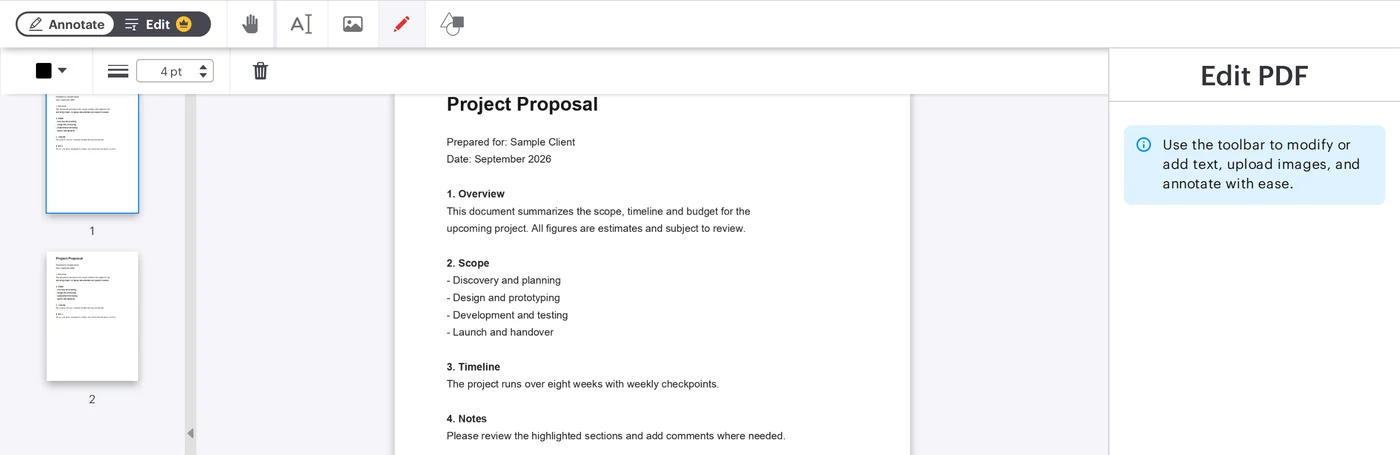
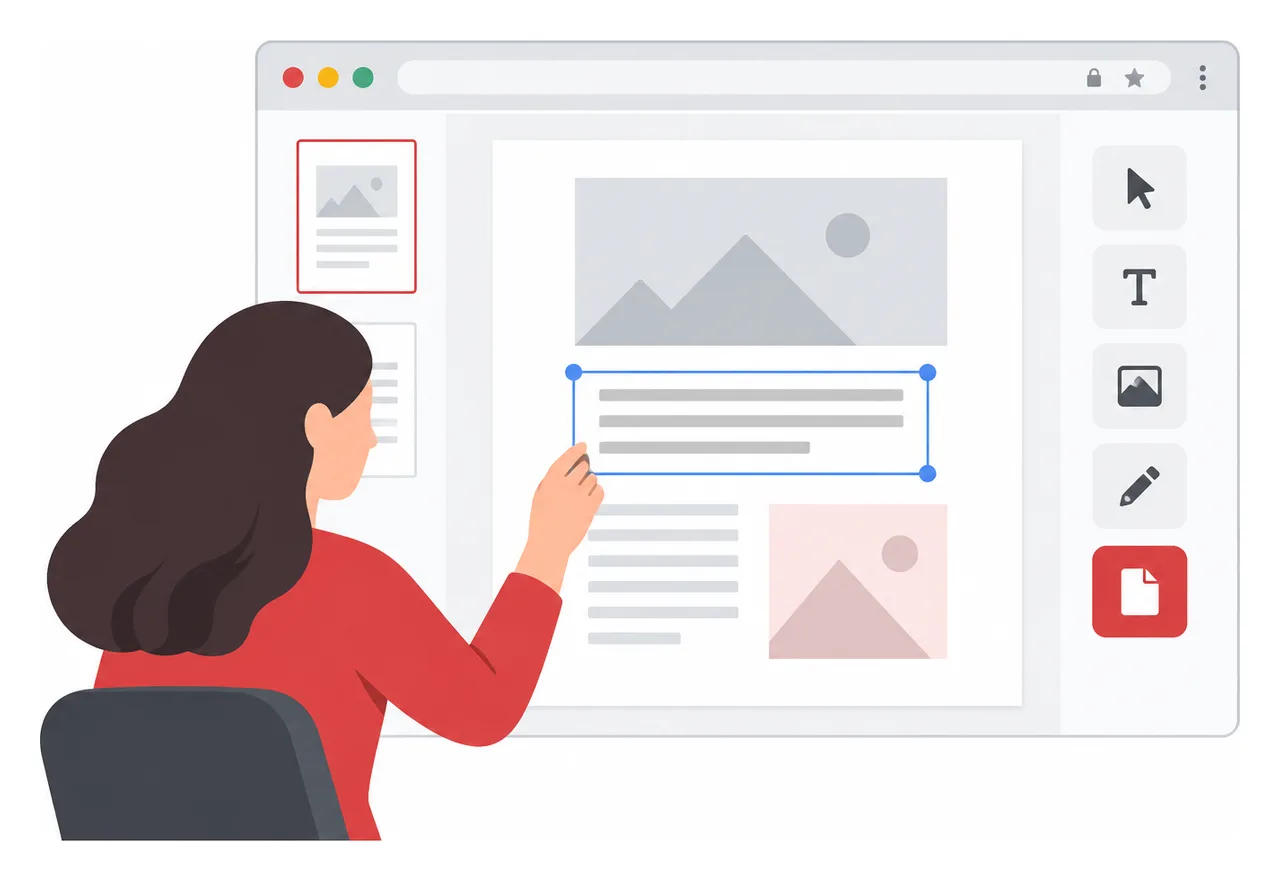
The quickest way to write on a PDF is to open it in an online editor, add text, drawings, shapes, comments, or images, then download the updated file. iLovePDF offers this through its PDF Editor, so basic annotation work can happen in the browser without installing desktop software.
The fastest browser method
For simple PDF edits, the browser workflow is direct. Open the editor, upload the document, choose a markup tool, place the new content where it belongs, apply the edit, and download the finished file.
Text, add typed notes, corrections, labels, or short explanations.
Draw, mark a section by hand, underline a sentence, or circle a visual detail.
Layout control, change the position, size, color, and formatting of added elements before saving.
A practical example is teacher feedback. A teacher can upload a student assignment, place short typed comments beside weak paragraphs, circle an incorrect calculation, add a final grade sticker, and return the annotated PDF without converting the file into another format.
Find more info and a video tutorial on our Edit PDF page.
What you can add to a PDF
PDF annotation is not the same as fully rewriting a document. It usually means placing new information on top of the existing page, such as notes, highlights, shapes, or visual markers.
The iLovePDF editor supports common markup work, including typed text boxes, freehand drawing, inserted images, shapes, straight lines, comments, and highlights. That makes it suitable for reviewing contracts, commenting on design drafts, marking study notes, or explaining changes in a brochure.
A useful mini-model is mark, explain, approve. Mark the area that needs attention, explain the change with a short note, then approve or reject the item with a visual cue. This keeps PDF feedback readable instead of turning the page into a cluttered comment wall.
Editing PDFs on a phone
PDF edits are not limited to a laptop. The iLovePDF Mobile app turns an iOS or Android device into a portable PDF editor for quick document work away from a desk.
The mobile version is especially useful when the task involves review rather than heavy formatting. Users can add comments, annotate pages, highlight text, sign documents, scan paper files, and manage PDFs directly from a phone or tablet.
Security and file handling
Any online PDF workflow should be judged by how it handles uploaded documents. According to the company, iLovePDF uses encrypted connections, follows GDPR requirements, and deletes processed files automatically within two hours. Its security page also lists ISO certification and broader data protection practices.
The clear decision rule is simple, use online editing for routine schoolwork, proposals, manuals, and low-risk business documents. For highly sensitive legal, medical, financial, or confidential company files, check internal policy first and consider an approved local or enterprise tool.
When this workflow makes sense
The browser editor is best for fast annotation, not deep document reconstruction. It works well when the original PDF should stay visually intact and the added material only needs to clarify, correct, or highlight specific points.
Use it when speed matters more than redesign. If the goal is to rewrite entire sections, rebuild tables, or restructure a long report, editing the source document is usually cleaner than layering many changes over the PDF.
iLovePDF is pushing document work beyond manual uploads by offering two automation routes, no-code connectors for teams that want fast workflow wins, and iLoveAPI for developers who need PDF, image, and signature features inside their own software.
What changes when documents run themselves
Most PDF work is not intellectually difficult. It is repetitive, fragmented, and expensive in small increments. Compressing invoices, merging contract attachments, converting files, resizing images, requesting signatures, and filing the result are classic workflow tax.
Automation removes the human from the click path. A trigger starts the job, such as a new email attachment, an approved quote, or an uploaded product image, then the workflow runs the required document steps without another manual action.
The market now splits into a simple three-part model: connect for no-code workflow automation, embed for API-driven product features, and interpret for AI-ready document intelligence. iLovePDF now has a position in all three layers through iLovePDF, iLoveSign, iLoveIMG, and iLoveAPI.
No-code automation for everyday file work
No-code is the fastest path when the goal is to connect the tools a team already uses. Platforms such as Zapier, Make, Microsoft Power Automate, and n8n can trigger iLovePDF, iLoveSign, and iLoveIMG actions from common business events. The iLoveAPI integrations page lists connectors for PDF, image, and e-signature workflows.
A practical example is an accounts payable inbox. When a supplier sends a large PDF invoice, the workflow can compress the file, rename it with the supplier name and date, save it to the correct cloud folder, and notify finance in chat. The employee reviews the invoice, not the file handling.
The same logic applies to sales and marketing. A signed proposal can be merged with a statement of work and archived, while a new batch of product photos can be resized and optimized before reaching an online store. The value is cumulative, because ten small automations can remove hundreds of low-value clicks each week.
Compress: Reduce large PDFs as soon as they arrive.
Sign: Send approved documents into an e-signature flow.
Convert: Turn PDFs, images, or office files into the required format.
File: Move finished documents into the right folder or record.
Odoo brings document tasks into the record
The new Odoo connectors matter because ERP work loses momentum when users jump between tabs. Odoo often holds the customer, invoice, quote, contract, or HR record, so the document action should happen there as well.
The iLovePDF connector for Odoo brings PDF compression into Odoo Documents, including bulk compression and file size insights. That keeps attachments smaller without pulling users away from the business record they are already handling.
For sales, that means a quote can move toward signature from the opportunity context. For finance, it means bulky attachments can be compressed before storage or sharing. For legal and operations, it reduces the risky habit of downloading sensitive files, processing them elsewhere, then re-uploading the result.
The API route for product teams
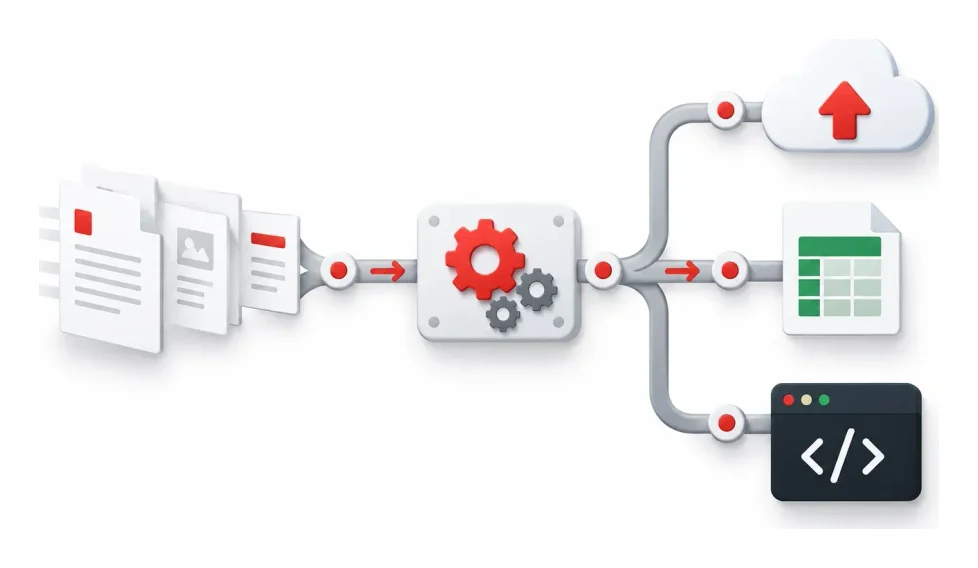
No-code solves routine operations. The API solves product integration. iLoveAPI exposes PDF, image, and signature capabilities through a REST API, so developers can build document processing directly into internal platforms, SaaS products, customer portals, and backend pipelines.
The official API reference describes a task flow built around starting a job, uploading files, processing them, and downloading the result. The same documentation lists supported PDF tools such as merge, split, compress, protect, OCR, watermark, office conversion, and PDF to Markdown.
Five AI tools expand the workflow
The newer AI tools move iLoveAPI from file manipulation toward document understanding. Summarize can condense long documents, PDF Forms can detect or fill fields, Smart Split can separate bundled documents by content, PDF to Markdown can produce structured text for websites and AI systems, and Translate can make document content usable across languages.
That shift is important because modern document pipelines often feed search indexes, language models, compliance systems, or customer dashboards. A PDF that becomes clean Markdown, a short summary, and structured form data is no longer just a file. It becomes usable business input.
Python support lowers the developer barrier
The API now supports Python alongside PHP, .NET, Ruby, and Node.js. The official iLovePDF GitHub organization includes libraries and examples, and the Python library covers automation tasks such as compression, merging, splitting, conversion, protection, and PDF to Markdown.
That matters for AI and data teams, because Python is the default language in many document intelligence stacks. Developers can prototype a document pipeline in the same language they use for data extraction, evaluation, and model orchestration.
How to choose the right path
The decision rule is simple: choose no-code when the workflow connects existing apps, choose the API when the document feature must live inside software. If a finance manager can describe the process as “when this happens, do that,” no-code is usually enough. If a developer needs authentication, custom logic, volume handling, or native user experience, the API is the cleaner foundation.
Route
Best fit
Typical user
Main advantage
No-code connectors
Automating repeated tasks across existing apps
Operations, finance, marketing, sales
Fast setup without developer time
Odoo connectors
Compressing and signing documents inside ERP records
Teams that work mainly in Odoo
Less switching between systems
REST API
Embedding document tools into products or internal platforms
Developers and product teams
Greater control, scale, and native integration
AI document tools
Preparing documents for models, search, summaries, and data extraction
Data, AI, and automation teams
Turns static files into structured workflow inputs
A sensible rollout starts with the tasks that hurt most often. Automate inbound compression, signature routing, contract archiving, image optimization, and PDF to Markdown conversion first. Move only the high-volume or product-critical workflows into the API after the pattern is proven.
Security and next steps
Automation is only useful if teams can trust the file path. iLovePDF says its file handling uses encryption, GDPR-oriented controls, and ISO 27001 certification, and its security overview explains how uploaded files are protected during processing. More detail is available on the company’s file safety explainer and business page.
The strategic point is not that every document should become an automation project. It is that repeated file handling should stop competing with actual work. Start with no-code for quick operational relief, keep Odoo work inside Odoo where possible, and use iLoveAPI when document processing needs to become part of the product itself.
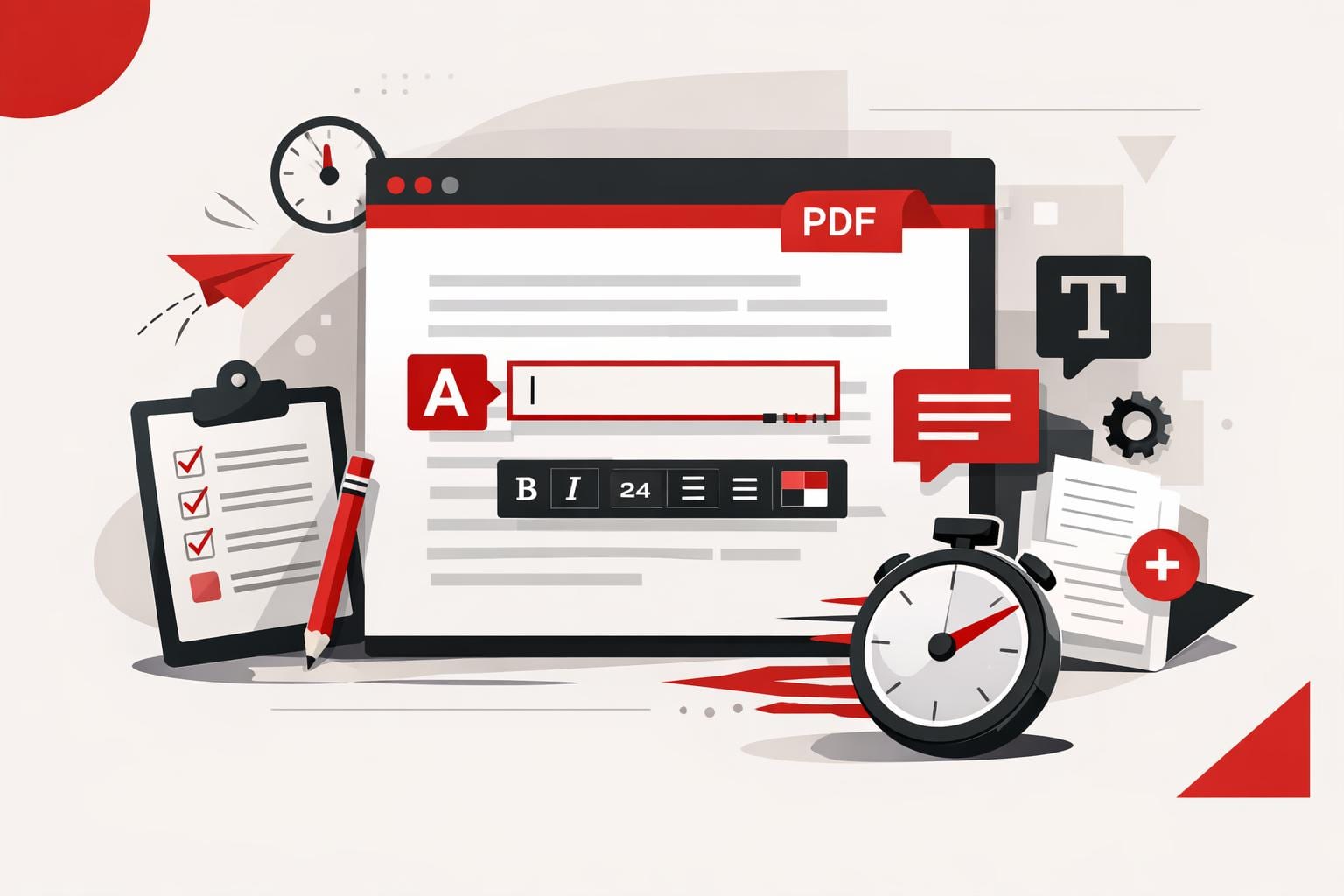
The fastest way to add text to a PDF is to use an online PDF editor, upload the file, place a text box on the page, adjust the formatting, and export the updated document. This works best for comments, labels, dates, short corrections, and titles, while larger rewrites usually need a conversion back to Word or another editable format.
The quick answer
A PDF is designed to preserve layout, not to behave like a normal word processor file. That is why small additions are usually faster with a browser-based editor than with a full file conversion.
With the iLovePDF Edit PDF tool, users can add text, comments, shapes, highlights, and images directly on top of an existing PDF. The editor is useful when the original Word, PowerPoint, or design file is unavailable.
The key distinction is simple: adding a visible text box is not the same as rebuilding the underlying document. For a missing date, a short note, or a page label, that difference rarely matters. For a contract clause, a full paragraph, or a redesigned report, it does.
When a PDF editor is the right tool
An online editor is the practical choice when the PDF is already final and only needs a small visible addition. Typical examples include adding a customer reference number, a meeting note, a signature label, a page title, or a short explanation for a reviewer.
Decision rule: use a PDF editor when the change fits in a text box and does not require the surrounding content to reflow. If the edit changes paragraph length, page breaks, tables, or document structure, convert the file first with a tool such as PDF to Word.
A practical example: a finance team receives a supplier invoice as a locked PDF and needs to mark it as paid with the payment date. Opening the file in an editor, placing a small text box near the invoice total, and exporting the PDF is faster than asking the supplier for the source document.
How to type text into a PDF
The process is straightforward because the new text is added as an editable element on the PDF page. The original file stays visually intact, while the added layer can be moved and styled before export.
Open the online PDF editor.
Select a PDF from the computer, Google Drive, or Dropbox.
Choose the text tool in the editing toolbar.
Type the new wording into the text box.
Drag the box to the exact position on the page.
Adjust the font, size, color, alignment, and style.
Apply the edit and download the updated PDF, or save it back to cloud storage.
This approach is especially useful for last-minute work because it avoids the common conversion problem where spacing, fonts, and page breaks shift after a PDF becomes a Word file.
Find more info and a video tutorial on our Edit PDF page.
Formatting and layout controls
Good PDF editing is not just typing. The added text has to look as if it belongs on the page, especially in forms, reports, certificates, invoices, and client documents.
The editor provides common formatting controls, including font choice, text size, color, bold, italic, underline, background color, opacity, and left, center, or right alignment. These controls help match the new text to the surrounding document without overcomplicating the task.
Each added text box behaves like a separate element. That means it can be moved, renamed, removed, duplicated, or reordered in relation to other elements on the page.
Shortcuts for faster editing
Keyboard shortcuts reduce repetitive work when several labels or notes must be added. Copy, cut, paste, duplicate, and delete actions are useful when the same text style appears across multiple pages.
Ctrl C: copy a selected text element.
Ctrl X: cut the selected element.
Ctrl V: paste the copied or cut element.
Ctrl D: duplicate an existing text element.
Delete: remove the selected item.
A practical workflow model
The PDF editing market can be understood through a simple three-part model: overlay, convert, and rebuild. Overlay tools add visible elements on top of the file, conversion tools turn the PDF into an editable Office document, and rebuild work recreates the document when layout control matters more than speed.
Overlay: best for comments, labels, dates, stamps, and short notes.
Convert: best for rewriting text, changing tables, or editing long sections.
Rebuild: best for branded templates, legal documents, complex reports, and files with strict design requirements.
Images can also be added when a document needs visual context, such as a product photo, scanned proof, diagram, or reference image. The company says its editor supports common image formats such as PNG, JPG, and GIF, and its guide to adding an image to a PDF explains the image workflow separately.
Security and file handling
Any online PDF workflow involves uploading a document, so file sensitivity matters. A public brochure, school worksheet, or simple invoice is different from a medical record, legal dispute file, tax document, or internal acquisition memo.
According to the company’s security information, processed files are encrypted and automatically deleted within two hours, with manual deletion also available from the download screen. That policy reduces retention risk, but it does not remove the need for internal judgment.
For highly confidential files, the safer rule is stricter: use approved company software, a local desktop editor, or a controlled document management system. For everyday PDF touch-ups, a browser editor offers the best mix of speed, simplicity, and adequate layout control.
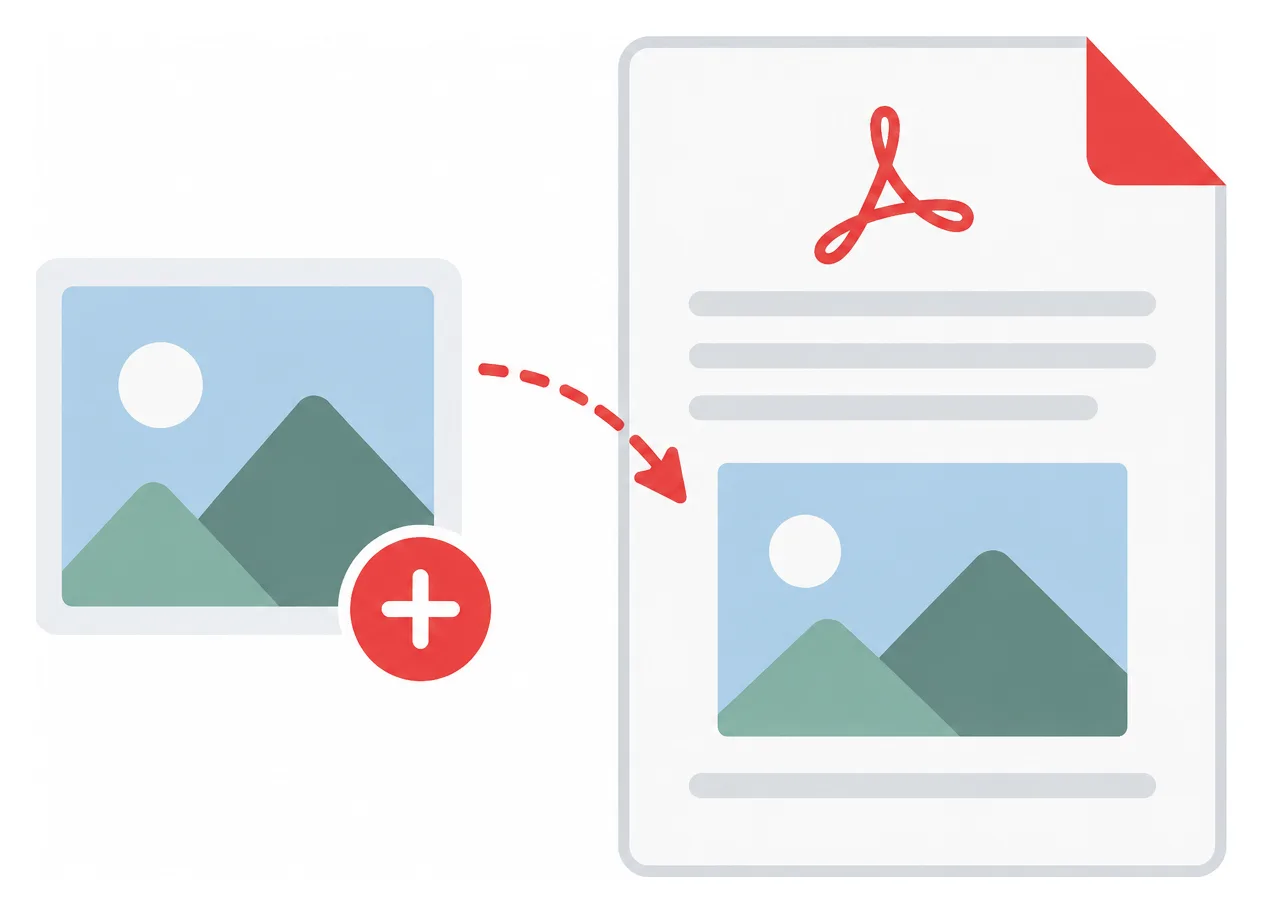
The fastest way to add a picture to an existing PDF is to use a PDF editor, upload the document, choose an image, place it on the page, then export the updated file. With iLovePDF Edit PDF, this can be done online without printing, scanning, or returning to the original Word, PowerPoint, or design file.
Why adding images to PDFs still matters
PDFs remain the default format for forms, contracts, school submissions, invoices, reports, and official evidence files. A photo, logo, signature image, receipt scan, product shot, or ID image often needs to be added after the PDF has already been created.
The old workaround was slow, print the document, attach or paste the image, scan the page again, then hope the quality stayed readable. A browser-based PDF editor removes that loop by letting the image sit directly on top of the existing page content.
A practical example, a tenant can open a completed maintenance request, add a photo of water damage on the correct page, resize it beside the written description, then send one clean PDF to the property manager.
How to insert an image into a PDF
The basic workflow is simple. Open the editor, upload the PDF, add the image, adjust its position, then process and download the final document.
Select a PDF from the device, or import it from Google Drive or Dropbox if those options are available in the upload panel.
Choose the image tool from the editor toolbar.
Upload the picture that should appear in the PDF.
Drag the image to the right place on the page.
Resize it by pulling the corner handles until it fits the layout.
Process the PDF and download the edited file, or save it back to cloud storage.
The decision rule is straightforward, use direct PDF editing when the PDF layout is already final and only needs a photo, logo, stamp, or visual proof. Go back to the source document only when the text structure, page order, or design grid needs major changes.
Find more info and a video tutorial on our Edit PDF page.
Supported image formats and preparation
The editor is designed for common web image formats, especially JPG, PNG, and GIF. JPG is usually best for photos, PNG works well for screenshots and logos with clean edges, and GIF can be useful for simple graphics.
If the image is in a less convenient format, convert or clean it up before adding it to the PDF. For image editing tasks such as cropping, color correction, contrast, or saturation, a separate tool such as the iLoveIMG Photo Editor is better suited because those changes affect the image itself, not just its placement in the PDF.
A simple market model helps separate the job into three layers, file, layout, and trust. File means using the right format, layout means placing the picture cleanly, and trust means keeping the document readable, professional, and secure.
Control size, layers, rotation, and transparency
Adding one image is easy, but multi-image PDFs can become crowded quickly. The editor’s layer panel helps manage the order of objects, so one photo can sit above another, or a visual element can move behind text and shapes.
Layering matters when several visuals share the same page. A company could place a product image first, move a semi-transparent approval stamp above it, then add a small logo in the corner without disrupting the whole document.
Rotation fixes pictures that were captured in the wrong orientation. Select the image, then use the rotation controls to turn it clockwise or counterclockwise until it matches the page.
Transparency controls how strongly an inserted image appears. Lower opacity can make a picture behave like a watermark, while full opacity is better for evidence photos, product images, and screenshots that must stay sharp.
Security, mobile use, and offline editing
Documents that contain IDs, financial details, contracts, or medical information should be handled with extra care. According to the iLovePDF security page, the service uses HTTPS encryption, describes end-to-end encryption for processed files, and says processed files are automatically deleted within two hours.
For sensitive workflows, offline editing can be the safer default because the file stays on the computer during processing. iLovePDF also offers iLovePDF Desktop, which is aimed at local document work and privacy-focused processing.
Mobile editing is useful when the image already lives on a phone. The iLovePDF Mobile apps support PDF editing, scanning, signing, file management, and document sharing from iOS and Android devices.
Quick answers
Can images be added to a PDF for free?
Yes, iLovePDF offers free access to many PDF tools, including editing features. Premium plans are intended for heavier use, advanced functions, and larger workflows.
Which image type should be used?
Use JPG for normal photos, PNG for logos or screenshots, and GIF for simple graphics. If the picture needs correction first, edit the image before importing it into the PDF.
Can an image be resized after insertion?
Yes. Select the image and drag the corners to scale it. Keep proportions consistent if the image contains faces, logos, signatures, or product details.
Can the image be placed behind another object?
Yes. Use the layer controls to move the image forward or backward in the page stack. This is useful for stamps, watermarks, logos, and overlapping visuals.
Is mobile editing practical?
Yes, especially for receipts, field photos, school paperwork, and quick signatures. Desktop editing is still better for complex pages, large files, or sensitive business documents.
The cleanest way to edit a PDF in Word is to convert it into a DOCX file first, preferably with OCR when the PDF contains scanned pages or locked text. Opening a PDF directly in Word can work for simple files, while a PDF editor is better for small text fixes that do not require a full conversion.
Choose the best editing method
PDF editing is not one task. It falls into three practical categories, conversion, direct editing, and annotation. The right choice depends on whether the document needs deep rewriting, a quick correction, or review comments before a final version.
Method
Best for
Main tradeoff
PDF to Word conversion
Full text editing, restructuring, and formatting changes
Complex layouts may still need checking after conversion
Opening PDF in Word
Simple text based PDFs with light edits
Formatting can shift, and some elements may not transfer cleanly
PDF content editor
Fixing names, dates, prices, comments, and small layout updates
Not ideal for heavy rewriting across many pages
The decision rule is simple, convert the file when the text must be rewritten, edit the PDF directly when only a few visible elements need changing, and annotate when the document still needs review. For example, a sales team updating a proposal price can use a PDF editor, while a legal team rewriting several clauses should convert the PDF to Word first.
Convert the PDF to Word
A dedicated converter is usually the strongest option because it turns fixed PDF content into an editable Word document. The iLovePDF PDF to Word converter supports normal conversion for selectable text and OCR for scanned pages.
OCR means optical character recognition. It reads text from images or scans and rebuilds it as editable text, which matters when a PDF came from a scanner, a photographed document, or a non selectable file.
Upload: Open the converter and select the PDF file.
Choose OCR: Use OCR when the PDF contains scanned pages or text that cannot be selected.
Convert: Start the conversion and download the Word file.
Edit: Open the DOCX file in Word and review formatting before sending it on.
This method gives the most control because Word can handle paragraph edits, style changes, headings, lists, and larger rewrites more naturally than a PDF editor.
Open the PDF in Microsoft Word
Word can open some PDF files without a separate converter. This is useful when the file is simple, mostly text, and does not rely on tight visual positioning.
Open Word and choose File, then Open.
Select the PDF from the device.
Confirm the prompt that lets Word convert the PDF for viewing and editing.
Check every page for shifted spacing, missing images, or broken tables.
This route is convenient, but it is not the safest choice for polished documents. Word may rebuild the file in a way that changes line breaks, columns, images, or page structure, especially in brochures, invoices, forms, and designed reports.
Edit the PDF directly
When the task is small, direct PDF editing can be faster than converting the whole file. The iLovePDF Edit PDF tool lets users add or adjust text, images, shapes, comments, and highlights inside the PDF workspace.
This method works well for correcting a date, replacing a name, adding a note, or marking a section for approval. It keeps the work close to the final visual layout, which reduces the risk of accidental document-wide formatting changes.
Practical example
A hiring manager receives a signed onboarding PDF and notices that the start date is wrong. Direct editing is the faster path, because only one field needs changing and the rest of the document should remain untouched.
PDF work often happens away from a desk. The iLovePDF mobile workflow supports PDF to Word conversion from a phone or tablet, so a user can upload a file, convert it, download the Word version, and make edits while traveling.
For offline work, the iLovePDF Desktop App is the better fit. It is designed for Windows and Mac users who want PDF tools on the computer, including file conversions and local document handling.
A useful market model is format, device, risk. Format decides whether Word or PDF editing is better, device decides whether web, mobile, or desktop is practical, and risk decides whether an online upload is acceptable for the document type.
Check security before uploading
Before using any online PDF tool, users should consider the sensitivity of the file. According to iLovePDF, uploaded documents are protected with encryption and are automatically removed from its system after two hours.
That protection may be enough for routine business documents, class materials, and everyday forms. For contracts, medical records, financial files, or confidential internal data, an offline desktop workflow is often the safer default because the file stays under tighter local control.
The best PDF editing workflow is therefore not one universal tool. Use conversion for heavy edits, Word opening for simple text PDFs, direct PDF editing for quick corrections, and annotations when several people need to clarify changes before the final version.
Yes, everyday PDF edits can be done without Adobe Acrobat. iLovePDF handles browser-based text updates, signing, compression, conversion, and page management, making it a practical fit when a full Acrobat workflow is more than the job needs.
Why iLovePDF Fits Everyday PDF Work
Adobe Acrobat remains a powerful professional suite, but many users only need a narrow set of actions, such as correcting a line, combining files, adding a signature, or reducing file size. For that kind of work, a focused online tool can be faster, cheaper, and easier to learn.
The iLovePDF editor runs in the browser and gives users common PDF controls without requiring a software installation. The company also offers mobile and desktop options for people who prefer working outside the browser.
A useful market model is the three-lane split. Full suites handle regulated, complex document operations, task-based web tools solve quick everyday jobs, and local desktop utilities suit files that should not leave a device. iLovePDF sits mainly in the task-based lane, with extra options for heavier workflows.
What You Can Change in a PDF
Text, layout, and visual elements
For simple corrections, iLovePDF can edit existing PDF text and add new text boxes. That is useful for small updates, such as fixing a name, changing a date, or adding a missing note without rebuilding the whole document.
The editor also supports images, logos, shapes, comments, highlights, and underlines. These tools help when a PDF needs clearer visual structure, light branding, review notes, or emphasis for a presentation.
Conversion and page control
PDF work often becomes format work. iLovePDF includes tools to convert PDF files into Word, PowerPoint, Excel, or JPG formats, and the PDF to Word tool also notes OCR support for scanned pages as a premium option.
For document structure, the broader iLovePDF tool set covers merging, splitting, compressing, rotating, reordering, deleting pages, and converting files back into PDFs. These actions solve the most common document cleanup problems before a file is sent, archived, or uploaded.
Signatures and compression
The Sign PDF tool lets users sign a document themselves or request signatures from others. It supports drawn or uploaded signatures, plus fields such as name, initials, date, text, and company stamp.
Compression is the practical fix for large reports, image-heavy files, and scanned documents that fail upload limits or clog email attachments. The goal is not to redesign the document, but to make the same file easier to send and store.
How the Three Step Workflow Works
The workflow is deliberately simple. Open iLovePDF in the browser, choose the needed tool, upload the file, make the change, and download the finished version.
Choose the task, such as Edit PDF, Merge PDF, Split PDF, Compress PDF, Convert PDF, or Sign PDF.
Upload the document from the device or a supported cloud source.
Finish the edit, process the file, then download or save the result.
Concrete example, a freelancer receives a client proposal with the wrong delivery date, two pages in the wrong order, and no signature block. With iLovePDF, the freelancer can correct the date, reorder the pages, add a signature field, compress the final PDF, and send it back without opening a desktop publishing app.
Find more info and a video tutorial on our Edit PDF page.
Security and Document Handling
Online PDF tools require a security check because files are uploaded for processing. According to the company’s security page, iLovePDF uses encryption and automatically deletes processed files within two hours.
The company’s privacy policy also states that uploaded content is deleted within two hours after processing, except for iLoveSign services, where separate retention rules can apply. That exception matters for signed documents, because signature workflows may need longer storage for legal and evidentiary reasons.
The practical takeaway is simple, ordinary school files, marketing drafts, invoices, and non-sensitive admin documents fit this kind of tool well. Highly confidential legal, medical, government, or internal corporate files may require an approved local or enterprise document system instead.
When to Use It and When Not To
Decision rule, use iLovePDF when the job is small, clearly defined, and does not require advanced document governance. If the task is to fix text, add a note, sign a form, compress a file, or rearrange pages, a browser-based tool is usually enough.
Choose a full professional suite or an approved local workflow when the PDF contains sensitive personal data, strict compliance obligations, complex redaction needs, advanced accessibility remediation, or long document approval chains. In those cases, editing power is only part of the requirement, auditability and policy control matter just as much.
For most everyday users, the value is speed. iLovePDF turns PDF editing into a set of specific actions rather than a software project, which is exactly what students, freelancers, and small teams often need.