Independent PDF Tool Guide

Author: Sandra

  • PDF Files Explained With Benefits and Smart Use

    PDF Files Explained With Benefits and Smart Use

    A PDF is the go to format when a document must look the same everywhere, on any device, in any app, and on paper. It behaves more like a sealed package than a living draft, which is why it dominates contracts, invoices, brochures, and technical drawings. The tradeoff is simple, PDFs preserve the page, not the editing freedom.

    What a PDF file really is

    PDF is short for Portable Document Format. It was developed at Adobe in the early 1990s, and it was publicly released in 1993 alongside Acrobat.

    What turned PDF from a vendor format into infrastructure is standardization. PDF is maintained as an ISO standard (the ISO 32000 family), which is why a PDF created on one system can be read and printed on another with consistent results. For a deeper technical reference, the PDF Association maintains an overview of the ISO 32000 specification at PDF Association resources, and the Library of Congress tracks format details at PDF (Portable Document Format) Family.

    The document market mini model

    Most file formats compete on three axes. PDF wins when the priority is stability, not collaboration.

    • Fidelity: the page renders like a finished print, not a reflowing webpage.
    • Portability: the file travels across platforms with minimal surprises.
    • Control: the sender can add structure, metadata, forms, and optional restrictions.
    Illustration of a PDF document with a lock and layered pages, showing its fixed layout and security

    Why PDFs preserve formatting so reliably

    A PDF uses a fixed layout approach, it describes each page as a precise arrangement of text and graphics. Instead of asking the receiving device to rebuild the document from styles and fonts, the PDF carries the instructions needed to place content at specific coordinates on a page.

    That is why a complex layout, such as a legal agreement with page breaks, signature blocks, and footnotes, prints consistently. The same stability is valuable for architecture and engineering drawings, where a slight shift can change meaning.

    What “fixed layout” means in plain terms

    • Same page everywhere: page size and content placement do not depend on screen size.
    • Fonts and graphics stay put: PDFs can embed resources so the file does not rely on what is installed on the recipient’s device.
    • Better print predictability: PDF behaves like a print ready package, which is why it is common in regulated and commercial workflows.

    Key benefits that make PDF the default choice

    PDF is popular because it reduces document risk. When a file must survive email forwarding, cloud sharing, and printing without layout damage, PDF usually delivers.

    The benefits that matter most

    • Universal readability: modern browsers open PDFs, and dedicated readers exist across desktop and mobile. Adobe’s installation guidance for Acrobat Reader is available at Adobe Help Center.
    • Productivity tooling: a mature ecosystem supports merging, splitting, annotating, signing, redacting, and converting without rewriting the original document.
    • Simple conversion pathway: many apps offer “Save as PDF,” and dedicated converters handle Office formats and images when that option is missing.
    • Security options: PDFs can be encrypted with passwords and can carry permission flags. In practice, permission flags are best treated as friction, not as a hard guarantee, because non compliant software may ignore restrictions.
    • Accessibility support: PDFs can be structured so assistive technologies can navigate headings, reading order, and tags. If a PDF is a scan without selectable text, OCR is the usual fix.
    • Smaller, optimized files: PDF creation and compression can reduce size for storage and sharing, especially compared with raw images.
    • Interactivity: PDFs can include hyperlinks, bookmarks, form fields, and embedded media while keeping the page layout intact.
    • Metadata: PDFs can store title, author, and keywords to improve search and organization without changing the visible content.

    A reality check on when PDF is the wrong tool

    • Collaborative drafting: if multiple people must edit text heavily, a source format like DOCX is usually faster, then export to PDF at the end.
    • Mobile first reading: fixed pages can feel cramped on small screens unless the PDF is designed for that page size.

    PDF tools and a concrete example workflow

    PDF becomes most valuable when it is treated as the “final packaging” step, supported by a toolkit for rearranging pages, extracting text, and tightening file size. According to the company, iLovePDF offers more than 25 tools across web, mobile, and desktop, including merging, splitting, compressing, protecting, and OCR.

    A practical workflow example

    A finance team receives twenty scanned invoices, needs searchable text, and must email a single file under a size limit.

    1. OCR the scans: turn image only pages into searchable pages using iLovePDF OCR PDF.
    2. Merge into one packet: combine files in the required order with iLovePDF Merge PDF.
    3. Compress for sending: reduce size with iLovePDF Compress PDF.
    4. Protect if needed: add encryption with iLovePDF Protect PDF, then share the password out of band.

    A clear decision rule

    • Choose PDF: when the goal is “same page everywhere,” especially for signing, printing, or formal sharing.
    • Choose OCR first: when the PDF is a scan and search, copy, text to speech, or extraction is required.
    • Choose PDF/A: when retention policies or archival requirements demand long term reproducibility.
    • Choose a local app: when document sensitivity makes uploads unacceptable, the company’s desktop offering is described at iLovePDF Desktop.

    Find more info and video tutorials on our pages Merge PDF, Compress PDF and Protect PDF.

    Common PDF types and special terms

    Everyday users often say “a PDF,” but the ecosystem includes variants and processing steps that change how a file behaves, especially in compliance and web delivery.

    Concept What it is Use it when Typical tradeoff
    PDF/A An ISO standardized profile of PDF designed for long term preservation. Records retention, regulated archiving, “must open the same in the future.” Features that complicate archiving may be restricted.
    Flattening A process that collapses layered content into a single layer. Finalizing a document so forms, annotations, or layered elements are harder to alter. Edits become difficult, some interactive elements may stop working.
    Linearized PDF A PDF optimized for faster first page viewing over the web. Large PDFs that users open in a browser, especially on slower connections. Extra processing step at creation time.
    PDF reader Software for viewing, searching, and printing PDFs, sometimes with light tooling. Consumption workflows, reviews, markup, basic navigation. Not the same as full editing capability.

    Where to learn more about archival PDF

    The Library of Congress summarizes PDF 2.0 and related standards, and it also documents archival profiles such as PDF/A. An entry point is PDF/A 4 format description.

    Security and retention promises that users should verify

    PDF security has two layers, file level encryption and workflow level handling. File encryption protects the document itself, while workflow handling covers how a service transports, stores, and deletes uploaded files.

    What password protection actually does

    • Encryption with a password: blocks casual access unless the recipient has the password.
    • Permissions: can request “no printing” or “no copying,” but enforcement depends on the PDF software used to open the file.

    What to look for in an online PDF tool

    • Encrypted transport: HTTPS with TLS for upload and download.
    • Retention window: how long files remain available for download before deletion.
    • Exceptions: e signature and audit trail workflows may require longer storage.

    According to iLovePDF’s published security information, the service uses encrypted connections and automatically deletes files from standard tools within about two hours, with exceptions for certain signing workflows. The company’s statements are summarized at iLovePDF Security and iLovePDF Legal.

    A simple risk rule for sensitive files

    If the document would cause material harm if leaked, treat browser based tools as a last resort and prefer local processing, either an offline desktop app or an internal enterprise workflow. If the file is routine, such as class paperwork or a non sensitive brochure, online tools can be a practical speed boost.
  • Compress PDF Offline Safely on Mac and Windows

    Compress PDF Offline Safely on Mac and Windows

    To compress a PDF offline, use a desktop compressor that processes the file locally, so size drops without relying on Wi-Fi. A smaller PDF uploads faster, is easier to email, and can reduce friction in shared workflows, especially when traveling or handling sensitive documents.

    A quick offline workflow for smaller PDFs

    Install a desktop PDF tool, open the compress feature, select a file, then run compression. This approach keeps work moving when internet access is slow, unavailable, or restricted.

    How to compress a PDF offline

    The iLovePDF Desktop App for macOS and Windows is designed to run common PDF tasks from a desktop environment, including compression. The basic flow stays the same across platforms.

    • Open or download the iLovePDF Desktop App from ilovepdf.com/desktop.

    • Open the Tools menu and choose Compress PDF.

    • Select Open file and pick the PDF to reduce.

    • Click Compress PDF, then save the result.

    Practical example: a team lead finalizes a 40 MB status report on a train with unstable Wi-Fi, compresses it offline, and sends a smaller attachment that teammates can download quickly on mobile connections.

    Find more info and video tutorials on our pages Compress PDF and PDF to PDF/A.

    Make compressed files archive-ready with PDF/A

    Compression is often a pre-step for long-term storage, especially in administration where contracts and records must remain readable years later. For that use case, file size is only half the story, the other half is whether the PDF follows an archival standard.

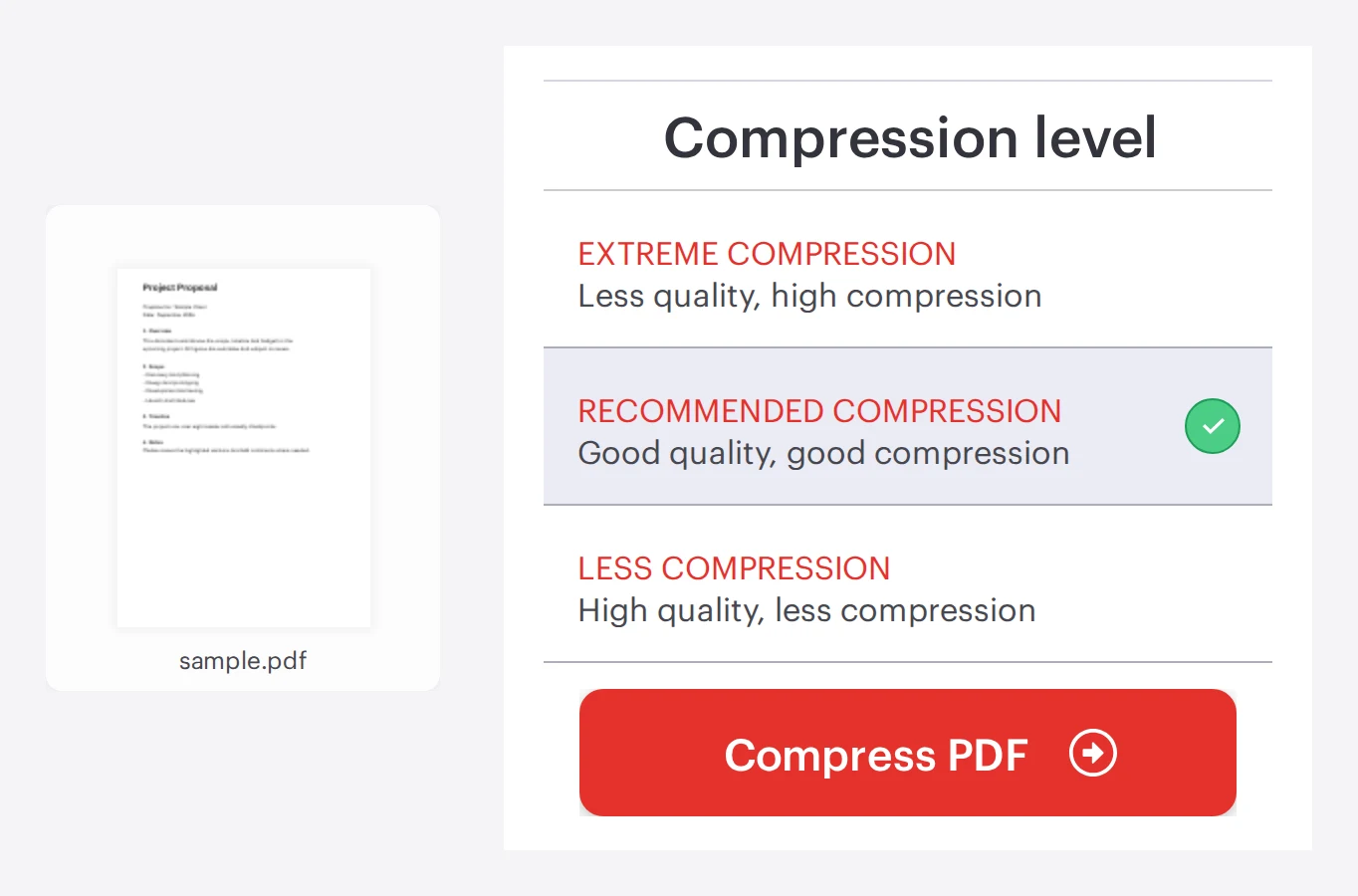
    The iLovePDF Compress PDF tool with a PDF loaded and compression level options, ready to compress the file
    • What PDF/A means: PDF/A is a version of PDF designed for long-term preservation, aiming to reduce surprises when opening documents in the future. A quick explainer is available at Wikipedia’s PDF/A overview.

    • Why it matters after compression: a smaller file is easier to store and index, but compliance helps ensure it can still be opened reliably across devices and over time.

    How to check PDF/A status in a desktop reader

    Open the document in the iLovePDF desktop PDF Reader, click the red information icon on the left side, then review the PDF/A status shown there. If the file is not compliant, convert it with a dedicated tool such as iLovePDF’s PDF to PDF/A to make it more suitable for archiving.

    See when offline beats online on speed and control

    Offline compression can feel faster because performance depends on the local machine, not a congested network. It also reduces exposure when policies or context make cloud uploads uncomfortable, such as working in hotels, airports, or client sites.

    A simple market model for choosing the right mode

    • Connectivity: if the connection is unreliable, offline avoids bottlenecks.

    • Confidentiality: if the file is sensitive, local processing keeps handling tighter.

    • Compliance: if you must archive, check PDF/A after size optimization.

    Decision factor Offline desktop compression Online compression
    Internet quality Works without Wi-Fi, avoids slow hotspots Depends on bandwidth and stability
    Batch work Often better for compressing many files without upload time Upload time can dominate for large batches
    Data handling comfort Local processing can reduce perceived exposure Requires sending files to a service
    Convenience Best for repeat workflows on a work machine Best for quick, one-off tasks from any device

    According to iLovePDF, its tools are used by individuals and also adopted in enterprise settings. The company also states that it does not analyze or store the content processed through its tools, and that its security approach includes protective procedures run by IT specialists.

    Add one more layer for confidential PDFs

    Compression changes size, not access. If a smaller file will travel through email threads, shared drives, or external recipients, access controls become the next practical step.

    Decision rule for security

    If the PDF includes personal data, contracts, or financial details, compress offline first, then add a password before sharing. For a walkthrough on protecting documents, see How to protect a PDF file with a password.

    What the company says about file safety

    For service-based processing, the company states it uses end-to-end encryption, deletes uploaded documents automatically after two hours, and operates servers under European legislation. For a detailed explanation, refer to Are my files safe using iLovePDF.

  • Translate Any PDF Fast Without Losing Layout

    Translate Any PDF Fast Without Losing Layout

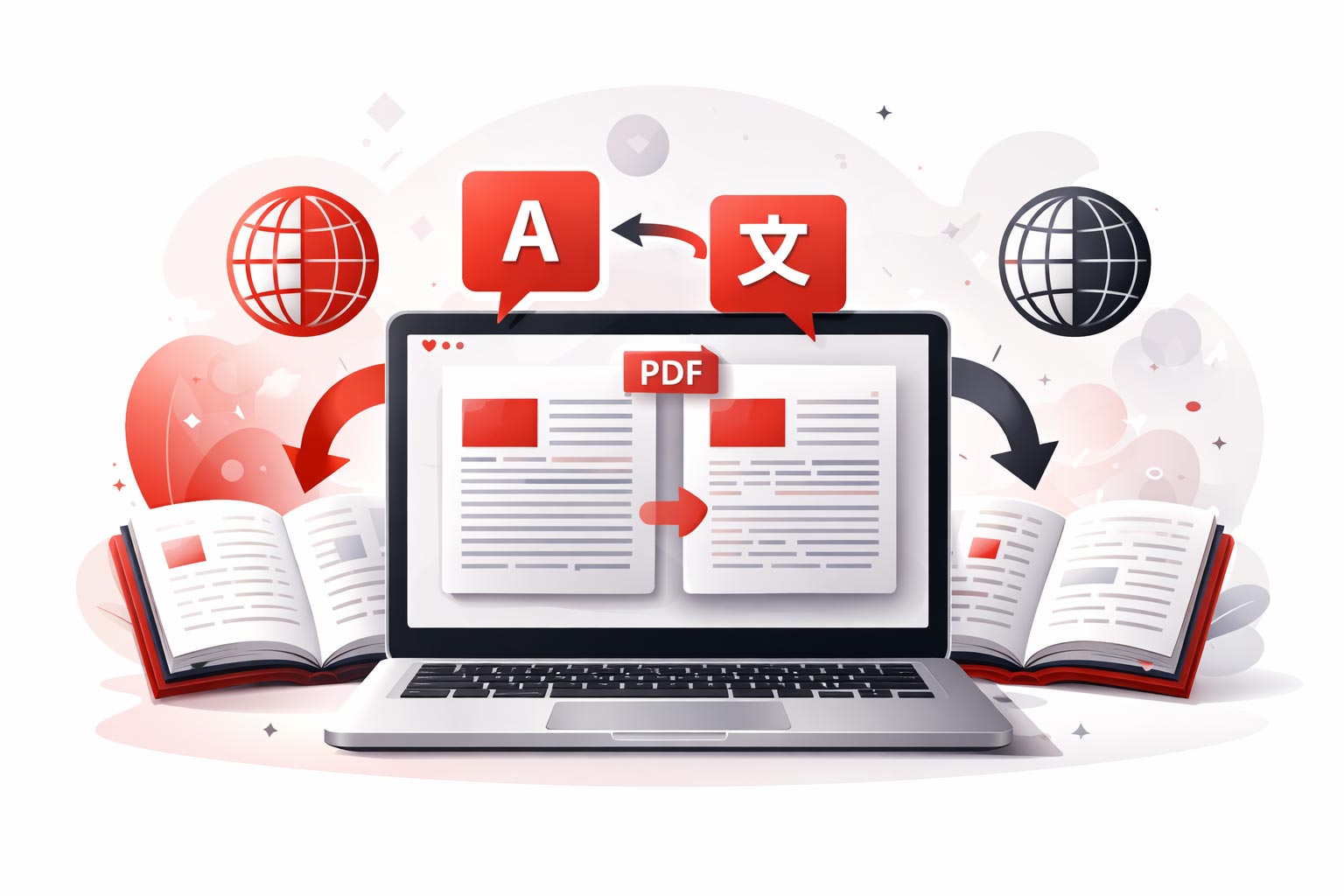
    To translate a PDF efficiently, start with a tool that translates the entire document and keeps the page structure intact, then switch to a PDF to Word workflow when the text needs manual edits. Scanned PDFs require OCR to turn images of text into selectable text, and quick quality checks with more than one translator reduce the risk of mistranslated terms. Mobile and desktop options make the same workflows possible while traveling or offline.

    Overview:

    Choose the right PDF translation workflow

    For a full document, use a dedicated PDF translation tool if the goal is to keep pages, columns, headers, and spacing as close to the original as possible. Convert the PDF to an editable format like Word when the priority is rewriting, fixing terminology, or selectively translating sections.

    A practical decision rule is to check three things before starting: whether the PDF is scanned, how sensitive the layout is, and how high the accuracy stakes are for the content.

    • If the file is scanned or text cannot be selected, pick a workflow that includes OCR.

    • If the file has complex formatting, tables, or multi-column layouts, translate the PDF directly rather than copy-pasting text.

    • If the output must be edited, reviewed, or combined with manual translation, convert to Word first.

    A simple mental model that works well is “Scan, Layout, Stakes”. Scanned content dictates OCR, layout dictates whether direct PDF translation is safer, and stakes dictate how much review and terminology control is needed.

    Workflow Best for Main trade-off Typical outcome
    Translate the PDF directly Whole documents where layout matters Less granular control over phrasing Readable PDF that looks like the original
    Convert PDF to Word, then translate Editing, terminology cleanup, selective translation Formatting may shift during conversion Editable draft that is easy to revise
    Copy and paste into a text translator Short excerpts and quick comprehension Structure and references get lost Text only, manual reassembly required

    Translate the full PDF with a dedicated tool

    Dedicated PDF translation tools are designed to process an entire file in one pass, which reduces the usual formatting damage caused by copy-paste. A common workflow is upload, choose source and target languages, then download the translated document.

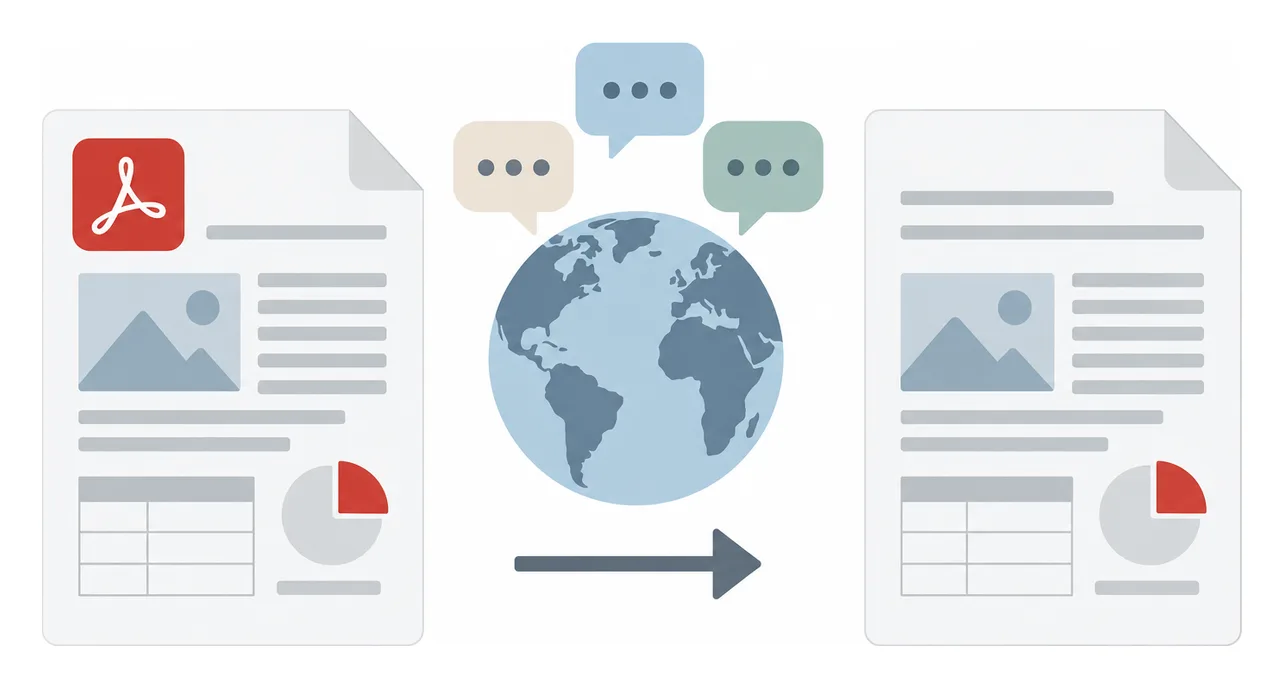
    Illustration of translating a PDF: a document with a globe and multilingual speech bubbles

    For example, the company iLovePDF provides a document-level translator at Translate PDF. According to iLovePDF, the tool can handle both text-based PDFs and scanned PDFs by using OCR to extract text.

    OCR in one sentence: Optical character recognition converts images of text into machine-readable text, which is essential when a “PDF” is effectively a stack of scanned pages.

    A fast, reliable sequence

    • Open Translate PDF in a browser.

    • Upload the file, select the input language and the output language.

    • Download the translated PDF and spot-check headings, figures, and paragraph order.

    Quick quality check: verify names, numbers, and units first. Translation errors often hide in decimals, dates, and technical abbreviations.

    Find more info and video tutorials on our pages Translate PDF and PDF to Word.

    Convert PDF to Word when you need control

    Converting a PDF into Word is the better option when the translated text must be edited, shortened, or adapted for a specific audience. It is also useful when only parts of a document need translation, such as the abstract, conclusion, or a single chapter.

    The iLovePDF PDF to Word converter supports uploads from a device and commonly used cloud storage options. After conversion, the Word document can be translated with a translator of choice, then edited like any other draft.

    Practical steps that minimize formatting damage

    Step 1: Convert the PDF to Word via PDF to Word.

    Step 2: Translate inside the Word file, then correct terminology, headings, and captions.

    Step 3: Export back to PDF only after edits are complete, to avoid repeated conversion artifacts.

    Decision rule: if a reviewer will mark up the translation, start with Word. If the document is meant to be read, not rewritten, start with direct PDF translation.

    Pick an online translator that fits the job

    General translation engines can be accurate at the sentence level but still miss meaning across paragraphs, especially in academic and legal writing. The safest approach is to test two translators on the same tricky section and compare terminology consistency.

    Useful options for quick comparisons include Google Translate, DeepL, and Microsoft Translator.

    A lightweight review method for non-experts

    Terminology pass: list 10 key terms, translate them separately, then force consistent wording throughout.

    Meaning pass: re-read only topic sentences and conclusions, errors often show up there first.

    Structure pass: confirm that headings and numbered references still point to the right places.

    Clear cutoff rule: if one ambiguous word could change a decision, such as medical dosage, legal obligations, or safety instructions, treat machine translation as a draft and require human review.

    Translate while traveling or working offline

    When working away from a laptop, a mobile PDF toolset can prepare documents for translation, convert them into editable formats, and help extract only the necessary pages. iLovePDF offers a mobile option at iLovePDF Mobile, which the company positions as a multi-tool app for common PDF tasks.

    Concrete example that matches real travel needs

    A student receives a scanned PDF handout in Italian right before a seminar abroad. The fastest workflow is to convert the scan to editable text with OCR in a PDF tool, translate only the required pages, then store the translated version for offline reading on the phone.

    For offline work on a computer, iLovePDF also provides a desktop app at iLovePDF Desktop. A practical offline approach is to convert the PDF locally, then translate the extracted text with an offline-capable translation tool available in the environment.

    Mini-rule for travelers: if connectivity is unreliable, do file conversion before leaving Wi-Fi, then handle translation and reading offline.

    Security, pricing, and data handling basics

    Uploading documents for translation raises obvious confidentiality questions, especially for contracts, medical documents, and internal reports. According to iLovePDF, transfers use SSL encryption, files are deleted automatically after about two hours, and the service operates under European legal frameworks that are generally strict on data protection.

    On cost, iLovePDF markets a free tier for typical everyday use and a Premium upgrade for higher volume limits and more advanced workflows. Pricing details and feature boundaries can change, so the safest reference point is the product site at ilovepdf.com.

    Decision rule: if the document contains sensitive personal data or trade secrets, use tools and settings that meet the organization’s compliance requirements, and avoid unnecessary uploads.

    FAQs

    Why does PDF translation still matter in 2026?

    PDF remains a default format for research, invoices, manuals, and official paperwork. Translation is often needed quickly, and the main challenge is preserving structure while converting the meaning.

    What is the most reliable way to translate a PDF without breaking formatting?

    Direct PDF translation tools are typically the best first choice because they operate on the document as a whole. Copy-paste translation is better reserved for short excerpts.

    Can scanned PDFs be translated?

    Yes, but they require OCR first because the “text” is stored as an image. Tools that bundle OCR into the workflow reduce manual cleanup.

    Is it possible to translate PDFs on a phone?

    Yes. A mobile PDF app can convert files, extract pages, and prepare text for translation while away from a computer, for example via iLovePDF Mobile.

    How can someone keep up with new PDF and translation workflows?

    Product changes happen frequently, so checking vendor release notes and blogs is practical. For iLovePDF updates, the company publishes articles at iLovePDF Blog.

  • Free AI PDF Tools Reshape Document Work

    Free AI PDF Tools Reshape Document Work

    In 2026, PDF work is shifting from paid desktop suites to free apps and browsers that now include AI summaries, collaboration, and even advanced editing. The practical result is simple, many everyday document tasks no longer require a subscription, but users must decide when cloud AI is worth the compliance and privacy tradeoffs.

    Overview:

    Why free PDF tools now feel premium

    Free PDF tools in 2026 increasingly deliver capabilities that used to sit behind subscription walls, including AI assistance, stronger rendering quality, and smoother accessibility. The market shift is driven by large platform updates and a wave of capable free desktop editors that remove typical annoyances like watermarks. For users, the center of gravity is moving from “viewer only” software to an intelligent workspace that can read, rewrite, and prepare documents for sharing.

    A key technical lever is the PDF rendering engine, the component that converts a PDF into what is actually displayed on screen. Better engines reduce layout glitches, improve speed on complex files, and can strengthen security and accessibility because text structure is interpreted more reliably.

    Mini-model for the 2026 PDF market

    Three forces separate winners from leftovers:

    Smarts, built-in AI for summarizing, extracting, translating, and redacting.

    Surface, where the tool lives, such as mobile apps, browsers, and offline desktop suites.

    Safety, the privacy posture, including offline processing, auditability, and access controls.

    What Adobe changed on phones

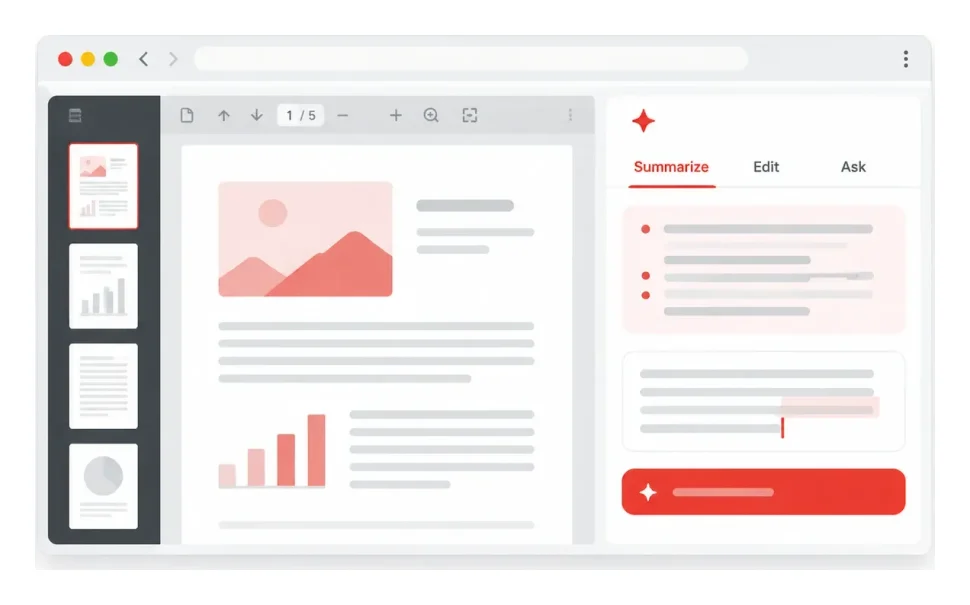
    According to Adobe, the free Acrobat Reader app gained a deeper layer of AI features that previously signaled “premium” software. One standout addition is turning AI-generated summaries into an audio experience that plays like a podcast, aimed at absorbing long reports while commuting or multitasking.

    The app also adds collaboration features through “PDF Spaces” and brings design tooling into the workflow via integration with Adobe Express. In market terms, this looks like a defensive move: raise the baseline of the free tier so fewer users feel the need to test competitors just to get modern AI assistance.

    Concrete example that matches real work

    A student receives a 40-page research brief as a PDF. The mobile app generates a summary, converts it into audio for the trip to campus, then the student returns to the original document to search for specific tables and quotes. The workflow replaces a common paid pattern: summarize in one tool, listen in another, then annotate later.

    The big browser upgrade for PDFs

    On Windows desktops, the biggest “free upgrade” arrives through the browser rather than a separate app. Microsoft is replacing the built-in Edge PDF viewer engine with the Adobe Acrobat PDF engine, with the legacy engine scheduled to be removed by June 2026.

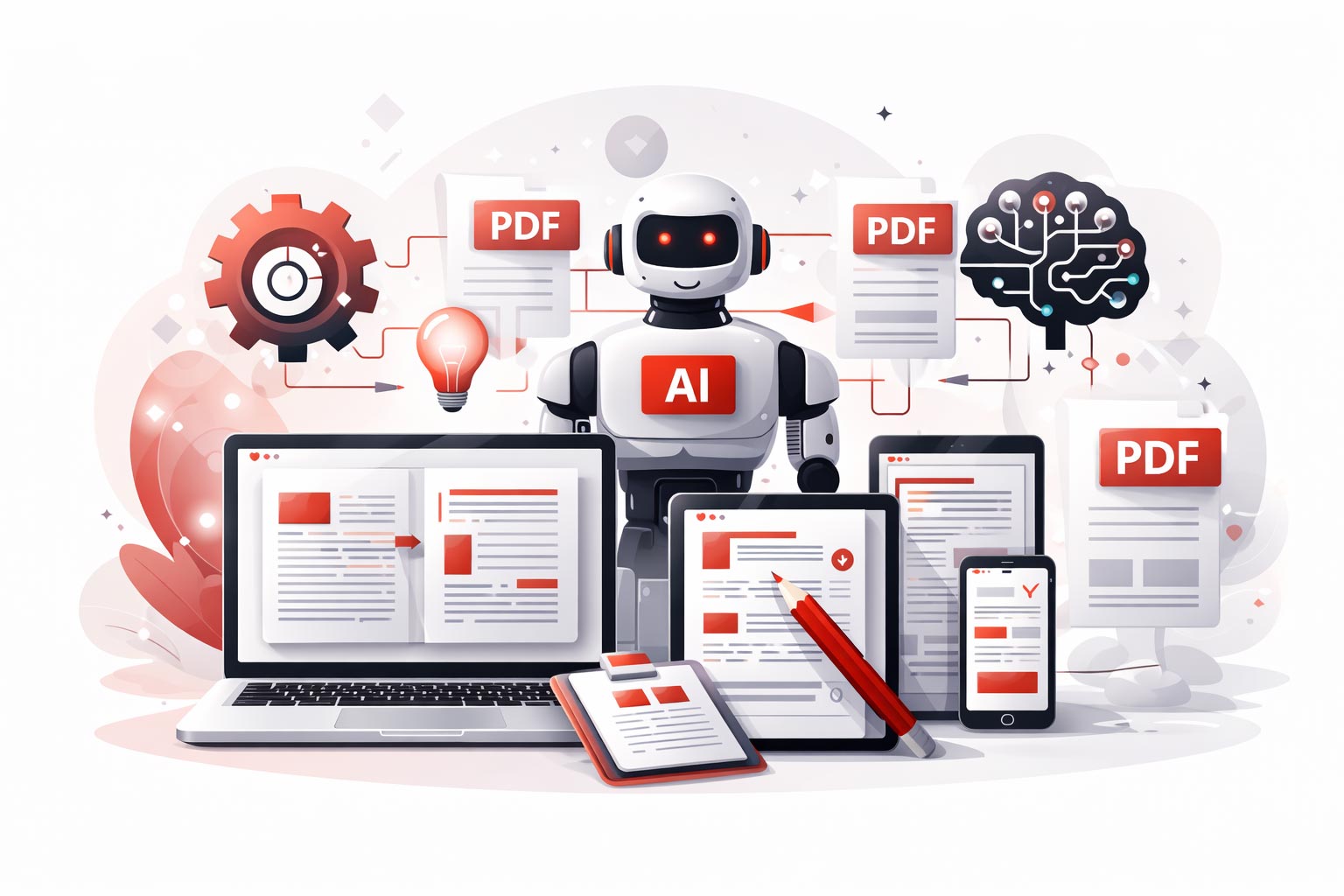
    Illustration of free AI PDF tools reshaping document work

    For a massive installed base, this effectively delivers higher-grade rendering, stronger accessibility, and improved security without asking users to install anything new. Accessibility is particularly visible in read-aloud features, where more accurate text structure can produce more reliable spoken output, especially on complex layouts.

    Helpful starting points: Microsoft Edge and Adobe’s background on its Acrobat PDF technology.

    Which free editors matter in practice

    Beyond the major platforms, free desktop editors have become more capable, and some now offer serious editing without paywalls or watermarks. Two names frequently highlighted in 2026 comparisons are PDFgear and PDF24 Creator, and they represent two different philosophies: AI-assisted editing versus privacy-first offline tooling.

    What separates the leading free options

    PDFgear focuses on editing that feels closer to a word processor, including modifying existing text while preserving the original layout. It also includes a chat-style AI copilot that can summarize, extract structured information, translate content, and in some cases drive actions through natural language commands. Product information is available at pdfgear.com.

    PDF24 Creator skips the chat AI layer, but delivers a broad, ad-free offline toolbox for merging, splitting, and form work. For sensitive legal or HR documents, offline operation can be the deciding factor because the file does not need to leave the machine for many common tasks. The tool suite is available at pdf24.org.

    Tool Where it runs Core strength in 2026 AI angle Best fit
    Adobe Acrobat Reader (free) Mobile app AI summaries to audio, collaboration, design integration AI-assisted summarization and audio conversion Reading and consuming long PDFs fast
    Microsoft Edge PDF viewer Browser on Windows Adobe Acrobat PDF engine for rendering, security, accessibility Not primarily an AI editor, focuses on quality and access Reliable everyday viewing at scale
    PDFgear Desktop Direct text editing with layout retention Chat-style copilot for summarize, extract, translate Hands-on editing with help from AI
    PDF24 Creator Desktop (offline) Large toolkit for merge, split, forms, conversions No chat AI, prioritizes local processing Privacy-sensitive workflows and offline control
    Wondershare PDFelement Desktop and mobile Pro editing plus advanced AI features via freemium Multi-model AI options, translation, redaction Power users who can accept licensing for heavy use

    The compliance reality behind AI documents

    As AI moves into document workflows, legal and compliance questions stop being theoretical. Since August 2024, companies operating in the EU have faced a stricter policy environment for deploying AI systems, and document tools that send content to cloud services can become part of that risk picture. A practical starting reference is the EU AI Act text on EUR-Lex.

    Separate from AI-specific rules, many organizations still need basic operational discipline around data handling. If a tool processes personal data, documentation requirements can apply, including records of processing activities under GDPR Article 30, as described in the official regulation on EUR-Lex.

    Plain-language checklist for AI PDF features

    Know where the file goes, cloud AI features may transmit content for processing, which matters for contracts, health data, and HR files.

    Separate summary from source, AI summaries can miss edge cases, so decisions should reference the original text when stakes are high.

    Prefer offline for sensitive categories, an offline toolkit can reduce exposure when confidentiality is the top constraint.

    A fast rule for picking the right tool

    Use this decision rule: if a document contains personal data, confidential business information, or regulated content, default to offline processing and limit AI features to approved environments. If the document is low-risk but time-critical, prioritize tools with high-quality rendering and AI assistance to speed comprehension and extraction.

    One workflow that covers most office scenarios

    Step 1: Open the file in Edge for reliable viewing and accessibility, especially if the PDF is complex or scanned.

    Step 2: For heavy edits, move to a dedicated editor, choose an AI-assisted editor for rewriting and extraction, choose an offline suite for sensitive material.

    Step 3: Before sharing, use redaction tools when personal data appears, then export a final PDF for distribution.

    For users who want enterprise-style AI options, freemium products such as Wondershare PDFelement market multi-model AI selection and advanced features like translation across many languages and removal of personal data, typically gated behind licensing but often accessible through trial plans.