
The fastest way to add text to a PDF is to use an online PDF editor, upload the file, place a text box on the page, adjust the formatting, and export the updated document. This works best for comments, labels, dates, short corrections, and titles, while larger rewrites usually need a conversion back to Word or another editable format.
The quick answer
A PDF is designed to preserve layout, not to behave like a normal word processor file. That is why small additions are usually faster with a browser-based editor than with a full file conversion.
With the iLovePDF Edit PDF tool, users can add text, comments, shapes, highlights, and images directly on top of an existing PDF. The editor is useful when the original Word, PowerPoint, or design file is unavailable.
The key distinction is simple: adding a visible text box is not the same as rebuilding the underlying document. For a missing date, a short note, or a page label, that difference rarely matters. For a contract clause, a full paragraph, or a redesigned report, it does.
When a PDF editor is the right tool
An online editor is the practical choice when the PDF is already final and only needs a small visible addition. Typical examples include adding a customer reference number, a meeting note, a signature label, a page title, or a short explanation for a reviewer.
Decision rule: use a PDF editor when the change fits in a text box and does not require the surrounding content to reflow. If the edit changes paragraph length, page breaks, tables, or document structure, convert the file first with a tool such as PDF to Word.
A practical example: a finance team receives a supplier invoice as a locked PDF and needs to mark it as paid with the payment date. Opening the file in an editor, placing a small text box near the invoice total, and exporting the PDF is faster than asking the supplier for the source document.
How to type text into a PDF
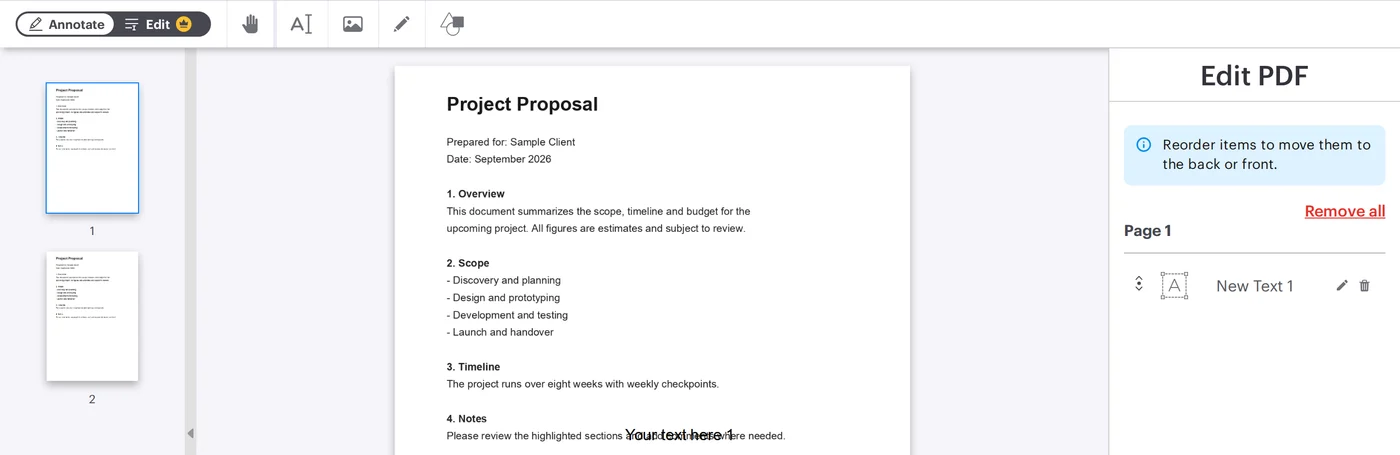
The process is straightforward because the new text is added as an editable element on the PDF page. The original file stays visually intact, while the added layer can be moved and styled before export.
- Open the online PDF editor.
- Select a PDF from the computer, Google Drive, or Dropbox.
- Choose the text tool in the editing toolbar.
- Type the new wording into the text box.
- Drag the box to the exact position on the page.
- Adjust the font, size, color, alignment, and style.
- Apply the edit and download the updated PDF, or save it back to cloud storage.
This approach is especially useful for last-minute work because it avoids the common conversion problem where spacing, fonts, and page breaks shift after a PDF becomes a Word file.
Formatting and layout controls
Good PDF editing is not just typing. The added text has to look as if it belongs on the page, especially in forms, reports, certificates, invoices, and client documents.
The editor provides common formatting controls, including font choice, text size, color, bold, italic, underline, background color, opacity, and left, center, or right alignment. These controls help match the new text to the surrounding document without overcomplicating the task.
Each added text box behaves like a separate element. That means it can be moved, renamed, removed, duplicated, or reordered in relation to other elements on the page.
Shortcuts for faster editing
Keyboard shortcuts reduce repetitive work when several labels or notes must be added. Copy, cut, paste, duplicate, and delete actions are useful when the same text style appears across multiple pages.
- Ctrl C: copy a selected text element.
- Ctrl X: cut the selected element.
- Ctrl V: paste the copied or cut element.
- Ctrl D: duplicate an existing text element.
- Delete: remove the selected item.
A practical workflow model
The PDF editing market can be understood through a simple three-part model: overlay, convert, and rebuild. Overlay tools add visible elements on top of the file, conversion tools turn the PDF into an editable Office document, and rebuild work recreates the document when layout control matters more than speed.
- Overlay: best for comments, labels, dates, stamps, and short notes.
- Convert: best for rewriting text, changing tables, or editing long sections.
- Rebuild: best for branded templates, legal documents, complex reports, and files with strict design requirements.
Images can also be added when a document needs visual context, such as a product photo, scanned proof, diagram, or reference image. The company says its editor supports common image formats such as PNG, JPG, and GIF, and its guide to adding an image to a PDF explains the image workflow separately.
Security and file handling
Any online PDF workflow involves uploading a document, so file sensitivity matters. A public brochure, school worksheet, or simple invoice is different from a medical record, legal dispute file, tax document, or internal acquisition memo.
According to the company’s security information, processed files are encrypted and automatically deleted within two hours, with manual deletion also available from the download screen. That policy reduces retention risk, but it does not remove the need for internal judgment.
For highly confidential files, the safer rule is stricter: use approved company software, a local desktop editor, or a controlled document management system. For everyday PDF touch-ups, a browser editor offers the best mix of speed, simplicity, and adequate layout control.