
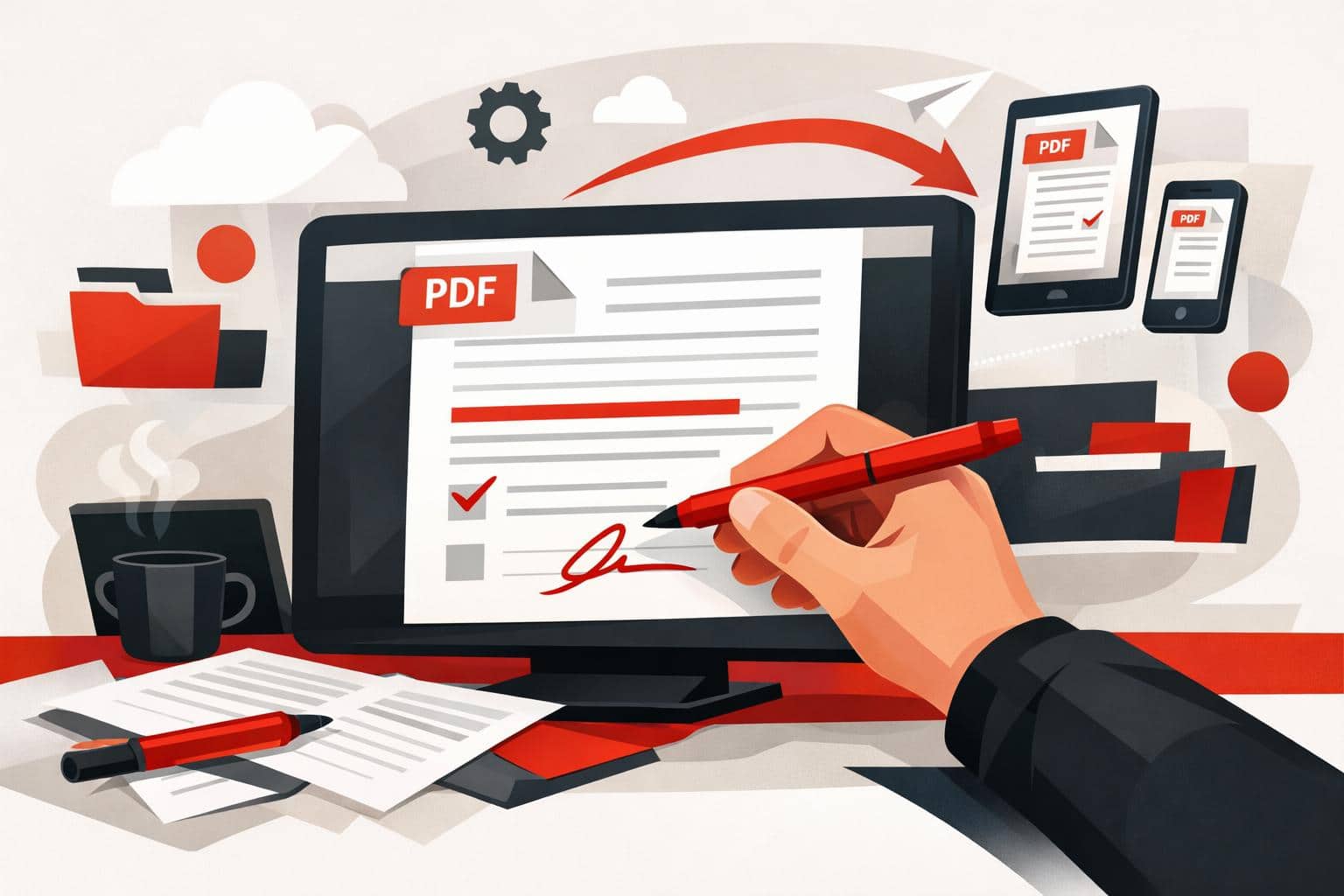
The quickest way to write on a PDF is to open it in an online editor, add text, drawings, shapes, comments, or images, then download the updated file. iLovePDF offers this through its PDF Editor, so basic annotation work can happen in the browser without installing desktop software.
The fastest browser method
For simple PDF edits, the browser workflow is direct. Open the editor, upload the document, choose a markup tool, place the new content where it belongs, apply the edit, and download the finished file.
- Text, add typed notes, corrections, labels, or short explanations.
- Draw, mark a section by hand, underline a sentence, or circle a visual detail.
- Layout control, change the position, size, color, and formatting of added elements before saving.
A practical example is teacher feedback. A teacher can upload a student assignment, place short typed comments beside weak paragraphs, circle an incorrect calculation, add a final grade sticker, and return the annotated PDF without converting the file into another format.
Find more info and a video tutorial on our Edit PDF page.
What you can add to a PDF
PDF annotation is not the same as fully rewriting a document. It usually means placing new information on top of the existing page, such as notes, highlights, shapes, or visual markers.
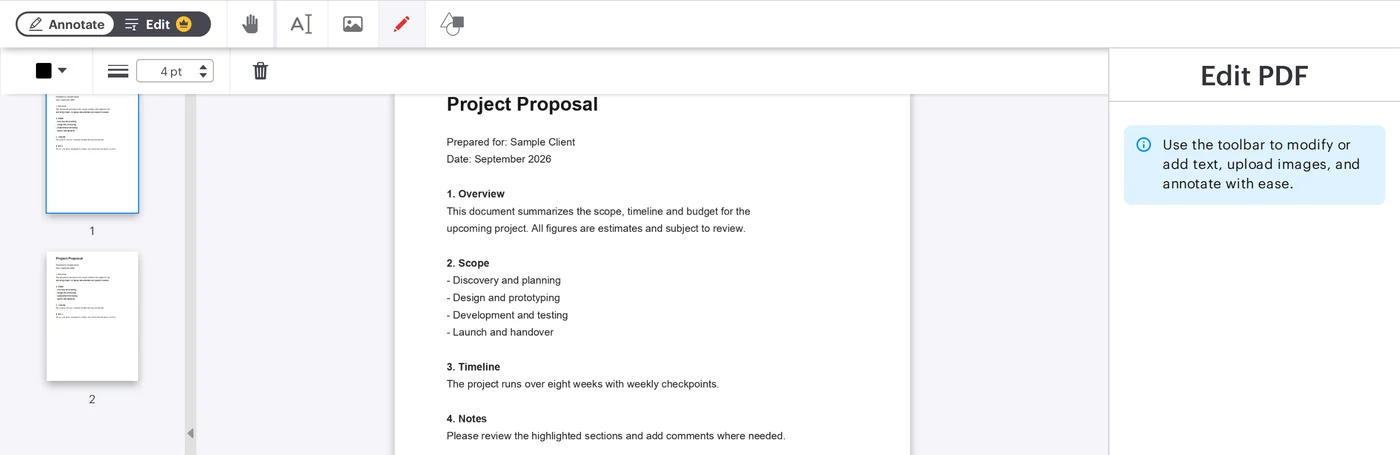
The iLovePDF editor supports common markup work, including typed text boxes, freehand drawing, inserted images, shapes, straight lines, comments, and highlights. That makes it suitable for reviewing contracts, commenting on design drafts, marking study notes, or explaining changes in a brochure.
A useful mini-model is mark, explain, approve. Mark the area that needs attention, explain the change with a short note, then approve or reject the item with a visual cue. This keeps PDF feedback readable instead of turning the page into a cluttered comment wall.
Editing PDFs on a phone
PDF edits are not limited to a laptop. The iLovePDF Mobile app turns an iOS or Android device into a portable PDF editor for quick document work away from a desk.
The mobile version is especially useful when the task involves review rather than heavy formatting. Users can add comments, annotate pages, highlight text, sign documents, scan paper files, and manage PDFs directly from a phone or tablet.
Security and file handling
Any online PDF workflow should be judged by how it handles uploaded documents. According to the company, iLovePDF uses encrypted connections, follows GDPR requirements, and deletes processed files automatically within two hours. Its security page also lists ISO certification and broader data protection practices.
The clear decision rule is simple, use online editing for routine schoolwork, proposals, manuals, and low-risk business documents. For highly sensitive legal, medical, financial, or confidential company files, check internal policy first and consider an approved local or enterprise tool.
When this workflow makes sense
The browser editor is best for fast annotation, not deep document reconstruction. It works well when the original PDF should stay visually intact and the added material only needs to clarify, correct, or highlight specific points.
Use it when speed matters more than redesign. If the goal is to rewrite entire sections, rebuild tables, or restructure a long report, editing the source document is usually cleaner than layering many changes over the PDF.