
Independent PDF Tool Guide

iLovePDF PDF

  • How iLovePDF Uses AI to Split PDFs

    How iLovePDF Uses AI to Split PDFs

    iLovePDF’s Smart range mode turns PDF splitting into a content decision instead of a page math exercise, it detects natural document boundaries and outputs separate files that match the intent. It lives inside the Split PDF tool under Range mode as Smart, and it is designed for everything from a single messy scan to high volume team workflows.

    What Smart range mode actually changes

    Classic PDF splitting forces a user to decide breakpoints first, then type ranges, then repeat when one boundary was off by a page. Smart range mode flips that order, the user describes the kind of material and the desired output, then the system scans the pages and proposes logical cut points.

    According to iLovePDF, Smart range mode works by pairing two choices, a document category and a split preset. When neither fits, the tool accepts plain language instructions via a Custom prompt, so the split logic can follow an internal workflow rule instead of a generic template.

    Approach Best for Main risk Typical output
    Custom ranges Known page intervals, stable layouts Human error, constant rework Files cut by page numbers
    Fixed ranges Uniform packets, for example every 2 pages Breaks meaningful sections Evenly sized chunks
    Smart range mode Bundles of many documents inside one PDF Wrong category or vague prompt reduces accuracy Files grouped by content signals

    Decision rule choose Smart range mode when the PDF is really a folder in disguise, meaning repeated headers, IDs, or separators show up across the pages. Choose fixed or manual ranges when the document is truly linear, like a single report that only needs chunking for file size.

    How to use Smart range mode without trial and error

    The workflow is short because the tool is built to remove the most time consuming step, deciding every range. The quickest path is to start with the closest category, then treat the preset as the fine tuning knob.

    • Open Split PDF and upload a file.
    • Select Range, then switch to Smart.
    • Pick the nearest document category, or choose Custom prompt.
    • Select a split preset, or write a one sentence instruction.
    • Run the split and download the organized output.

    If the result looks slightly off, changing the category usually helps more than rewriting the instruction. Preset changes are the next best lever when the category is correct but boundaries are too aggressive or too conservative.

    Document categories and split presets that matter most

    Smart range mode is optimized around recognizable business and institutional paperwork, where repetition is a feature, not a bug. Selecting the right category matters because it nudges the detection toward the signals that actually define a boundary in that document type.

    Supported categories include invoices and billing, contracts and legal, bank statements and financial reports, academic and education files, medical and healthcare records, HR and employee documents, insurance documents, shipping and customs bundles, government and administrative forms, scanned document batches, marketing and creative files, books and general reading, plus Custom prompt.

    Presets vary by category, but they follow a consistent pattern, split by an identity field, split by a time field, or split by a structural marker. Examples that show the range of what the system is designed to recognize include:

    • Invoices split by invoice number, vendor, date or billing period, PO number, tax ID, currency, or one invoice per PDF.
    • Contracts split into separate agreements, by agreement type, party name, effective or end date, annexes and appendices, keywords, or separator pages.
    • Statements split by month, account number, reporting period, bank header, separate summaries from transactions, or separate credit card from bank account sections.
    • Education split by student name or ID, chapter based course packs, individual questions, answer sheets, topic based notes, or scanned homework batches.
    • Healthcare split by patient name or ID, appointment date, lab results, prescriptions, claim number, consent forms, or document type.
    • HR split by employee, separate resumes and cover letters, separate payslips by month, split onboarding forms, separate evaluations, or split by employee ID.
    • Insurance split policies and claims, split by claim number or policy holder, separate schedules from terms, split endorsements, and split renewals.
    • Shipping split bills of lading, packing lists, customs forms, invoices and certificates, delivery notes, split by container, separator pages, or destination country.
    • Government forms split by applicant name or ID, form type, submission date, attachments versus main forms, one citizen per file, or tax forms by year.
    • Scanned batches split on blank pages, keywords on the first page, detected titles, or mixed document types inside one scan job.
    • Marketing split brochures or catalogs into sections, split decks by topic, separate campaigns, segment brand guidelines, and prepare localization packets.
    • Books split by chapter, table of contents, section, lesson sized study units, or shareable smaller parts.

    When Custom prompt is the smartest option

    Presets cover common business splits, but real workflows often use private logic, a stamp, a phrase, or a layout cue that never appears in a template list. Custom prompt is for those cases, it takes a short instruction and uses it as the boundary definition.

    Custom prompts work best when they name a concrete trigger and a concrete result, and they avoid vague language like “split sensibly.” Three examples that illustrate the level of specificity that tends to work are:

    • Split whenever the date in the top right changes, keep each date as its own file.
    • Create one file per appendix, keep the executive summary separate.
    • Split after any page that contains the phrase “Application complete.”

    Why Smart range mode works on messy scans

    Mixed PDFs often include scanned pages, inconsistent formatting, and accidental separators, which is exactly where manual page ranges fall apart. Smart range mode is designed to look for repeated markers that survive scanning, such as headers, IDs, consistent form labels, and separator pages.

    If scanned pages are hard to interpret, running OCR first can improve detection because the file becomes text searchable. The relevant tool is OCR PDF, which creates a selectable text layer on top of the scan.

    A simple way to predict success is the 3S test, Structure, Signals, Scale:

    • Structure repeated layouts increase boundary confidence.
    • Signals strong identifiers like invoice numbers and patient IDs are ideal split anchors.
    • Scale the larger the bundle, the more time Smart range mode saves versus manual ranges.

    Where Smart splitting fits in a real PDF workflow

    Smart splitting is usually the first step, not the last one. After the output becomes many smaller files, teams typically need verification, redaction, archiving, or version checking, and those steps map cleanly to adjacent tools in the same ecosystem.

    • To verify what changed between two drafts, use Compare PDF.
    • To remove sensitive details before sharing, use Redact PDF.
    • To prepare long term storage, convert to PDF to PDF/A.

    Practical example a logistics coordinator receives a 180 page export that combines multiple shipments and customs forms into one PDF. Using Smart range mode with the shipping and customs category, and a shipment based preset, the result becomes a folder of shipment specific files that can be forwarded to brokers without hand sorting.

    Security and compliance notes that should be explicit

    Uploading documents is a risk decision, not just a usability choice, especially for HR and healthcare files. According to iLovePDF, files are protected in transit with end to end encryption and are automatically deleted after a short retention window, and additional details are described in the company’s security materials such as Are my files safe with iLovePDF and the broader compliance documentation like PDF compliance and GDPR.

    For users who want to try the feature directly, Smart range mode is available inside Split PDF under Range mode as Smart, and it can be paired with OCR when scans need a stronger text layer first.
  • Why Businesses Need PDF to Word Conversion

    Why Businesses Need PDF to Word Conversion

    A PDF to Word converter matters because it turns finished, locked documents into files teams can edit, review, reuse, and approve without rebuilding them. For businesses that handle contracts, reports, proposals, policies, or scanned records, conversion reduces document friction at the exact point where work usually slows down.

    The business case for editable documents

    PDFs are built for consistency. A contract, invoice, policy, or board report should look the same on a laptop, phone, or printer, which is why the format is trusted for final documents. The weakness appears when the file needs a correction, a clause update, or a reused paragraph.

    A PDF to Word converter changes that workflow. Instead of copying text into a blank document and repairing broken layouts, the team starts from an editable Word file that already carries over the document structure.

    The clearest decision rule is simple: use PDF for distribution, signatures, archiving, and controlled sharing, use Word when the text still needs review, rewriting, versioning, or collaboration.

    The 11 strongest reasons companies convert PDFs to Word

    Editing becomes immediate

    A small change should not require a full document rebuild. If the legal team needs to adjust a renewal date or sales needs to correct a client name, conversion moves the file back into an environment where text, headings, tables, and comments are easier to manage.

    Batch work removes repetition

    One PDF can be handled manually. Fifty supplier forms, HR templates, or client reports become a productivity problem. Batch conversion is valuable because it turns a repeated clerical task into one controlled process.

    Manual rework gets cut down

    Copying from PDFs often creates broken line endings, missing bullets, strange spacing, and misplaced images. A converter reduces this cleanup work, which saves time and lowers the hidden cost of administrative document handling.

    Formatting survives the move

    Business documents rarely contain only plain text. They include logos, columns, tables, headers, signatures, images, and numbered sections. A useful converter protects that structure closely enough that teams can work from the converted file instead of redesigning it.

    Text becomes reusable

    Old proposals, research summaries, audit notes, and policy documents often contain paragraphs that need to appear in new formats. Conversion makes that content easier to adapt for presentations, email briefs, web pages, and internal templates.

    Scanned files become searchable

    Scanned PDFs are images of text, not normal editable text. OCR, short for optical character recognition, identifies letters in those images and turns them into selectable, searchable content. The company offers a separate OCR PDF tool for this kind of document.

    Microsoft Office workflows stay intact

    Many companies still coordinate document work through Microsoft Word, Excel, and PowerPoint. Converting PDFs to Word keeps files closer to the tools employees already use for comments, tracked changes, templates, spell check, and final formatting.

    Word unlocks stronger revision tools

    Word is not just an editor. It supports change tracking, comments, styles, templates, grammar review, and structured formatting. That matters when a PDF contains content that must pass through legal, finance, marketing, or management review.

    Collaboration becomes less rigid

    PDFs are practical for review, but they are not ideal for heavy drafting. Once a PDF is converted, several people can comment, revise, and compare versions using familiar document controls. That makes approval cycles easier to follow.

    Remote work becomes easier

    Distributed teams need the same document process from the office, at home, and on the move. iLovePDF supports browser-based conversion, a desktop app for Windows and Mac, and a mobile app for iOS and Android.

    Document work becomes measurable

    The productivity gain is not only faster editing. It is fewer handoffs, fewer formatting repairs, fewer duplicate files, and fewer cases where someone recreates a document that already exists.

    Security and access decide the right conversion method

    The best conversion setup depends on the document. A public brochure, internal checklist, or marketing draft can usually be converted online. Sensitive files, such as medical records, financial statements, employment agreements, and legal contracts, require tighter control.

    The practical rule is clear: if the document contains regulated, confidential, or client-sensitive information, choose a workflow that minimizes upload exposure and keeps processing under company control. Desktop tools are useful here because files can be handled locally on the device.

    According to the company, its security approach includes encryption, ISO 27001 alignment, GDPR compliance, and automatic deletion of processed files within two hours for standard platform processing. The details are outlined on the iLovePDF security page.

    A simple market classification helps separate PDF tools from full document platforms:

    • Utility, a single action such as converting one PDF to Word.
    • Workflow, linked actions such as converting, editing, compressing, merging, and signing.
    • Governance, controls for privacy, retention, compliance, access, and auditability.

    Businesses should buy or standardize around the level they actually need. A freelancer may only need utility. A legal or finance department often needs workflow and governance together.

    The bigger workflow after conversion

    PDF to Word conversion is often the first step, not the final one. A team may convert a supplier agreement, revise payment terms in Word, export a clean PDF, merge supporting documents, compress the package, and send it for signature.

    For example, an operations manager receives a scanned vendor contract as a PDF. The manager uses OCR to make the text searchable, converts it to Word, asks legal to track changes, exports the approved version back to PDF, then sends it through Sign PDF instead of printing, signing, scanning, and emailing copies.

    This is where the converter becomes part of a broader document system. Tools for merging, splitting, compressing, protecting, editing, and signing remove small manual steps that otherwise multiply across departments.

    The core value is practical rather than flashy. A PDF to Word converter helps teams edit faster, reuse content safely, reduce formatting repair, and keep approval work moving. For any company that handles PDFs every week, editable conversion is not a convenience feature, it is basic document infrastructure.

  • Edit PDFs Online Without Rebuilding Your Document

    Edit PDFs Online Without Rebuilding Your Document

    To edit a PDF quickly without converting it back to Word, use a browser editor such as iLovePDF’s Edit PDF tool, upload the file, make changes on the page, then download the updated PDF. According to iLovePDF, files are encrypted and automatically deleted within two hours, with an option to delete them manually from the download screen.

    When editing a PDF beats starting over

    A PDF is designed to preserve layout, which is exactly why it can feel stubborn when a last minute change shows up. An online editor is most useful when the goal is to change what the reader sees, without rebuilding the document in the original app.

    Decision rule: If the change must keep the same page breaks and visual layout, edit the PDF directly. If the content needs major rewriting, section reordering, or a new design, go back to the source file and export a fresh PDF.

    Fast team review without format chaos

    For meetings and approvals, the highest value edits are often visual, not structural. Highlight a paragraph, circle a number, add a note in the margin, and drop in a reference image, all while keeping the original pagination intact.

    Learning feedback that feels human

    For grading or coaching, freehand comments and quick symbols are faster than formal tracked changes. A short handwritten note plus a simple diagram can communicate more clearly than a long paragraph of typed feedback.

    How to edit a PDF in iLovePDF

    The workflow is designed to stay inside the browser, which avoids app installs and version mismatches across devices. The core process is consistent, whether the goal is a quick annotation or a more detailed page overlay.

    • Open the editor: Go to Edit PDF.
    • Add the file: Upload from the computer, or import from connected cloud storage options shown in the tool.
    • Edit on the page: Use the top toolbar to select text, add new text, place shapes, or insert images.
    • Process changes: Confirm the edit action to generate the updated document.
    • Download: Save the edited PDF back to the device.

    A concrete example that matches real office work

    A vendor sends a two page agreement with a wrong billing address and no signature block. The fastest fix is typically: click into the address text and correct it, add a small “Approved” note near the signature line, then insert a simple rectangle shape to frame the signature area so it cannot be missed during signing.

    What can be changed inside the editor

    Most online PDF editors operate in two modes: true content edits when text is selectable, and visual overlays for everything else. The practical difference is whether the original text is actually rewritten, or whether a new layer is placed on top.

    • Edit existing text: Select text elements and adjust content while aiming to keep the original look, including font styling controls where available.
    • Add new text: Place new text boxes anywhere on a page, then move and resize them as needed.
    • Insert images: Drop in photos, stamps, screenshots, or diagrams, then rotate and scale them to fit the page.
    • Shapes and symbols: Use lines and basic shapes to call out sections, build simple form fields, or mask areas for review.
    • Freehand markup: Draw directly on the page for quick annotations that feel closer to pen on paper.
    • Layer ordering: Reorder objects so critical items stay visible, and background elements do not cover text unintentionally.
    • Navigation and shortcuts: Speed up repetitive actions with common shortcuts like copy, paste, and delete, while zoom and page navigation help with multi page files.

    Security, retention, and the best tool choice

    Online editing is a trade, convenience in exchange for uploading a file to a service. The practical question is not whether online tools are “safe” in the abstract, but whether the security posture and retention rules fit the document and the organization’s policy.

    A simple market model for choosing the right approach

    Think in three forces that rarely max out at the same time: Fidelity (layout stays identical), Speed (finish in minutes), and Control (full offline handling and advanced editing).

    Approach Best for Strength Tradeoff
    Online PDF editor Quick fixes, annotations, inserting images and shapes Fast, no install, works anywhere Requires upload, may be limited for complex reflow edits
    Convert to an editable document format Heavy rewriting and restructuring Easier long form editing and rewriting Layout can shift, tables and spacing often need cleanup
    Desktop PDF editor High stakes documents and offline requirements More control, often stronger offline workflows Setup time, cost, and device compatibility considerations

    A security checklist that stays practical

    • Encryption: iLovePDF describes encryption in transit and at rest, and also states it uses end to end encryption during processing, see Security and Data Protection.
    • Retention window: iLovePDF states processed files are automatically and permanently deleted within two hours, with manual deletion available from the download screen, see Security and Data Protection and Legal information.
    • Account hardening: For frequent use, enable protections such as 2FA where supported, which iLovePDF lists among its account security measures, see Security and Data Protection.

    For readers who want to explore PDF markup workflows beyond business documents, iLovePDF also publishes template driven examples, such as its digital notebook template post. Feature requests and support issues can be routed through the company’s contact page.

  • Make a PDF Fast Without Losing Layout

    Make a PDF Fast Without Losing Layout

    Making a PDF usually comes down to three options, convert a file you already have, build a new document from a template or blank page, or automate PDF generation for repeat work. The fastest path for most people is conversion, because it preserves layout without rebuilding the document. Automation only pays off when PDFs are produced at scale, as part of a system.

    Convert a file that already exists

    If the content is already written or designed, conversion is the cleanest way to get a PDF that looks the same on every device. This is the go to move for one off needs like a resume, a school submission, a contract, or a slide deck that should not reflow when opened.

    Common starting points include Word, Excel, PowerPoint, and images such as JPG or PNG. On iLovePDF, dedicated converters exist for common inputs, including Word to PDF, PowerPoint to PDF, Excel to PDF, and JPG to PDF.

    Most online converters follow the same basic flow, upload the file, optionally pull it from cloud storage such as Google Drive or Dropbox, then download the PDF. The key advantage is speed, the key risk is that the file is processed on someone else’s servers.

    Create a PDF from templates or a blank page

    When there is no source file, the problem flips from conversion to composition. The iLovePDF mobile app supports creating PDFs from scratch, either with templates for common formats, or with a blank page when the layout is custom.

    Templates work best when the document has a familiar shape. Typical examples include invoices, receipts, business reports, meeting notes, certificates, and forms.

    A blank page is the better pick when structure is unknown upfront, or when the output is intentionally simple, such as a one page handout or an internal draft. For details on the mobile option, start at iLovePDF Mobile.

    Automate PDF creation with an API

    APIs matter when PDFs are not occasional files, but a repeating operation. If a business system creates invoices, statements, onboarding packs, or recurring reports, manual upload and download becomes pure friction.

    With the company’s REST offering, developers can generate and process PDFs directly inside applications, which reduces copy paste steps and makes output more consistent across teams. iLovePDF points developers to iLoveAPI for automation focused workflows.

    For most individual users, this is unnecessary overhead. If PDFs are created a few times a month, a converter or a template based tool is usually faster than wiring up an integration.

    Choose the right method in 30 seconds

    Think of PDF creation as three modes, Click for conversion, Craft for creating from scratch, and Code for automation. The best choice depends on two variables, whether the content already exists, and how often the task repeats.

    Decision rule If the content already exists, convert it. If the content does not exist, create it from a template or blank page. If the same PDF is produced repeatedly as part of an operational process, automate it with an API.

    Approach Best for What you start with Typical tradeoff Where to begin
    Convert One off PDFs in minutes DOCX, XLSX, PPTX, JPG Fast, but requires uploading a file iLovePDF tools list
    Template or blank page New documents with a clean layout Nothing, just an idea and structure More editing time, more control Mobile app options
    API automation Recurring, system driven PDFs Data in an app or back office system Setup effort, then low per document cost iLoveAPI for developers

    Practical example that covers all three

    A job candidate exports a resume from Word and converts it to PDF to lock formatting before emailing it. A freelancer creates a branded invoice from a template on a phone when working away from a laptop. A subscription business that emails hundreds of invoices per day generates PDFs automatically, so the invoice never becomes a manual task again.

    Quick answers to common questions

    • Can a PDF be created for free? Many tools offer free conversion for common formats, especially for Word and image to PDF tasks.
    • What is the easiest option? Conversion is usually the fastest because it starts from an existing file.
    • Can images become a PDF? Yes, tools such as JPG to PDF turn image files into a printable, shareable PDF.
    • Is special software required? Not necessarily, web tools can create PDFs without installing a desktop editor.
    • Can businesses automate PDF output? Yes, an API can generate PDFs as part of a repeat process, rather than relying on manual uploads.

    Security and retention basics before uploading

    When a PDF tool runs in the cloud, the file leaves the device, even if only temporarily. According to iLovePDF, files are protected with end to end encryption and uploads are automatically deleted after two hours, the company also states that its servers operate under European legislation. Those claims are summarized in its ISO security post, Why iLovePDF is ISO/IEC 27001 certified, and the two hour deletion window is also described in the company’s Terms and Conditions.

    For sensitive documents, treat conversion like any other vendor decision. If policy requires local handling only, use an offline workflow, or limit uploads to files that are already intended for broad sharing.

  • How to Save a Website as PDF

    How to Save a Website as PDF

    To share a web page as a stable, markable document, converting it to PDF is the fastest way to lock in the layout, keep it readable offline, and make annotations practical. Tools like iLovePDF’s HTML to PDF converter are built for capturing a full scrollable page in one export, instead of stitching together screenshots.

    When a link stops being enough

    Sending a URL is fine when the goal is “go read this.” It breaks down when the recipient needs the page to look identical later, or when the content must be reviewed like a document.

    • Fixed layout, a PDF preserves formatting, spacing, and pagination for review and archiving.
    • Offline access, the content remains available on a laptop during travel, in meetings, or in low connectivity environments.
    • Markup ready, a PDF is easier to comment on, highlight, and circulate across teams than an ever changing page.

    Concrete example: a procurement coordinator needs sign off on a vendor’s pricing page. A PDF snapshot creates a durable record that can be highlighted, circulated for approval, and stored with the final contract file.

    Turning a web page into a PDF in minutes

    iLovePDF’s HTML to PDF tool supports multiple inputs: a live website URL, uploaded web files like HTML, CSS, or JavaScript, a ZIP for multi file pages, or pasted HTML text. For most business use cases, URL conversion is the simplest path.

    Fast URL conversion workflow

    • Open the page in a browser and copy its URL.
    • Go to HTML to PDF and paste the URL.
    • Run the conversion and download the resulting PDF.

    Settings that change the result

    Web pages are responsive, meaning they reflow based on screen width. The converter exposes controls that can materially change readability and how much content lands on each page.

    • Screen size, use a desktop width to avoid cramped mobile layouts in the exported PDF.
    • Page size, choose A4 or US Letter based on how the PDF will be printed or filed.
    • One long page, useful for reports and articles where continuous scrolling beats page breaks.
    • Margins and orientation, adjust for printing, binding, and wide tables.
    • Cleaner capture options, settings such as blocking ads or removing overlay popups can reduce clutter on the exported document.

    What to do after the PDF is created

    A good “web page to PDF” flow rarely ends at download. The practical win is chaining the next step immediately, depending on what the team needs.

    Make it easier to email and store

    If file size is the problem, compress before sharing. iLovePDF’s Compress PDF tool lets users choose a compression level, trading size against quality.

    Turn the snapshot into editable text

    If the goal is to reuse content in a draft, converting to Word is often faster than copying from a browser or retyping. The PDF to Word converter also flags scanned pages where OCR may be needed, since images of text are not inherently editable.

    Package supporting pages into one deliverable

    When the PDF is evidence, for example a pricing page plus terms plus a product spec sheet, merge everything into one file. The Merge PDF tool is designed for drag and drop ordering before combining.

    What happens to uploaded files

    Any online converter is also a data handling decision. iLovePDF publishes its security and retention approach on its Security and Data Protection page and central legal documentation at Legal information.

    • Encryption claims, iLovePDF states it uses HTTPS and also describes end to end encryption for document handling.
    • Short retention for standard tools, iLovePDF states files processed on the platform are automatically deleted within two hours, and it also describes a manual delete option from the download screen.
    • Exceptions for signing workflows, iLovePDF notes that signed documents may be retained longer to meet legal requirements.

    For compliance focused teams, iLovePDF also outlines its broader posture, including GDPR alignment and ISO certification references, in its PDF compliance and GDPR hub. Policies change, so the safest practice is to treat these pages as the source of record during vendor review.

    A decision rule that avoids rework

    Most teams waste time by choosing the format first, then fighting the consequences later. A simple rule prevents that.

    Decision rule: if the recipient must see the same content later, in the same layout, without relying on the internet, export to PDF. If the content must remain live, current, and interactive, share the link.

    A quick comparison of three sharing options

    Option Best for What it gets wrong Typical effort
    Send a link Fast sharing, always current Layout can change, content can disappear, hard to annotate consistently Low
    Take screenshots Small snippets, visual proof Breaks on long pages, messy to stitch, text becomes less usable Medium to high
    Export to PDF Review, markup, offline reading, archiving Becomes a snapshot, not a live page, may need tuning for responsive layouts Low to medium

    A memorable mini model for choosing the right approach

    • Fidelity, does the exact layout matter, including tables, footnotes, and spacing?
    • Actionability, will the file be edited, commented on, merged, or attached to a ticket?
    • Exposure, how sensitive is the content, and does policy allow uploading to an online tool?

    When fidelity and actionability are high, PDF is usually the right container. When exposure is high, the format decision should be paired with a processing decision, using documented security practices and internal policy before uploading any file.

  • PDF Tools That Keep Business Work Moving

    PDF Tools That Keep Business Work Moving

    PDF workflows get complicated when contracts, invoices, and HR records bounce between departments that use different tools and inconsistent security habits. The fastest fix is a single PDF toolkit that covers the daily basics, works on every device, and can switch to offline processing when policy demands it. iLovePDF is designed as that shared layer, combining web tools, a desktop app, mobile apps, and an automation API.

    Why business PDF workflows break

    PDFs are popular because they preserve layout across devices, but that stability hides a mess underneath. Files arrive from Word, Excel, scanners, and mobile photos, then get renamed, stitched together, and emailed around without a consistent process. The result is predictable, slow reviews, duplicated versions, oversized attachments, and avoidable exposure of sensitive data.

    Most teams are not asking for advanced publishing tools. They need repeatable building blocks such as merging packets, compressing files, converting formats, applying signatures, and protecting or redacting content, ideally without switching products midstream. The iLovePDF tool hub groups these everyday tasks in one place, including tools like Compare PDF and Redact PDF.

    A three part model that standardizes everything

    Procurement conversations about PDF software often drift into feature lists. A more useful lens is the SSC model, a quick way to classify what a team actually needs.

    • Speed, frictionless tasks that happen dozens of times per week, like merge, split, compress, and convert.
    • Safety, controls that prevent accidental leakage, like redaction, password protection, and predictable retention rules.
    • Scale, ways to handle volume, like batch processing, templates, and API automation.

    A good stack covers all three, but not necessarily with the same delivery method. Speed often belongs in the browser, safety sometimes demands offline processing, and scale usually points to APIs.

    One practical example that shows the whole model

    Consider a quarter end vendor payment pack. Finance collects invoices and receipts, runs OCR PDF to make scans searchable, compresses the bundle for storage, converts the final record to PDF/A for long retention, then locks access using Protect PDF. Legal compares the final contract against the prior draft using Compare PDF, HR redacts personal identifiers when the packet is shared outside the company with Redact PDF, and operations routes the signature step through Sign PDF.

    OCR, short for optical character recognition, adds a text layer to scanned pages so they can be searched and copied. In practice it turns a photo of a receipt into something a reviewer can actually audit.

    When offline processing is the safer default

    Many organizations treat cloud uploads as a policy exception, not the default, especially for regulated or contract sensitive files. The iLovePDF Desktop app targets that gap by running common PDF operations locally, so documents can stay inside the company environment.

    Offline processing is most valuable when the risk is not theoretical, for example M and A drafts, employee medical information, or documents tied to litigation holds. It also reduces operational risk on unstable networks, because a deadline should not depend on a browser upload finishing on time.

    How legal, finance, and HR really use PDFs

    Departments differ in what hurts most. The useful part is that the underlying moves are similar, assemble, verify, approve, and archive, even when the documents look completely different.

    Small business operations

    Small teams tend to care about speed first. Typical work includes converting proposals from Office formats, merging supporting attachments into one clean PDF, compressing for email and portals, and adding lightweight branding such as watermarks. The point is not perfection, it is consistency, so every proposal looks intentional and survives forwarding.

    Legal teams

    Legal workflows are high volume and high consequence. Common patterns include assembling case files, reordering pages, keeping internal review packets readable, and using comparisons to spot what changed between drafts. For version control, Compare PDF reduces review risk by making differences visible instead of relying on memory.

    Redaction deserves special discipline. Covering text visually is not the same as removing it, and weak redaction can leak the original content. Tools that explicitly redact aim to remove sensitive information rather than merely drawing a black rectangle.

    Finance and accounting

    Finance teams fight volume and deadlines. The recurring pain is packaging many documents into audit friendly bundles, standardizing formats for systems that expect PDFs, and making scans searchable. OCR helps when receipts arrive as images and reviewers need to search vendors, amounts, or invoice IDs.

    HR teams

    HR documents combine privacy risk with long retention. Typical needs include onboarding packets that merge policies and forms, signature collection with clear tracking, and safe sharing of employee records when external parties request proof. Redaction becomes routine when personal identifiers must be removed before a document leaves the organization.

    What changes when Acrobat is the benchmark

    Many buyers evaluate PDF platforms against Adobe Acrobat because it is widely deployed and deeply embedded in document workflows. The practical question is not which tool is best in the abstract, it is which tool matches the SSC profile and procurement constraints.

    Buying question iLovePDF focus Adobe Acrobat focus
    How fast can non experts self serve daily tasks? Browser first tool set, designed around quick actions like merge, compress, convert, compare, and redact via iLovePDF. Full featured PDF suite with broad capabilities under Acrobat for business.
    Is offline processing a procurement requirement? Desktop option built for local processing, see Desktop App. Desktop software is a core part of the Acrobat ecosystem, with additional cloud workflows.
    Can workflows be automated inside internal systems? API product for automation through iLoveAPI and API documentation. Enterprise integrations vary by plan and environment, typically oriented around Adobe document services.
    Do teams need specialized review controls? Dedicated tools like Compare PDF, plus security actions like Protect PDF. Strong editing, review, and document management features, often used in regulated environments.

    For teams that mainly need reliable PDF plumbing across departments, iLovePDF tends to compete on simplicity and coverage across web, desktop, mobile, and API. Acrobat tends to be chosen when a company standardizes on the Adobe stack and wants a deeply featured suite anchored in that ecosystem.

    Security checks before uploading anything

    Security posture is set by behavior, not vendor promises. A safer workflow starts with a few non negotiables, choose the right processing location, minimize exposure time, and remove sensitive content before sharing. iLovePDF’s published security information includes end to end encryption, automatic deletion within two hours for processed files, and options like two factor authentication, detailed at Security and Data Protection.

    • Encrypt when sharing externally, use Protect PDF to restrict access with a password.
    • Redact before distribution, especially for identifiers and account numbers, use Redact PDF.
    • Prefer local when policy or sensitivity demands it, handle the file with iLovePDF Desktop first.

    For long term retention, many compliance programs require archival formats. PDF/A is an ISO standardized profile for long term preservation, and the iLovePDF tool list includes PDF to PDF/A conversion in its online suite.

    A simple rule for choosing the right setup

    Decision rule: if a PDF contains regulated personal data, unreleased financials, or contract terms that could create legal exposure, process locally first, then share only a redacted and access controlled version. If the document is low sensitivity and the bottleneck is speed, use browser tools, then automate the repeatable parts with an API.

    That rule aligns tool choice with risk, not habit. It also keeps teams from building a shadow workflow where employees quietly upload sensitive files to get work done faster.

    For teams evaluating a standardized rollout, the most direct starting point is the business overview at iLovePDF for Business, then a security review via Security and Data Protection, and finally an automation spike through iLoveAPI documentation.

  • What GITEX Africa Revealed About PDF Workflows

    What GITEX Africa Revealed About PDF Workflows

    At GITEX Africa 2026, the strongest signal was not a new feature, it was a shift in expectations: PDF work is being treated as an automated, integrated, security reviewed workflow, not a one off file fix. The conversations described in iLovePDF’s April 17, 2026 event recap centered on three buying triggers, automation at volume, integration into existing systems, and tighter control over sensitive documents.

    The questions teams kept repeating

    Across demos and hallway conversations, the same problems surfaced in different industries. Developers asked how to stop manual PDF handling from turning into a queue. Product teams asked how to plug PDF steps into tools already running the business. Security and compliance teams asked where files go, how long they stay there, and what controls exist.

    • Automation, turning repeated PDF tasks into a workflow that runs reliably.
    • Integration, connecting PDF processing to existing apps instead of forcing a rip and replace.
    • Scalability, handling spikes in volume without adding headcount.
    • Data control, knowing where processing happens and what retention rules apply.

    The subtext was blunt: “What is possible?” is an old question. “What is shippable this quarter?” is the new one.

    A simple market map for PDF work

    A useful way to understand the PDF tooling market in 2026 is a three lane model. It explains why different buyers can be looking at the same vendor and still talk past each other.

    Lane How work gets done Best fit Tradeoff
    Clicks Manual web tools for one file at a time Individuals and small teams needing fast results Hard to govern, hard to scale, easy to repeat errors
    Connectors No code and low code automations across apps Ops teams standardizing repeatable document steps Limited customization, costs can rise with volume
    Code API driven processing embedded in products Platforms handling documents as a core workflow Requires engineering time and ongoing maintenance

    The iLovePDF story at GITEX Africa lines up with this split. According to the company’s recap, familiar everyday tools pulled in individuals, while deeper conversations concentrated on iLoveAPI for teams that need repeatability and throughput.

    From single files to automated pipelines

    “Scale” in document work rarely means one huge file. It usually means thousands of ordinary files arriving continuously, invoices, statements, application packets, claims, onboarding forms. At that point, PDF handling becomes operations infrastructure, and manual steps become a measurable bottleneck.

    For developer led teams, the typical answer is API based processing, where compression, conversion, split and merge, or security steps run inside an existing system. iLoveAPI positions itself for this use case, with public documentation aimed at building PDF tasks into applications. A starting point is the API reference and guides at iLoveAPI documentation.

    A concrete example you can picture

    A lender receives 2,000 monthly application bundles as mixed formats. A workflow can convert office files to PDF, merge attachments into a single packet, compress for faster review, apply a watermark, and then route the final PDF for signature. The operational win is not one step, it is removing ten minutes of human handling from every packet, without losing traceability.

    A clear decision rule

    If a PDF step repeats often enough that people have written a checklist for it, the workflow is ready for automation. As a practical threshold, once a process is run more than 50 times per week, moving it into a connector or an API usually costs less than continued manual handling, especially when errors carry compliance or customer impact.

    Integration is expected, not a premium feature

    The GITEX Africa conversations described a market where integrations are treated as table stakes. Buyers do not want another dashboard, they want PDF functions inside the tools already in use.

    There are two common integration paths:

    • No code automation, useful when a business needs speed and standard actions. The iLovePDF app directory on Zapier illustrates how common this route has become, see iLovePDF integrations on Zapier.
    • Workflow platforms, where PDF steps become part of broader business automation. Microsoft lists an iLovePDF connector for Power Automate scenarios at Microsoft Learn iLovePDF connector.

    APIs remain the most flexible option when product teams need custom logic, tight control over error handling, and predictable performance at volume.

    Security questions that decide purchases

    Document processing often means processing sensitive data. That is why security and retention details are no longer “fine print” topics. They show up early in evaluations, and they can end a deal quickly when answers are vague.

    According to iLovePDF’s security documentation, the service emphasizes encryption and published controls, see iLovePDF Security and Data Protection. The company also publishes a legal hub that summarizes privacy and retention expectations, including a two hour deletion window for many standard tools, see iLovePDF legal information.

    Why “where is it processed” became the sharper question

    The most specific version of the security conversation is data residency. Some teams need documents processed inside a chosen region because of regulation, customer contracts, or internal policy. iLovePDF describes Regional File Processing as a way for certain plans to select where files are processed, see Choose where your files are processed with iLovePDF.

    For procurement and compliance reviews, the documentation footprint matters as much as the feature list. iLovePDF also publishes a Data Processing Agreement page for teams that need formal terms, see iLovePDF Data Processing Agreement.

    Students as the hidden power users

    One surprise highlighted in the event recap was the number of students who approached the booth with practical problems. Their needs look simple, but the workflow pressure is real, tight deadlines, inconsistent file formats, and devices that change between campus and home.

    The most common tasks are straightforward, merge lecture slides, convert files for submission, and tidy PDFs without heavyweight software. The difference in 2026 is that summarization is now part of study workflow, not a novelty, for example tools like iLovePDF AI Summarizer position “extract the gist fast” as a first class feature.

    For students and educators, iLovePDF promotes an education offering that includes a student program with Premium access, see iLovePDF for Education.

    How to choose a starting point

    A practical way to choose tools is to start from the constraint, not the feature list.

    • If speed to value matters most, start with the online tools and standardize a simple checklist, then measure where time is lost.
    • If the workflow spans multiple apps, move to connectors and automate triggers, approvals, and routing.
    • If documents are core to the product, treat PDF handling as backend infrastructure and build on an API, so quality, logging, and governance can be engineered.

    For context on the event itself, GITEX Africa publishes its 2026 conference and agenda information at GITEX AFRICA conference agenda.

  • Save Excel as PDF Without Layout Surprises

    Save Excel as PDF Without Layout Surprises

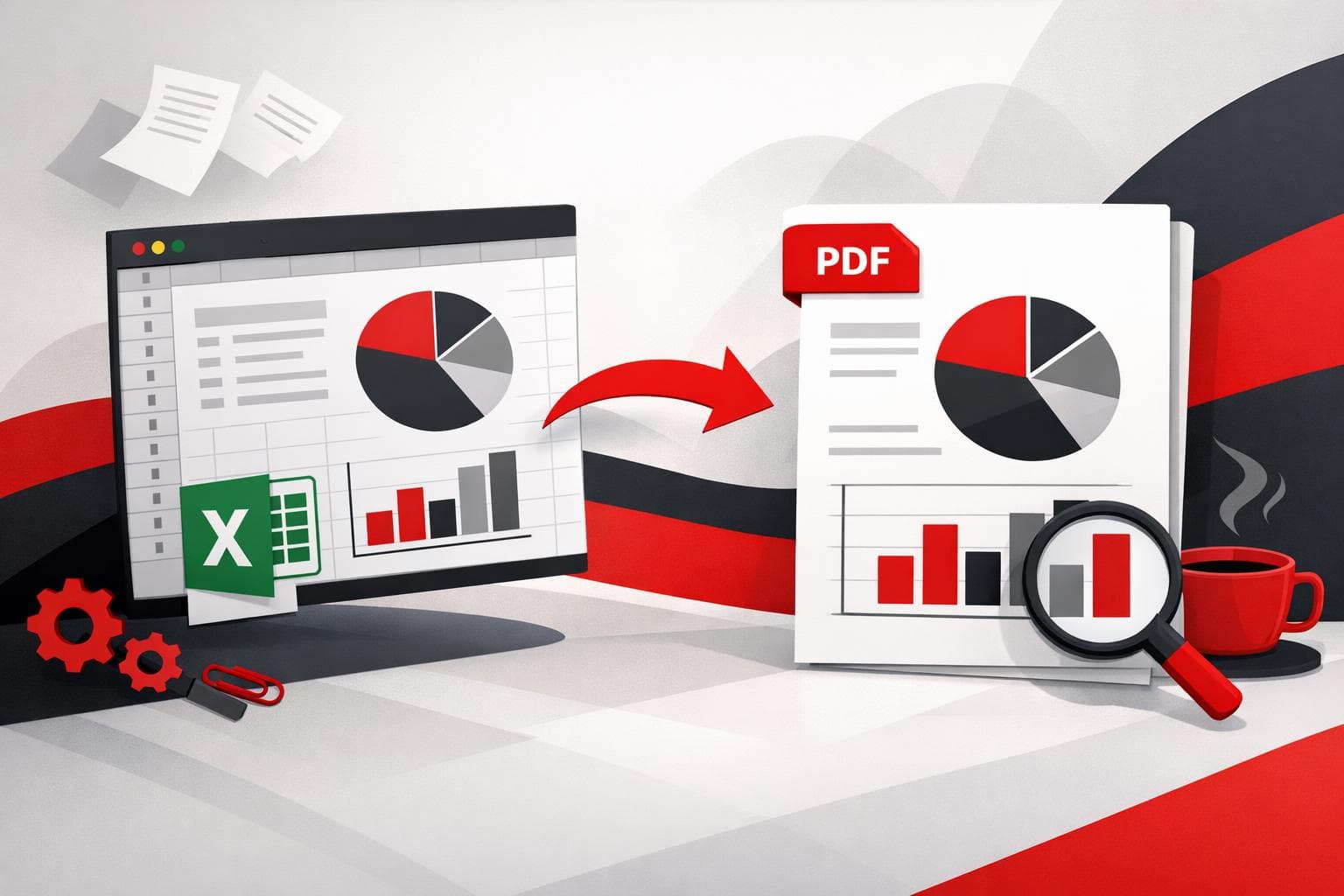
    To save an Excel spreadsheet as a PDF, use Excel’s built in Save As or Export option for the cleanest, most predictable output. When the job involves many files, or a single combined PDF, a batch converter and merger like the tools on iLovePDF can cut the clicks dramatically.

    Choose the PDF route that fits the outcome

    A PDF export is not just a file format choice, it is a distribution strategy. Excel’s native PDF output is usually the best option when accuracy matters, because it stays close to Excel’s print engine and preserves layout decisions like scaling and margins.

    Decision rule: if the work involves more than three spreadsheets, or it must end as one combined PDF, stop doing one file at a time and switch to a batch workflow first, then merge.

    A simple way to decide quickly is the 3F model.

    • Fidelity, prioritize consistent page layout, stick with Excel’s own PDF export.
    • Friction, prioritize fewer steps across many files, use batch conversion.
    • Fortification, prioritize controlled access, add PDF password protection after export.
    Approach Best for What to watch Typical steps
    Excel Save As or Export One workbook, maximum control Page setup drives the result, internal workbook links may not carry over File, Save As or Export, choose PDF
    macOS Export to PDF Mac users sharing a fixed version Orientation and scaling still depend on print settings File, Save As or Export, choose PDF
    Batch conversion with iLovePDF Many files, repeatable workflow Uploads can be a policy issue for confidential work Upload multiple spreadsheets, convert, download PDFs
    Google Sheets download Cloud based spreadsheets Download permissions and browser behavior can block exporting File, Download, choose PDF

    Save Excel as PDF on Windows

    On Windows, Excel can publish a PDF directly from the workbook. Microsoft documents both the Save As route and the Export route, depending on the Excel version and UI, in its support guide: Save or convert to PDF in Office desktop apps.

    Quick steps that usually work

    • Open the workbook and confirm the correct sheet is active.
    • Go to File, then Save As, or File, then Export, depending on the Excel interface.
    • Select PDF as the output type, then save.

    Layout checks that prevent ugly PDFs

    • Verify the print area, otherwise Excel may include empty columns or cut off tables.
    • Check scaling, a wide sheet often needs “fit to one page wide” behavior to avoid microscopic text.
    • Scan the PDF for page breaks that split tables mid row, then adjust page breaks before exporting again.

    Save Excel as PDF on macOS

    On macOS, Excel also supports exporting to PDF from the file menu, with naming and format selection similar to Windows. The practical difference is that Mac workflows often involve the system print dialog too, so it helps to confirm orientation and page size before the final export.

    • Open the workbook, then go to File.
    • Choose Save As or Export, then pick PDF as the format.
    • Save, then open the PDF once to confirm margins and scaling look right.

    Convert multiple Excel files in one batch

    When reporting is repetitive, batch conversion matters more than raw conversion quality. The Excel to PDF tool from iLovePDF supports uploading more than one spreadsheet, converting them in one run, then downloading the resulting PDFs: Excel to PDF.

    A practical example that mirrors real work

    A finance team closes the month with 12 regional workbooks. The deliverable is a single PDF pack for leadership, in a fixed order, with a password before emailing. A fast workflow is convert all 12 spreadsheets to PDFs in one batch, merge into one file, then apply a password.

    Batch workflow in plain steps

    • Open the converter and upload the first spreadsheet, then add the rest before starting the conversion.
    • Convert, then download the PDFs.
    • If a sheet looks wrong, fix print settings in Excel and reconvert only that file.

    Save Google Sheets as PDF

    Google Sheets does not require manual saving, but it does require a download step to create a real PDF file. Google’s help page covers downloading a copy from the File menu, including Sheets, under “File” then “Download”: Create, view, or download a file.

    • Open the spreadsheet in Google Sheets.
    • Click File, then Download.
    • Select PDF, then export.

    If the PDF option is missing or blocked, the most common cause is permission settings in a managed Google Workspace environment. In that case, exporting is not a formatting problem, it is an admin policy problem.

    Merge multiple PDFs into one file

    Once each spreadsheet is in PDF form, merging is a document assembly task. iLovePDF provides a dedicated merger at Merge PDF, and it supports rearranging the order before the final merge.

    When a merger saves more than time

    Merging is not just convenience, it eliminates version drift. One combined file means one filename, one attachment, and fewer chances that an outdated region report gets forwarded by mistake.

    For page level cleanup after merging, the company also offers a page organizer tool: Organize PDF.

    Protect confidential PDFs without breaking workflows

    Spreadsheets often contain pricing, payroll, forecasts, or customer lists. After creating the PDF, password protection can limit casual access when the file travels through email or chat. iLovePDF’s password tool is available at Protect PDF.

    A compact confidentiality checklist

    • Export the PDF first, then apply protection, so layout issues are solved before security steps begin.
    • Use a strong password and store it in an approved password manager, not in the email thread.
    • Assume online tools involve uploading files, if policy forbids that, use an offline workflow instead.

    For readers who need to evaluate vendor posture, iLovePDF publishes its security overview here: Security and data protection. For offline processing options from the same vendor, see iLovePDF Desktop and iLovePDF Mobile.

  • Turn JPG Tables Into Excel Without Retyping

    Turn JPG Tables Into Excel Without Retyping

    A JPG image can be turned into an editable Excel sheet by converting the image to a PDF first, then converting that PDF to Excel with OCR enabled when the content is scanned or photographed. This workflow is designed to preserve table structure and reduce copy and paste cleanup across web, desktop, and mobile.

    Convert a JPG into Excel in two steps

    Most online converters handle “image straight to Excel” poorly because spreadsheets expect structured text, not pixels. A reliable route is to wrap the image in a PDF first, then run a PDF to Excel conversion that can apply OCR when needed.

    • Convert the image using JPG to PDF.
    • Open the resulting file in PDF to Excel and choose an OCR option if the document is not selectable text.
    • Select a layout mode, for example one sheet for a single table, or multiple sheets when pages should become separate tabs.

    Practical example, a photo of a supplier’s price table taken in a meeting can become a spreadsheet that supports sorting and filtering in minutes, instead of an hour of manual reentry.

    When OCR turns a screenshot into real cells

    OCR, short for Optical Character Recognition, is the step that converts pixels into characters so a spreadsheet can store them as editable values. Without OCR, conversion tools typically succeed only when the PDF already contains selectable text, such as exports from business software.

    Decision rule, if text cannot be highlighted or copied in a PDF viewer, OCR is the safer choice. According to iLovePDF, the OCR mode in its PDF to Excel tool is labeled as a premium option, and it is intended for scanned pages and non selectable text.

    • Accuracy improves because characters are recognized rather than guessed from layout alone.
    • Formatting is more likely to keep table rows, columns, and common symbols aligned.
    • Language support matters for invoices and forms, iLovePDF lists OCR support for English, Danish, Dutch, Finnish, French, German, Italian, Norwegian, Polish, Portuguese, Russian, Spanish, Swedish, and Turkish.

    Pick the platform that fits the workflow

    Conversion quality is only half the problem, the other half is where the file lives and how often the task repeats. The company offers web tools, plus dedicated desktop and mobile apps, each matching a different working style.

    Option Best for Tradeoff to expect
    Web tools Fast, occasional conversions from any browser Requires upload, OCR features may be plan dependent
    Desktop app Repeat work, local file handling, steadier batch style routines Install required, and features can vary by plan
    Mobile app On the go capture, scan, and immediate conversion Smaller screens make cleanup and verification slower

    A simple market classification helps choose quickly, the AFR model. Accuracy depends on OCR and image quality, Friction depends on where the file is stored and how many steps are needed, Risk depends on whether the document is sensitive and whether uploads are allowed.

    More than conversion, the adjacent tools that matter

    JPG to Excel is usually a one off fix inside a larger document workflow. iLovePDF markets a broader suite of tools that typically surround the conversion task.

    • Organize with merge, split, extract, and page rearranging.
    • Optimize with compression and OCR for searchable text.
    • Convert between PDF and common Office and image formats, and specialized targets such as PDF/A.
    • Edit with page numbers, watermarks, and basic content edits.
    • Sign using e signature features when the output needs approvals, not just cells.

    Security basics for document uploads

    For many teams, the real blocker is not conversion speed, it is compliance. The company’s security documentation says files are protected with end to end encryption during processing and automatically deleted within two hours after being processed, with an option to manually delete from the download screen. It also describes GDPR compliance and ISO 27001 certification, and notes an exception that signed documents may be retained for up to five years to meet legal requirements.

    For details, see iLovePDF Security and data protection. For highly sensitive material, the safest operational rule is to avoid uploads entirely and use an approved internal toolchain or a vetted desktop workflow under corporate policy.

    If mobile conversion is part of the workflow, the iOS listing for the app provides additional platform specific disclosures via iLovePDF on the App Store.

  • Summarize PDFs Faster With iLovePDF AI Tool

    Summarize PDFs Faster With iLovePDF AI Tool

    iLovePDF’s AI Summarizer turns long PDFs into a short, readable brief in minutes, with controls for summary length and processing depth. It is built for the real situation where reading every page is possible, but rarely the best use of time.

    Why AI summaries beat page by page scanning

    Most PDFs are formatted for publishing, not for fast decision making. The signal is buried under page headers, repeated definitions, boilerplate language, and tables that matter only once a reader knows what to look for.

    AI summarization changes the order of work. Instead of reading from page one and hoping the key point appears early, a summary provides an immediate map, then the original PDF becomes the place to verify details.

    This is most valuable when time pressure is real, for example minutes before a meeting, a stack of vendor proposals, a contract review that must be triaged, or study material that needs structure before memorization.

    How to summarize a PDF with iLovePDF

    The workflow is intentionally lightweight, no setup and no document formatting required.

    • Open the tool and go to AI Summarizer.
    • Upload the PDF from a device, or from supported cloud sources inside the tool.
    • Choose length, short, medium, or long.
    • Select processing mode, Standard AI for speed, Advanced AI for more depth.
    • Reuse the output by copying the text or downloading it for sharing or notes.

    If the PDF is an image scan and the text is not selectable, running OCR first typically improves what any summarizer can extract, because the model can work from clean text instead of guessing characters from pixels.

    Choosing length and AI mode without overthinking

    Two controls matter most, how long the summary is, and how hard the system works to preserve nuance. The right choice depends on what the summary will be used for, not on how many pages the PDF has.

    Length Best when the goal is What to expect
    Short Triage and quick orientation Main theme, biggest conclusions, minimal context
    Medium Meeting prep and informed discussion Key points with enough explanation to sound credible
    Long Study, analysis, and decision support More structure, more supporting detail, fewer gaps to verify
    Mode When it fits Tradeoff
    Standard AI Everyday documents that need a fast overview Prioritizes speed, may compress nuance aggressively
    Advanced AI Technical, dense, or high stakes PDFs Tends to take longer, aims for better coverage and subtlety

    Decision rule If the summary will influence a real decision, pick Long plus Advanced AI, then spot check the original PDF for any numbers, deadlines, and exceptions. If the summary is only for sorting a pile of documents, Short plus Standard AI usually wins.

    A practical detail that surprises people, the summary is generated in the language selected for the iLovePDF site, which matters for multilingual teams or when a browser is set to a different locale.

    What makes an AI summary actually useful

    A good summary is not merely shorter. It should preserve meaning, remove repetition, and surface what the reader would highlight after a careful pass.

    A simple way to judge quality is a three part model that matches how summaries fail in the real world:

    • Speed, how quickly the summary lets someone understand what the PDF is about.
    • Fidelity, whether key facts survive, especially quantities, timelines, and obligations.
    • Risk, whether omissions would cause a bad decision, common with contracts and compliance documents.

    Concrete example: a 42 page vendor security questionnaire arrives two hours before procurement review. A long summary can surface where the vendor stores data, what certifications are claimed, and which items are marked “planned”. The decision can then focus on the few pages that need validation, rather than rereading the entire document.

    For scanned PDFs, fidelity often improves after OCR, because the summary is grounded in extracted text. For content that must be edited, converting to an editable format can also help, for example PDF to Word for rewriting sections after review.

    How summarization fits into a complete PDF workflow

    Summarization is usually step one, not the finish line. The fastest workflows combine a summary with a few predictable follow up actions inside the same toolkit.

    • Share faster by shrinking large files with Compress PDF.
    • Make scans readable before summarizing with OCR PDF.
    • Archive properly with PDF to PDF/A, a standard built for long term preservation.
    • Reduce casual exposure by adding access control with Protect PDF.

    For teams that prefer local processing for privacy or offline work, the company also offers iLovePDF Desktop, which is positioned as an option for running common tasks on a computer rather than in a browser.

    Security expectations should be explicit, especially for contracts, HR documents, and financial records. The company describes its handling of encryption and file retention in its Security and Data Protection documentation, including automatic deletion timelines for processed files.

    Common questions

    Can any PDF be summarized?

    Most text based PDFs work well. When a PDF is primarily an image scan, results depend on how readable the text is, and running OCR first can improve extraction.

    Is the output locked into the tool?

    No. The summarizer output can be copied for notes, or downloaded for reuse in documents, study guides, or internal briefs.

    What is the fastest way to get better summaries?

    Pick the length based on how the summary will be used, then move up one step when stakes rise, for example from Short to Medium, or from Standard AI to Advanced AI. For any summary that includes numbers or obligations, verify those items in the source PDF.

    For many workflows, the best result is not replacing reading, it is replacing unstructured reading. A strong summary makes the first pass faster, and makes the second pass more targeted.