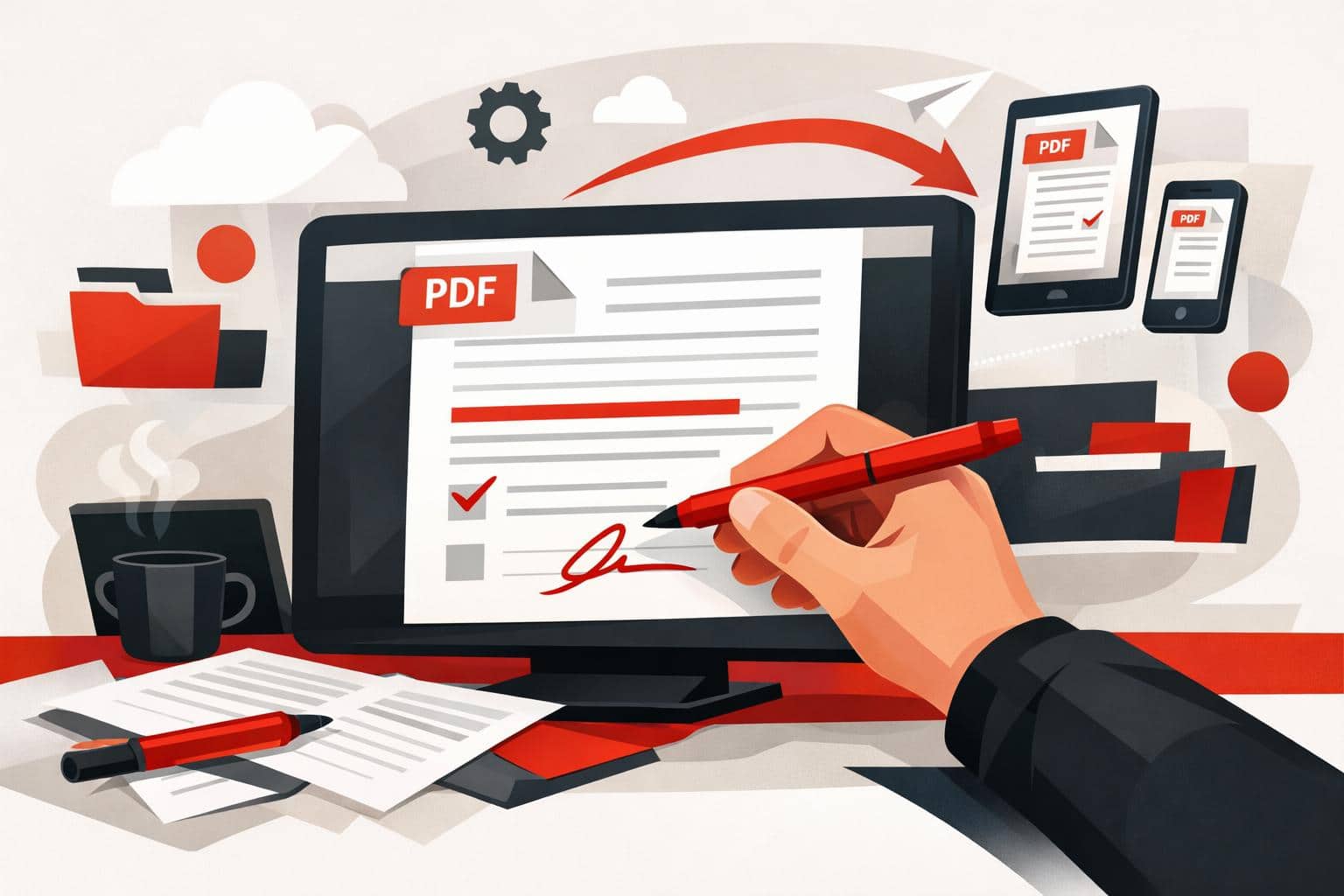
The quickest way to write on a PDF is to open it in an online editor, add text, drawings, shapes, comments, or images, then download the updated file. iLovePDF offers this through its PDF Editor, so basic annotation work can happen in the browser without installing desktop software.
The fastest browser method
For simple PDF edits, the browser workflow is direct. Open the editor, upload the document, choose a markup tool, place the new content where it belongs, apply the edit, and download the finished file.
Text, add typed notes, corrections, labels, or short explanations.
Draw, mark a section by hand, underline a sentence, or circle a visual detail.
Layout control, change the position, size, color, and formatting of added elements before saving.
A practical example is teacher feedback. A teacher can upload a student assignment, place short typed comments beside weak paragraphs, circle an incorrect calculation, add a final grade sticker, and return the annotated PDF without converting the file into another format.
What you can add to a PDF
PDF annotation is not the same as fully rewriting a document. It usually means placing new information on top of the existing page, such as notes, highlights, shapes, or visual markers.
The iLovePDF editor supports common markup work, including typed text boxes, freehand drawing, inserted images, shapes, straight lines, comments, and highlights. That makes it suitable for reviewing contracts, commenting on design drafts, marking study notes, or explaining changes in a brochure.
A useful mini-model is mark, explain, approve. Mark the area that needs attention, explain the change with a short note, then approve or reject the item with a visual cue. This keeps PDF feedback readable instead of turning the page into a cluttered comment wall.
Editing PDFs on a phone
PDF edits are not limited to a laptop. The iLovePDF Mobile app turns an iOS or Android device into a portable PDF editor for quick document work away from a desk.
The mobile version is especially useful when the task involves review rather than heavy formatting. Users can add comments, annotate pages, highlight text, sign documents, scan paper files, and manage PDFs directly from a phone or tablet.
Security and file handling
Any online PDF workflow should be judged by how it handles uploaded documents. According to the company, iLovePDF uses encrypted connections, follows GDPR requirements, and deletes processed files automatically within two hours. Its security page also lists ISO certification and broader data protection practices.
The clear decision rule is simple, use online editing for routine schoolwork, proposals, manuals, and low-risk business documents. For highly sensitive legal, medical, financial, or confidential company files, check internal policy first and consider an approved local or enterprise tool.
When this workflow makes sense
The browser editor is best for fast annotation, not deep document reconstruction. It works well when the original PDF should stay visually intact and the added material only needs to clarify, correct, or highlight specific points.
Use it when speed matters more than redesign. If the goal is to rewrite entire sections, rebuild tables, or restructure a long report, editing the source document is usually cleaner than layering many changes over the PDF.
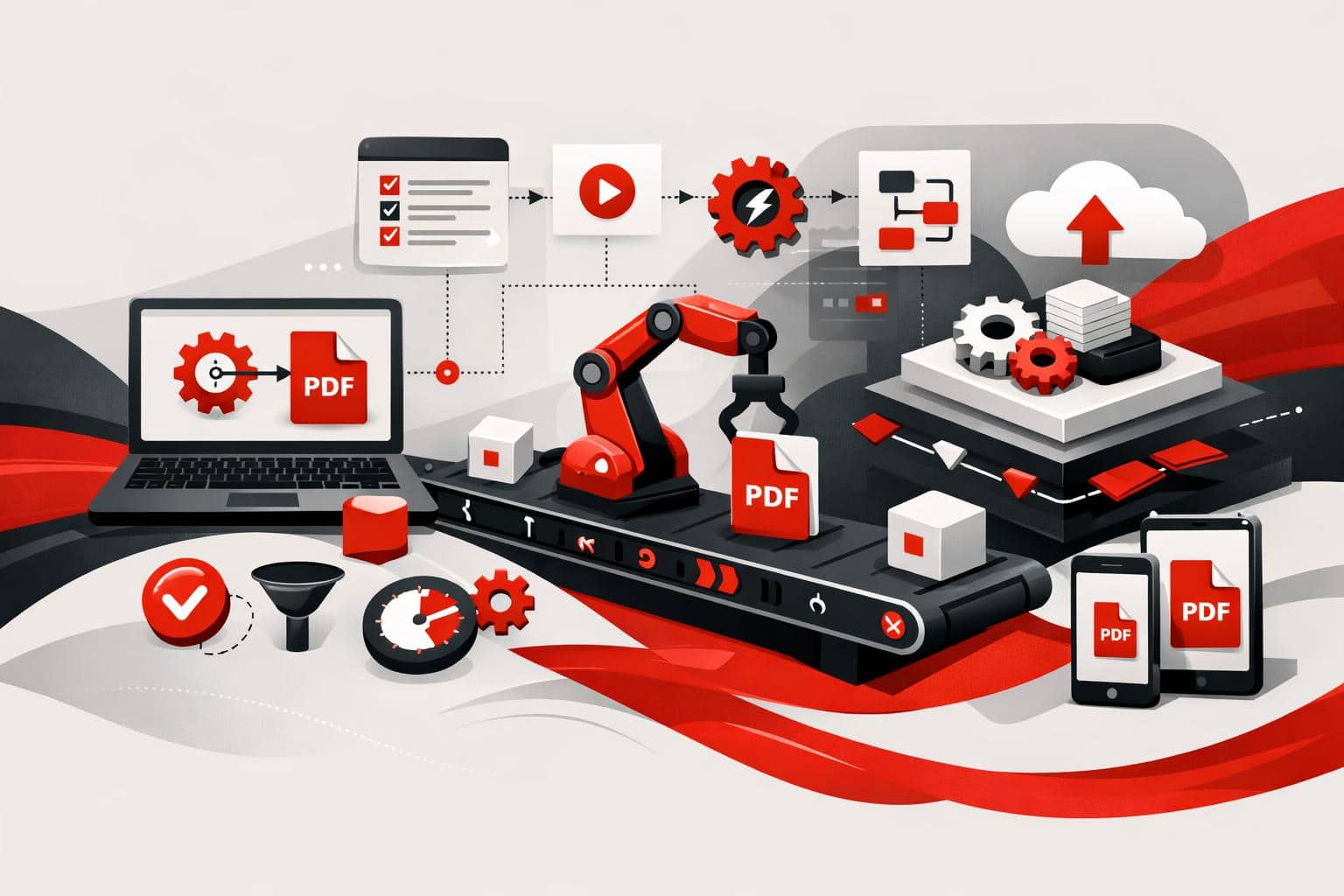
iLovePDF is pushing document work beyond manual uploads by offering two automation routes, no-code connectors for teams that want fast workflow wins, and iLoveAPI for developers who need PDF, image, and signature features inside their own software.
What changes when documents run themselves
Most PDF work is not intellectually difficult. It is repetitive, fragmented, and expensive in small increments. Compressing invoices, merging contract attachments, converting files, resizing images, requesting signatures, and filing the result are classic workflow tax.
Automation removes the human from the click path. A trigger starts the job, such as a new email attachment, an approved quote, or an uploaded product image, then the workflow runs the required document steps without another manual action.
The market now splits into a simple three-part model: connect for no-code workflow automation, embed for API-driven product features, and interpret for AI-ready document intelligence. iLovePDF now has a position in all three layers through iLovePDF, iLoveSign, iLoveIMG, and iLoveAPI.
No-code automation for everyday file work
No-code is the fastest path when the goal is to connect the tools a team already uses. Platforms such as Zapier, Make, Microsoft Power Automate, and n8n can trigger iLovePDF, iLoveSign, and iLoveIMG actions from common business events. The iLoveAPI integrations page lists connectors for PDF, image, and e-signature workflows.
A practical example is an accounts payable inbox. When a supplier sends a large PDF invoice, the workflow can compress the file, rename it with the supplier name and date, save it to the correct cloud folder, and notify finance in chat. The employee reviews the invoice, not the file handling.
The same logic applies to sales and marketing. A signed proposal can be merged with a statement of work and archived, while a new batch of product photos can be resized and optimized before reaching an online store. The value is cumulative, because ten small automations can remove hundreds of low-value clicks each week.
Compress: Reduce large PDFs as soon as they arrive.
Sign: Send approved documents into an e-signature flow.
Convert: Turn PDFs, images, or office files into the required format.
File: Move finished documents into the right folder or record.
Odoo brings document tasks into the record
The new Odoo connectors matter because ERP work loses momentum when users jump between tabs. Odoo often holds the customer, invoice, quote, contract, or HR record, so the document action should happen there as well.
The iLovePDF connector for Odoo brings PDF compression into Odoo Documents, including bulk compression and file size insights. That keeps attachments smaller without pulling users away from the business record they are already handling.
For sales, that means a quote can move toward signature from the opportunity context. For finance, it means bulky attachments can be compressed before storage or sharing. For legal and operations, it reduces the risky habit of downloading sensitive files, processing them elsewhere, then re-uploading the result.
The API route for product teams
No-code solves routine operations. The API solves product integration. iLoveAPI exposes PDF, image, and signature capabilities through a REST API, so developers can build document processing directly into internal platforms, SaaS products, customer portals, and backend pipelines.
The official API reference describes a task flow built around starting a job, uploading files, processing them, and downloading the result. The same documentation lists supported PDF tools such as merge, split, compress, protect, OCR, watermark, office conversion, and PDF to Markdown.
Five AI tools expand the workflow
The newer AI tools move iLoveAPI from file manipulation toward document understanding. Summarize can condense long documents, PDF Forms can detect or fill fields, Smart Split can separate bundled documents by content, PDF to Markdown can produce structured text for websites and AI systems, and Translate can make document content usable across languages.
That shift is important because modern document pipelines often feed search indexes, language models, compliance systems, or customer dashboards. A PDF that becomes clean Markdown, a short summary, and structured form data is no longer just a file. It becomes usable business input.
Python support lowers the developer barrier
The API now supports Python alongside PHP, .NET, Ruby, and Node.js. The official iLovePDF GitHub organization includes libraries and examples, and the Python library covers automation tasks such as compression, merging, splitting, conversion, protection, and PDF to Markdown.
That matters for AI and data teams, because Python is the default language in many document intelligence stacks. Developers can prototype a document pipeline in the same language they use for data extraction, evaluation, and model orchestration.
How to choose the right path
The decision rule is simple: choose no-code when the workflow connects existing apps, choose the API when the document feature must live inside software. If a finance manager can describe the process as “when this happens, do that,” no-code is usually enough. If a developer needs authentication, custom logic, volume handling, or native user experience, the API is the cleaner foundation.
Route
Best fit
Typical user
Main advantage
No-code connectors
Automating repeated tasks across existing apps
Operations, finance, marketing, sales
Fast setup without developer time
Odoo connectors
Compressing and signing documents inside ERP records
Teams that work mainly in Odoo
Less switching between systems
REST API
Embedding document tools into products or internal platforms
Developers and product teams
Greater control, scale, and native integration
AI document tools
Preparing documents for models, search, summaries, and data extraction
Data, AI, and automation teams
Turns static files into structured workflow inputs
A sensible rollout starts with the tasks that hurt most often. Automate inbound compression, signature routing, contract archiving, image optimization, and PDF to Markdown conversion first. Move only the high-volume or product-critical workflows into the API after the pattern is proven.
Security and next steps
Automation is only useful if teams can trust the file path. iLovePDF says its file handling uses encryption, GDPR-oriented controls, and ISO 27001 certification, and its security overview explains how uploaded files are protected during processing. More detail is available on the company’s file safety explainer and business page.
The strategic point is not that every document should become an automation project. It is that repeated file handling should stop competing with actual work. Start with no-code for quick operational relief, keep Odoo work inside Odoo where possible, and use iLoveAPI when document processing needs to become part of the product itself.
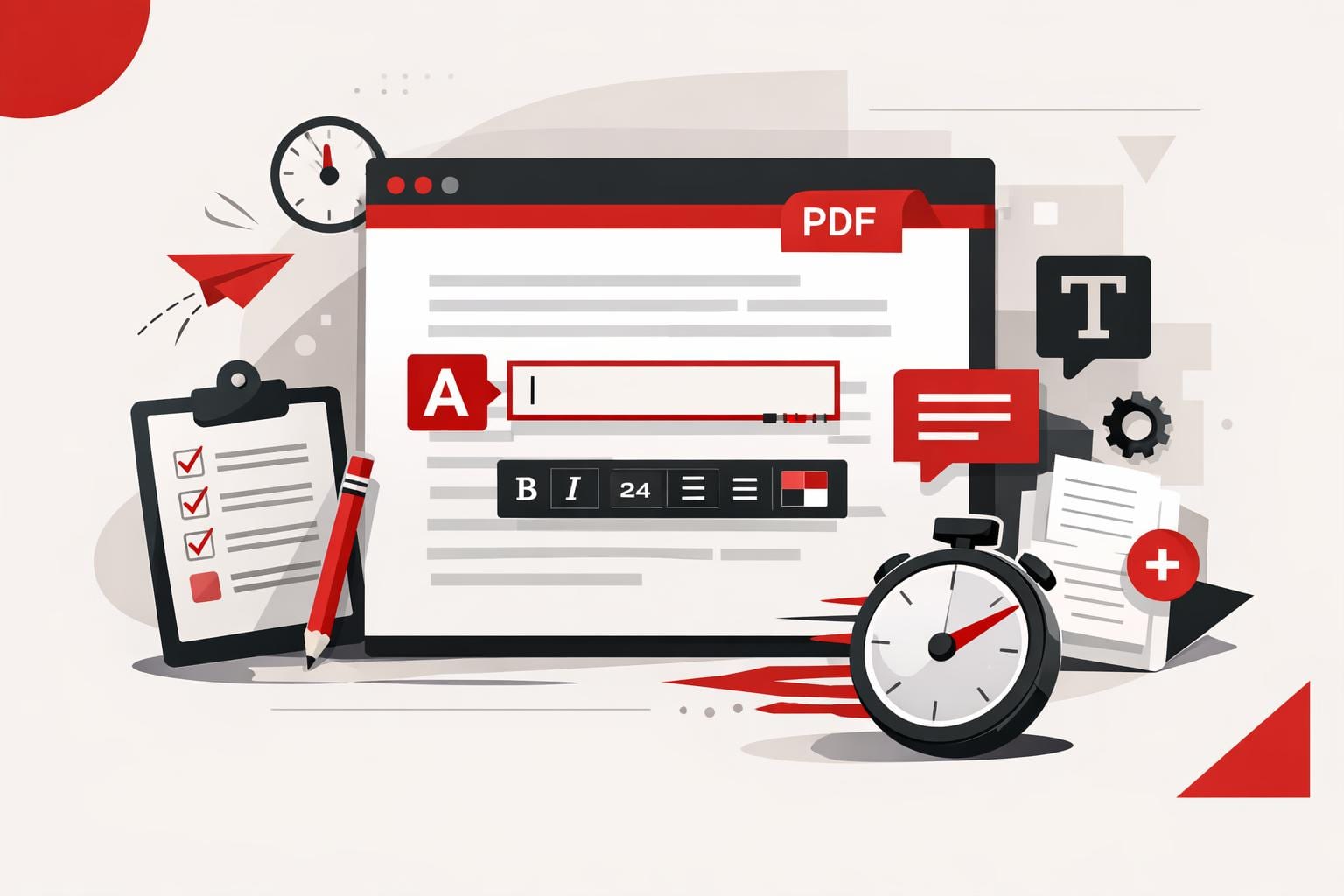
The fastest way to add text to a PDF is to use an online PDF editor, upload the file, place a text box on the page, adjust the formatting, and export the updated document. This works best for comments, labels, dates, short corrections, and titles, while larger rewrites usually need a conversion back to Word or another editable format.
The quick answer
A PDF is designed to preserve layout, not to behave like a normal word processor file. That is why small additions are usually faster with a browser-based editor than with a full file conversion.
With the iLovePDF Edit PDF tool, users can add text, comments, shapes, highlights, and images directly on top of an existing PDF. The editor is useful when the original Word, PowerPoint, or design file is unavailable.
The key distinction is simple: adding a visible text box is not the same as rebuilding the underlying document. For a missing date, a short note, or a page label, that difference rarely matters. For a contract clause, a full paragraph, or a redesigned report, it does.
When a PDF editor is the right tool
An online editor is the practical choice when the PDF is already final and only needs a small visible addition. Typical examples include adding a customer reference number, a meeting note, a signature label, a page title, or a short explanation for a reviewer.
Decision rule: use a PDF editor when the change fits in a text box and does not require the surrounding content to reflow. If the edit changes paragraph length, page breaks, tables, or document structure, convert the file first with a tool such as PDF to Word.
A practical example: a finance team receives a supplier invoice as a locked PDF and needs to mark it as paid with the payment date. Opening the file in an editor, placing a small text box near the invoice total, and exporting the PDF is faster than asking the supplier for the source document.
How to type text into a PDF
The process is straightforward because the new text is added as an editable element on the PDF page. The original file stays visually intact, while the added layer can be moved and styled before export.
Open the online PDF editor.
Select a PDF from the computer, Google Drive, or Dropbox.
Choose the text tool in the editing toolbar.
Type the new wording into the text box.
Drag the box to the exact position on the page.
Adjust the font, size, color, alignment, and style.
Apply the edit and download the updated PDF, or save it back to cloud storage.
This approach is especially useful for last-minute work because it avoids the common conversion problem where spacing, fonts, and page breaks shift after a PDF becomes a Word file.
Formatting and layout controls
Good PDF editing is not just typing. The added text has to look as if it belongs on the page, especially in forms, reports, certificates, invoices, and client documents.
The editor provides common formatting controls, including font choice, text size, color, bold, italic, underline, background color, opacity, and left, center, or right alignment. These controls help match the new text to the surrounding document without overcomplicating the task.
Each added text box behaves like a separate element. That means it can be moved, renamed, removed, duplicated, or reordered in relation to other elements on the page.
Shortcuts for faster editing
Keyboard shortcuts reduce repetitive work when several labels or notes must be added. Copy, cut, paste, duplicate, and delete actions are useful when the same text style appears across multiple pages.
Ctrl C: copy a selected text element.
Ctrl X: cut the selected element.
Ctrl V: paste the copied or cut element.
Ctrl D: duplicate an existing text element.
Delete: remove the selected item.
A practical workflow model
The PDF editing market can be understood through a simple three-part model: overlay, convert, and rebuild. Overlay tools add visible elements on top of the file, conversion tools turn the PDF into an editable Office document, and rebuild work recreates the document when layout control matters more than speed.
Overlay: best for comments, labels, dates, stamps, and short notes.
Convert: best for rewriting text, changing tables, or editing long sections.
Rebuild: best for branded templates, legal documents, complex reports, and files with strict design requirements.
Images can also be added when a document needs visual context, such as a product photo, scanned proof, diagram, or reference image. The company says its editor supports common image formats such as PNG, JPG, and GIF, and its guide to adding an image to a PDF explains the image workflow separately.
Security and file handling
Any online PDF workflow involves uploading a document, so file sensitivity matters. A public brochure, school worksheet, or simple invoice is different from a medical record, legal dispute file, tax document, or internal acquisition memo.
According to the company’s security information, processed files are encrypted and automatically deleted within two hours, with manual deletion also available from the download screen. That policy reduces retention risk, but it does not remove the need for internal judgment.
For highly confidential files, the safer rule is stricter: use approved company software, a local desktop editor, or a controlled document management system. For everyday PDF touch-ups, a browser editor offers the best mix of speed, simplicity, and adequate layout control.
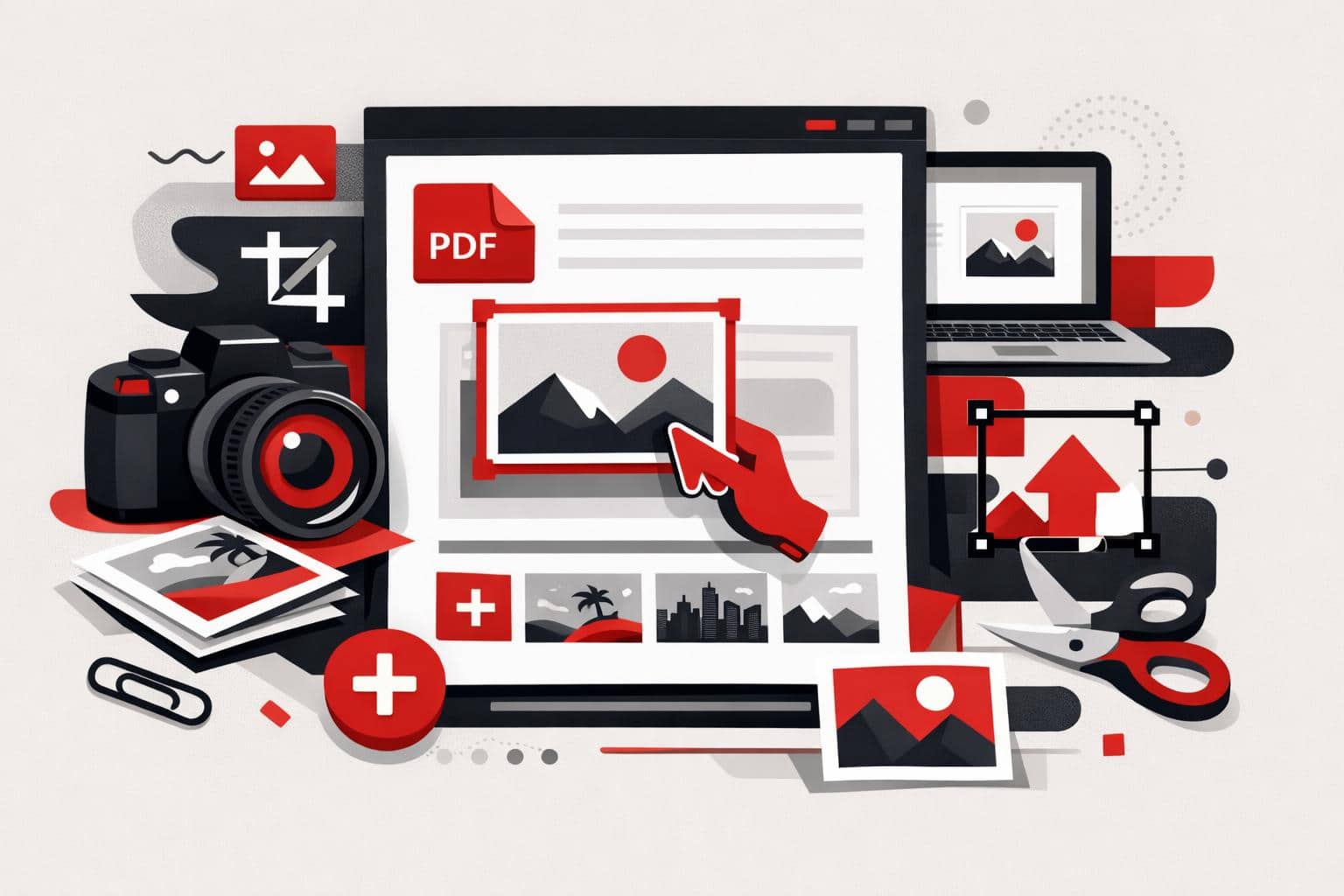
The fastest way to add a picture to an existing PDF is to use a PDF editor, upload the document, choose an image, place it on the page, then export the updated file. With iLovePDF Edit PDF, this can be done online without printing, scanning, or returning to the original Word, PowerPoint, or design file.
Why adding images to PDFs still matters
PDFs remain the default format for forms, contracts, school submissions, invoices, reports, and official evidence files. A photo, logo, signature image, receipt scan, product shot, or ID image often needs to be added after the PDF has already been created.
The old workaround was slow, print the document, attach or paste the image, scan the page again, then hope the quality stayed readable. A browser-based PDF editor removes that loop by letting the image sit directly on top of the existing page content.
A practical example, a tenant can open a completed maintenance request, add a photo of water damage on the correct page, resize it beside the written description, then send one clean PDF to the property manager.
How to insert an image into a PDF
The basic workflow is simple. Open the editor, upload the PDF, add the image, adjust its position, then process and download the final document.
Select a PDF from the device, or import it from Google Drive or Dropbox if those options are available in the upload panel.
Choose the image tool from the editor toolbar.
Upload the picture that should appear in the PDF.
Drag the image to the right place on the page.
Resize it by pulling the corner handles until it fits the layout.
Process the PDF and download the edited file, or save it back to cloud storage.
The decision rule is straightforward, use direct PDF editing when the PDF layout is already final and only needs a photo, logo, stamp, or visual proof. Go back to the source document only when the text structure, page order, or design grid needs major changes.
Supported image formats and preparation
The editor is designed for common web image formats, especially JPG, PNG, and GIF. JPG is usually best for photos, PNG works well for screenshots and logos with clean edges, and GIF can be useful for simple graphics.
If the image is in a less convenient format, convert or clean it up before adding it to the PDF. For image editing tasks such as cropping, color correction, contrast, or saturation, a separate tool such as the iLoveIMG Photo Editor is better suited because those changes affect the image itself, not just its placement in the PDF.
A simple market model helps separate the job into three layers, file, layout, and trust. File means using the right format, layout means placing the picture cleanly, and trust means keeping the document readable, professional, and secure.
Control size, layers, rotation, and transparency
Adding one image is easy, but multi-image PDFs can become crowded quickly. The editor’s layer panel helps manage the order of objects, so one photo can sit above another, or a visual element can move behind text and shapes.
Layering matters when several visuals share the same page. A company could place a product image first, move a semi-transparent approval stamp above it, then add a small logo in the corner without disrupting the whole document.
Rotation fixes pictures that were captured in the wrong orientation. Select the image, then use the rotation controls to turn it clockwise or counterclockwise until it matches the page.
Transparency controls how strongly an inserted image appears. Lower opacity can make a picture behave like a watermark, while full opacity is better for evidence photos, product images, and screenshots that must stay sharp.
Security, mobile use, and offline editing
Documents that contain IDs, financial details, contracts, or medical information should be handled with extra care. According to the iLovePDF security page, the service uses HTTPS encryption, describes end-to-end encryption for processed files, and says processed files are automatically deleted within two hours.
For sensitive workflows, offline editing can be the safer default because the file stays on the computer during processing. iLovePDF also offers iLovePDF Desktop, which is aimed at local document work and privacy-focused processing.
Mobile editing is useful when the image already lives on a phone. The iLovePDF Mobile apps support PDF editing, scanning, signing, file management, and document sharing from iOS and Android devices.
Quick answers
Can images be added to a PDF for free?
Yes, iLovePDF offers free access to many PDF tools, including editing features. Premium plans are intended for heavier use, advanced functions, and larger workflows.
Which image type should be used?
Use JPG for normal photos, PNG for logos or screenshots, and GIF for simple graphics. If the picture needs correction first, edit the image before importing it into the PDF.
Can an image be resized after insertion?
Yes. Select the image and drag the corners to scale it. Keep proportions consistent if the image contains faces, logos, signatures, or product details.
Can the image be placed behind another object?
Yes. Use the layer controls to move the image forward or backward in the page stack. This is useful for stamps, watermarks, logos, and overlapping visuals.
Is mobile editing practical?
Yes, especially for receipts, field photos, school paperwork, and quick signatures. Desktop editing is still better for complex pages, large files, or sensitive business documents.
The cleanest way to edit a PDF in Word is to convert it into a DOCX file first, preferably with OCR when the PDF contains scanned pages or locked text. Opening a PDF directly in Word can work for simple files, while a PDF editor is better for small text fixes that do not require a full conversion.
Choose the best editing method
PDF editing is not one task. It falls into three practical categories, conversion, direct editing, and annotation. The right choice depends on whether the document needs deep rewriting, a quick correction, or review comments before a final version.
Method
Best for
Main tradeoff
PDF to Word conversion
Full text editing, restructuring, and formatting changes
Complex layouts may still need checking after conversion
Opening PDF in Word
Simple text based PDFs with light edits
Formatting can shift, and some elements may not transfer cleanly
PDF content editor
Fixing names, dates, prices, comments, and small layout updates
Not ideal for heavy rewriting across many pages
The decision rule is simple, convert the file when the text must be rewritten, edit the PDF directly when only a few visible elements need changing, and annotate when the document still needs review. For example, a sales team updating a proposal price can use a PDF editor, while a legal team rewriting several clauses should convert the PDF to Word first.
Convert the PDF to Word
A dedicated converter is usually the strongest option because it turns fixed PDF content into an editable Word document. The iLovePDF PDF to Word converter supports normal conversion for selectable text and OCR for scanned pages.
OCR means optical character recognition. It reads text from images or scans and rebuilds it as editable text, which matters when a PDF came from a scanner, a photographed document, or a non selectable file.
Upload: Open the converter and select the PDF file.
Choose OCR: Use OCR when the PDF contains scanned pages or text that cannot be selected.
Convert: Start the conversion and download the Word file.
Edit: Open the DOCX file in Word and review formatting before sending it on.
This method gives the most control because Word can handle paragraph edits, style changes, headings, lists, and larger rewrites more naturally than a PDF editor.
Open the PDF in Microsoft Word
Word can open some PDF files without a separate converter. This is useful when the file is simple, mostly text, and does not rely on tight visual positioning.
Open Word and choose File, then Open.
Select the PDF from the device.
Confirm the prompt that lets Word convert the PDF for viewing and editing.
Check every page for shifted spacing, missing images, or broken tables.
This route is convenient, but it is not the safest choice for polished documents. Word may rebuild the file in a way that changes line breaks, columns, images, or page structure, especially in brochures, invoices, forms, and designed reports.
Edit the PDF directly
When the task is small, direct PDF editing can be faster than converting the whole file. The iLovePDF Edit PDF tool lets users add or adjust text, images, shapes, comments, and highlights inside the PDF workspace.
This method works well for correcting a date, replacing a name, adding a note, or marking a section for approval. It keeps the work close to the final visual layout, which reduces the risk of accidental document-wide formatting changes.
Practical example
A hiring manager receives a signed onboarding PDF and notices that the start date is wrong. Direct editing is the faster path, because only one field needs changing and the rest of the document should remain untouched.
Work on mobile or desktop
PDF work often happens away from a desk. The iLovePDF mobile workflow supports PDF to Word conversion from a phone or tablet, so a user can upload a file, convert it, download the Word version, and make edits while traveling.
For offline work, the iLovePDF Desktop App is the better fit. It is designed for Windows and Mac users who want PDF tools on the computer, including file conversions and local document handling.
A useful market model is format, device, risk. Format decides whether Word or PDF editing is better, device decides whether web, mobile, or desktop is practical, and risk decides whether an online upload is acceptable for the document type.
Check security before uploading
Before using any online PDF tool, users should consider the sensitivity of the file. According to iLovePDF, uploaded documents are protected with encryption and are automatically removed from its system after two hours.
That protection may be enough for routine business documents, class materials, and everyday forms. For contracts, medical records, financial files, or confidential internal data, an offline desktop workflow is often the safer default because the file stays under tighter local control.
The best PDF editing workflow is therefore not one universal tool. Use conversion for heavy edits, Word opening for simple text PDFs, direct PDF editing for quick corrections, and annotations when several people need to clarify changes before the final version.
Yes, everyday PDF edits can be done without Adobe Acrobat. iLovePDF handles browser-based text updates, signing, compression, conversion, and page management, making it a practical fit when a full Acrobat workflow is more than the job needs.
Why iLovePDF Fits Everyday PDF Work
Adobe Acrobat remains a powerful professional suite, but many users only need a narrow set of actions, such as correcting a line, combining files, adding a signature, or reducing file size. For that kind of work, a focused online tool can be faster, cheaper, and easier to learn.
The iLovePDF editor runs in the browser and gives users common PDF controls without requiring a software installation. The company also offers mobile and desktop options for people who prefer working outside the browser.
A useful market model is the three-lane split. Full suites handle regulated, complex document operations, task-based web tools solve quick everyday jobs, and local desktop utilities suit files that should not leave a device. iLovePDF sits mainly in the task-based lane, with extra options for heavier workflows.
What You Can Change in a PDF
Text, layout, and visual elements
For simple corrections, iLovePDF can edit existing PDF text and add new text boxes. That is useful for small updates, such as fixing a name, changing a date, or adding a missing note without rebuilding the whole document.
The editor also supports images, logos, shapes, comments, highlights, and underlines. These tools help when a PDF needs clearer visual structure, light branding, review notes, or emphasis for a presentation.
Conversion and page control
PDF work often becomes format work. iLovePDF includes tools to convert PDF files into Word, PowerPoint, Excel, or JPG formats, and the PDF to Word tool also notes OCR support for scanned pages as a premium option.
For document structure, the broader iLovePDF tool set covers merging, splitting, compressing, rotating, reordering, deleting pages, and converting files back into PDFs. These actions solve the most common document cleanup problems before a file is sent, archived, or uploaded.
Signatures and compression
The Sign PDF tool lets users sign a document themselves or request signatures from others. It supports drawn or uploaded signatures, plus fields such as name, initials, date, text, and company stamp.
Compression is the practical fix for large reports, image-heavy files, and scanned documents that fail upload limits or clog email attachments. The goal is not to redesign the document, but to make the same file easier to send and store.
How the Three Step Workflow Works
The workflow is deliberately simple. Open iLovePDF in the browser, choose the needed tool, upload the file, make the change, and download the finished version.
Choose the task, such as Edit PDF, Merge PDF, Split PDF, Compress PDF, Convert PDF, or Sign PDF.
Upload the document from the device or a supported cloud source.
Finish the edit, process the file, then download or save the result.
Concrete example, a freelancer receives a client proposal with the wrong delivery date, two pages in the wrong order, and no signature block. With iLovePDF, the freelancer can correct the date, reorder the pages, add a signature field, compress the final PDF, and send it back without opening a desktop publishing app.
Security and Document Handling
Online PDF tools require a security check because files are uploaded for processing. According to the company’s security page, iLovePDF uses encryption and automatically deletes processed files within two hours.
The company’s privacy policy also states that uploaded content is deleted within two hours after processing, except for iLoveSign services, where separate retention rules can apply. That exception matters for signed documents, because signature workflows may need longer storage for legal and evidentiary reasons.
The practical takeaway is simple, ordinary school files, marketing drafts, invoices, and non-sensitive admin documents fit this kind of tool well. Highly confidential legal, medical, government, or internal corporate files may require an approved local or enterprise document system instead.
When to Use It and When Not To
Decision rule, use iLovePDF when the job is small, clearly defined, and does not require advanced document governance. If the task is to fix text, add a note, sign a form, compress a file, or rearrange pages, a browser-based tool is usually enough.
Choose a full professional suite or an approved local workflow when the PDF contains sensitive personal data, strict compliance obligations, complex redaction needs, advanced accessibility remediation, or long document approval chains. In those cases, editing power is only part of the requirement, auditability and policy control matter just as much.
For most everyday users, the value is speed. iLovePDF turns PDF editing into a set of specific actions rather than a software project, which is exactly what students, freelancers, and small teams often need.
iLovePDF now lets users edit existing text inside a PDF online, so a typo, price, date, or name can be changed without converting the file first. The feature is best suited to targeted document updates where preserving the original layout matters more than rebuilding the file from scratch.
What changed
The central upgrade is direct text editing. According to the company, the Edit PDF tool can detect existing text, which allows users to select, rewrite, move, or remove content already present in the document.
That matters because a PDF often outlives the original design file. A sales sheet may need a new price, an HR policy may need an updated date, and a proposal may need a corrected client name. In each case, direct editing removes the old detour through Word, PowerPoint, or a design app.
The practical value can be summarized with a simple model, layout, access, speed. The layout stays close to the source file, access is possible even when the original file is missing, and speed improves because the edit happens inside the PDF itself.
How the editing workflow works
The process is designed around a short upload and edit loop rather than a full document conversion. Users open the editor, upload a PDF, choose the Edit mode near the Annotate option, select the text, then save and download the revised file.
Upload, add the PDF from the computer or supported cloud source.
Select, click the existing text that needs a change.
Edit, revise, move, or delete the selected content.
Polish, adjust font, size, alignment, or color where needed.
Export, apply the changes and download the finished PDF.
A clear decision rule helps avoid wasted effort, use direct PDF editing when the change is small and local, but return to the source file when the whole layout, pagination, or visual system needs a redesign.
More than text correction
Text editing is only one part of the editor. The same workspace also supports added text, images, freehand marks, shapes, comments, and highlights, which turns the tool into a light document finishing environment rather than a typo fixer only.
New text and annotations
Users can add missing labels, short notes, comments, or extra paragraphs. This is useful for review cycles, classroom handouts, internal memos, and short approval notes that do not justify reopening the original production file.
Images, shapes, and sketches
The editor also allows image placement, including logos, diagrams, or photos. Shapes such as circles, rectangles, and arrows help draw attention to specific areas, while the pencil tool supports quick markups and handwritten style notes.
For example, a marketing manager can update an event flyer by replacing an outdated venue name, adding a sponsor logo, circling the registration deadline, and exporting the corrected PDF for immediate distribution.
Where the tool fits best
The strongest use cases are business documents that need precise, last mile changes. Marketing teams can adjust brochures or flyers, HR teams can refresh training documents, and client facing teams can clean up proposals before sending them out.
The market classification is straightforward, quick fix, review layer, workflow tool. Quick fix covers typos and date changes, review layer covers comments and visual marks, and workflow tool covers teams that process PDFs across web, mobile, and desktop.
Security and file handling
PDF editing often involves contracts, policies, invoices, or client material, so file handling is not a side issue. The company says its security setup includes HTTPS encryption, end-to-end encryption for uploaded documents, and automatic permanent deletion of processed files within two hours on its security page.
The sensible rule is to match the tool to the sensitivity of the document. For ordinary brochures, classroom material, or public facing PDFs, the online editor is convenient. For confidential or regulated material, teams should check internal compliance rules first and consider desktop workflows when local processing is required.
Direct PDF text editing will not replace professional layout software, and it should not be treated as a full design system. Its real strength is narrower and more useful, it turns common PDF corrections into a fast, controlled task instead of a file conversion problem.
Legal teams should not approve a document tool because it is popular, cheap, or already in use. Approval becomes defensible only when counsel can show what happens to files, who controls access, how long data remains available, and why the tool is reasonable for the legal risk involved.
Shadow IT Is Already Inside Legal Work
Document tools often enter an organization before legal, IT, or procurement has reviewed them. A lawyer who needs to merge exhibits, convert a due diligence bundle, or sign a case file before midnight will usually choose the fastest workable option.
That behavior is not automatically a governance breakdown. It is a demand signal. The risk begins when useful tools remain invisible, unmanaged, and undocumented.
The better response is controlled adoption. A corporate license, centralized account management, permission controls, and rapid access removal are usually more effective than a blanket ban that teams bypass under pressure.
What Makes a Document Tool Defensible
A defensible tool is not simply a well-known tool. For legal departments, the core test is whether the organization can explain the document journey with evidence.
Visibility, where files are processed, stored, and deleted.
Control, who can access the tool and who can remove access.
Evidence, what records prove that the decision was reviewed rather than guessed.
This visibility, control, evidence model gives legal teams a practical way to separate useful shadow IT from unacceptable exposure. According to iLovePDF, its own security materials describe HTTPS encryption, ISO 27001 certification, GDPR compliance, and automatic deletion of processed files within two hours, with separate retention rules for signed documents. iLovePDF security and data protection
The decision rule is simple: if a provider cannot clearly answer where files go, who may access them, when they are deleted, and what contract governs the service, approval should pause until the gaps are closed.
Five Questions Legal Teams Should Ask
The framework presented in iLovePDFs June 9, 2026 article with the Congreso Latinoamericano de Gerencias Legales centers on five review themes. The point is not to build a months-long audit for every PDF task. The point is to ask enough sharp questions to make a documented, risk-based call. iLovePDF legal tool evaluation framework
Data protection
Legal teams should confirm what categories of data the tool processes, where that processing happens, and whether the provider uses the data only to deliver the service. This includes personal data, privileged material, commercially sensitive documents, and cross-border transfers.
Business-aligned contract
The contract should match the way the organization will actually use the tool. A personal free account may be acceptable for public files, but it is a poor fit for litigation records, deal rooms, employment files, or regulated client documents.
Limited retention
Retention is often the weak point. A tool may process files quickly, but the legal question is what remains after processing and for how long.
Security
Security review should cover encryption, access controls, audit practices, certifications, incident handling, and whether the provider can support enterprise account administration. iLovePDFs business page, for example, lists team management, permissions, dedicated support, API workflows, and enterprise-level security among its business features. iLovePDF Business
Reasonableness test
Not every file requires the same control level. A public brochure and a merger agreement should not trigger identical approval work. The test is whether the tool choice fits the sensitivity, deadline, legal context, and available alternatives.
A practical example makes this clear. If a legal team must process 600 due diligence PDFs before a buyer call, a vetted business account with deletion rules, access logs, and contract terms is far more defensible than letting each associate upload files through unmanaged personal accounts.
Why the Evaluation Record Matters
Approval without a record creates a weak position in front of an auditor, regulator, client, or board. Privacy law increasingly expects organizations not only to comply, but to demonstrate how compliance decisions were made.
Under GDPR Article 5(2), the controller must be responsible for and able to demonstrate compliance with the core processing principles. GDPR text on EUR-Lex
The same accountability logic runs through many Latin American privacy regimes, including Brazil, Mexico, Colombia, Argentina, and Chile. For legal teams, that means a short evaluation note, provider answers, contract references, and an approved-tools list are not paperwork for its own sake. They are the evidence layer that makes a decision defensible.
Turning the Framework Into a Workflow
The five questions work best when they become a repeatable intake process. Legal operations can turn them into a short checklist, route higher-risk use cases to privacy or security, and maintain a living list of approved tools.
The market classification is straightforward: document tools fall into three groups, consumer convenience, managed business utility, and regulated workflow infrastructure. Legal departments should push recurring sensitive work out of the first group and into the second or third.
The full iLovePDF webinar with Juan Oriol and Xtrategia expands the framework with concrete legal-team scenarios. Watch the full webinar
For teams that already rely on PDF tools, the next step is not to restart from zero. It is to map current usage, classify file sensitivity, request provider evidence, and decide which workflows need business controls rather than informal adoption.
Businesses are adding offline PDF workflows because local processing gives teams control when files are sensitive, networks fail, or internal policy blocks cloud uploads. The strongest setup is not offline versus online, it is a mixed document workflow where desktop, web, and mobile tools each handle the files they are best suited for.
What an Offline PDF Workflow Means
An offline PDF workflow keeps the file on the user’s computer while it is opened, edited, converted, compressed, signed, or saved. The document is processed locally instead of being uploaded to a remote server and downloaded again after the task is complete.
This does not make cloud PDF tools obsolete. It creates a second lane for files that need tighter control, faster local handling, or uninterrupted access when the network is weak. In most companies, offline work is handled through a desktop PDF editor installed on managed Windows or macOS devices.
The iLovePDF desktop app is available for both Windows and macOS and is positioned as a local option for heavier PDF work, including offline processing from a PC or Mac. The company also maintains web and mobile tools, which makes the model more flexible than a desktop-only setup. See the iLovePDF Desktop page for platform availability.
Why Companies Are Moving PDF Work Local
The shift is practical. Teams are not rejecting web tools, they are reducing dependency on one environment. PDF work now falls into three lanes: convenience for routine web tasks, control for sensitive files, and continuity for work that must continue when connectivity breaks.
Connectivity is not guaranteed
Field staff, auditors, consultants, sales teams, and traveling executives often work in places where uploads are slow or impossible. A desktop editor keeps the workflow moving on flights, in hotels, at client sites, and inside restricted office networks.
The practical gain is simple, a user can compress a large scanned report, reorder pages, sign a form, or convert a proposal before reconnecting. Sharing, syncing, or archiving can wait until the network is reliable again.
Policy can matter more than preference
Some documents are governed by internal data handling rules. Early legal drafts, HR cases, due diligence files, audit material, board reports, and unpublished financial documents may need to remain on managed devices until they are approved for wider distribution.
An offline PDF tool helps teams follow those rules without stopping routine document work. The question is not whether an online service is secure, it is whether the company policy allows that specific file to be processed outside the local environment.
Large files strain browser workflows
Browser tools depend on network speed, browser memory, active tabs, extensions, and session stability. A native desktop application removes several of those weak points, especially when users handle large scanned PDFs or run several PDF operations in sequence.
For example, compressing a 200 MB scan locally avoids the upload, server processing, and download cycle. That can save time on slow connections and gives the user clearer control over where the file sits before and after processing.
What Teams Can Do Without Uploading Files
Modern offline PDF work is not limited to viewing and light annotation. A desktop PDF environment can cover the core tasks that business users rely on every day.
Organize pages, merge files, split PDFs, rotate pages, and reorder document sections.
Convert files, move between PDF, Word, Excel, PowerPoint, JPG, and archival PDF/A formats.
Reduce size, compress heavy files and repair damaged PDFs before sharing or storage.
Sign documents, apply electronic signatures and prepare documents for approval workflows.
Protect access, add passwords, permissions, redactions, and searchable text through OCR.
iLovePDF lists a broad PDF toolkit across its web and business products, including conversion, compression, editing, OCR, e-signature, redaction, comparison, merge, and split tools. The iLovePDF Business page shows how those functions are packaged for teams.
When Offline PDF Work Makes Sense
Use this decision rule: process a PDF locally when the file is sensitive, policy-restricted, unusually large, needed during travel, or required during an outage. Use the web when the task is routine, the file is cleared for upload, collaboration matters more than local control, and speed of access is the priority.
Situation
Best Fit
Reason
Quick conversion of a low-risk file
Online PDF tool
Fast access, no installation, easy sharing
Legal draft under privilege
Desktop PDF editor
Keeps the document on a managed device
Large scanned archive
Desktop PDF editor
Avoids long upload and download cycles
Flight, client site, or weak Wi-Fi
Desktop or mobile app
Work continues without a stable connection
Final distribution to partners
Central web or document system
Simplifies delivery, access, and records
This split is especially useful for legal, finance, HR, healthcare administration, consulting, engineering, and compliance teams. These groups often handle documents that are time-sensitive, confidential, large, or subject to formal handling rules.
How Offline and Online PDF Tools Fit Together
The best document operations usually combine both environments. Web tools handle everyday work, desktop tools protect sensitive or unstable moments, and mobile apps support quick actions away from the desk.
A practical example is a legal team preparing a confidential filing. The team edits and organizes the draft locally, compares it with an earlier version, removes sensitive material, signs the final PDF, converts it to PDF/A for long-term storage, and then uploads only the approved version to the shared system.
When the same matter returns to a collaborative setting, web tools can take over. Teams can use Compare PDF to review differences between versions, follow a controlled process for redaction with guidance such as how to redact a PDF, and then send or archive the file through their standard business workflow.
Mobile tools also have a place, especially for signatures, scans, and quick document checks outside the office. For sustained business work, however, the desktop app is the stronger offline base because it supports larger files, longer sessions, and more complex document chains.
Security and Business Continuity
Offline processing reduces exposure to network failure and can help teams comply with rules that require local handling. It does not remove the need for security discipline. Access control, device management, encryption, retention policies, and user training still decide how safe the workflow is.
According to the company’s help and security material, uploaded files are encrypted, standard processed files are retained for a limited period, and the service operates under GDPR-aligned practices. The company also describes ISO/IEC 27001 certification and related controls in its security documentation and FAQ.
Business continuity is the other reason offline tools matter. If the internet connection drops, a browser session fails, or a cloud service is unreachable at the wrong moment, a desktop PDF editor lets finance close a report, legal prepare a contract, or operations process a time-sensitive form.
The takeaway is clear: offline PDF workflows are not a retreat from the cloud. They are a control layer. Companies that can move smoothly between desktop, web, and mobile tools gain flexibility without forcing every document through the same path.
For teams building this kind of setup, the simple operating model is file first, context second, tool third. Classify the document, check the working conditions, then choose the environment that protects speed, policy, and control.
iLovePDF Desktop can now combine Word, Excel, PowerPoint, images, and PDFs into a single PDF in one run, because the app converts non-PDF files automatically during the merge. The change, announced on May 15, 2026, targets everyday mixed-file bundles where manual pre-conversion used to waste time and create version mistakes.
Automatic conversion inside the merge
Earlier versions of the desktop Merge tool only accepted PDFs, everything else required a separate conversion step first. The updated Merge tool accepts common Office files and images directly, then converts them as part of the merge, while keeping the output as one PDF.
Higher, multiple intermediate files and “final-final” versions
Lower, fewer handoffs and fewer saved copies
Best fit
Already standardized PDF sets
Mixed-format packs, proposals, board decks, scans
Supported file types for mixed merges
The new input list covers the formats most likely to arrive from clients, colleagues, scanners, and design teams. It also includes OpenDocument files, which reduces friction for LibreOffice or OpenOffice workflows.
The interaction stays familiar, the input gate is what changed. Add files in the order that should become pages, then run a single merge.
Open the desktop app on Windows or Mac and select the Merge tool.
Drag files into the workspace, mix formats freely, and reorder them.
Run the merge, the app converts non-PDF items automatically and produces one PDF.
Practical example: a sales manager can place a .docx cover letter first, follow with a .xlsx pricing sheet, then a .pptx slide deck, then insert .jpg photos from a site visit, the result becomes one client-ready PDF with a predictable sequence.
When this feature matters most
This update delivers the biggest payoff in jobs where “one PDF” is the required handoff format but the source material is messy. Legal, finance, and marketing teams often assemble deliverables from multiple owners, multiple file formats, and multiple last-minute edits.
Client proposals: narrative in Word, pricing in Excel, proof points in PDF, images from screenshots.
Monthly packs: spreadsheets, exported reports, and scanned receipts combined into one archive file.
Onboarding records: forms, ID scans, and signed PDFs grouped into a single document.
Academic submissions: chapters, diagrams, and supplemental scans consolidated for upload.
Decision rule: when a bundle includes two or more source formats, or when the documents include confidential client or employee data, prefer a desktop merge to minimize extra conversions and reduce unnecessary file duplication.
A useful way to evaluate PDF tooling in 2026 is the Coverage Control Containment model:
Coverage: how many real-world formats can enter the workflow without workarounds.
Control: how reliably the output preserves layout and ordering.
Containment: where processing happens, locally or via uploads, and what that implies for policy.
Local processing and what it changes
According to iLovePDF, the desktop app processes files on the machine, which can simplify internal handling for sensitive packs that teams prefer not to upload. For web-based tools, iLovePDF describes encryption and limited retention policies in its help and security materials, including the FAQ and the Security Policy Overview.
For readers comparing long-term storage workflows, PDF/A often comes up because it is designed for archiving behavior rather than day-to-day editing. The PDF Association offers a plain-language overview at PDF/A Basics, and iLovePDF’s background explainer is Meet the PDF/A family.
Tips for cleaner merged PDFs
Mixed merges fail in predictable ways, wrong order, oversized output, and rotated scans. A few small checks prevent most of that pain.
Name for order: rename files so the intended sequence is obvious before merging, then reorder in the workspace.
Watch file weight: large slide decks and high-resolution images can inflate the final PDF, then run Compress PDF if size matters.
Fix rotation fast: phone scans often arrive sideways, correct the result with Rotate PDF.
Add basic protection: if the file leaves the organization, apply a password or restrictions via Protect PDF after merging.
Archive on purpose: when the PDF is meant for records retention, convert to PDF/A using PDF to PDF/A and keep a non-archival working copy when ongoing edits are expected.
FAQ for the upgraded merge
Windows and Mac: the expanded Merge inputs are available on both desktop platforms.
No pre-conversion: Word, Excel, PowerPoint, and supported images can go straight into Merge, the app converts during processing.
OpenDocument support: .odt, .ods, and .odp are included alongside Microsoft Office formats.
Images into PDF: common formats, including JPG, PNG, TIFF, SVG, and WebP, can become pages in the merged PDF.
Where processing happens: iLovePDF positions the desktop app as local processing, and documents its web-tool security and retention practices in the FAQ and Security Policy Overview.
A straightforward next step
If mixed file packs show up weekly, install iLovePDF Desktop and treat “merge plus automatic conversion” as the default handoff path. If the job is only PDF-on-PDF, the standard web Merge PDF flow remains the quickest option.