

Use iLovePDF’s Organize PDF tool to insert blank pages or add pages from another PDF. To combine complete documents into one file, use Merge PDF.
Insert blank pages or pages from another PDF
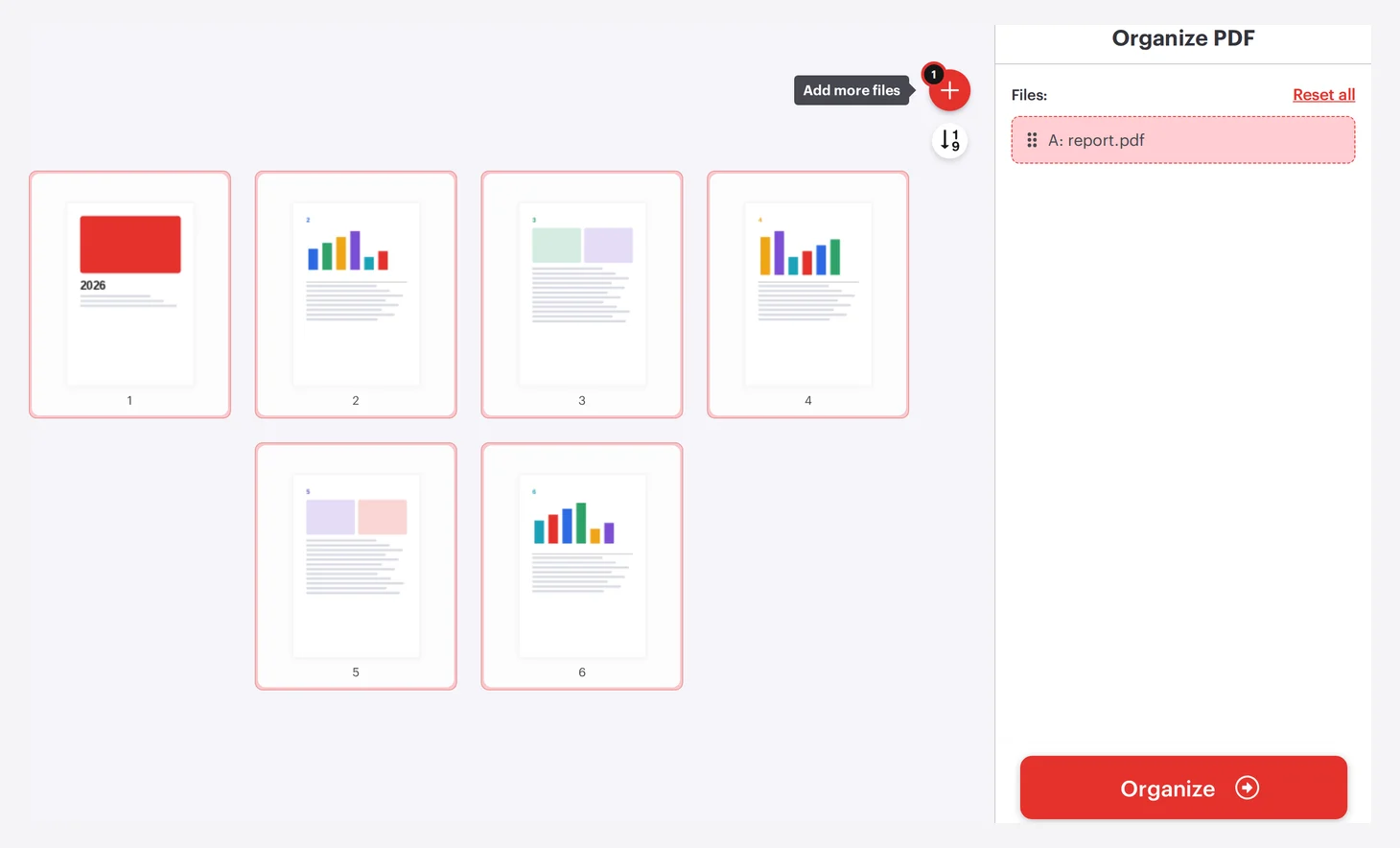
- Open Organize PDF and upload your main document from your computer, Google Drive, or Dropbox.
- To insert a blank page, hover over a page thumbnail and click the + icon for adding a blank page.
- To add pages from another PDF, click the red + button at the top right and upload that file.
- Drag the page thumbnails into the order you need. Delete any unwanted pages before saving.
- Click Organize PDF, then download the finished file or save it to Google Drive or Dropbox.
Combine multiple PDFs into one document
Use Merge PDF when you want to join whole documents rather than insert blank pages or arrange individual pages.
- Open Merge PDF and upload the first PDF from your computer, Google Drive, or Dropbox.
- Click the red + button to add the remaining PDFs.
- Drag the files into the order they should appear in the combined document.
- Click Merge PDF.
- Click Download merged PDF to save the result to your computer, or save it to Google Drive or Dropbox.
Find more info, video tutorials and versions that work without any upload on our pages Organize PDF and Merge PDF.