
iLovePDF provides separate tools for combining PDFs, splitting files, removing pages, changing page order, and adding page numbers. Choose the tool that matches the change you need.
For each tool below, you can upload files from your computer, Google Drive, or Dropbox. After processing, download the result or save it to either cloud service.
Combine multiple PDFs
Use Merge PDF when you want to join several documents into one file.
- Open Merge PDF and select the PDFs you want to combine.
- Use the red plus button to add more files if needed.
- Drag the files into the order you want them to appear.
- Select Merge PDF, then download the combined document.
Split a PDF or extract selected pages
The Split PDF tool can divide a document into page ranges or extract individual pages. Splitting produces new files rather than deleting pages from the original.
- Upload your PDF.
- Choose Range to divide it into sections. Select the custom option, enter the first and last page of a range, and use Add Range for additional sections.
- Alternatively, choose Pages. Select Extract all pages to create one PDF per page, or Select pages to specify only the pages you need.
- If you want one PDF containing the selected ranges or pages, select the corresponding merge checkbox. Otherwise, keep them as separate files.
- Select Split PDF and download the result.
Remove unwanted pages
- Open Remove PDF pages and upload your document.
- Click the thumbnails of pages you want to delete, or enter page numbers and ranges in the page-selection field.
- Check that you have selected the pages to remove, not the pages to keep.
- Select Remove pages and download the revised PDF.
Reorder, rotate, or insert pages
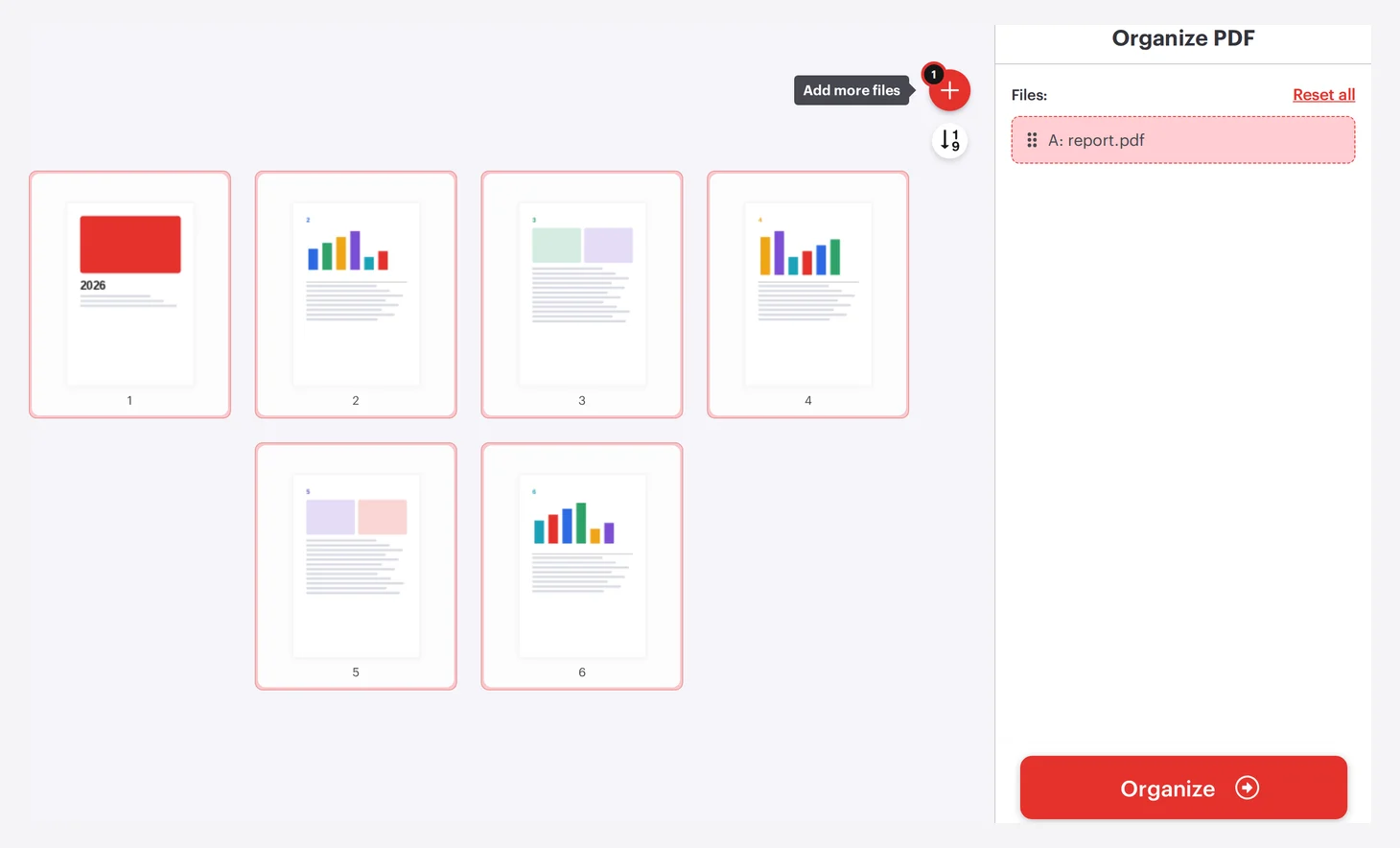
The Organize PDF tool brings several page-management options into one workspace.
- Upload the PDF or PDFs you want to organize.
- Drag page thumbnails into the required order.
- To insert a blank page, hover between pages and select the red plus icon.
- Hover over a page to access its rotate or delete control.
- When the layout is ready, select Organize and download the file.
Add page numbers
- Open Add PDF page numbers and upload your document.
- Choose where the numbers should appear and set the margin.
- Adjust the text format, including the font, size, and color.
- Select Add page numbers and download the numbered PDF.
Find more info, video tutorials and versions that work without any upload on our pages Organize PDF, Merge PDF and Split PDF.