Independent PDF Tool Guide

iLovePDF Editing

  • How to Write on PDFs Without Installing Software

    How to Write on PDFs Without Installing Software

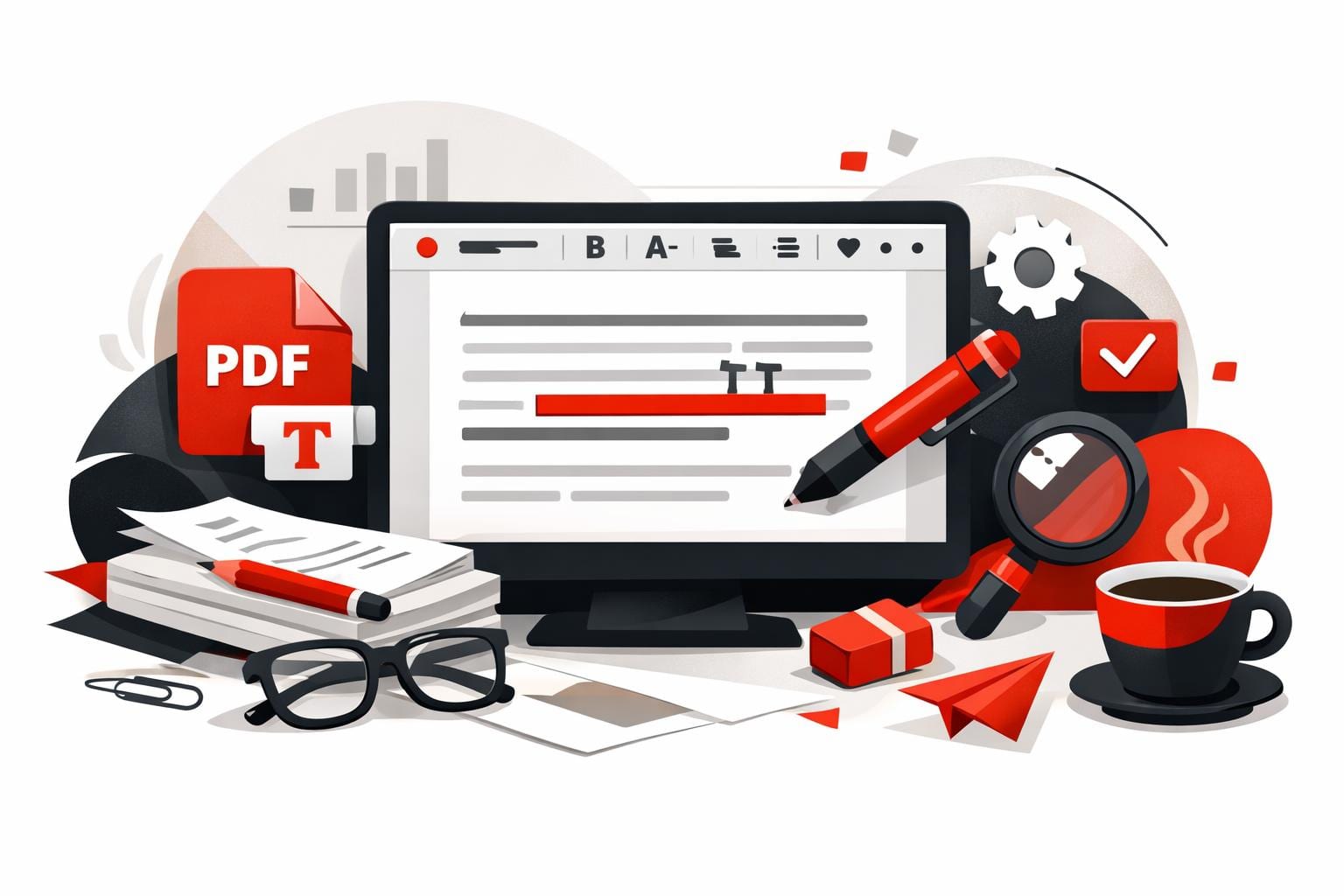
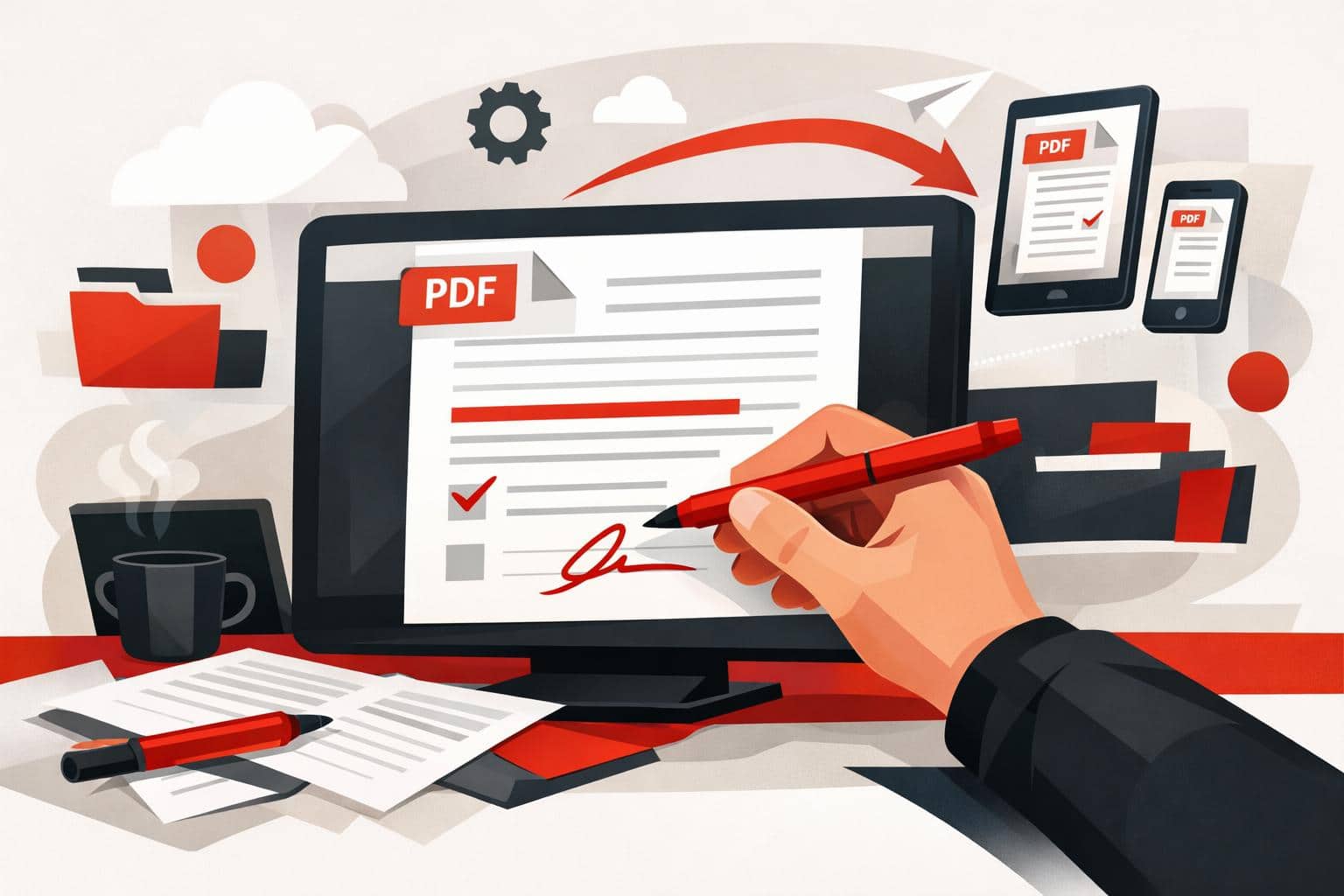
    The quickest way to write on a PDF is to open it in an online editor, add text, drawings, shapes, comments, or images, then download the updated file. iLovePDF offers this through its PDF Editor, so basic annotation work can happen in the browser without installing desktop software.

    The fastest browser method

    For simple PDF edits, the browser workflow is direct. Open the editor, upload the document, choose a markup tool, place the new content where it belongs, apply the edit, and download the finished file.

    • Text, add typed notes, corrections, labels, or short explanations.
    • Draw, mark a section by hand, underline a sentence, or circle a visual detail.
    • Layout control, change the position, size, color, and formatting of added elements before saving.

    A practical example is teacher feedback. A teacher can upload a student assignment, place short typed comments beside weak paragraphs, circle an incorrect calculation, add a final grade sticker, and return the annotated PDF without converting the file into another format.

    What you can add to a PDF

    PDF annotation is not the same as fully rewriting a document. It usually means placing new information on top of the existing page, such as notes, highlights, shapes, or visual markers.

    The iLovePDF editor supports common markup work, including typed text boxes, freehand drawing, inserted images, shapes, straight lines, comments, and highlights. That makes it suitable for reviewing contracts, commenting on design drafts, marking study notes, or explaining changes in a brochure.

    A useful mini-model is mark, explain, approve. Mark the area that needs attention, explain the change with a short note, then approve or reject the item with a visual cue. This keeps PDF feedback readable instead of turning the page into a cluttered comment wall.

    Editing PDFs on a phone

    PDF edits are not limited to a laptop. The iLovePDF Mobile app turns an iOS or Android device into a portable PDF editor for quick document work away from a desk.

    The mobile version is especially useful when the task involves review rather than heavy formatting. Users can add comments, annotate pages, highlight text, sign documents, scan paper files, and manage PDFs directly from a phone or tablet.

    Security and file handling

    Any online PDF workflow should be judged by how it handles uploaded documents. According to the company, iLovePDF uses encrypted connections, follows GDPR requirements, and deletes processed files automatically within two hours. Its security page also lists ISO certification and broader data protection practices.

    The clear decision rule is simple, use online editing for routine schoolwork, proposals, manuals, and low-risk business documents. For highly sensitive legal, medical, financial, or confidential company files, check internal policy first and consider an approved local or enterprise tool.

    When this workflow makes sense

    The browser editor is best for fast annotation, not deep document reconstruction. It works well when the original PDF should stay visually intact and the added material only needs to clarify, correct, or highlight specific points.

    Use it when speed matters more than redesign. If the goal is to rewrite entire sections, rebuild tables, or restructure a long report, editing the source document is usually cleaner than layering many changes over the PDF.
  • How to Add Text to a PDF Quickly

    How to Add Text to a PDF Quickly

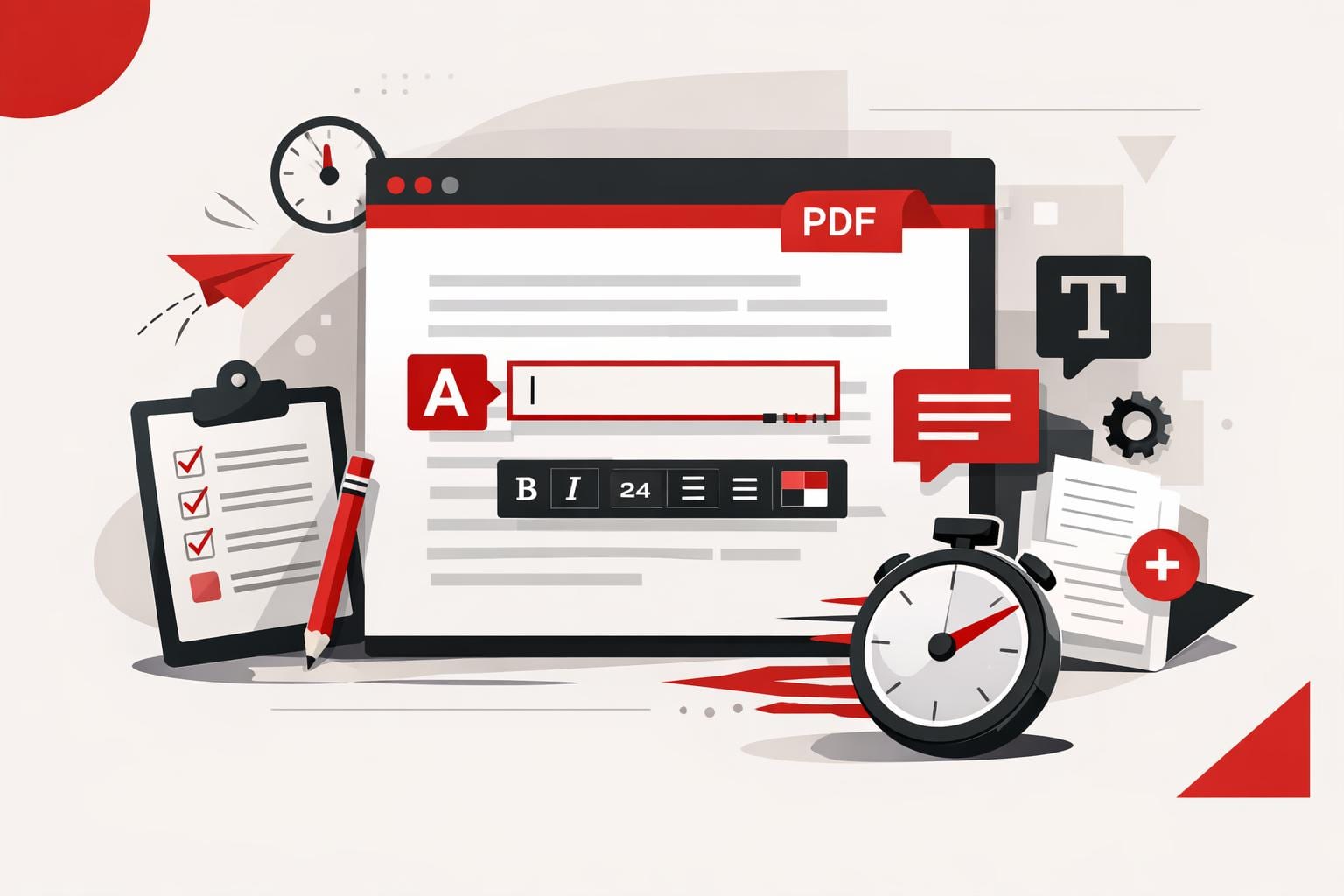
    The fastest way to add text to a PDF is to use an online PDF editor, upload the file, place a text box on the page, adjust the formatting, and export the updated document. This works best for comments, labels, dates, short corrections, and titles, while larger rewrites usually need a conversion back to Word or another editable format.

    The quick answer

    A PDF is designed to preserve layout, not to behave like a normal word processor file. That is why small additions are usually faster with a browser-based editor than with a full file conversion.

    With the iLovePDF Edit PDF tool, users can add text, comments, shapes, highlights, and images directly on top of an existing PDF. The editor is useful when the original Word, PowerPoint, or design file is unavailable.

    The key distinction is simple: adding a visible text box is not the same as rebuilding the underlying document. For a missing date, a short note, or a page label, that difference rarely matters. For a contract clause, a full paragraph, or a redesigned report, it does.

    When a PDF editor is the right tool

    An online editor is the practical choice when the PDF is already final and only needs a small visible addition. Typical examples include adding a customer reference number, a meeting note, a signature label, a page title, or a short explanation for a reviewer.

    Decision rule: use a PDF editor when the change fits in a text box and does not require the surrounding content to reflow. If the edit changes paragraph length, page breaks, tables, or document structure, convert the file first with a tool such as PDF to Word.

    A practical example: a finance team receives a supplier invoice as a locked PDF and needs to mark it as paid with the payment date. Opening the file in an editor, placing a small text box near the invoice total, and exporting the PDF is faster than asking the supplier for the source document.

    How to type text into a PDF

    The process is straightforward because the new text is added as an editable element on the PDF page. The original file stays visually intact, while the added layer can be moved and styled before export.

    • Open the online PDF editor.
    • Select a PDF from the computer, Google Drive, or Dropbox.
    • Choose the text tool in the editing toolbar.
    • Type the new wording into the text box.
    • Drag the box to the exact position on the page.
    • Adjust the font, size, color, alignment, and style.
    • Apply the edit and download the updated PDF, or save it back to cloud storage.

    This approach is especially useful for last-minute work because it avoids the common conversion problem where spacing, fonts, and page breaks shift after a PDF becomes a Word file.

    Formatting and layout controls

    Good PDF editing is not just typing. The added text has to look as if it belongs on the page, especially in forms, reports, certificates, invoices, and client documents.

    The editor provides common formatting controls, including font choice, text size, color, bold, italic, underline, background color, opacity, and left, center, or right alignment. These controls help match the new text to the surrounding document without overcomplicating the task.

    Each added text box behaves like a separate element. That means it can be moved, renamed, removed, duplicated, or reordered in relation to other elements on the page.

    Shortcuts for faster editing

    Keyboard shortcuts reduce repetitive work when several labels or notes must be added. Copy, cut, paste, duplicate, and delete actions are useful when the same text style appears across multiple pages.

    • Ctrl C: copy a selected text element.
    • Ctrl X: cut the selected element.
    • Ctrl V: paste the copied or cut element.
    • Ctrl D: duplicate an existing text element.
    • Delete: remove the selected item.

    A practical workflow model

    The PDF editing market can be understood through a simple three-part model: overlay, convert, and rebuild. Overlay tools add visible elements on top of the file, conversion tools turn the PDF into an editable Office document, and rebuild work recreates the document when layout control matters more than speed.

    • Overlay: best for comments, labels, dates, stamps, and short notes.
    • Convert: best for rewriting text, changing tables, or editing long sections.
    • Rebuild: best for branded templates, legal documents, complex reports, and files with strict design requirements.

    Images can also be added when a document needs visual context, such as a product photo, scanned proof, diagram, or reference image. The company says its editor supports common image formats such as PNG, JPG, and GIF, and its guide to adding an image to a PDF explains the image workflow separately.

    Security and file handling

    Any online PDF workflow involves uploading a document, so file sensitivity matters. A public brochure, school worksheet, or simple invoice is different from a medical record, legal dispute file, tax document, or internal acquisition memo.

    According to the company’s security information, processed files are encrypted and automatically deleted within two hours, with manual deletion also available from the download screen. That policy reduces retention risk, but it does not remove the need for internal judgment.

    For highly confidential files, the safer rule is stricter: use approved company software, a local desktop editor, or a controlled document management system. For everyday PDF touch-ups, a browser editor offers the best mix of speed, simplicity, and adequate layout control.

  • How to Edit PDFs in Word Correctly

    How to Edit PDFs in Word Correctly

    The cleanest way to edit a PDF in Word is to convert it into a DOCX file first, preferably with OCR when the PDF contains scanned pages or locked text. Opening a PDF directly in Word can work for simple files, while a PDF editor is better for small text fixes that do not require a full conversion.

    Choose the best editing method

    PDF editing is not one task. It falls into three practical categories, conversion, direct editing, and annotation. The right choice depends on whether the document needs deep rewriting, a quick correction, or review comments before a final version.

    Method Best for Main tradeoff
    PDF to Word conversion Full text editing, restructuring, and formatting changes Complex layouts may still need checking after conversion
    Opening PDF in Word Simple text based PDFs with light edits Formatting can shift, and some elements may not transfer cleanly
    PDF content editor Fixing names, dates, prices, comments, and small layout updates Not ideal for heavy rewriting across many pages

    The decision rule is simple, convert the file when the text must be rewritten, edit the PDF directly when only a few visible elements need changing, and annotate when the document still needs review. For example, a sales team updating a proposal price can use a PDF editor, while a legal team rewriting several clauses should convert the PDF to Word first.

    Convert the PDF to Word

    A dedicated converter is usually the strongest option because it turns fixed PDF content into an editable Word document. The iLovePDF PDF to Word converter supports normal conversion for selectable text and OCR for scanned pages.

    OCR means optical character recognition. It reads text from images or scans and rebuilds it as editable text, which matters when a PDF came from a scanner, a photographed document, or a non selectable file.

    • Upload: Open the converter and select the PDF file.
    • Choose OCR: Use OCR when the PDF contains scanned pages or text that cannot be selected.
    • Convert: Start the conversion and download the Word file.
    • Edit: Open the DOCX file in Word and review formatting before sending it on.

    This method gives the most control because Word can handle paragraph edits, style changes, headings, lists, and larger rewrites more naturally than a PDF editor.

    Open the PDF in Microsoft Word

    Word can open some PDF files without a separate converter. This is useful when the file is simple, mostly text, and does not rely on tight visual positioning.

    • Open Word and choose File, then Open.
    • Select the PDF from the device.
    • Confirm the prompt that lets Word convert the PDF for viewing and editing.
    • Check every page for shifted spacing, missing images, or broken tables.

    This route is convenient, but it is not the safest choice for polished documents. Word may rebuild the file in a way that changes line breaks, columns, images, or page structure, especially in brochures, invoices, forms, and designed reports.

    Edit the PDF directly

    When the task is small, direct PDF editing can be faster than converting the whole file. The iLovePDF Edit PDF tool lets users add or adjust text, images, shapes, comments, and highlights inside the PDF workspace.

    This method works well for correcting a date, replacing a name, adding a note, or marking a section for approval. It keeps the work close to the final visual layout, which reduces the risk of accidental document-wide formatting changes.

    Practical example

    A hiring manager receives a signed onboarding PDF and notices that the start date is wrong. Direct editing is the faster path, because only one field needs changing and the rest of the document should remain untouched.

    Work on mobile or desktop

    PDF work often happens away from a desk. The iLovePDF mobile workflow supports PDF to Word conversion from a phone or tablet, so a user can upload a file, convert it, download the Word version, and make edits while traveling.

    For offline work, the iLovePDF Desktop App is the better fit. It is designed for Windows and Mac users who want PDF tools on the computer, including file conversions and local document handling.

    A useful market model is format, device, risk. Format decides whether Word or PDF editing is better, device decides whether web, mobile, or desktop is practical, and risk decides whether an online upload is acceptable for the document type.

    Check security before uploading

    Before using any online PDF tool, users should consider the sensitivity of the file. According to iLovePDF, uploaded documents are protected with encryption and are automatically removed from its system after two hours.

    That protection may be enough for routine business documents, class materials, and everyday forms. For contracts, medical records, financial files, or confidential internal data, an offline desktop workflow is often the safer default because the file stays under tighter local control.

    The best PDF editing workflow is therefore not one universal tool. Use conversion for heavy edits, Word opening for simple text PDFs, direct PDF editing for quick corrections, and annotations when several people need to clarify changes before the final version.

  • iLovePDF Makes Direct PDF Text Editing Practical

    iLovePDF Makes Direct PDF Text Editing Practical

    iLovePDF now lets users edit existing text inside a PDF online, so a typo, price, date, or name can be changed without converting the file first. The feature is best suited to targeted document updates where preserving the original layout matters more than rebuilding the file from scratch.

    What changed

    The central upgrade is direct text editing. According to the company, the Edit PDF tool can detect existing text, which allows users to select, rewrite, move, or remove content already present in the document.

    That matters because a PDF often outlives the original design file. A sales sheet may need a new price, an HR policy may need an updated date, and a proposal may need a corrected client name. In each case, direct editing removes the old detour through Word, PowerPoint, or a design app.

    The practical value can be summarized with a simple model, layout, access, speed. The layout stays close to the source file, access is possible even when the original file is missing, and speed improves because the edit happens inside the PDF itself.

    How the editing workflow works

    The process is designed around a short upload and edit loop rather than a full document conversion. Users open the editor, upload a PDF, choose the Edit mode near the Annotate option, select the text, then save and download the revised file.

    • Upload, add the PDF from the computer or supported cloud source.
    • Select, click the existing text that needs a change.
    • Edit, revise, move, or delete the selected content.
    • Polish, adjust font, size, alignment, or color where needed.
    • Export, apply the changes and download the finished PDF.

    A clear decision rule helps avoid wasted effort, use direct PDF editing when the change is small and local, but return to the source file when the whole layout, pagination, or visual system needs a redesign.

    More than text correction

    Text editing is only one part of the editor. The same workspace also supports added text, images, freehand marks, shapes, comments, and highlights, which turns the tool into a light document finishing environment rather than a typo fixer only.

    New text and annotations

    Users can add missing labels, short notes, comments, or extra paragraphs. This is useful for review cycles, classroom handouts, internal memos, and short approval notes that do not justify reopening the original production file.

    Images, shapes, and sketches

    The editor also allows image placement, including logos, diagrams, or photos. Shapes such as circles, rectangles, and arrows help draw attention to specific areas, while the pencil tool supports quick markups and handwritten style notes.

    For example, a marketing manager can update an event flyer by replacing an outdated venue name, adding a sponsor logo, circling the registration deadline, and exporting the corrected PDF for immediate distribution.

    Where the tool fits best

    The strongest use cases are business documents that need precise, last mile changes. Marketing teams can adjust brochures or flyers, HR teams can refresh training documents, and client facing teams can clean up proposals before sending them out.

    Option Best use Main advantage
    Online editor Fast edits to existing PDF text and page elements No conversion step for small corrections
    Mobile app Quick changes from a phone or tablet Useful when a laptop is not available
    Desktop app Longer files, heavier workflows, and offline work Local processing and a larger editing workspace

    The market classification is straightforward, quick fix, review layer, workflow tool. Quick fix covers typos and date changes, review layer covers comments and visual marks, and workflow tool covers teams that process PDFs across web, mobile, and desktop.

    Security and file handling

    PDF editing often involves contracts, policies, invoices, or client material, so file handling is not a side issue. The company says its security setup includes HTTPS encryption, end-to-end encryption for uploaded documents, and automatic permanent deletion of processed files within two hours on its security page.

    The sensible rule is to match the tool to the sensitivity of the document. For ordinary brochures, classroom material, or public facing PDFs, the online editor is convenient. For confidential or regulated material, teams should check internal compliance rules first and consider desktop workflows when local processing is required.

    Direct PDF text editing will not replace professional layout software, and it should not be treated as a full design system. Its real strength is narrower and more useful, it turns common PDF corrections into a fast, controlled task instead of a file conversion problem.