Independent PDF Tool Guide

iLovePDF productivity

  • How to Write on PDFs Without Installing Software

    How to Write on PDFs Without Installing Software

    The quickest way to write on a PDF is to open it in an online editor, add text, drawings, shapes, comments, or images, then download the updated file. iLovePDF offers this through its PDF Editor, so basic annotation work can happen in the browser without installing desktop software.

    The fastest browser method

    For simple PDF edits, the browser workflow is direct. Open the editor, upload the document, choose a markup tool, place the new content where it belongs, apply the edit, and download the finished file.

    • Text, add typed notes, corrections, labels, or short explanations.
    • Draw, mark a section by hand, underline a sentence, or circle a visual detail.
    • Layout control, change the position, size, color, and formatting of added elements before saving.

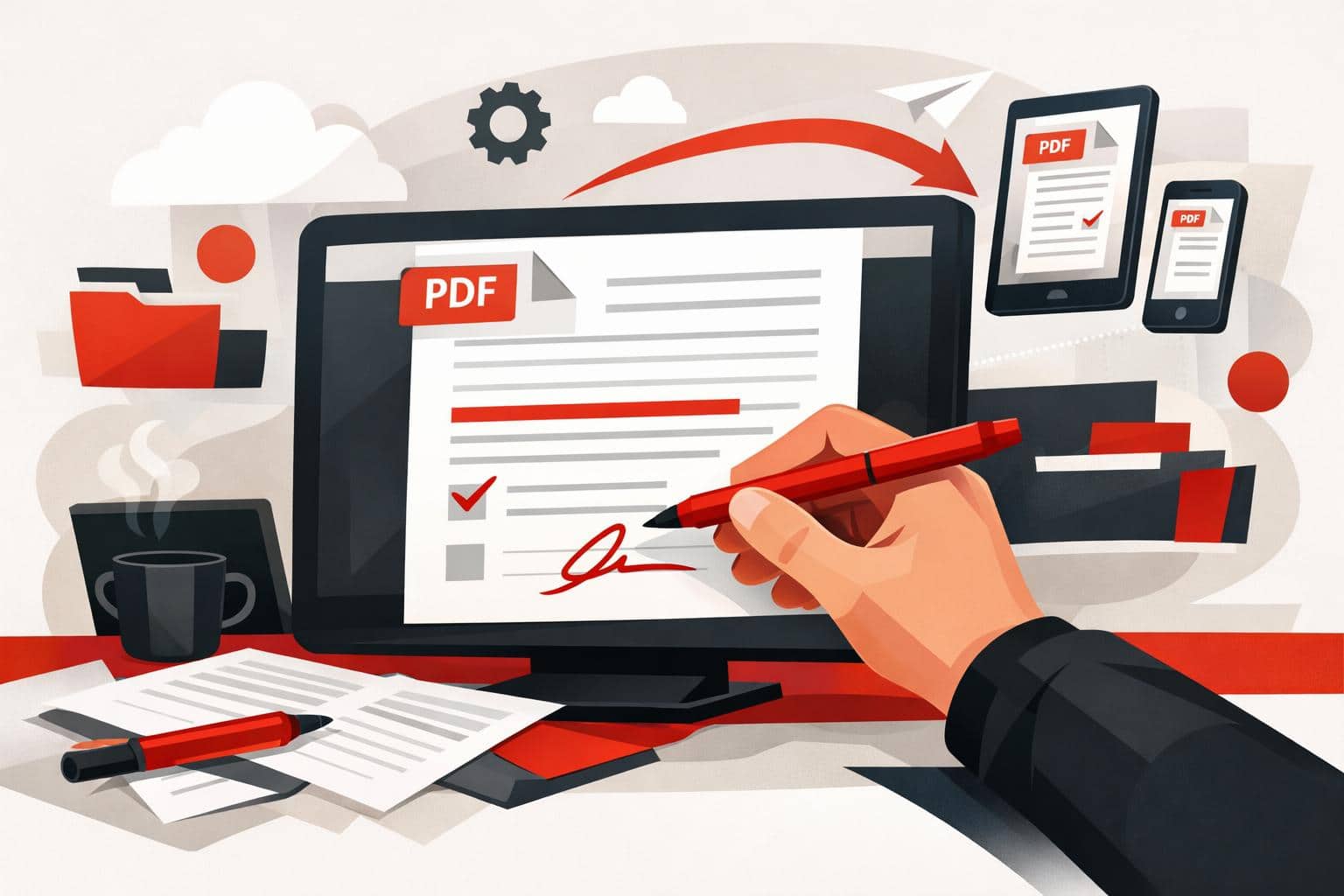
    A practical example is teacher feedback. A teacher can upload a student assignment, place short typed comments beside weak paragraphs, circle an incorrect calculation, add a final grade sticker, and return the annotated PDF without converting the file into another format.

    What you can add to a PDF

    PDF annotation is not the same as fully rewriting a document. It usually means placing new information on top of the existing page, such as notes, highlights, shapes, or visual markers.

    The iLovePDF editor supports common markup work, including typed text boxes, freehand drawing, inserted images, shapes, straight lines, comments, and highlights. That makes it suitable for reviewing contracts, commenting on design drafts, marking study notes, or explaining changes in a brochure.

    A useful mini-model is mark, explain, approve. Mark the area that needs attention, explain the change with a short note, then approve or reject the item with a visual cue. This keeps PDF feedback readable instead of turning the page into a cluttered comment wall.

    Editing PDFs on a phone

    PDF edits are not limited to a laptop. The iLovePDF Mobile app turns an iOS or Android device into a portable PDF editor for quick document work away from a desk.

    The mobile version is especially useful when the task involves review rather than heavy formatting. Users can add comments, annotate pages, highlight text, sign documents, scan paper files, and manage PDFs directly from a phone or tablet.

    Security and file handling

    Any online PDF workflow should be judged by how it handles uploaded documents. According to the company, iLovePDF uses encrypted connections, follows GDPR requirements, and deletes processed files automatically within two hours. Its security page also lists ISO certification and broader data protection practices.

    The clear decision rule is simple, use online editing for routine schoolwork, proposals, manuals, and low-risk business documents. For highly sensitive legal, medical, financial, or confidential company files, check internal policy first and consider an approved local or enterprise tool.

    When this workflow makes sense

    The browser editor is best for fast annotation, not deep document reconstruction. It works well when the original PDF should stay visually intact and the added material only needs to clarify, correct, or highlight specific points.

    Use it when speed matters more than redesign. If the goal is to rewrite entire sections, rebuild tables, or restructure a long report, editing the source document is usually cleaner than layering many changes over the PDF.
  • How to Add Text to a PDF Quickly

    How to Add Text to a PDF Quickly

    The fastest way to add text to a PDF is to use an online PDF editor, upload the file, place a text box on the page, adjust the formatting, and export the updated document. This works best for comments, labels, dates, short corrections, and titles, while larger rewrites usually need a conversion back to Word or another editable format.

    The quick answer

    A PDF is designed to preserve layout, not to behave like a normal word processor file. That is why small additions are usually faster with a browser-based editor than with a full file conversion.

    With the iLovePDF Edit PDF tool, users can add text, comments, shapes, highlights, and images directly on top of an existing PDF. The editor is useful when the original Word, PowerPoint, or design file is unavailable.

    The key distinction is simple: adding a visible text box is not the same as rebuilding the underlying document. For a missing date, a short note, or a page label, that difference rarely matters. For a contract clause, a full paragraph, or a redesigned report, it does.

    When a PDF editor is the right tool

    An online editor is the practical choice when the PDF is already final and only needs a small visible addition. Typical examples include adding a customer reference number, a meeting note, a signature label, a page title, or a short explanation for a reviewer.

    Decision rule: use a PDF editor when the change fits in a text box and does not require the surrounding content to reflow. If the edit changes paragraph length, page breaks, tables, or document structure, convert the file first with a tool such as PDF to Word.

    A practical example: a finance team receives a supplier invoice as a locked PDF and needs to mark it as paid with the payment date. Opening the file in an editor, placing a small text box near the invoice total, and exporting the PDF is faster than asking the supplier for the source document.

    How to type text into a PDF

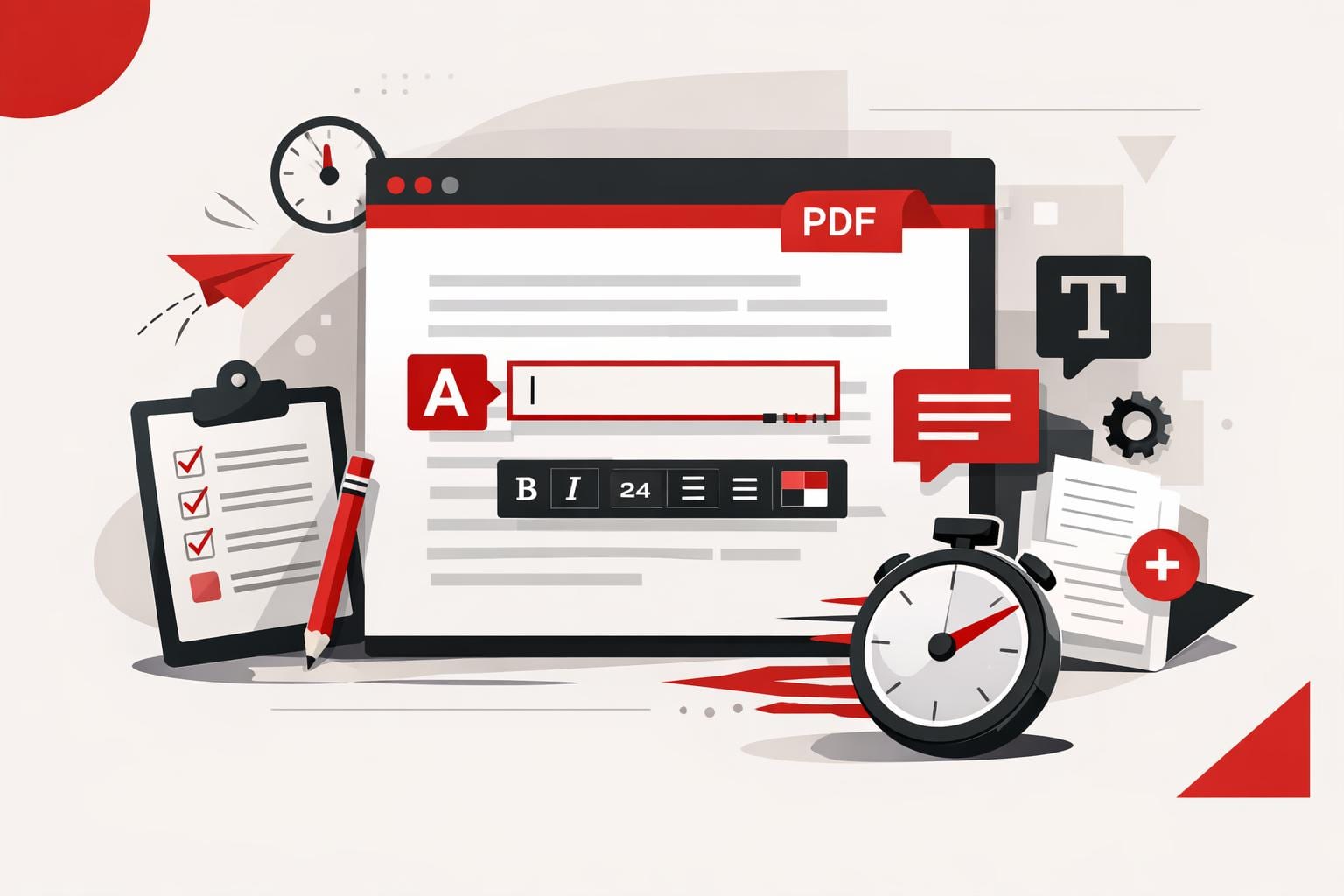
    The process is straightforward because the new text is added as an editable element on the PDF page. The original file stays visually intact, while the added layer can be moved and styled before export.

    • Open the online PDF editor.
    • Select a PDF from the computer, Google Drive, or Dropbox.
    • Choose the text tool in the editing toolbar.
    • Type the new wording into the text box.
    • Drag the box to the exact position on the page.
    • Adjust the font, size, color, alignment, and style.
    • Apply the edit and download the updated PDF, or save it back to cloud storage.

    This approach is especially useful for last-minute work because it avoids the common conversion problem where spacing, fonts, and page breaks shift after a PDF becomes a Word file.

    Formatting and layout controls

    Good PDF editing is not just typing. The added text has to look as if it belongs on the page, especially in forms, reports, certificates, invoices, and client documents.

    The editor provides common formatting controls, including font choice, text size, color, bold, italic, underline, background color, opacity, and left, center, or right alignment. These controls help match the new text to the surrounding document without overcomplicating the task.

    Each added text box behaves like a separate element. That means it can be moved, renamed, removed, duplicated, or reordered in relation to other elements on the page.

    Shortcuts for faster editing

    Keyboard shortcuts reduce repetitive work when several labels or notes must be added. Copy, cut, paste, duplicate, and delete actions are useful when the same text style appears across multiple pages.

    • Ctrl C: copy a selected text element.
    • Ctrl X: cut the selected element.
    • Ctrl V: paste the copied or cut element.
    • Ctrl D: duplicate an existing text element.
    • Delete: remove the selected item.

    A practical workflow model

    The PDF editing market can be understood through a simple three-part model: overlay, convert, and rebuild. Overlay tools add visible elements on top of the file, conversion tools turn the PDF into an editable Office document, and rebuild work recreates the document when layout control matters more than speed.

    • Overlay: best for comments, labels, dates, stamps, and short notes.
    • Convert: best for rewriting text, changing tables, or editing long sections.
    • Rebuild: best for branded templates, legal documents, complex reports, and files with strict design requirements.

    Images can also be added when a document needs visual context, such as a product photo, scanned proof, diagram, or reference image. The company says its editor supports common image formats such as PNG, JPG, and GIF, and its guide to adding an image to a PDF explains the image workflow separately.

    Security and file handling

    Any online PDF workflow involves uploading a document, so file sensitivity matters. A public brochure, school worksheet, or simple invoice is different from a medical record, legal dispute file, tax document, or internal acquisition memo.

    According to the company’s security information, processed files are encrypted and automatically deleted within two hours, with manual deletion also available from the download screen. That policy reduces retention risk, but it does not remove the need for internal judgment.

    For highly confidential files, the safer rule is stricter: use approved company software, a local desktop editor, or a controlled document management system. For everyday PDF touch-ups, a browser editor offers the best mix of speed, simplicity, and adequate layout control.

  • How to Edit PDFs Without Adobe Acrobat

    How to Edit PDFs Without Adobe Acrobat

    Yes, everyday PDF edits can be done without Adobe Acrobat. iLovePDF handles browser-based text updates, signing, compression, conversion, and page management, making it a practical fit when a full Acrobat workflow is more than the job needs.

    Why iLovePDF Fits Everyday PDF Work

    Adobe Acrobat remains a powerful professional suite, but many users only need a narrow set of actions, such as correcting a line, combining files, adding a signature, or reducing file size. For that kind of work, a focused online tool can be faster, cheaper, and easier to learn.

    The iLovePDF editor runs in the browser and gives users common PDF controls without requiring a software installation. The company also offers mobile and desktop options for people who prefer working outside the browser.

    A useful market model is the three-lane split. Full suites handle regulated, complex document operations, task-based web tools solve quick everyday jobs, and local desktop utilities suit files that should not leave a device. iLovePDF sits mainly in the task-based lane, with extra options for heavier workflows.

    What You Can Change in a PDF

    Text, layout, and visual elements

    For simple corrections, iLovePDF can edit existing PDF text and add new text boxes. That is useful for small updates, such as fixing a name, changing a date, or adding a missing note without rebuilding the whole document.

    The editor also supports images, logos, shapes, comments, highlights, and underlines. These tools help when a PDF needs clearer visual structure, light branding, review notes, or emphasis for a presentation.

    Conversion and page control

    PDF work often becomes format work. iLovePDF includes tools to convert PDF files into Word, PowerPoint, Excel, or JPG formats, and the PDF to Word tool also notes OCR support for scanned pages as a premium option.

    For document structure, the broader iLovePDF tool set covers merging, splitting, compressing, rotating, reordering, deleting pages, and converting files back into PDFs. These actions solve the most common document cleanup problems before a file is sent, archived, or uploaded.

    Signatures and compression

    The Sign PDF tool lets users sign a document themselves or request signatures from others. It supports drawn or uploaded signatures, plus fields such as name, initials, date, text, and company stamp.

    Compression is the practical fix for large reports, image-heavy files, and scanned documents that fail upload limits or clog email attachments. The goal is not to redesign the document, but to make the same file easier to send and store.

    How the Three Step Workflow Works

    The workflow is deliberately simple. Open iLovePDF in the browser, choose the needed tool, upload the file, make the change, and download the finished version.

    • Choose the task, such as Edit PDF, Merge PDF, Split PDF, Compress PDF, Convert PDF, or Sign PDF.
    • Upload the document from the device or a supported cloud source.
    • Finish the edit, process the file, then download or save the result.

    Concrete example, a freelancer receives a client proposal with the wrong delivery date, two pages in the wrong order, and no signature block. With iLovePDF, the freelancer can correct the date, reorder the pages, add a signature field, compress the final PDF, and send it back without opening a desktop publishing app.

    Security and Document Handling

    Online PDF tools require a security check because files are uploaded for processing. According to the company’s security page, iLovePDF uses encryption and automatically deletes processed files within two hours.

    The company’s privacy policy also states that uploaded content is deleted within two hours after processing, except for iLoveSign services, where separate retention rules can apply. That exception matters for signed documents, because signature workflows may need longer storage for legal and evidentiary reasons.

    The practical takeaway is simple, ordinary school files, marketing drafts, invoices, and non-sensitive admin documents fit this kind of tool well. Highly confidential legal, medical, government, or internal corporate files may require an approved local or enterprise document system instead.

    When to Use It and When Not To

    Decision rule, use iLovePDF when the job is small, clearly defined, and does not require advanced document governance. If the task is to fix text, add a note, sign a form, compress a file, or rearrange pages, a browser-based tool is usually enough.

    Choose a full professional suite or an approved local workflow when the PDF contains sensitive personal data, strict compliance obligations, complex redaction needs, advanced accessibility remediation, or long document approval chains. In those cases, editing power is only part of the requirement, auditability and policy control matter just as much.

    For most everyday users, the value is speed. iLovePDF turns PDF editing into a set of specific actions rather than a software project, which is exactly what students, freelancers, and small teams often need.

  • How iLovePDF Uses AI to Split PDFs

    How iLovePDF Uses AI to Split PDFs

    iLovePDF’s Smart range mode turns PDF splitting into a content decision instead of a page math exercise, it detects natural document boundaries and outputs separate files that match the intent. It lives inside the Split PDF tool under Range mode as Smart, and it is designed for everything from a single messy scan to high volume team workflows.

    What Smart range mode actually changes

    Classic PDF splitting forces a user to decide breakpoints first, then type ranges, then repeat when one boundary was off by a page. Smart range mode flips that order, the user describes the kind of material and the desired output, then the system scans the pages and proposes logical cut points.

    According to iLovePDF, Smart range mode works by pairing two choices, a document category and a split preset. When neither fits, the tool accepts plain language instructions via a Custom prompt, so the split logic can follow an internal workflow rule instead of a generic template.

    Approach Best for Main risk Typical output
    Custom ranges Known page intervals, stable layouts Human error, constant rework Files cut by page numbers
    Fixed ranges Uniform packets, for example every 2 pages Breaks meaningful sections Evenly sized chunks
    Smart range mode Bundles of many documents inside one PDF Wrong category or vague prompt reduces accuracy Files grouped by content signals

    Decision rule choose Smart range mode when the PDF is really a folder in disguise, meaning repeated headers, IDs, or separators show up across the pages. Choose fixed or manual ranges when the document is truly linear, like a single report that only needs chunking for file size.

    How to use Smart range mode without trial and error

    The workflow is short because the tool is built to remove the most time consuming step, deciding every range. The quickest path is to start with the closest category, then treat the preset as the fine tuning knob.

    • Open Split PDF and upload a file.
    • Select Range, then switch to Smart.
    • Pick the nearest document category, or choose Custom prompt.
    • Select a split preset, or write a one sentence instruction.
    • Run the split and download the organized output.

    If the result looks slightly off, changing the category usually helps more than rewriting the instruction. Preset changes are the next best lever when the category is correct but boundaries are too aggressive or too conservative.

    Document categories and split presets that matter most

    Smart range mode is optimized around recognizable business and institutional paperwork, where repetition is a feature, not a bug. Selecting the right category matters because it nudges the detection toward the signals that actually define a boundary in that document type.

    Supported categories include invoices and billing, contracts and legal, bank statements and financial reports, academic and education files, medical and healthcare records, HR and employee documents, insurance documents, shipping and customs bundles, government and administrative forms, scanned document batches, marketing and creative files, books and general reading, plus Custom prompt.

    Presets vary by category, but they follow a consistent pattern, split by an identity field, split by a time field, or split by a structural marker. Examples that show the range of what the system is designed to recognize include:

    • Invoices split by invoice number, vendor, date or billing period, PO number, tax ID, currency, or one invoice per PDF.
    • Contracts split into separate agreements, by agreement type, party name, effective or end date, annexes and appendices, keywords, or separator pages.
    • Statements split by month, account number, reporting period, bank header, separate summaries from transactions, or separate credit card from bank account sections.
    • Education split by student name or ID, chapter based course packs, individual questions, answer sheets, topic based notes, or scanned homework batches.
    • Healthcare split by patient name or ID, appointment date, lab results, prescriptions, claim number, consent forms, or document type.
    • HR split by employee, separate resumes and cover letters, separate payslips by month, split onboarding forms, separate evaluations, or split by employee ID.
    • Insurance split policies and claims, split by claim number or policy holder, separate schedules from terms, split endorsements, and split renewals.
    • Shipping split bills of lading, packing lists, customs forms, invoices and certificates, delivery notes, split by container, separator pages, or destination country.
    • Government forms split by applicant name or ID, form type, submission date, attachments versus main forms, one citizen per file, or tax forms by year.
    • Scanned batches split on blank pages, keywords on the first page, detected titles, or mixed document types inside one scan job.
    • Marketing split brochures or catalogs into sections, split decks by topic, separate campaigns, segment brand guidelines, and prepare localization packets.
    • Books split by chapter, table of contents, section, lesson sized study units, or shareable smaller parts.

    When Custom prompt is the smartest option

    Presets cover common business splits, but real workflows often use private logic, a stamp, a phrase, or a layout cue that never appears in a template list. Custom prompt is for those cases, it takes a short instruction and uses it as the boundary definition.

    Custom prompts work best when they name a concrete trigger and a concrete result, and they avoid vague language like “split sensibly.” Three examples that illustrate the level of specificity that tends to work are:

    • Split whenever the date in the top right changes, keep each date as its own file.
    • Create one file per appendix, keep the executive summary separate.
    • Split after any page that contains the phrase “Application complete.”

    Why Smart range mode works on messy scans

    Mixed PDFs often include scanned pages, inconsistent formatting, and accidental separators, which is exactly where manual page ranges fall apart. Smart range mode is designed to look for repeated markers that survive scanning, such as headers, IDs, consistent form labels, and separator pages.

    If scanned pages are hard to interpret, running OCR first can improve detection because the file becomes text searchable. The relevant tool is OCR PDF, which creates a selectable text layer on top of the scan.

    A simple way to predict success is the 3S test, Structure, Signals, Scale:

    • Structure repeated layouts increase boundary confidence.
    • Signals strong identifiers like invoice numbers and patient IDs are ideal split anchors.
    • Scale the larger the bundle, the more time Smart range mode saves versus manual ranges.

    Where Smart splitting fits in a real PDF workflow

    Smart splitting is usually the first step, not the last one. After the output becomes many smaller files, teams typically need verification, redaction, archiving, or version checking, and those steps map cleanly to adjacent tools in the same ecosystem.

    • To verify what changed between two drafts, use Compare PDF.
    • To remove sensitive details before sharing, use Redact PDF.
    • To prepare long term storage, convert to PDF to PDF/A.

    Practical example a logistics coordinator receives a 180 page export that combines multiple shipments and customs forms into one PDF. Using Smart range mode with the shipping and customs category, and a shipment based preset, the result becomes a folder of shipment specific files that can be forwarded to brokers without hand sorting.

    Security and compliance notes that should be explicit

    Uploading documents is a risk decision, not just a usability choice, especially for HR and healthcare files. According to iLovePDF, files are protected in transit with end to end encryption and are automatically deleted after a short retention window, and additional details are described in the company’s security materials such as Are my files safe with iLovePDF and the broader compliance documentation like PDF compliance and GDPR.

    For users who want to try the feature directly, Smart range mode is available inside Split PDF under Range mode as Smart, and it can be paired with OCR when scans need a stronger text layer first.

  • Why Businesses Need PDF to Word Conversion

    Why Businesses Need PDF to Word Conversion

    A PDF to Word converter matters because it turns finished, locked documents into files teams can edit, review, reuse, and approve without rebuilding them. For businesses that handle contracts, reports, proposals, policies, or scanned records, conversion reduces document friction at the exact point where work usually slows down.

    The business case for editable documents

    PDFs are built for consistency. A contract, invoice, policy, or board report should look the same on a laptop, phone, or printer, which is why the format is trusted for final documents. The weakness appears when the file needs a correction, a clause update, or a reused paragraph.

    A PDF to Word converter changes that workflow. Instead of copying text into a blank document and repairing broken layouts, the team starts from an editable Word file that already carries over the document structure.

    The clearest decision rule is simple: use PDF for distribution, signatures, archiving, and controlled sharing, use Word when the text still needs review, rewriting, versioning, or collaboration.

    The 11 strongest reasons companies convert PDFs to Word

    Editing becomes immediate

    A small change should not require a full document rebuild. If the legal team needs to adjust a renewal date or sales needs to correct a client name, conversion moves the file back into an environment where text, headings, tables, and comments are easier to manage.

    Batch work removes repetition

    One PDF can be handled manually. Fifty supplier forms, HR templates, or client reports become a productivity problem. Batch conversion is valuable because it turns a repeated clerical task into one controlled process.

    Manual rework gets cut down

    Copying from PDFs often creates broken line endings, missing bullets, strange spacing, and misplaced images. A converter reduces this cleanup work, which saves time and lowers the hidden cost of administrative document handling.

    Formatting survives the move

    Business documents rarely contain only plain text. They include logos, columns, tables, headers, signatures, images, and numbered sections. A useful converter protects that structure closely enough that teams can work from the converted file instead of redesigning it.

    Text becomes reusable

    Old proposals, research summaries, audit notes, and policy documents often contain paragraphs that need to appear in new formats. Conversion makes that content easier to adapt for presentations, email briefs, web pages, and internal templates.

    Scanned files become searchable

    Scanned PDFs are images of text, not normal editable text. OCR, short for optical character recognition, identifies letters in those images and turns them into selectable, searchable content. The company offers a separate OCR PDF tool for this kind of document.

    Microsoft Office workflows stay intact

    Many companies still coordinate document work through Microsoft Word, Excel, and PowerPoint. Converting PDFs to Word keeps files closer to the tools employees already use for comments, tracked changes, templates, spell check, and final formatting.

    Word unlocks stronger revision tools

    Word is not just an editor. It supports change tracking, comments, styles, templates, grammar review, and structured formatting. That matters when a PDF contains content that must pass through legal, finance, marketing, or management review.

    Collaboration becomes less rigid

    PDFs are practical for review, but they are not ideal for heavy drafting. Once a PDF is converted, several people can comment, revise, and compare versions using familiar document controls. That makes approval cycles easier to follow.

    Remote work becomes easier

    Distributed teams need the same document process from the office, at home, and on the move. iLovePDF supports browser-based conversion, a desktop app for Windows and Mac, and a mobile app for iOS and Android.

    Document work becomes measurable

    The productivity gain is not only faster editing. It is fewer handoffs, fewer formatting repairs, fewer duplicate files, and fewer cases where someone recreates a document that already exists.

    Security and access decide the right conversion method

    The best conversion setup depends on the document. A public brochure, internal checklist, or marketing draft can usually be converted online. Sensitive files, such as medical records, financial statements, employment agreements, and legal contracts, require tighter control.

    The practical rule is clear: if the document contains regulated, confidential, or client-sensitive information, choose a workflow that minimizes upload exposure and keeps processing under company control. Desktop tools are useful here because files can be handled locally on the device.

    According to the company, its security approach includes encryption, ISO 27001 alignment, GDPR compliance, and automatic deletion of processed files within two hours for standard platform processing. The details are outlined on the iLovePDF security page.

    A simple market classification helps separate PDF tools from full document platforms:

    • Utility, a single action such as converting one PDF to Word.
    • Workflow, linked actions such as converting, editing, compressing, merging, and signing.
    • Governance, controls for privacy, retention, compliance, access, and auditability.

    Businesses should buy or standardize around the level they actually need. A freelancer may only need utility. A legal or finance department often needs workflow and governance together.

    The bigger workflow after conversion

    PDF to Word conversion is often the first step, not the final one. A team may convert a supplier agreement, revise payment terms in Word, export a clean PDF, merge supporting documents, compress the package, and send it for signature.

    For example, an operations manager receives a scanned vendor contract as a PDF. The manager uses OCR to make the text searchable, converts it to Word, asks legal to track changes, exports the approved version back to PDF, then sends it through Sign PDF instead of printing, signing, scanning, and emailing copies.

    This is where the converter becomes part of a broader document system. Tools for merging, splitting, compressing, protecting, editing, and signing remove small manual steps that otherwise multiply across departments.

    The core value is practical rather than flashy. A PDF to Word converter helps teams edit faster, reuse content safely, reduce formatting repair, and keep approval work moving. For any company that handles PDFs every week, editable conversion is not a convenience feature, it is basic document infrastructure.

  • Make a PDF Fast Without Losing Layout

    Make a PDF Fast Without Losing Layout

    Making a PDF usually comes down to three options, convert a file you already have, build a new document from a template or blank page, or automate PDF generation for repeat work. The fastest path for most people is conversion, because it preserves layout without rebuilding the document. Automation only pays off when PDFs are produced at scale, as part of a system.

    Convert a file that already exists

    If the content is already written or designed, conversion is the cleanest way to get a PDF that looks the same on every device. This is the go to move for one off needs like a resume, a school submission, a contract, or a slide deck that should not reflow when opened.

    Common starting points include Word, Excel, PowerPoint, and images such as JPG or PNG. On iLovePDF, dedicated converters exist for common inputs, including Word to PDF, PowerPoint to PDF, Excel to PDF, and JPG to PDF.

    Most online converters follow the same basic flow, upload the file, optionally pull it from cloud storage such as Google Drive or Dropbox, then download the PDF. The key advantage is speed, the key risk is that the file is processed on someone else’s servers.

    Create a PDF from templates or a blank page

    When there is no source file, the problem flips from conversion to composition. The iLovePDF mobile app supports creating PDFs from scratch, either with templates for common formats, or with a blank page when the layout is custom.

    Templates work best when the document has a familiar shape. Typical examples include invoices, receipts, business reports, meeting notes, certificates, and forms.

    A blank page is the better pick when structure is unknown upfront, or when the output is intentionally simple, such as a one page handout or an internal draft. For details on the mobile option, start at iLovePDF Mobile.

    Automate PDF creation with an API

    APIs matter when PDFs are not occasional files, but a repeating operation. If a business system creates invoices, statements, onboarding packs, or recurring reports, manual upload and download becomes pure friction.

    With the company’s REST offering, developers can generate and process PDFs directly inside applications, which reduces copy paste steps and makes output more consistent across teams. iLovePDF points developers to iLoveAPI for automation focused workflows.

    For most individual users, this is unnecessary overhead. If PDFs are created a few times a month, a converter or a template based tool is usually faster than wiring up an integration.

    Choose the right method in 30 seconds

    Think of PDF creation as three modes, Click for conversion, Craft for creating from scratch, and Code for automation. The best choice depends on two variables, whether the content already exists, and how often the task repeats.

    Decision rule If the content already exists, convert it. If the content does not exist, create it from a template or blank page. If the same PDF is produced repeatedly as part of an operational process, automate it with an API.

    Approach Best for What you start with Typical tradeoff Where to begin
    Convert One off PDFs in minutes DOCX, XLSX, PPTX, JPG Fast, but requires uploading a file iLovePDF tools list
    Template or blank page New documents with a clean layout Nothing, just an idea and structure More editing time, more control Mobile app options
    API automation Recurring, system driven PDFs Data in an app or back office system Setup effort, then low per document cost iLoveAPI for developers

    Practical example that covers all three

    A job candidate exports a resume from Word and converts it to PDF to lock formatting before emailing it. A freelancer creates a branded invoice from a template on a phone when working away from a laptop. A subscription business that emails hundreds of invoices per day generates PDFs automatically, so the invoice never becomes a manual task again.

    Quick answers to common questions

    • Can a PDF be created for free? Many tools offer free conversion for common formats, especially for Word and image to PDF tasks.
    • What is the easiest option? Conversion is usually the fastest because it starts from an existing file.
    • Can images become a PDF? Yes, tools such as JPG to PDF turn image files into a printable, shareable PDF.
    • Is special software required? Not necessarily, web tools can create PDFs without installing a desktop editor.
    • Can businesses automate PDF output? Yes, an API can generate PDFs as part of a repeat process, rather than relying on manual uploads.

    Security and retention basics before uploading

    When a PDF tool runs in the cloud, the file leaves the device, even if only temporarily. According to iLovePDF, files are protected with end to end encryption and uploads are automatically deleted after two hours, the company also states that its servers operate under European legislation. Those claims are summarized in its ISO security post, Why iLovePDF is ISO/IEC 27001 certified, and the two hour deletion window is also described in the company’s Terms and Conditions.

    For sensitive documents, treat conversion like any other vendor decision. If policy requires local handling only, use an offline workflow, or limit uploads to files that are already intended for broad sharing.

  • Save Excel as PDF Without Layout Surprises

    Save Excel as PDF Without Layout Surprises

    To save an Excel spreadsheet as a PDF, use Excel’s built in Save As or Export option for the cleanest, most predictable output. When the job involves many files, or a single combined PDF, a batch converter and merger like the tools on iLovePDF can cut the clicks dramatically.

    Choose the PDF route that fits the outcome

    A PDF export is not just a file format choice, it is a distribution strategy. Excel’s native PDF output is usually the best option when accuracy matters, because it stays close to Excel’s print engine and preserves layout decisions like scaling and margins.

    Decision rule: if the work involves more than three spreadsheets, or it must end as one combined PDF, stop doing one file at a time and switch to a batch workflow first, then merge.

    A simple way to decide quickly is the 3F model.

    • Fidelity, prioritize consistent page layout, stick with Excel’s own PDF export.
    • Friction, prioritize fewer steps across many files, use batch conversion.
    • Fortification, prioritize controlled access, add PDF password protection after export.
    Approach Best for What to watch Typical steps
    Excel Save As or Export One workbook, maximum control Page setup drives the result, internal workbook links may not carry over File, Save As or Export, choose PDF
    macOS Export to PDF Mac users sharing a fixed version Orientation and scaling still depend on print settings File, Save As or Export, choose PDF
    Batch conversion with iLovePDF Many files, repeatable workflow Uploads can be a policy issue for confidential work Upload multiple spreadsheets, convert, download PDFs
    Google Sheets download Cloud based spreadsheets Download permissions and browser behavior can block exporting File, Download, choose PDF

    Save Excel as PDF on Windows

    On Windows, Excel can publish a PDF directly from the workbook. Microsoft documents both the Save As route and the Export route, depending on the Excel version and UI, in its support guide: Save or convert to PDF in Office desktop apps.

    Quick steps that usually work

    • Open the workbook and confirm the correct sheet is active.
    • Go to File, then Save As, or File, then Export, depending on the Excel interface.
    • Select PDF as the output type, then save.

    Layout checks that prevent ugly PDFs

    • Verify the print area, otherwise Excel may include empty columns or cut off tables.
    • Check scaling, a wide sheet often needs “fit to one page wide” behavior to avoid microscopic text.
    • Scan the PDF for page breaks that split tables mid row, then adjust page breaks before exporting again.

    Save Excel as PDF on macOS

    On macOS, Excel also supports exporting to PDF from the file menu, with naming and format selection similar to Windows. The practical difference is that Mac workflows often involve the system print dialog too, so it helps to confirm orientation and page size before the final export.

    • Open the workbook, then go to File.
    • Choose Save As or Export, then pick PDF as the format.
    • Save, then open the PDF once to confirm margins and scaling look right.

    Convert multiple Excel files in one batch

    When reporting is repetitive, batch conversion matters more than raw conversion quality. The Excel to PDF tool from iLovePDF supports uploading more than one spreadsheet, converting them in one run, then downloading the resulting PDFs: Excel to PDF.

    A practical example that mirrors real work

    A finance team closes the month with 12 regional workbooks. The deliverable is a single PDF pack for leadership, in a fixed order, with a password before emailing. A fast workflow is convert all 12 spreadsheets to PDFs in one batch, merge into one file, then apply a password.

    Batch workflow in plain steps

    • Open the converter and upload the first spreadsheet, then add the rest before starting the conversion.
    • Convert, then download the PDFs.
    • If a sheet looks wrong, fix print settings in Excel and reconvert only that file.

    Save Google Sheets as PDF

    Google Sheets does not require manual saving, but it does require a download step to create a real PDF file. Google’s help page covers downloading a copy from the File menu, including Sheets, under “File” then “Download”: Create, view, or download a file.

    • Open the spreadsheet in Google Sheets.
    • Click File, then Download.
    • Select PDF, then export.

    If the PDF option is missing or blocked, the most common cause is permission settings in a managed Google Workspace environment. In that case, exporting is not a formatting problem, it is an admin policy problem.

    Merge multiple PDFs into one file

    Once each spreadsheet is in PDF form, merging is a document assembly task. iLovePDF provides a dedicated merger at Merge PDF, and it supports rearranging the order before the final merge.

    When a merger saves more than time

    Merging is not just convenience, it eliminates version drift. One combined file means one filename, one attachment, and fewer chances that an outdated region report gets forwarded by mistake.

    For page level cleanup after merging, the company also offers a page organizer tool: Organize PDF.

    Protect confidential PDFs without breaking workflows

    Spreadsheets often contain pricing, payroll, forecasts, or customer lists. After creating the PDF, password protection can limit casual access when the file travels through email or chat. iLovePDF’s password tool is available at Protect PDF.

    A compact confidentiality checklist

    • Export the PDF first, then apply protection, so layout issues are solved before security steps begin.
    • Use a strong password and store it in an approved password manager, not in the email thread.
    • Assume online tools involve uploading files, if policy forbids that, use an offline workflow instead.

    For readers who need to evaluate vendor posture, iLovePDF publishes its security overview here: Security and data protection. For offline processing options from the same vendor, see iLovePDF Desktop and iLovePDF Mobile.

  • Summarize PDFs Faster With iLovePDF AI Tool

    Summarize PDFs Faster With iLovePDF AI Tool

    iLovePDF’s AI Summarizer turns long PDFs into a short, readable brief in minutes, with controls for summary length and processing depth. It is built for the real situation where reading every page is possible, but rarely the best use of time.

    Why AI summaries beat page by page scanning

    Most PDFs are formatted for publishing, not for fast decision making. The signal is buried under page headers, repeated definitions, boilerplate language, and tables that matter only once a reader knows what to look for.

    AI summarization changes the order of work. Instead of reading from page one and hoping the key point appears early, a summary provides an immediate map, then the original PDF becomes the place to verify details.

    This is most valuable when time pressure is real, for example minutes before a meeting, a stack of vendor proposals, a contract review that must be triaged, or study material that needs structure before memorization.

    How to summarize a PDF with iLovePDF

    The workflow is intentionally lightweight, no setup and no document formatting required.

    • Open the tool and go to AI Summarizer.
    • Upload the PDF from a device, or from supported cloud sources inside the tool.
    • Choose length, short, medium, or long.
    • Select processing mode, Standard AI for speed, Advanced AI for more depth.
    • Reuse the output by copying the text or downloading it for sharing or notes.

    If the PDF is an image scan and the text is not selectable, running OCR first typically improves what any summarizer can extract, because the model can work from clean text instead of guessing characters from pixels.

    Choosing length and AI mode without overthinking

    Two controls matter most, how long the summary is, and how hard the system works to preserve nuance. The right choice depends on what the summary will be used for, not on how many pages the PDF has.

    Length Best when the goal is What to expect
    Short Triage and quick orientation Main theme, biggest conclusions, minimal context
    Medium Meeting prep and informed discussion Key points with enough explanation to sound credible
    Long Study, analysis, and decision support More structure, more supporting detail, fewer gaps to verify
    Mode When it fits Tradeoff
    Standard AI Everyday documents that need a fast overview Prioritizes speed, may compress nuance aggressively
    Advanced AI Technical, dense, or high stakes PDFs Tends to take longer, aims for better coverage and subtlety

    Decision rule If the summary will influence a real decision, pick Long plus Advanced AI, then spot check the original PDF for any numbers, deadlines, and exceptions. If the summary is only for sorting a pile of documents, Short plus Standard AI usually wins.

    A practical detail that surprises people, the summary is generated in the language selected for the iLovePDF site, which matters for multilingual teams or when a browser is set to a different locale.

    What makes an AI summary actually useful

    A good summary is not merely shorter. It should preserve meaning, remove repetition, and surface what the reader would highlight after a careful pass.

    A simple way to judge quality is a three part model that matches how summaries fail in the real world:

    • Speed, how quickly the summary lets someone understand what the PDF is about.
    • Fidelity, whether key facts survive, especially quantities, timelines, and obligations.
    • Risk, whether omissions would cause a bad decision, common with contracts and compliance documents.

    Concrete example: a 42 page vendor security questionnaire arrives two hours before procurement review. A long summary can surface where the vendor stores data, what certifications are claimed, and which items are marked “planned”. The decision can then focus on the few pages that need validation, rather than rereading the entire document.

    For scanned PDFs, fidelity often improves after OCR, because the summary is grounded in extracted text. For content that must be edited, converting to an editable format can also help, for example PDF to Word for rewriting sections after review.

    How summarization fits into a complete PDF workflow

    Summarization is usually step one, not the finish line. The fastest workflows combine a summary with a few predictable follow up actions inside the same toolkit.

    • Share faster by shrinking large files with Compress PDF.
    • Make scans readable before summarizing with OCR PDF.
    • Archive properly with PDF to PDF/A, a standard built for long term preservation.
    • Reduce casual exposure by adding access control with Protect PDF.

    For teams that prefer local processing for privacy or offline work, the company also offers iLovePDF Desktop, which is positioned as an option for running common tasks on a computer rather than in a browser.

    Security expectations should be explicit, especially for contracts, HR documents, and financial records. The company describes its handling of encryption and file retention in its Security and Data Protection documentation, including automatic deletion timelines for processed files.

    Common questions

    Can any PDF be summarized?

    Most text based PDFs work well. When a PDF is primarily an image scan, results depend on how readable the text is, and running OCR first can improve extraction.

    Is the output locked into the tool?

    No. The summarizer output can be copied for notes, or downloaded for reuse in documents, study guides, or internal briefs.

    What is the fastest way to get better summaries?

    Pick the length based on how the summary will be used, then move up one step when stakes rise, for example from Short to Medium, or from Standard AI to Advanced AI. For any summary that includes numbers or obligations, verify those items in the source PDF.

    For many workflows, the best result is not replacing reading, it is replacing unstructured reading. A strong summary makes the first pass faster, and makes the second pass more targeted.

  • Convert PDF Files to Word Without Retyping

    Convert PDF Files to Word Without Retyping

    To convert a PDF into an editable Word document, upload it to a converter, choose standard conversion for selectable text or OCR for scanned pages, then download the DOCX and edit it in Word. iLovePDF provides this workflow in the browser, plus desktop and mobile apps when a web tab is not the best place to process documents.

    Why PDFs resist edits in the first place

    PDF is designed to display consistently, not to behave like a living document. A typical PDF page is closer to a finished layout than a Word file, text can be positioned as individual blocks, and lines can be split in ways that make perfect visual sense while being awkward to edit.

    A PDF to Word converter rebuilds that layout into paragraphs, tables, and images that Word understands. The goal is practical editing, not pixel perfect reconstruction, so complex pages with columns, footnotes, and mixed fonts require a better conversion engine and cleaner input.

    How to tell when OCR is necessary

    The fastest way to pick the right conversion mode is to test the PDF, not to guess. Open the file in any PDF viewer and try to highlight a sentence.

    • Decision rule If text highlights cleanly, use standard conversion, if the page behaves like a single image, use OCR.

    OCR, short for Optical Character Recognition, turns text inside images into machine readable characters, so the result can be searched and edited. A plain language overview is available at Optical character recognition.

    iLovePDF surfaces this choice directly inside its PDF to WORD tool, offering a non OCR option for selectable text and an OCR option marked as Premium for scanned pages, and the page notes that the converter is powered by Solid Documents.

    Conversion route Best fit Scanned pages Internet required Typical plan
    Web standard Digital PDFs with selectable text No Yes Often available on free tiers with limits
    Web with OCR Scans, photos, non selectable text Yes Yes Usually a paid feature
    Desktop app Large files, restricted networks, privacy focused workflows Depends on feature access No for offline processing Free reader, paid tools optional
    Mobile app Quick conversions, signing, and document chores on a phone Depends on feature access Often yes App plus subscription options

    A simple mental model helps keep choices consistent across tools. Use the SFP checklist, source type, formatting sensitivity, and privacy needs, then pick the route that optimizes the constraint that matters most.

    A quick web conversion that keeps structure

    For most people, browser conversion is the shortest path from locked PDF to editable DOCX. The iLovePDF flow is built around one action, upload, convert, download, with optional cloud imports.

    Standard conversion for selectable text

    • Open the PDF to WORD tool.
    • Upload a file, drag and drop works, and the tool also supports importing from Google Drive and Dropbox.
    • Leave the mode set to non OCR conversion.
    • Run the conversion and download the resulting Word file.

    OCR conversion for scanned PDFs

    • Upload the PDF as usual.
    • Switch the conversion mode to OCR if the tool flags scanned pages.
    • Convert, then open the DOCX in Word and proofread key fields like names, dates, and amounts.

    The practical payoff is not just editability. A good converter also preserves enough of the original layout to avoid rebuilding headings, spacing, and inline images by hand.

    How to get readable results from scans

    OCR is only as good as the pixels it receives. If the scan is fuzzy, skewed, or covered with handwriting, the converter must guess, and guesses show up as misspellings, broken words, and strange spacing.

    • Keep scans sharp High contrast pages with straight lines produce cleaner text.
    • Reduce visual noise Stamps, scribbles, and heavy highlights can be mistaken for characters.
    • Set the right languages iLovePDF’s OCR PDF tool notes that selecting the document language improves detection accuracy.

    Concrete example A property manager receives a scanned lease agreement that needs a corrected tenant name and an updated address. Running OCR conversion first turns the scan into editable text, then Word can be used to update the fields and send an updated DOCX to legal for review instead of retyping the entire contract.

    When desktop and mobile beat the browser

    Browser tools are convenient, but they are not always the best fit for heavy, repetitive, or connectivity constrained work. That is where installed apps matter.

    The iLovePDF Desktop app is positioned for offline processing and local handling of files, which helps when internet access is unreliable or when documents are too large to comfortably manage in a single web session. It also centralizes bulk style work, like running the same operation across many files.

    The iLovePDF Mobile app targets the opposite scenario, quick turnaround on a phone or tablet. It bundles common document tasks, including conversions and signing, for people who need to move paperwork forward away from a computer.

    Limits, plans, and what happens to files

    Most online converters separate light use from high volume use. iLovePDF’s pricing page describes a free Basic tier with limited processing, and paid plans that expand access across web, mobile, and desktop, plus higher capacity and Premium only features such as OCR where indicated by the tool.

    File safety is the other half of the decision, especially for contracts, HR documents, and financial records. According to iLovePDF’s Security and Data Protection documentation, files are encrypted during processing, and processed files are automatically deleted within two hours, with additional controls such as manual deletion and optional account protections like two factor authentication.

    For sensitive work, the safest habit is procedural. Convert only what needs editing, remove personal identifiers when possible, and prefer offline processing routes when policy requires keeping documents on a local machine.

    Fast answers to common conversion questions

    • Why convert to Word at all Word is built for editing, PDFs are built for stable sharing, conversion bridges that gap for resumes, reports, and forms.
    • Will the layout match perfectly Simple PDFs convert cleanly, dense layouts may need light touch up in Word, especially around columns and tables.
    • Can scanned PDFs become editable Yes, but only with OCR, which turns the scan into text, then the result should be proofread.
    • How to convert multiple files faster Look for bulk or batch workflows in paid plans, and use the desktop app when many documents must be processed consistently.
    • Can the same tool work on a phone Yes, iLovePDF offers a mobile app for iOS and Android.
    • How to keep accuracy high Use the decision rule, choose OCR only for scans, and set the correct language when OCR is involved.
  • Convert PDFs Cleanly Across Devices

    Convert PDFs Cleanly Across Devices

    Reliable PDF conversion comes down to one choice, whether the PDF is a final deliverable meant to look identical everywhere, or a source file that needs editing. iLovePDF groups web, mobile, and desktop tools to convert between PDF, Office files, images, web pages, and archival PDF/A, with OCR available when the file is a scan.

    Start by deciding what the PDF should become

    PDF is designed for visual consistency, not day to day editing. That is why conversions work best when the next step is clear, either distribute a document that must keep its layout, or move content back into an editable format like Word, Excel, or PowerPoint.

    Decision rule If the file will be edited again this week, convert out of PDF, if it will be reviewed, signed, uploaded, or archived, convert into PDF and keep it there.

    • Fidelity Keep the page looking identical, prioritize PDF, PDF/A, and image exports.
    • Flexibility Make text and tables editable, prioritize Word, Excel, PowerPoint, and OCR for scans.
    • Future proofing Preserve documents for years, prioritize PDF/A with the required conformance level.

    Most converters on iLovePDF follow the same rhythm, open the tool, upload from local storage or connected cloud drives, pick the relevant options, convert, then download the result. The main difference is the one setting that decides quality, such as OCR on scanned PDFs, or page size and margins for image to PDF.

    What needs to happen next Best fit tool Setting that matters most What it optimizes for
    Send a document that must look the same everywhere Word to PDF, Excel to PDF, PowerPoint to PDF Batch selection and final review Layout stability across devices
    Edit text that arrived as a PDF PDF to Word OCR on scans Editable paragraphs with fewer retypes
    Reuse a PDF as a slide deck PDF to PowerPoint Slide structure check Fast draft presentations from existing pages
    Analyze numbers locked in a report PDF to Excel OCR if tables are images Structured data that can be filtered and charted
    Post or reuse pages as images PDF to JPG Page export versus image extraction Shareable visuals and asset reuse
    Meet archiving or compliance requirements PDF to PDF/A PDF/A conformance level Long term readability and preservation

    Turn images into PDFs and PDFs into images

    Image conversions are ideal when the raw material is visual, scans, photos, screenshots, or hand marked pages. Converting images into a PDF also makes it easier to store a set of files as one document, and to annotate, search, and share in a consistent container.

    Convert images to a single PDF

    The JPG to PDF tool also accepts common image formats, including PNG, TIFF, SVG, BMP, HEIC, RAW, and WEBP. After upload, set page orientation, choose page size, and decide whether margins should frame the image or let it fill the page.

    Convert a PDF into JPG files

    Use PDF to JPG when a PDF needs to become shareable visuals, such as a quick carousel draft, a handout turned into slide images, or a set of pages for design markup. The key fork is whether every page becomes a JPG, or only embedded images should be extracted as separate files.

    Move between PDF and Office without chaos

    Office conversions are where quality expectations are highest, because people want to edit without rebuilding the document. The practical goal is not perfect magic, it is preserving enough structure that edits start immediately, not after an hour of cleanup.

    PDF to Word for real edits

    PDF to Word is the default path when the PDF contains paragraphs, headings, and placed images that need revisions. For scanned documents, OCR turns an image of text into selectable text, a short explanation is available in iLovePDF’s What is OCR guide.

    Word to PDF for locked down sharing

    Word to PDF is best when the document has to open reliably for someone who may not have the same version of Word. It also supports multiple Word formats, including DOC, DOCX, ODT, STW, SDW, and SXW.

    PDF to PowerPoint and back

    PDF to PowerPoint turns pages into an editable slide structure, useful for reusing reports and handouts in presentations. When the deck is ready for distribution, PowerPoint to PDF keeps fonts and layout stable for classmates, colleagues, and clients.

    PDF to Excel for analysis

    PDF to Excel is the fastest way to stop manually recreating tables. If the document is a scan, OCR helps reconstruct text and tables so the result behaves like a spreadsheet, not a pasted image.

    Practical example When a proposal arrives as a PDF but needs edits, convert it with PDF to Word, revise in Word, convert back using Word to PDF, then combine the final proposal with supporting documents using Merge PDF.

    Capture web pages and archive to PDF A

    Two conversions focus on time, not convenience. One freezes the web page as evidence or reading material, the other makes a document safer for long term storage.

    HTML to PDF for web capture

    HTML to PDF creates a PDF snapshot of a web page that may change, disappear, or load differently on other devices. Formatting controls typically include screen size, page size, orientation, margins, and ad blocking, and a preview helps catch layout issues before export.

    PDF to PDF/A for long term preservation

    PDF to PDF/A converts a standard PDF into an ISO standardized archival variant. The essential choice is the conformance level requested by a policy, client, or agency, because different levels enforce different rules around fonts, metadata, tagging, and embedded content.

    For a deeper explanation of the PDF/A variants, iLovePDF also publishes Meet the PDF/A family.

    Choose web mobile or desktop for the same job

    iLovePDF runs conversions in three places, the browser, the mobile app, and a desktop app. The best option depends on speed needs, whether work happens on the move, and how sensitive the document is.

    Web tools for quick one off conversions

    The web interface is the fastest start for most conversions, especially when files are already in cloud storage. Common tasks like Compress PDF, Organize PDF, and Edit PDF fit naturally after a conversion.

    Mobile for scanning and on the move fixes

    The iLovePDF Mobile app is built for iOS and Android workflows, such as turning a photo into a PDF, converting a file before an upload deadline, or signing a document away from a laptop. The iOS listing is available on the App Store.

    Desktop for offline work and local processing

    iLovePDF Desktop targets heavier tasks and offline workflows. According to iLovePDF, desktop processing can keep files on the computer rather than relying on a browser session, which can matter for privacy constrained environments.

    For web processing, iLovePDF describes its file handling and retention approach on its Security and data protection page.

    A quick checklist before sending the file

    Conversions succeed when the output matches the next action, not when the file simply opens. A short review prevents the most common errors, especially in PDFs converted back into editable Office formats.

    • Text test Confirm text is selectable, if not, rerun using OCR where available.
    • Table test In Excel exports, verify columns did not shift, and totals still align.
    • Page test Check orientation, margins, and page order, then fix with Organize PDF if needed.
    • Size test If upload limits are tight, use Compress PDF and recheck legibility.
    • Trust test If the PDF is the final deliverable, consider locking the workflow with a password via Protect PDF or collecting signatures via Sign PDF.

    With the direction decided and the right single setting selected, most PDF conversions become repeatable, predictable, and fast.